Configuring and Setting Up the Wireless RS485 Modbus RTU Transmitter

Introduction

In the landscape of Industrial Internet of Things (IIoT), Modbus RTU over RS485 remains the reliable backbone for millions of sensors, meters, and controllers worldwide. However, as facilities scale and modernize, the physical limitations of legacy wired networks become a significant bottleneck. Running new communication cables across a sprawling factory floor, trenching lines in agricultural fields, or bridging data through heavy machinery and concrete walls is not only labor-intensive—it is often prohibitively expensive. Furthermore, integrating these legacy devices into modern, cloud-based architectures typically requires complex PLC programming and constant polling from central gateways.

The NCD Industrial Wireless RS485 Modbus Transmitter (PR55-88F) is engineered to solve these exact challenges. By seamlessly converting any standard RS485 Modbus device into an autonomous wireless node, this transmitter eliminates the need for cumbersome cable runs and complex network micromanagement.

Instead of relying on a central gateway to constantly request data, the PR55-88F operates as the “Master” of its own RS485 loop. It bridges the gap between legacy hardware and modern wireless networks by operating autonomously on a user-defined schedule.

Key advantages that streamline industrial integration:

  • Elimination of Cable Infrastructure: Operates on a robust 900MHz frequency, providing up to a 2-mile line-of-sight range. The signal penetrates trees, foliage, and industrial buildings, enhanced by integrated Mesh networking for extended reliability.
  • Autonomous Operational Cycle: Once configured with the target Baud Rate, Slave ID, and desired Registers via Node-RED, the device wakes up, queries the sensor (Function Codes 03 or 04), transmits the data packet, and returns to sleep—requiring no further commands from the network gateway.
  • Simplified Data Architecture: By packaging complex Modbus RTU responses into standard NCD wireless packets, the PR55-88F effectively makes any complex third-party Modbus device behave like a simple, plug-and-play NCD sensor.
  • Broad Compatibility: Powered by an external 5V to 24VDC supply, it integrates flawlessly into virtually any industrial environment that supports RS485 communications.

Overview

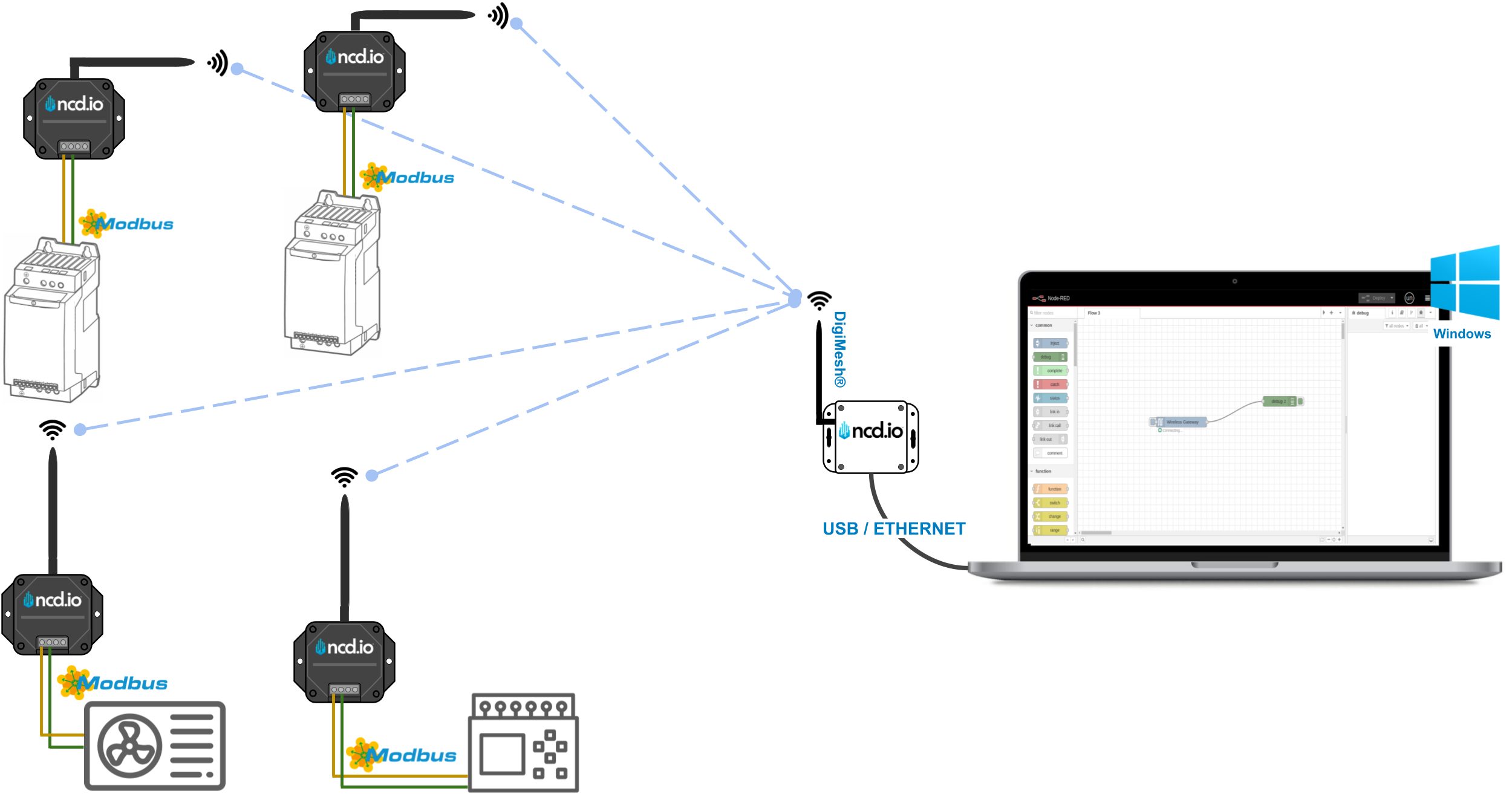
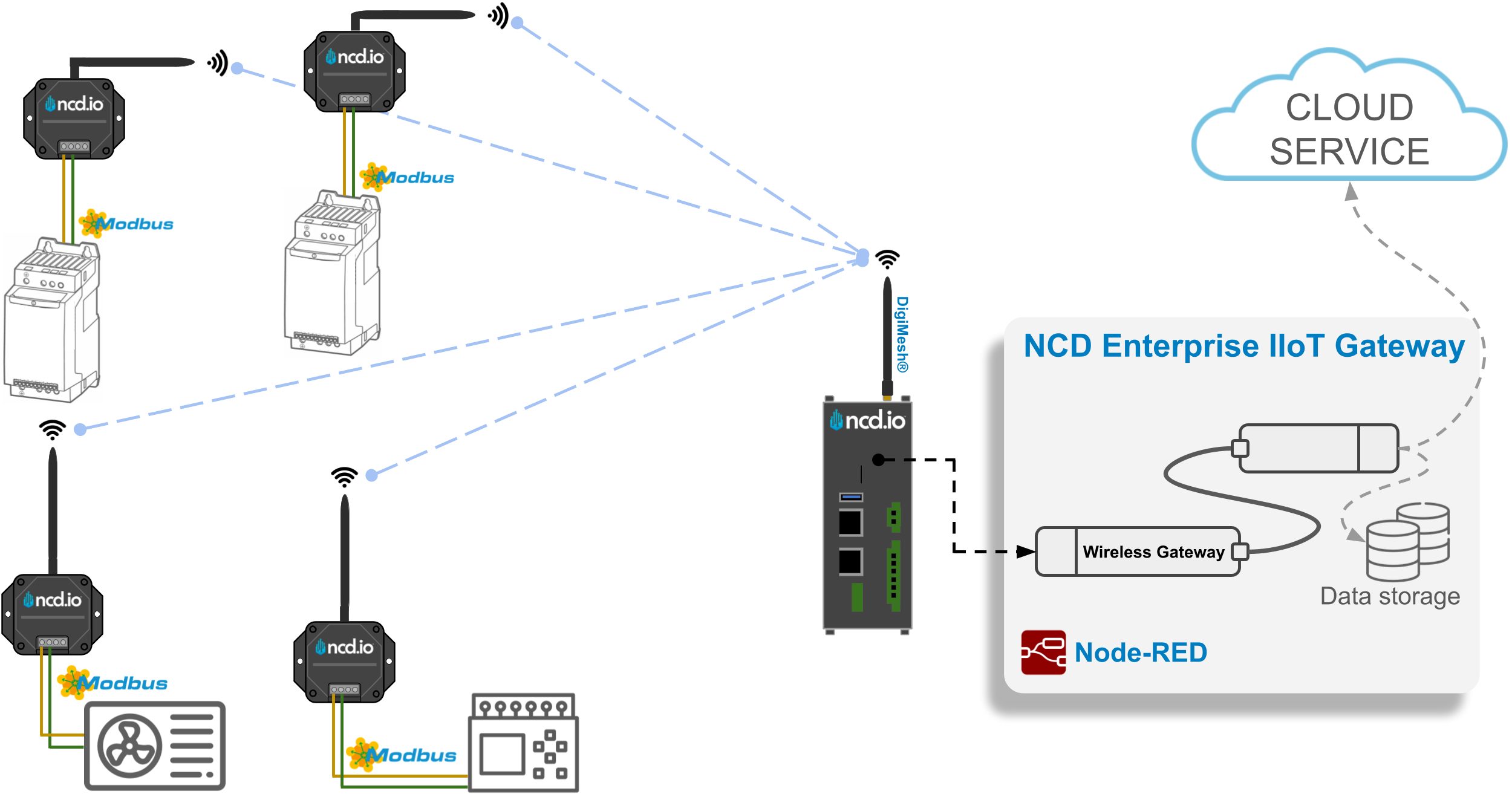
The following image provides a visual representation of this article. The NCD Industrial Wireless RS485 Modbus Transmitter collects data of interest from field Modbus-RTU devices and subsequently transmits the signal via Digi-Mesh to the Enterprise IIoT Gateway or Industrial IoT Wireless Modem. This data can then be processed by Node-RED and forwarded to various cloud services such as AWS IoT, Ubidots, Blynk Io, or to other industrial protocols like MQTT and OPC-UA. Additionally, the data can be sent to a database, either a local CSV file or a cloud-based storage solution.

NCD Modbus RTU Overview

Requirements

1. The NCD Industrial Wireless RS485 Modbus Transmitter.
2. The Enterprise IIoT Gateway or Industrial IoT Wireless modem (Ethernet/USB).

To acquire Modbus RTU data and configure your NCD Industrial Wireless RS485 Modbus Transmitter, you will require an NCD Gateway or Modem. You can find these devices and additional information at the links provided below:

NCD Gateway

All Enterprise Gateway come with the “@ncd-io/node-red-enterprise-sensors” library by default to allow quick and easy access to Node-Red and the sensor data from our sensors.

Here you can find a complete Getting Started guide for setting up and accessing Node-RED from the Enterprise IIoT Gateway:

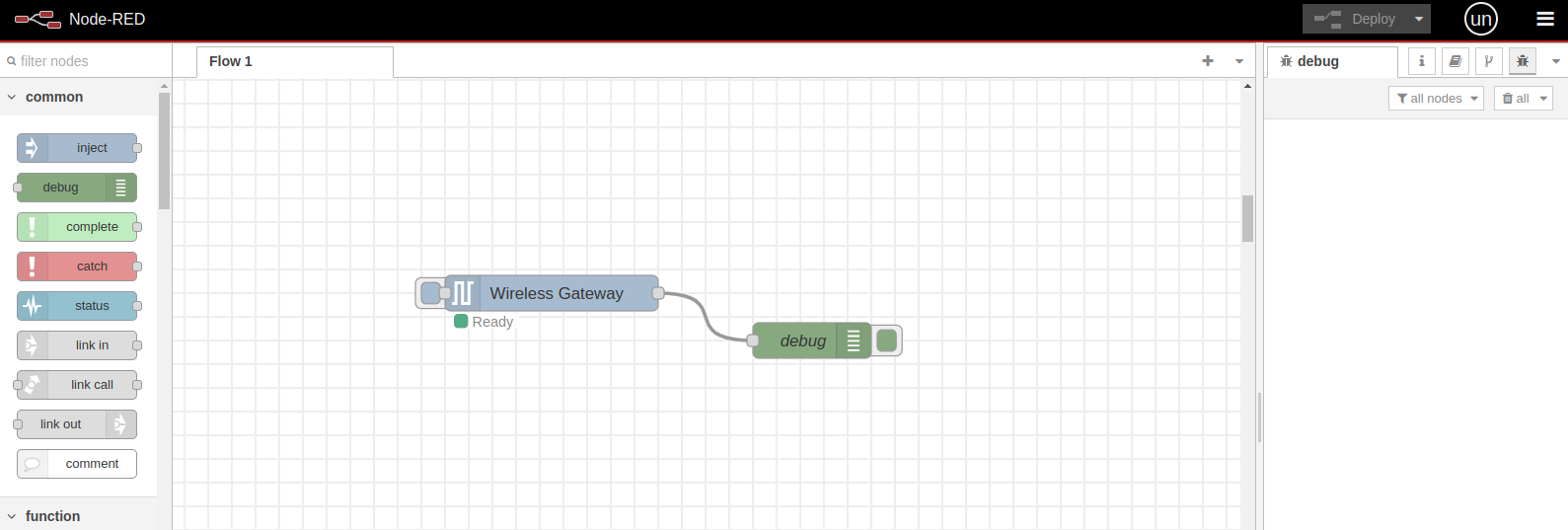
When you accessing Node-RED in the Enterprise IIoT Gateway, the first thing you will see is a basic flow containing two nodes: the “Wireless Gateway” node and the “Debug” node.

This is a preconfigured flow, meaning it is ready to receive data from the NCD sensors. When a new NCD sensor connects to the wireless network and sends data, the “Wireless Gateway” node automatically receives and processes the message. It then sends the message through its output terminal, and the message flows through the connection cable to the “Debug” node. This node receives the message and displays it in JSON format inside the “Debug” window on the right side of the Node-RED editor.

Enterprise IIoT Gateway Basic Flow
Click to Expand

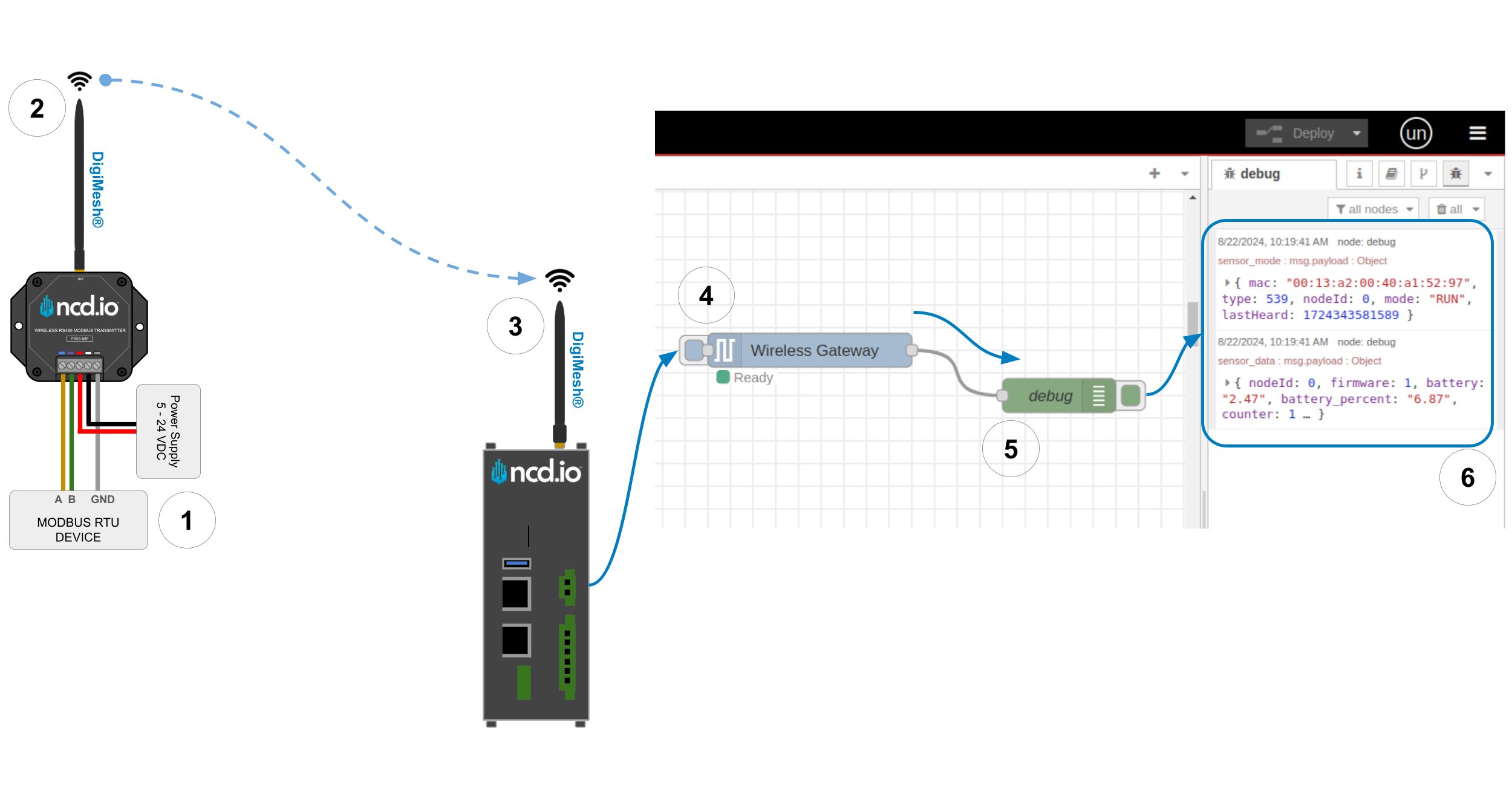
This is a visual representation of the communication process and data flow for display within Node-RED, illustrating the interaction between the NCD sensor and the Enterprise IIoT Gateway.

NCD Modbus RTU Node-RED Flow Example
Click to Expand
  1. At the specified intervals, the device will automatically wake up and read the designated Modbus-RTU registers.
  2. The read values will be compiled into a single response and transmitted wirelessly.
  3. The Enterprise IIoT Gateway will receive the sensor data.
  4. Within Node-RED, the Wireless Gateway node will receive, identify, and parse the sensor data. The parsed sensor message will be available in the output terminal node.
  5. The debug node will receive the parsed sensor data and display it in the debug window.

NCD Modem

 If you are using your own Gateway or Computer you will need a USB or Ethernet Modem, Install Node-Red, and Install the @ncd-io/node-red-enterprise-sensors library manually. The NCD USB Modem connects to the USB port or of your PC, The NCD Ethernet Modem connects to your local area network and receives sensor data from NCD sensors. Use the NCD Modem for configuration of NCD long range wireless sensors.

To perform the installation process of Node-RED on Windows operating system, you can follow the steps in these articles:

An overview of the Industrial IoT Wireless Modem architecture is provided in the following image:

NCD Modbus RTU Node-RED Flow Example Modem
Click to Expand

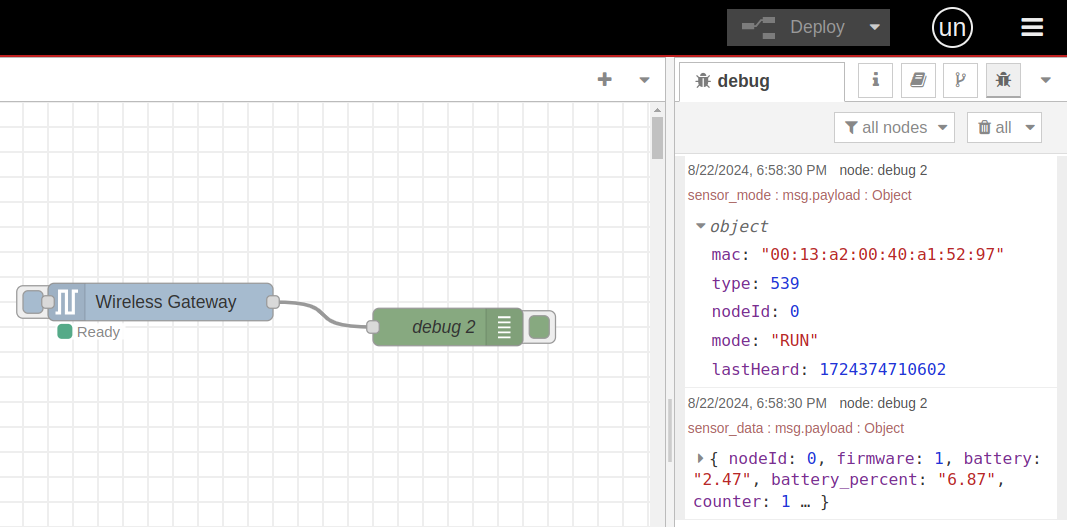
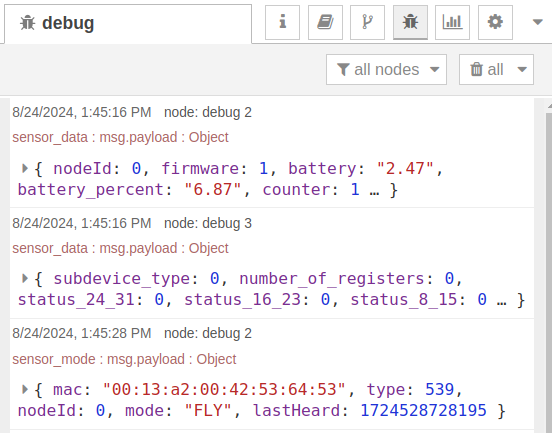
Once you power on your Industrial Wireless RS485 Modbus Transmitter device, it will automatically send the RUN and SENSOR DATA messages to all potential NCD Wireless receivers (Gateways or Modems) in broadcast mode.

A RUN message received simply indicates that the sensor indicated in the msg.payload.mac is powered up and communicating with the wireless network. An example RUN message is showing in the next image:

NCD Modbus RTU RUN Message
Click to Expand

Wireless Gateway Node

All messages from the Wireless Gateway Node will come through as Javascript Objects and are output by default as JSON representations when viewed or sent over most protocols. In Node-Red the primary object to reference the message will be msg. You can access sub-properties using msg.payload or msg.payload.nodeId etc.

Sensor data is the message that will come from a Wireless Gateway Node after RUN message. These messages can be discerned from other message types by the topic which will always be “sensor_data” to the right is an example of a Sensor Data message.

  • nodeID
    • A user configurable parameter allowing a user to input a simple id for a particular sensor
    • For a unique identifier it is recommended to use the “addr” property as it is tied to the individual sensor’s wireless module and will always be unique
  • firmware
    • This identifies the firmware version of the sensor sending the packet
  • battery
    • The current voltage level of the batteries at the time of transmission
    • The batteries that come with the sensors drop off quickly once they reach 2.6 volts
  • battery_percent
    • The current battery percent at the time of transmission
  • counter
    • The number of transmissions since boot or counter rollover
    • The counter will rollover after a counter value of 255
  • sensor_type
    • The machine identifiable type of the sensor
    • It is recommended to use this property to dictate dashboard generation and/or data integrity checks
  • sensor_data
    • Object containing all sensor data related to this sensor
  • sensor_name
    • Human Readable Sensor Type Identifier
  • type
    • An easily passed message type declaration
    • This property will be a duplicate of msg.topic
  • addr
    • The unique identifier of the sensor that transmitted the data
  • received
    • Epoch indicator of when the data was received by Node-Red
  • original
    • Auxiliary information on the packet and underlying protocol
  • modem_mac
    • The unique identifier of the Gateway/Modem that received the data
    • Primarily used to tie locations/projects to sensors/sensor data
				
					{
  "topic": "sensor_data",
  "payload": {
    "nodeId": 0,
    "firmware": 3,
    "battery": "3.28",
    "battery_percent": "98.56",
    "counter": 26,
    "sensor_type": 539,
    "sensor_data": {
      "subdevice_type": 0,
      "number_of_registers": 0,
      "status_24_31": 0,
      "status_16_23": 0,
      "status_8_15": 0,
      "status_0_7": 0,
      "data": [
          0: 0,
          1: 0,
          2: 0,
          3: 0,
          4: 0,
          5: 0,
          6: 0,
          7: 0,
          9: 0,
          10: 0
          ...
       ]
    },
    "sensor_name": "RS-485 Modbus Wireless Converter",
    "type": "sensor_data",
    "addr": "00:13:a2:00:42:37:73:52",
    "received": 1721424191583,
    "original": {...},
    "modem_mac": "00:13:A2:00:41:F5:2C:D3"
  },
  "time": 1721424191584,
  "_msgid": "d7f3341ef39225df"
}



Sensor Data Breakdown

  •  sub_device_type
    • Byte to indicate what kind of User-defined Modbus RTU device it’s connected to.
  • number_of_registers
    • The number of registers read, up to a maximum of 32 registers in one operation.
  • status_0_to_31
    • Represents the status of the registry query: 0 indicates no error, while 1 indicates an error.
  • data
    • A variable-length array, it contains the value obtained from the Modbus-RTU registers as requested by the user.

Wireless Device Node

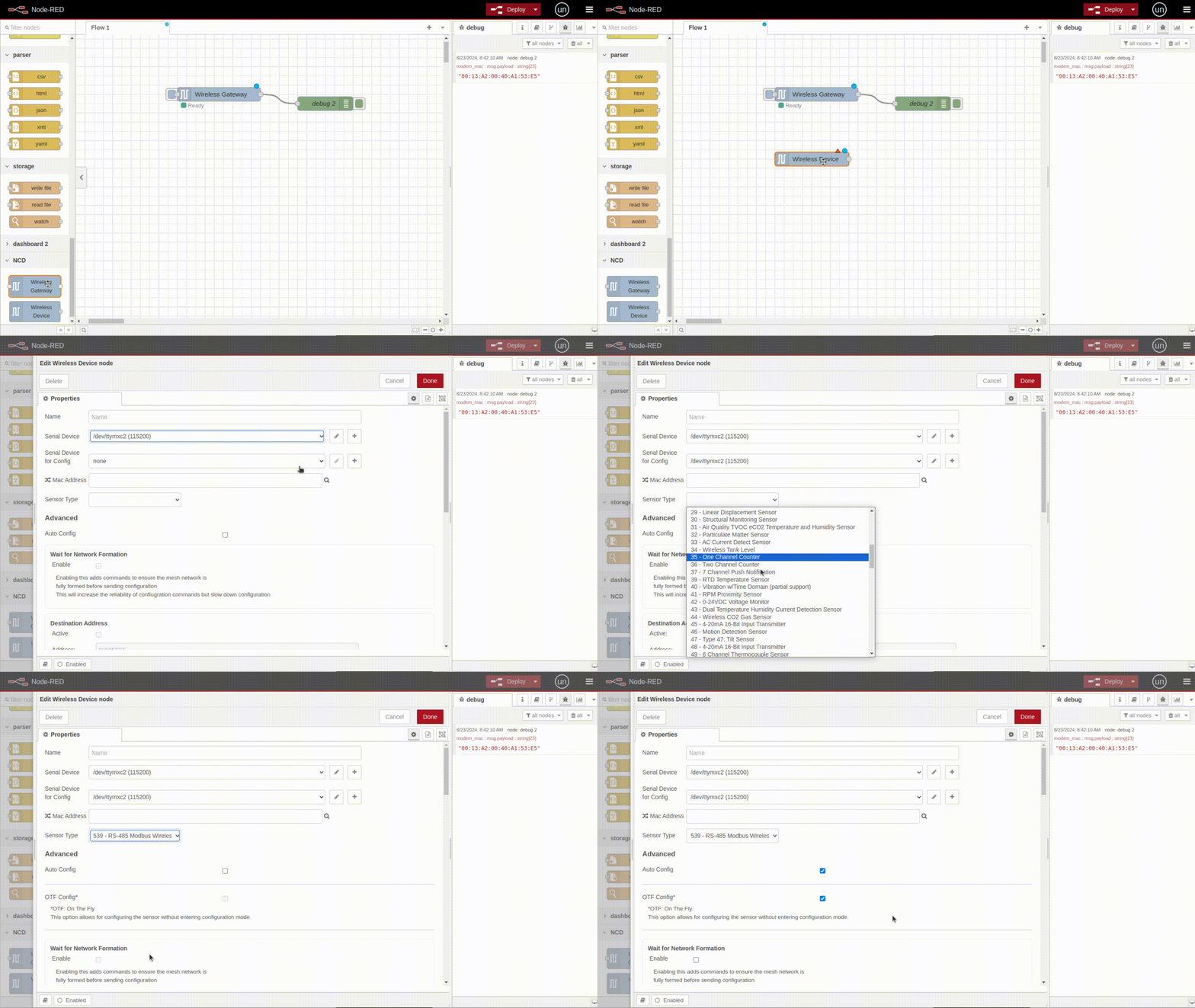
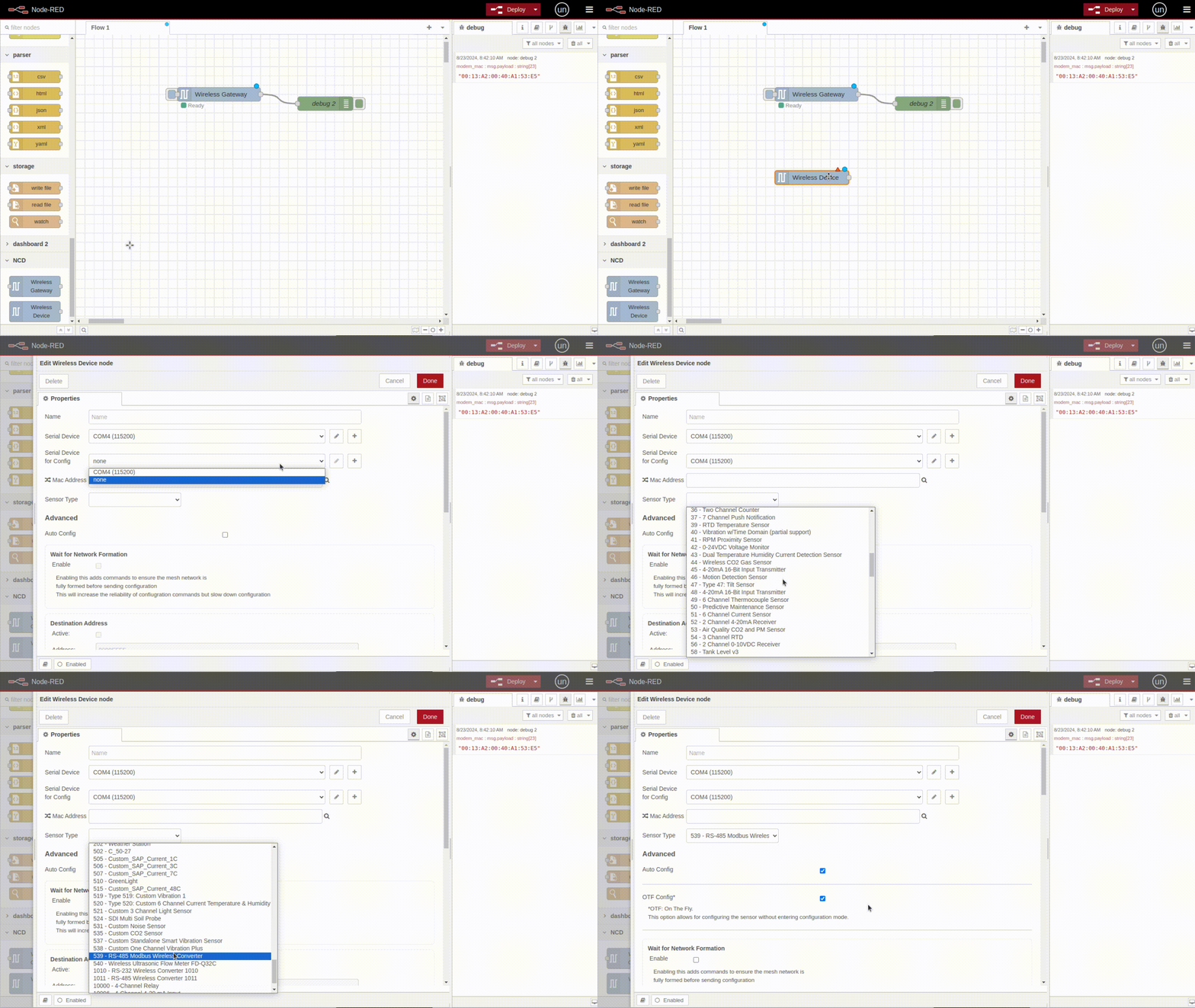
Our Node-Red library lets you configure any of sensor easily using the “Wireless Device” node, simply by adjusting a few fields in your Node-RED flow and triggering a configuration update either through the CFG button on the sensor or waiting for a FLY message sent.

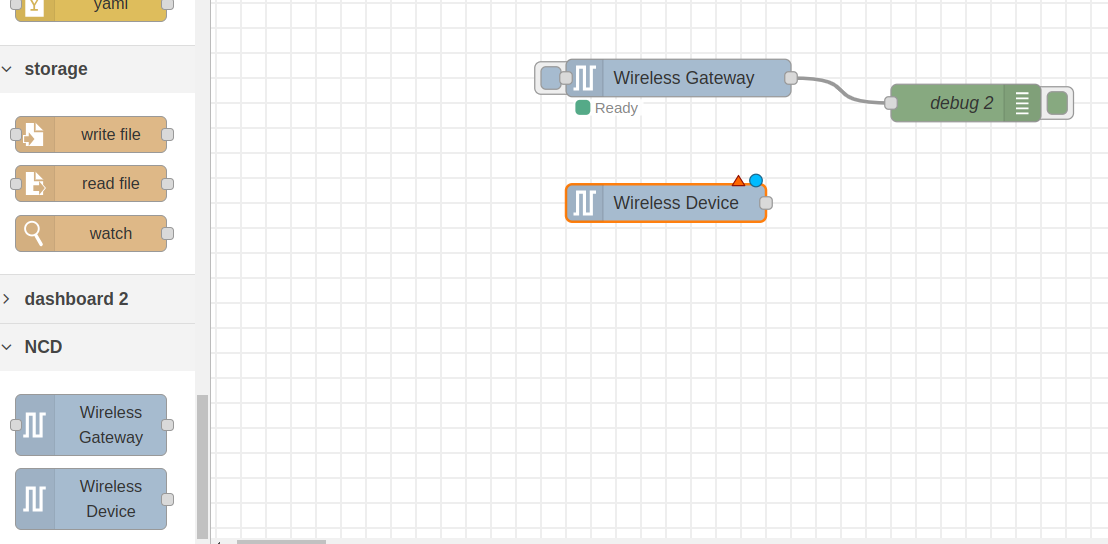
To enable the NCD Industrial Wireless RS485 Modbus Transmitter to communicate with the Modbus RTU device via RS485, it is essential to configure the parameters using Node-RED. Begin the configuration process by dragging the “Wireless Device” node into the workspace.

NCD Modbus RTU Wireless Device

You can edit a Wireless Device node by double clicking the node once it is placed in a flow.

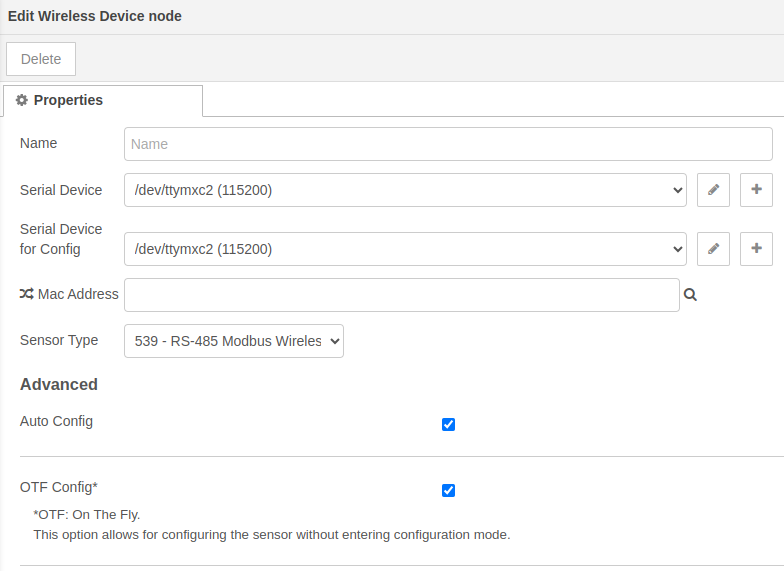
Gateway

NCD Wireless Device gateway example

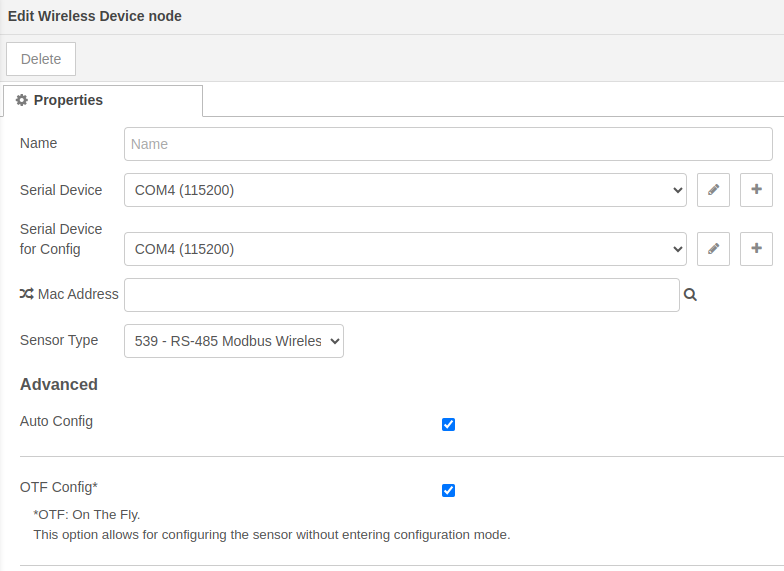
USB Modem

NCD Wireless Device COM example

These configurations are responsible for configuring the Wireless Device node and how Node-RED should interact with the Industrial Wireless RS485 Modbus Transmitter.

  • Name
    • Arbitrary name of this node
    • Primarily used for easy identification in the flow
  • Serial Device*
    • The primary communication interface used to receive data from the sensor
    • Clicking the edit icon will take you to a submenu to edit the particulars of the device chosen in the Serial Device dropdown
    • To add a new configuration option you will want to choose “Add new ncd-gateway-config…” from this dropdown
  • Serial Device for Config
    • A secondary communication interface used to configure sensors without losing sensor data
    • If no option is selected the communication interface selected under Serial Device will be used for configuration
    • A second modem will be required to make full use of this option
  • Mac Address
    • Using this field allows you to choose a specific sensor that corresponds to this Wireless Device node
    • Leaving this field blank allows any sensor of the type chosen under the Sensor Type field to correspond with this Wireless Device Node
    • A search icon on the right can be clicked to search for Wireless Devices that the Serial Device has heard from to auto fill information for that device
  • Sensor Type*
    • This field limits the sensors that correspond to this Wireless Device node to a particular type of sensor
  • Auto Config
    • Checking the box next to this field tells Node-Red that the sensor(s) corresponding to this Wireless Device node should be configured when put into Configuration Mode manually
  • OTF Config
    • Checking the box next to this field AND having Auto Config checked tells Node-Red that the sensor(s) corresponding to this Wireless Device node should be configured when a FLY message is detected

*Required

Example for using with Enterprise IIoT Gateway.

Click to Expand

Example for using with Modem USB in Windows PC.

NCD Modbus RTU Node-RED Wireless Device Config Mode
Click to Expand

These configurations are transmitted to the sensor when Node-Red configures the sensor. Node-Red will need to configure the sensor in order for these settings to go into effect.

General Sensor Configuration

Modbus RTU Configurations

  • Wait for Network Formation
    • This option sends three commands to all local devices on the wireless network to help form the mesh network
  • Destination Address
    • This option will tell the sensor to ONLY send its data to a single receiver.
  • Network ID
    • This option allows you to change the Network ID that the sensor will use to report its data while in RUN module
    • You will need to make sure that a Gateway or Modem is configured to use this network ID in order to receive sensor data from it after configuration
  • Node ID and Delay
    • Node ID
      • Node ID allows you to set an easy to understand unique ID for a particular sensor
    • Delay
      • Delay is the time in seconds between sensor data reading transmissions
  • Power
    • This option allows you to set the transmission power level of the sensor
  • Retries
    • Sets the maximum number of retries the sensor will attempt before considering a packet transmission failed
  1. Set Baud Rate:
    • Configure the communication speed for the RS485 port.
  2. Set Stop Bit:
    • Configure the cthe stop bit signals the end of a data byte.
  3. Set Parity Bit:
    • Configure the the Parity bit.
  4. Set RS485 Rx Timeout:
    • Sets the maximum time (in milliseconds) that the device will wait to receive a response from the RS485 field device via the serial port after it sends command.
  5. Set Boot Time:
    • Sets the delay interval (in seconds) that the NCD transmitter waits after powering on the connected Modbus device before issuing the first command. This delay ensures the external Modbus device has sufficient time to complete its internal initialization sequence before the transmitter begins polling.
  6. Set Slave ID:
    • Configures the unique Slave Modbus device address (Slave ID) for the transmitter.
  7. Set Sub Device Type:
    • A user-defined byte used to identify the specific type of Modbus RTU device connected. This parameter is essential for correctly decoding incoming messages and distinguishing between different devices on the network.
  8. Set Number of Read Retries:
    • Sets the maximum number of attempts the device will make to perform a Modbus RTU register query.
  9. Set Read Parameter:
    • Sets the Modbus Function Code.
  10. Set Read Registers:
    • Set the total number of registers to read on interval in the Register Reads field. Set the individual Registers to read below in the correspond Register field.
    • Register Read Field: Set the individual Modbus Register to read.

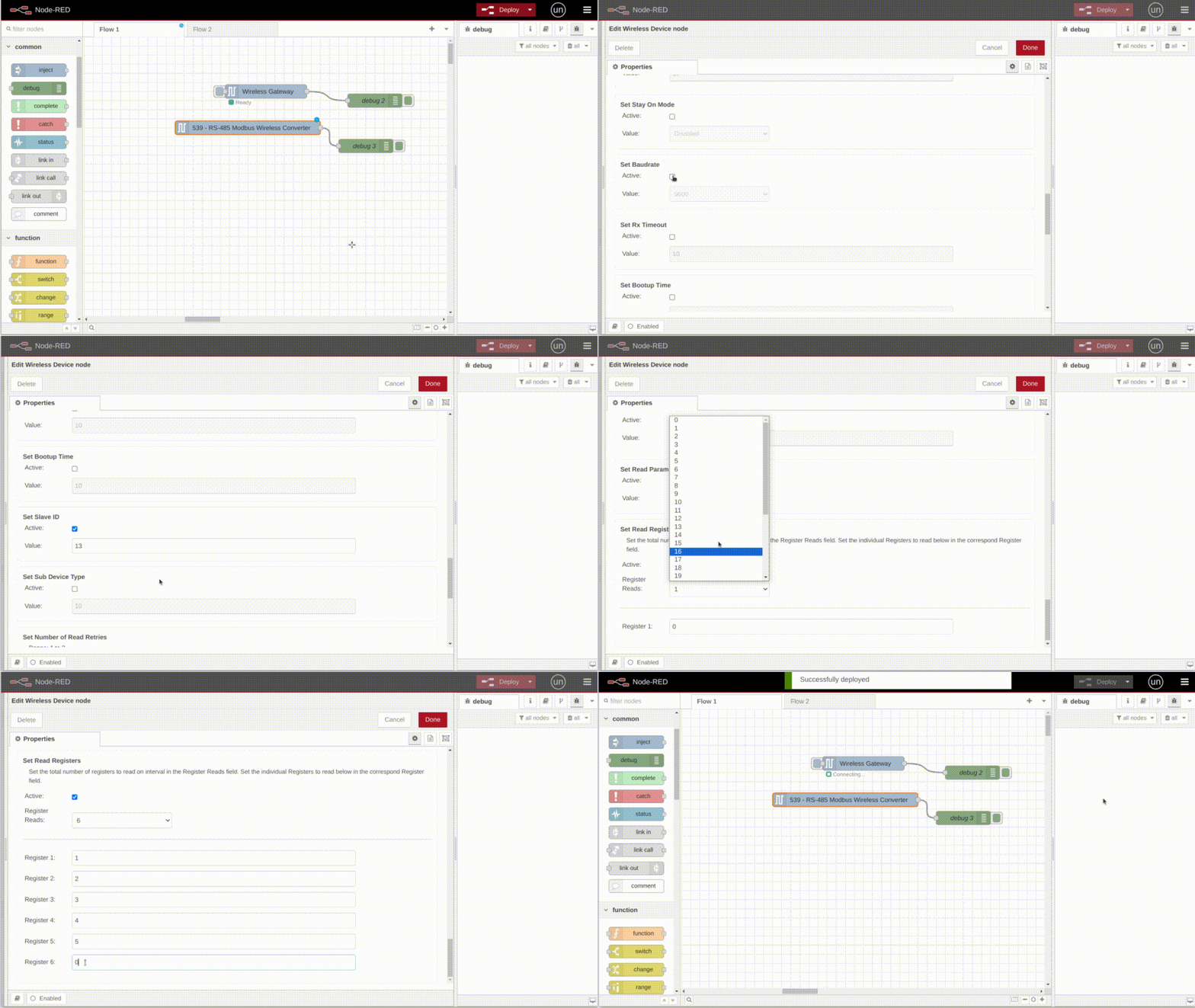
To configure the parameters of the Industrial Wireless RS485 Modbus Transmitter, the first step is to set the Modbus parameters within the “Wireless Device” node. In this article, we will use the following configurations to illustrate the process.

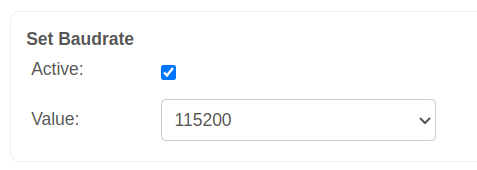
Set Baud Rate: We will modify the RS485 baud rate to 11200.

NCD Modbus RTU Node-RED Configuration example 1

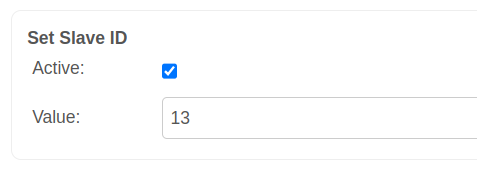
Set Slave ID: We will set the “Slave ID” as 13.

NCD Modbus RTU Node-RED Configuration example 1

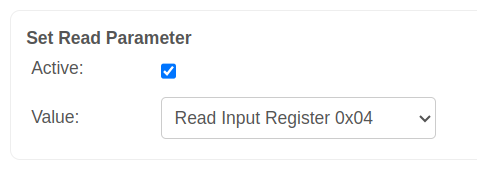
Set Read Parameter: We will set the “0x04 – Read Input Register” function code. This function code is used to read from 1 to 125 contiguous input registers in a remote device.

NCD Modbus RTU Node-RED Configuration example 3

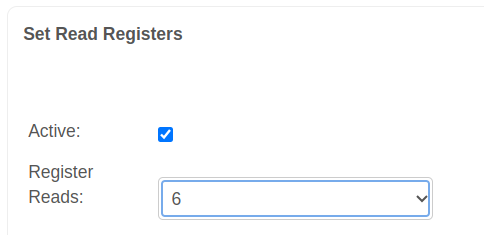
Set Read Registers: We will set the number of registers to read, in this case 6. You can use a drop-down menu.

NCD Modbus RTU Node-RED Configuration example 4

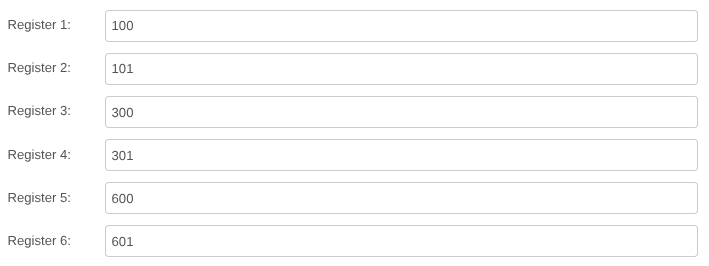
Registers: We will set the address of each of the registers of interest.

NCD Register to Read Address Example PR55-88F

The settings for this example are shown below:

Serial Communication Settings:

  • Baud Rate: 115200.
  • Stop Bit: 1 bit.
  • Parity: None
  • RS485 Rx Timeout: 2000 milliseconds.

Modbus Settings:

  • Slave ID (Address) = 13 (0x0D)
  • Modbus FC = Read Input Register (0x04)
  • Adddresses = 100 (0x64), 101 (0x65), 300 (0x12C), 301 (0x12D), 600 (0x258), 601 (0x259)
  • Quantity = 6 Registers.
				
					Read Address 100/101 --> 0D 04 00 64 00 02 30 75
Read Address 300/301 --> 0D 04 01 2C 00 02 B0 44
Read Address 600/601 --> 0D 04 02 58 00 02 F1 82


After configuring the desired parameters and their corresponding values, click the Done button, then click Deploy to save and apply your changes.

NCD Modbus RTU RS485 parameters
Click to Expand

Configuration

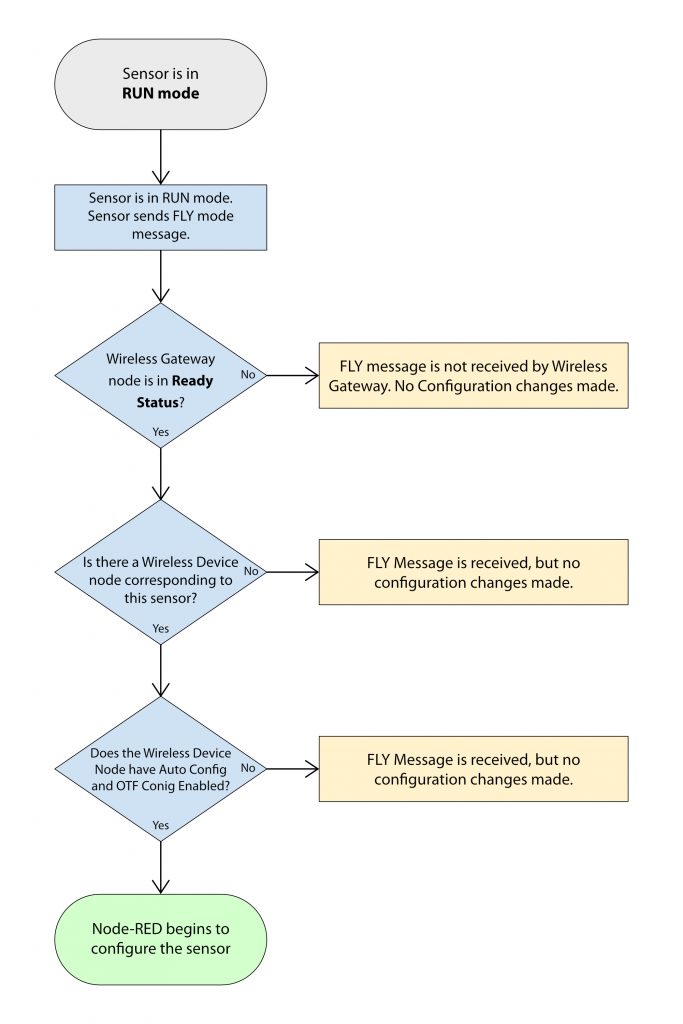
After entering your RS485 parameter settings within the Wireless Device node in Node-RED and clicking Done and Deploy, you must either manually set the NCD Modbus device to configuration mode or wait for the next periodic synchronization message (the device automatically enters configuration mode once per hour).

The Industrial Wireless RS485 Modbus Transmitter supports “On the Fly” (OTF) configuration while in Run Mode. This process is initiated by a synchronization message sent over the standard wireless network, eliminating the need to change the Gateway node mode or manually manipulate the physical buttons on the sensor.

This synchronization message notifies Node-RED that the sensor is ready to receive configuration changes.

If your Wireless Device node has Auto Config and OTF Config enabled, Node-RED will compare the desired settings with those currently configured on the NCD device. If the settings match, the configuration process is skipped. If the settings differ, Node-RED will automatically apply the new parameters to the sensor.

Logic Diagram for FLY Mode Configuration of Sensors

Now we are going to perform an example of the process of setting Modbus RTU parameters, as well as interpreting the Sensor Data Message, in order to process it later through a function node.

Sync mode allows you to adjust parameter settings without manually placing the transmitter into “configuration mode.” Once you have enabled the desired checkboxes and clicked Done and Deploy to apply your changes, simply wait for the next incoming “sync” message from the NCD Modbus RTU transmitter. You will observe the status transition from “RUN” to “sensor_data,” followed by the “sync” message, which confirms that the NCD Modbus device has successfully entered configuration mode.

NCD Modbus RTU Node-RED Wireless Device node - Debug configuring - 1

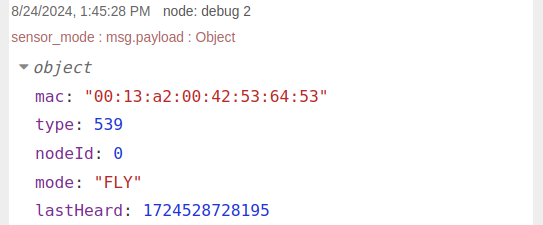
By clicking on the message within the debug window, you can expand it to view the complete details. Inside the FLY message, you will find the MAC address of the device sending the message, the device type (NCD), the node ID, the FLY mode itself, and a timestamp indicating when the message was sent.

NCD Modbus RTU Wireless Device FLY message

Gateway/modem responds with a command, this is the gateway/modem telling the sensor that it should go into configuration mode.

NCD Modbus RTU Wireless Device - Config enter OTF

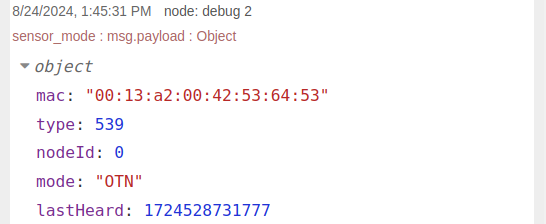
Sensor/transmitter responds with an OTN package. This lets the gateway know that the sensor is in config mode and ready for config commands. The sensor will stay in this mode until ~60  seconds have passed OR the modem sends a command to end the configuration.

NCD Modbus RTU Wireless Device OTN message

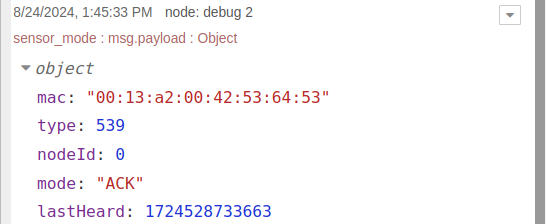
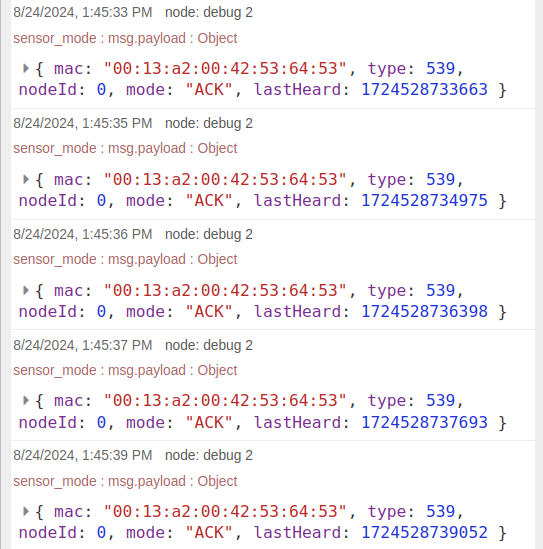
At this point the Gateway/Modem will send all of the configuration commands. For each configuration command sent by the gateway or node, the Modbus RTU transmitter responds with an “ACK” acknowledgment message.

NCD Modbus RTU Wireless Device ACK message

In this example, we configured five parameters, resulting in five “ACK” acknowledgment messages.

NCD Modbus RTU Wireless Device Configuring Process

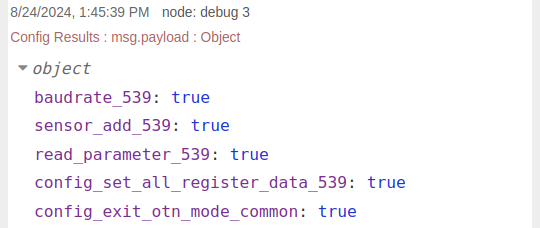
Once all configurations have been made you will see a message “Config Results” where you can see the results of the configuration of the parameters. Then the modem will send a command, this tells the modbus rtu transmitter to go to sleep and resume normal operation.

NCD Modbus RTU Wireless Device Configuring Process - results

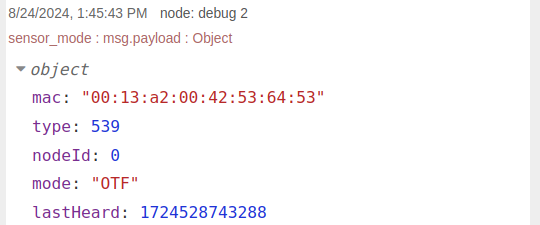
The Modbus RTU Transmitter responds with an OTF message, this indicates to the modem that it is no longer accepting configuration commands.

NCD Modbus RTU Wireless Device OTF message

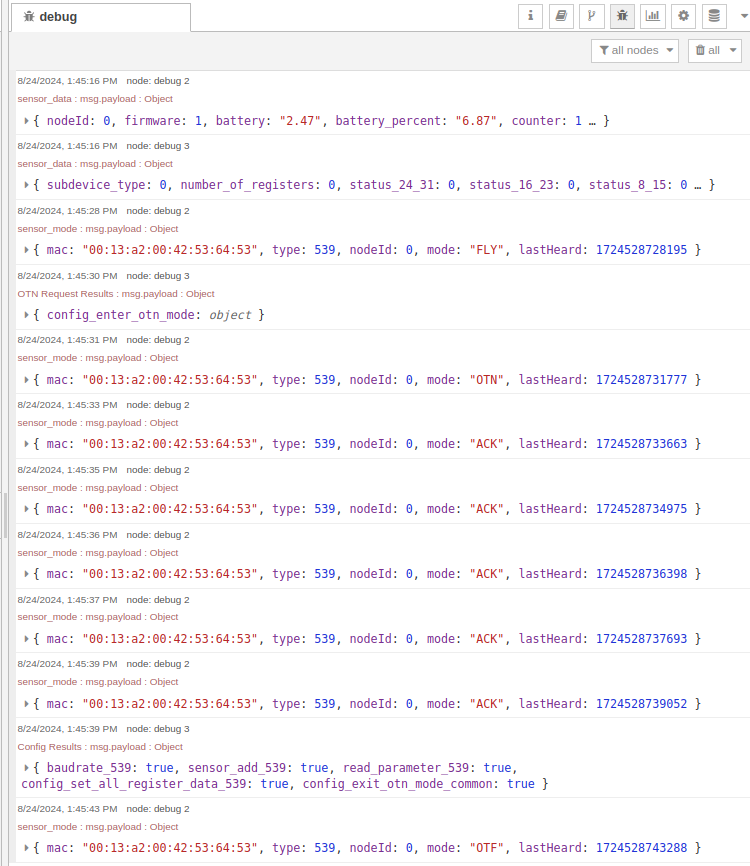
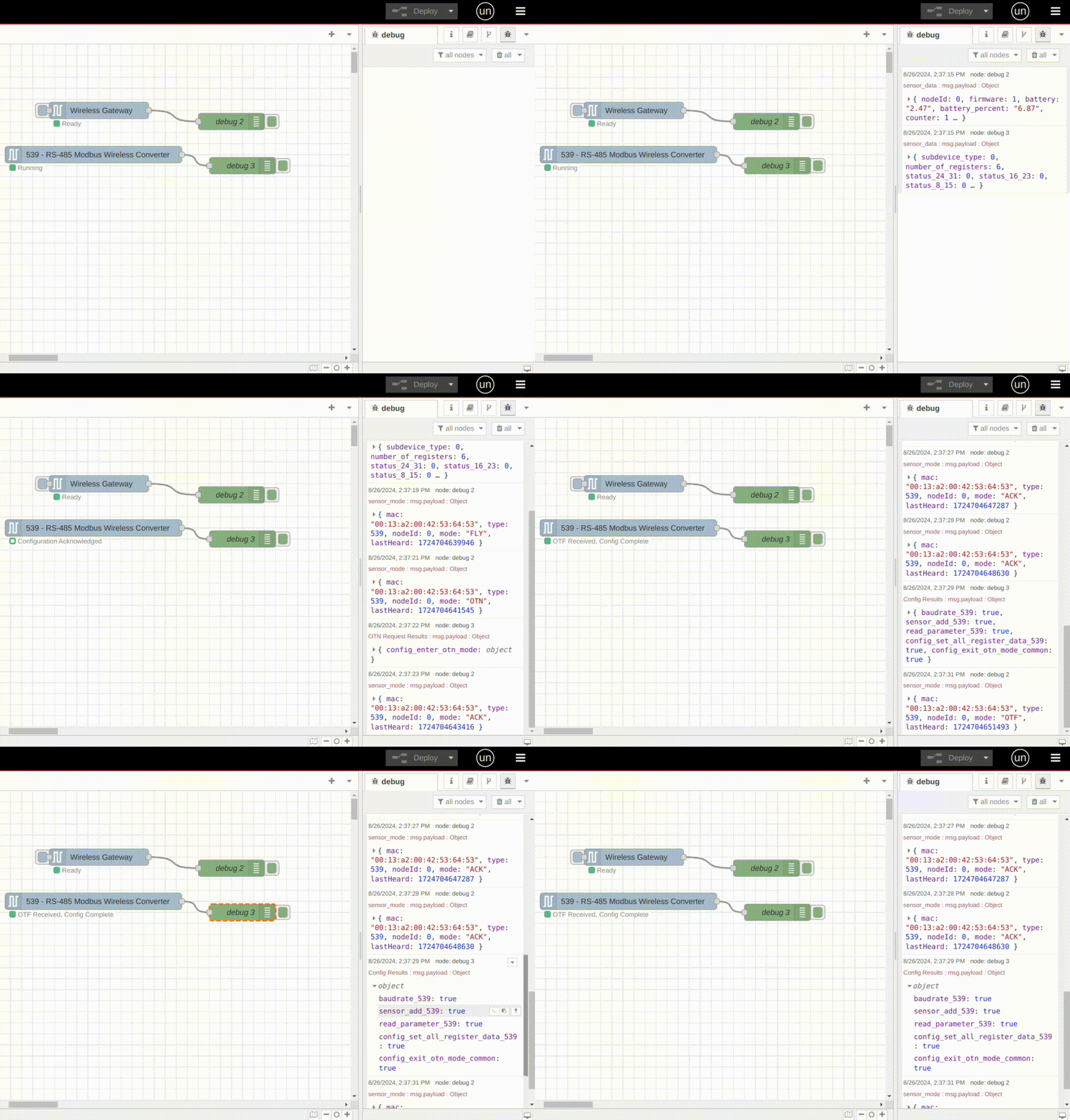
The following image is a screenshot of the entire procedure, displaying the incoming messages within the debug window.

NCD Modbus RTU Node-RED Wireless Device Configuring - complete

The following GIF image visually represents this process, demonstrating the automatic configuration of five RS485 parameters for the Modbus RTU transmitter.

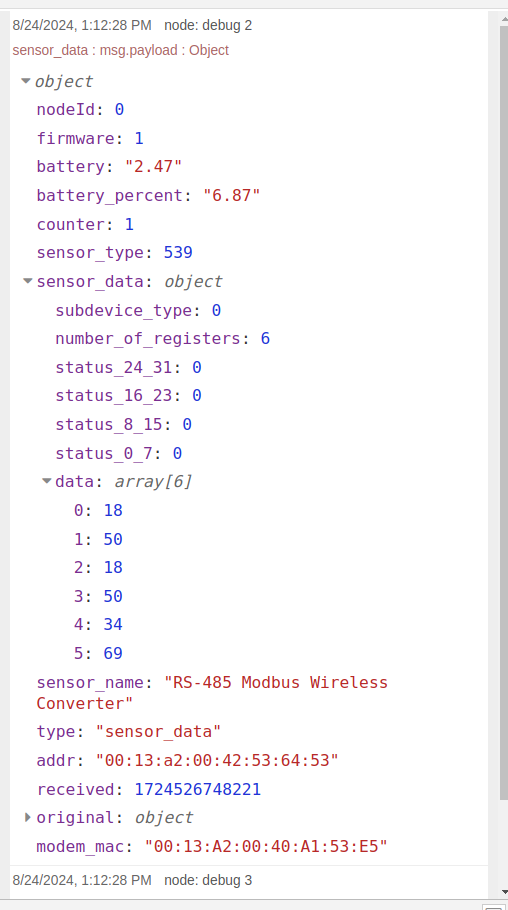
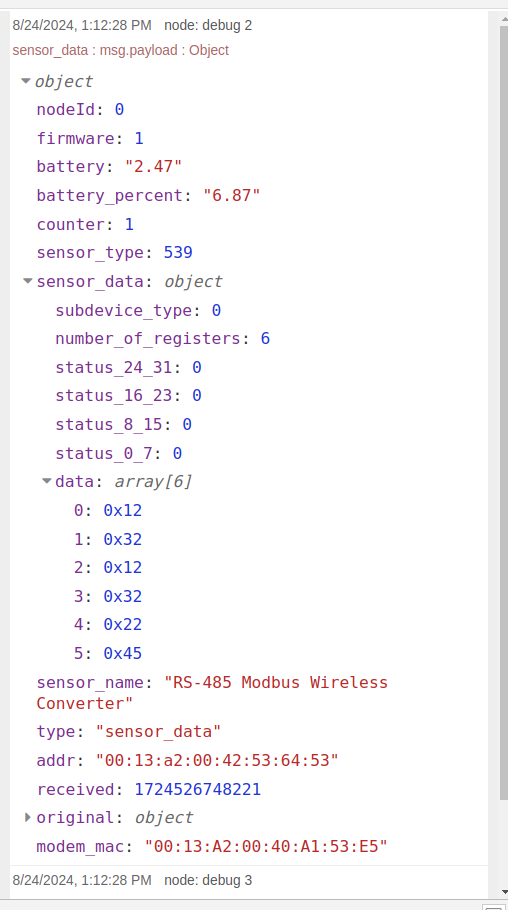
Once the configuration process is complete, the next time the Wireless Modbus RTU transmitter sends data, you will see output similar to the following. You may notice that the configurations have been successfully applied. In this case, you can observe that there are no errors in the register readings, and the Wireless Modbus RTU Transmitter is accessing and transmitting six registers along with their current values:

Registers in DEC

NCD Modbus RTU new payload after configuration

Registers in HEX

NCD Modbus RTU new payload after configuration - HEX

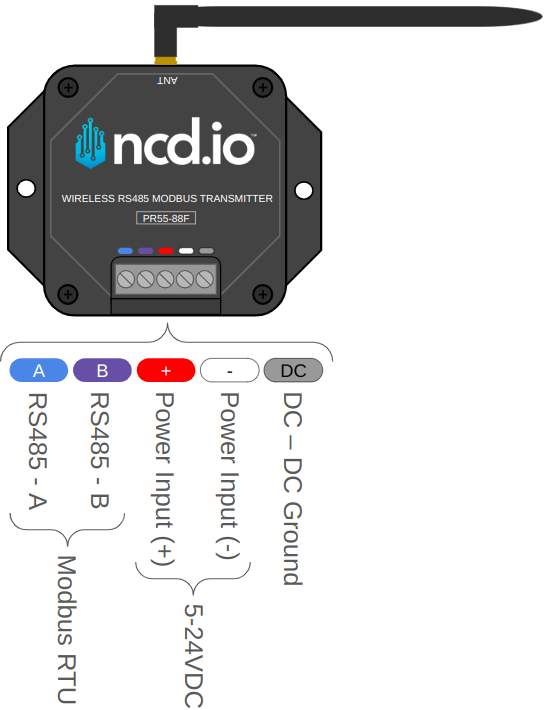
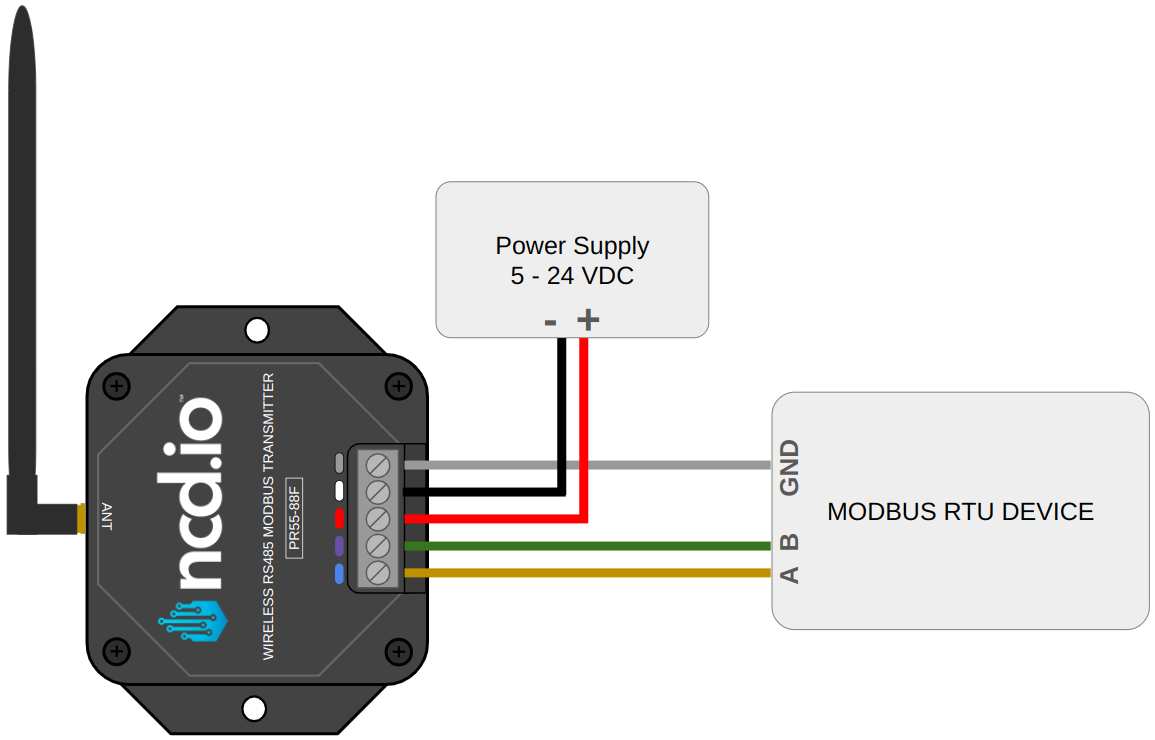
The following diagram illustrates the pinout configuration for the wireless RS485 Modbus transmitter. The second diagram provides a connection example, detailing the integration of the power supply and the Modbus device.

NCD Modbus RTU transmitter pinout
Click to Expand
NCD Modbus RTU Connection with device
Click to Expand

Filter Data

Once you have configured the Wireless Modbus RTU Transmitter and are receiving data from the Modbus device registers connected to the transmitter, you may want to process these registers individually. In Node-RED, there are several approaches for this. One approach is to use the “Function” node, which allows you to add JavaScript functions to access and manipulate the data. Another approach is to use individual nodes such as the “Switch” and “Change” nodes. Below is an example demonstrating how to focus on and manipulate register data using these two approaches.

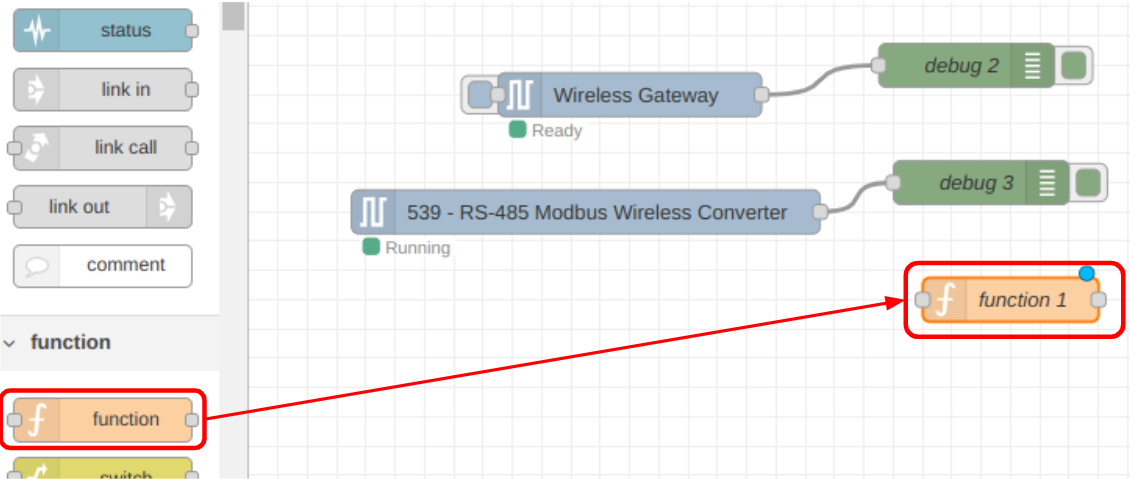
To use the Function node, locate it in the nodes palette. Within the “Function” group, click and hold the “Function” node, then drag it to your workspace, as shown in the following image:

NCD Modbus RTU Node-RED Adding Function Node

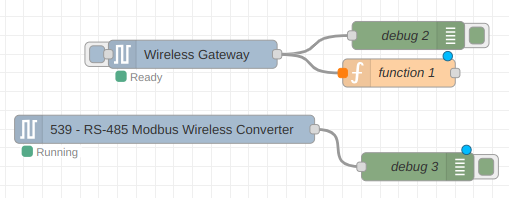
Next, connect the output of the “Wireless Gateway” node to the input of the “Function” node, as shown in the following image:

NCD Modbus RTU Node-RED Adding Function Node - adding

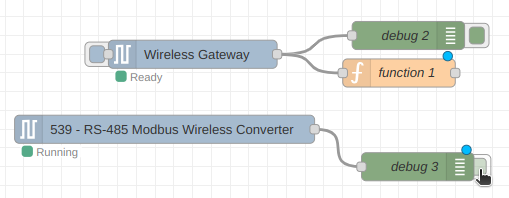
At this point, you may no longer need to observe the incoming and processed messages from the “Wireless Device” node. To manage this, you can individually disable the display of messages from the “Debug” nodes by clicking the virtual button on the right side of each “Debug” node. This will prevent the display of incoming messages from the “Wireless Device” node in the debug window.

NCD Modbus RTU Node-RED Adding Function Node - disable debug node
Nodered Deploy Button

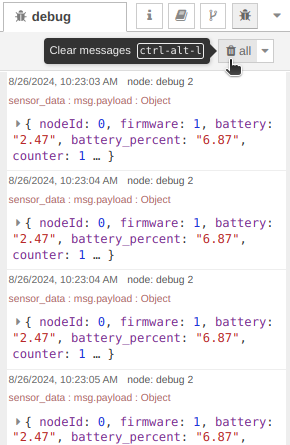
If you wish to clear the current messages in the “Debug” window to focus on new ones, you can do so by clicking the “Clear messages” icon within the “Debug” tab.

NCD Modbus RTU - Clear Debug Window

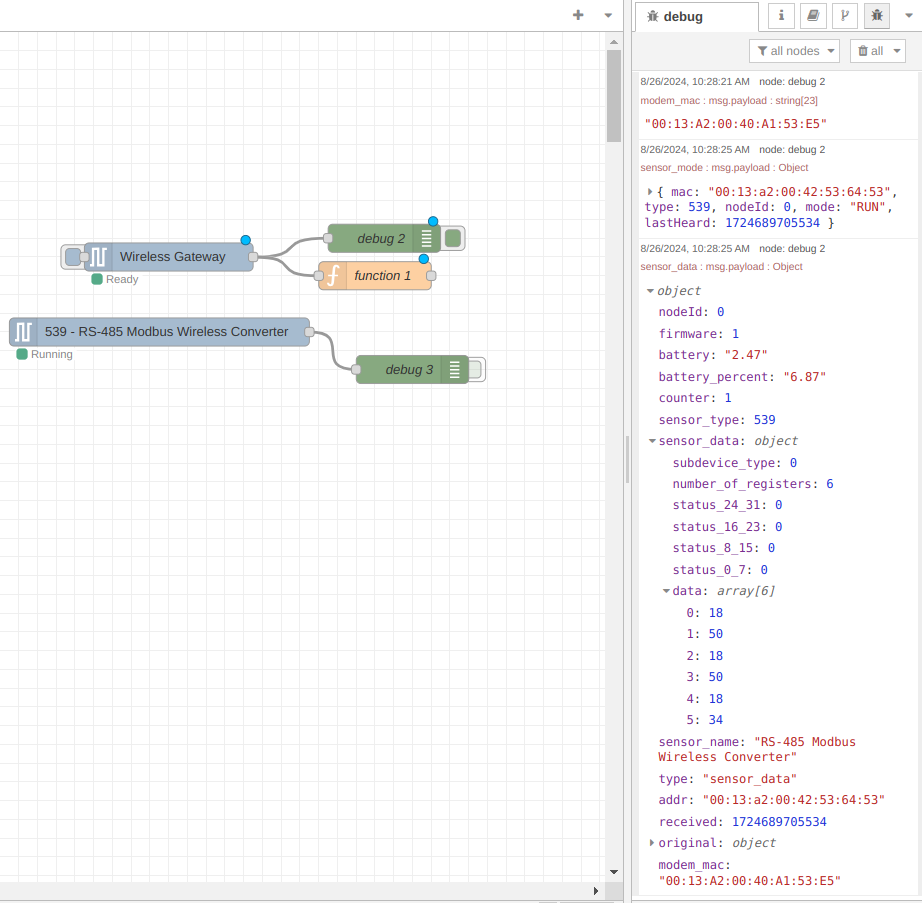
In this example, we will focus on the “sub_device_type” message. To do this, expand the incoming message from the Wireless Modbus RTU Transmitter and locate the “sub_device_type” property.

NCD Modbus RTU complete message

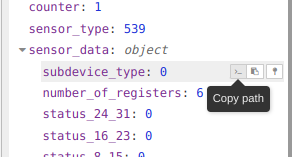
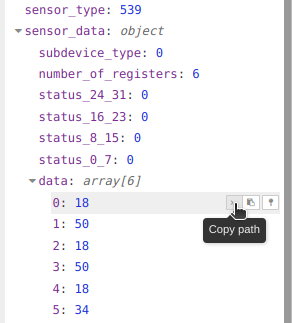
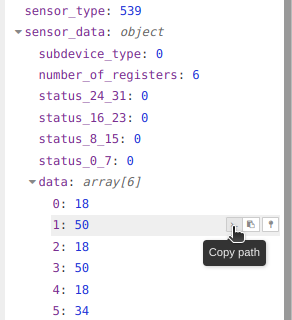
In the debug window, positioning the mouse cursor over the property of interest will reveal three buttons. You can use the first button to copy the “Path” of the property. We will explain the purpose of copying this property later.

NCD Modbus RTU copying path sub device type

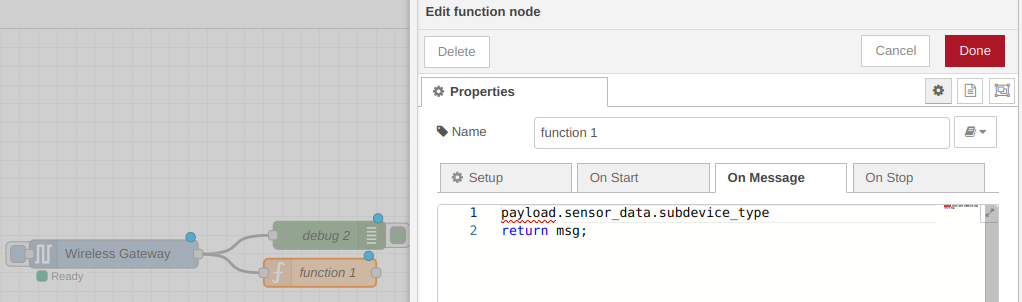
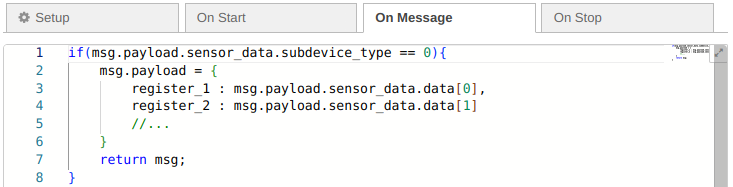
Double-click on the “Function” node to access its properties. You will see a text input field where you can add and execute JavaScript code in the “On Message” window. Paste the “Path” that was copied in the previous step. You should see the string payload.sensor_data.subdevice_type.

NCD Modbus RTU adding path to function node

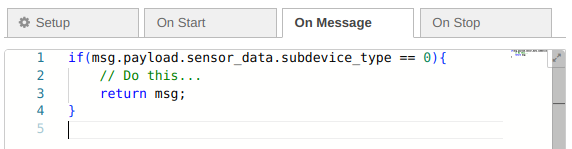
First, we need to prepend “msg.” to the “path” to complete the message. Next, add a conditional “if” statement to evaluate whether the value of the property msg.payload.sensor_data.subdevice_type is equal to “0”. If the condition is true, the code within this conditional will be executed.

NCD Modbus RTU adding conditional to function node

Access Registers

Once we have filtered the messages by the type of Modbus RTU device, the next step is to decode the registers. This allows us to perform operations or convert the data into a human-readable format. In this example, we will add some functions to illustrate how this can be done. You are encouraged to add your own functions or operations on the registers using JavaScript operators as needed.

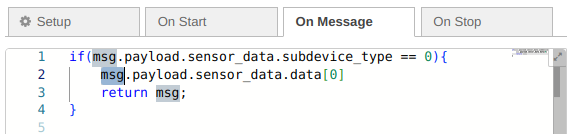
We will use the same procedure as in the previous step to access the properties within the message. In this case, we will focus on accessing the values of the Modbus registers. As before, copy the “path” of the register of interest and paste it into the Function node, prepending “msg.” as shown in the following image:

NCD Modbus RTU Copy path registers
NCD Modbus RTU Paste path registers
NCD Modbus RTU Copy path registers
NCD Modbus RTU Paste path registers

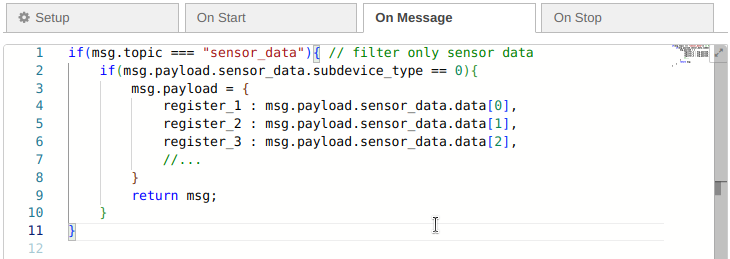
We may want to filter incoming messages that correspond only to the sensors/transmitters, for this we can add a conditional “if(msg.topic === “sensor_data”)”.

Next, we create new properties within msg.payload to identify the input registers. Each register value is assigned to these new properties, as illustrated in the following image:

NCD Modbus RTU Process incoming data example

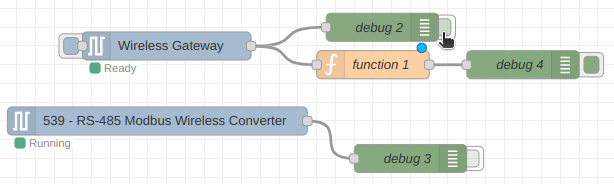
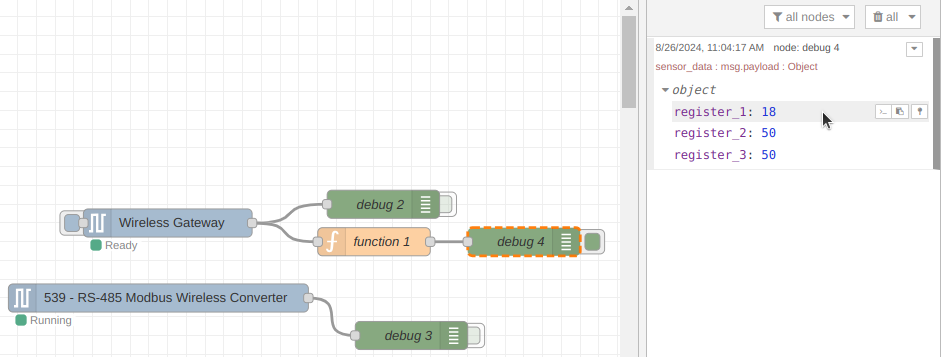
We will disable the messages from the debug node connected to the output of the “Wireless Gateway” node and focus only on the messages that pass through the “Function” node. In this case, this corresponds to the “Debug 4” node.

NCD Modbus RTU Process incoming data example flow

The next time a new message arrives from the Wireless Modbus RTU Transmitter, we will be able to observe registers 1, 2, and 3 as follows:

NCD Modbus RTU Process incoming data example debug window

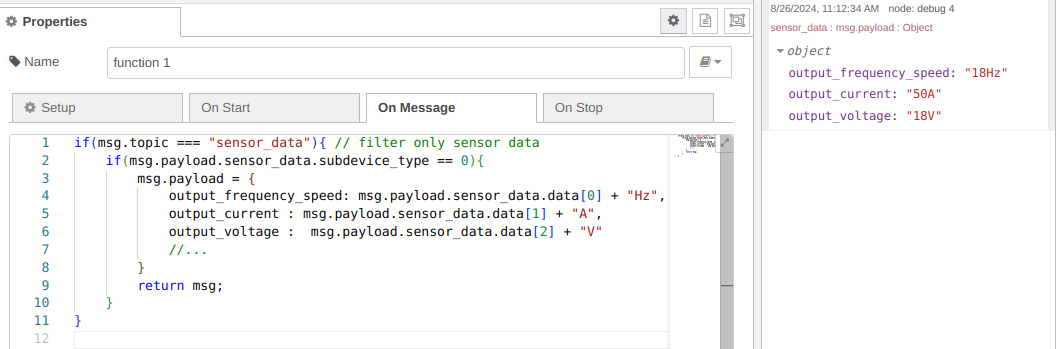
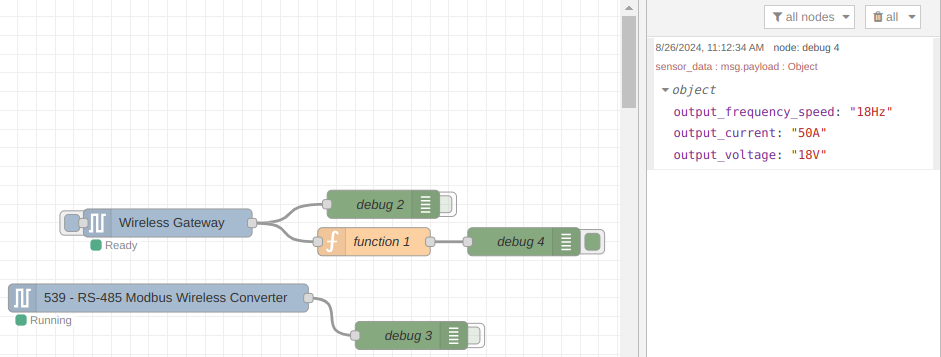
You can modify the property identifier, add text, or perform operations on the value of individual records, depending on your application. An example is shown in the following image:

NCD Modbus RTU Process incoming data example human-readable code

Remember that each time you modify the code to condition or decode the Modbus registers within the Function node, you must click the “Deploy” button to save and apply the changes.

NCD Modbus RTU Process incoming data example human-readable

Sub device type

As mentioned earlier, Node-RED is a visual programming tool that allows us to create logic for our application without requiring extensive programming knowledge. In this example, we will implement the same logic as used in the “Function” node, but this time using “Switch” and “Change” nodes.

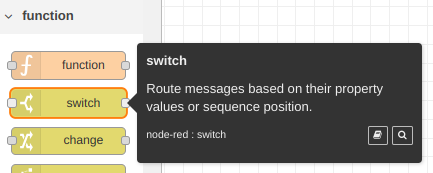
As with the Function node, to use the “Switch” node, click and hold the node, then drag it to your workspace.

Node-RED Switch node

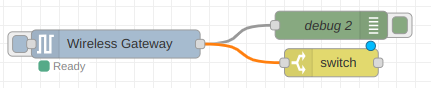
We need to connect the output of the “Wireless Gateway” node to the input of the “Switch” node, as shown in the following image:

NCD Modbus RTU switch flow filter by device

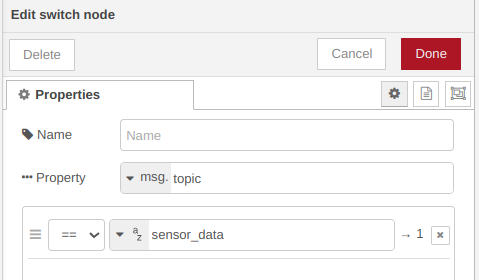
To access the properties of the “Switch” node, double-click on it. First, add a filter that allows data to flow through the “Switch” node only if the property msg.topic is equal to “sensor_data”. This indicates that the incoming message is from a sensor or transmitter. This setup is illustrated in the following image:

NCD Modbus RTU switch flow filter by device

Next, we will add a new “Switch” node and connect it to the output of the first “Switch” node. This new node will be used to filter the incoming messages based on the sub-device type of the Modbus RTU. This setup is particularly useful when you have multiple Wireless Modbus RTU Transmitters linked, as it allows you to identify the originating device of the messages.

NCD Modbus RTU switch flow filter by device


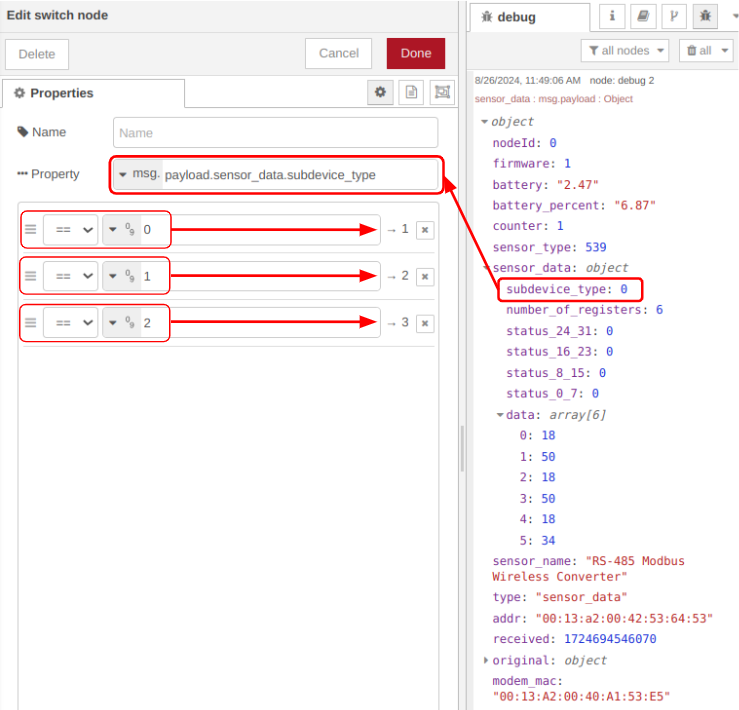
Similar to the approach used with the “Function” node, we will copy the path corresponding to the “subdevice_type” property and paste it into the property field of the “Switch” node. We will then add three rules using the “Add rule” button located at the bottom left of the “Switch” node. Select the “==” operator and specify the value to compare against. In this case, we are simulating three Wireless Modbus RTU Transmitters, each assigned a “subdevice_type” property with values 0, 1, and 2. As a result, incoming messages from device “0” will flow through output 1 of the “Switch” node, messages from device “1” will flow through output 2, and so on.

NCD Modbus RTU filter with switch node

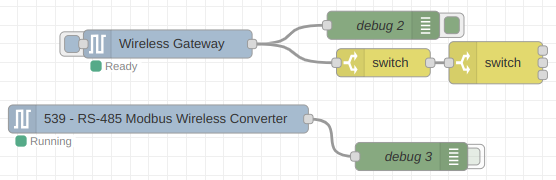
By clicking the “Done” button, you should be able to observe something similar to the following, noting that the “Switch” node now has three output terminals.

NCD Modbus RTU Node-RED Adding Switch node

Access Registers

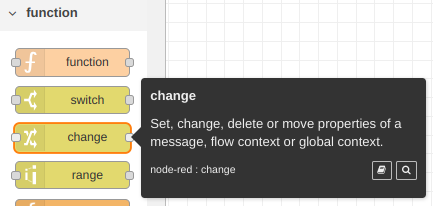
Now that we have the logic to filter incoming messages to correspond only to data from the transmitter, as well as a filter for each type of Modbus RTU device connected to the network, the next step is to use the “Change” node to access and decode the Modbus RTU registers of interest. To use the “Change” node, click on it and drag it to your workspace.

NCD Modbus RTU Adding Change Node

We will connect output 1 of the “Switch” node to the input of the “Change” node. This setup ensures that the “Change” node will only access properties and messages from the Modbus RTU device of type “0” as specified by the user. Our flow will then appear as follows:

NCD Modbus RTU Adding Change Node

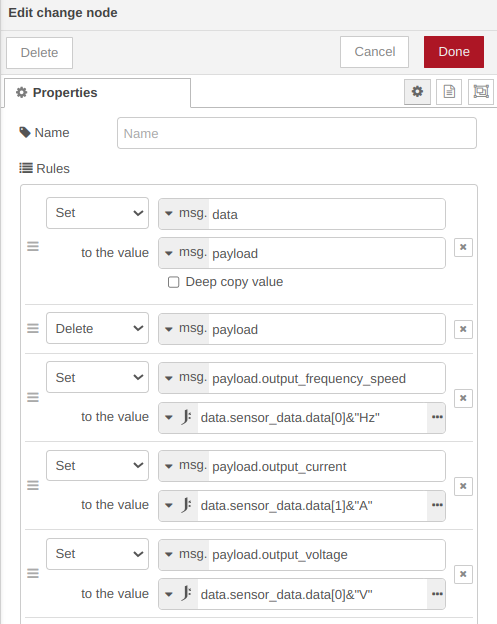
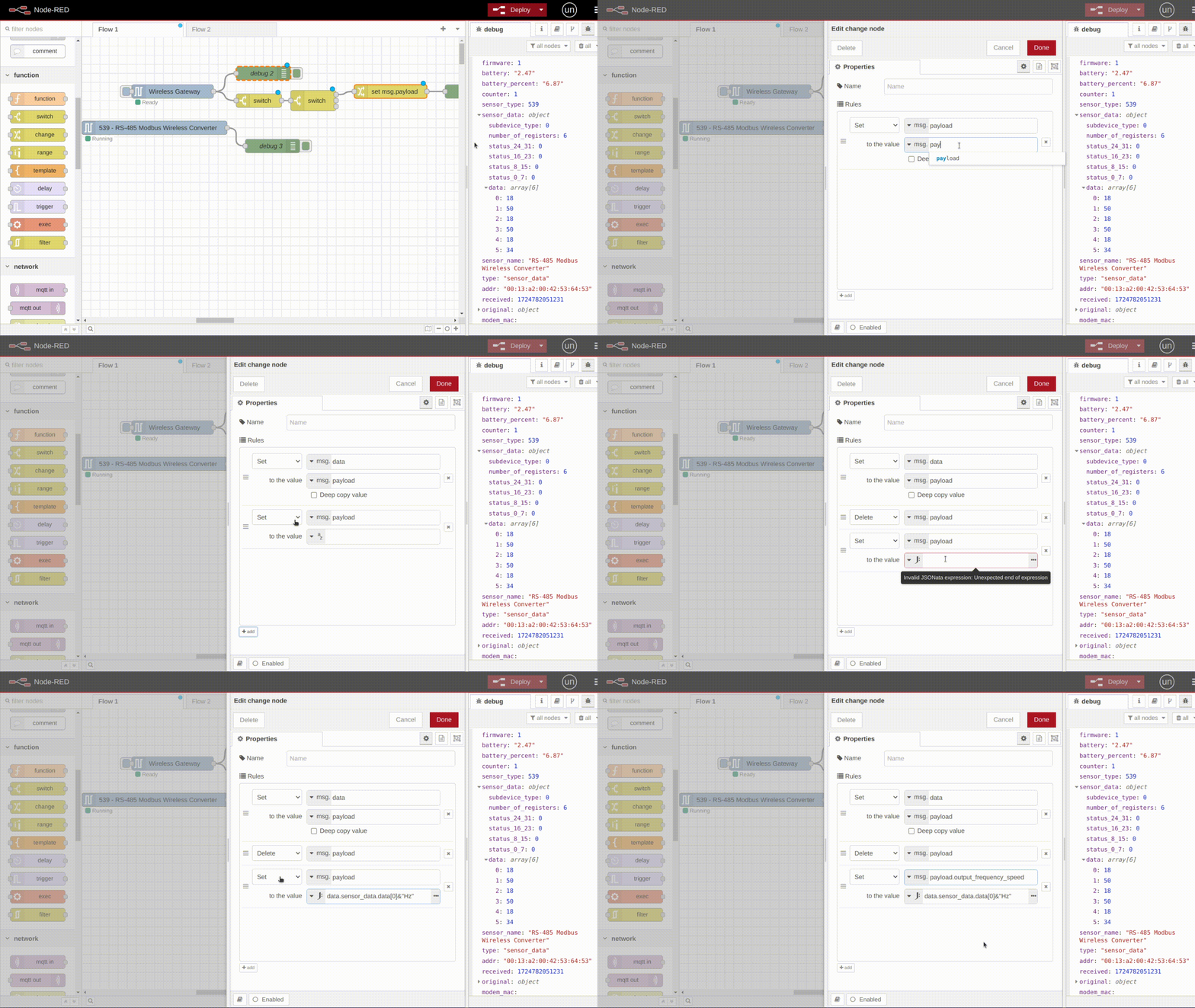
We will access the properties of the “Change” node. First, we will “copy” all values from the “msg.payload” message to a new property named “msg.data” Next, we can delete the “msg.payload” property, as we will later restructure the content of “msg.payload.”

It is possible to use JSONata functions within the “Change” node. To utilize JSONata in the “Change” node, select the “JSONata” type from the dropdown menu located on the left side of the value field. Using JSONata allows us to add operators for decoding registers within this node. In this case, we will only concatenate text (units) corresponding to each register, using the “&” operator to concatenate the text.

NCD Modbus RTU Adding Change Node - properties
NCD Modbus RTU using change node and JSONata

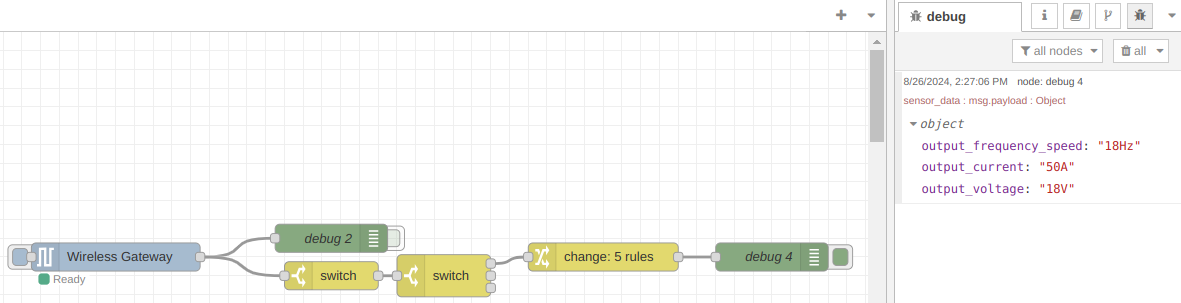
Now, you should add and connect a “Debug” node to the output of the “Change” node in order to observe the messages from this node within the “Debug” tab, as shown in the following image:

NCD Modbus RTU Adding Change Node

To save and apply the changes, click the “Deploy” button. Once a new message arrives and corresponds to “subdevice_type -> 0,” you will be able to observe the following message in the “Debug” tab.

Summary

The purpose of this article is to visually and intuitively demonstrate how to perform the physical connection, including the pinout, as well as the configuration of some RS485 parameters for the “Wireless Modbus RTU Transmitter” device using Node-RED and our library “@ncd-io/node-red-enterprise-sensor.” Subsequently, we illustrated how to create basic logic for filtering, accessing, and processing incoming messages from the Wireless Modbus RTU Transmitter in Node-RED using either the Function node or the Switch and Change nodes. The goal of this article is to provide you with the foundational knowledge needed to customize the flows according to your application.


Thank you, NCD Team.