

Sensor Configuration Guide
Users typically need to configure sensor settings during Initial Setup (adjusting intervals or Node IDs with physical access) or Field Deployment (remotely adjusting thresholds and intervals). The Atrium Interface provides a seamless synchronization process for both scenarios.
01Standard Sensor Behavior
Most NCD sensors are battery-powered and operate on a continuous cycle to maximize battery life.
Note on Push Notifications: Certain NCD sensors feature push notifications that trigger data transmission based on specific conditions or thresholds, independent of the standard cycle. Refer to your specific sensor’s User Guide for details.
Important: Sensors cannot receive configuration payloads from the Atrium Gateway during their standard Sleep/Wake cycle—even during the brief window they wake to transmit data. To accept new settings, the sensor must explicitly enter Configuration Mode.
02Synchronization (Configuration) Mode
Configuration Mode—or Sync Mode—is a temporary operational state that allows the sensor to accept updates to its configurable parameters (e.g., Data Transmission Interval, Calibration, Node ID, Network ID, etc.).
| Entry Method | Description |
|---|---|
| Manual Entry | Press and release the physical Reset button or trigger the magnetic switch (if applicable). The device will enter RUN mode, transmit the current sensor data, and immediately transition briefly into Configuration Mode. |
| Automatic Entry | By default, sensors automatically enter Configuration Mode once every hour. On supported devices, this interval is customizable. |
Configuration Mode is designed solely for applying updates and lasts only a few seconds. The sensor automatically reverts to its standard RUN mode after a successful configuration update or immediately if no new settings are detected.
Locating the Reset Switch: Depending on your hardware model, the device will feature a physical reset push button, a magnetic switch, or both. Consult your product’s datasheet to locate these components, or contact NCD Support if you require assistance.
03Configuration Procedure
Before beginning this procedure, ensure your sensor is already paired and set up within the Atrium Gateway. If you have not yet paired your sensor, please refer to the primary Atrium User Guide first.
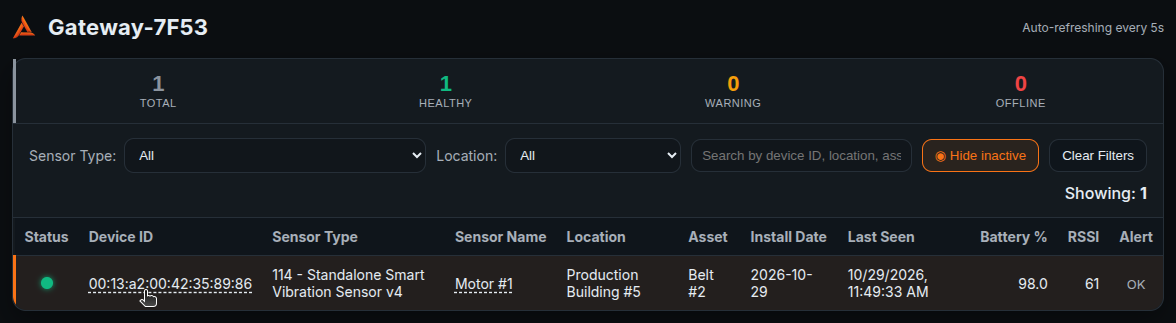
Step 1: Select the Target Device
Log in to your Atrium Interface and click on the specific Device ID you wish to configure.
Step 2: Open the Sensor Settings
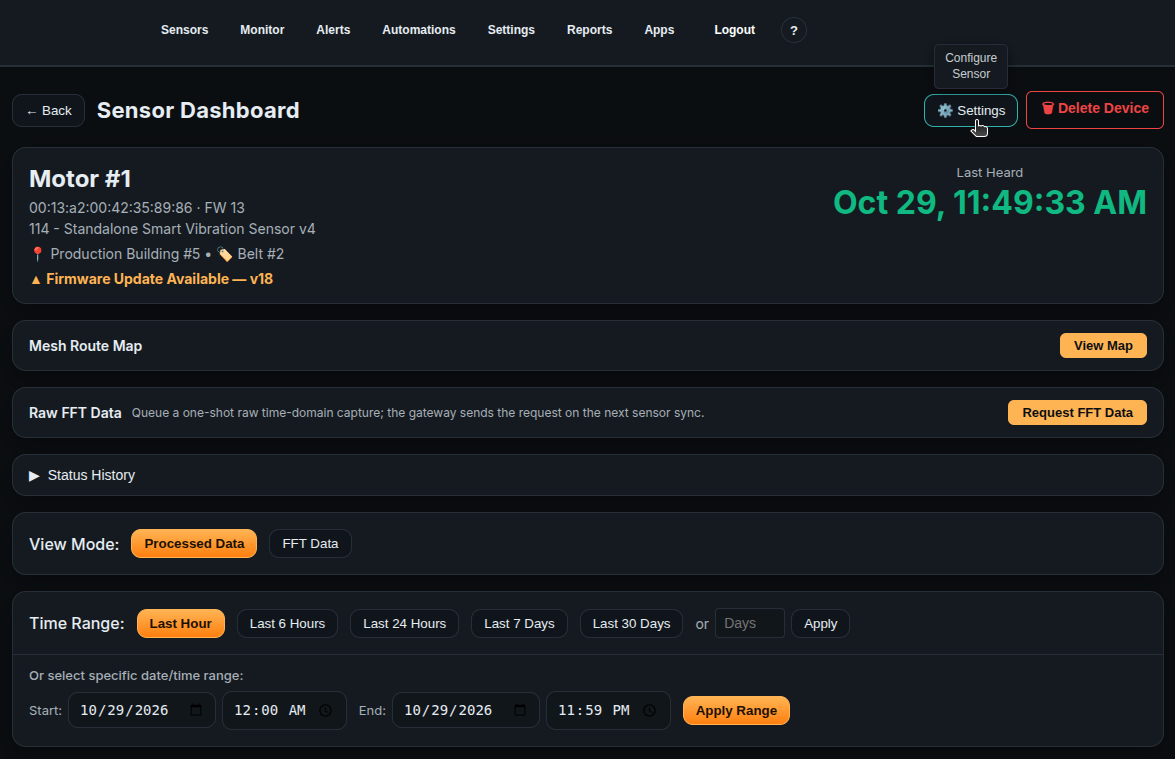
From the Sensor Dashboard window, click the Settings button located in the top right corner.
Step 3: Access the Configuration Tab
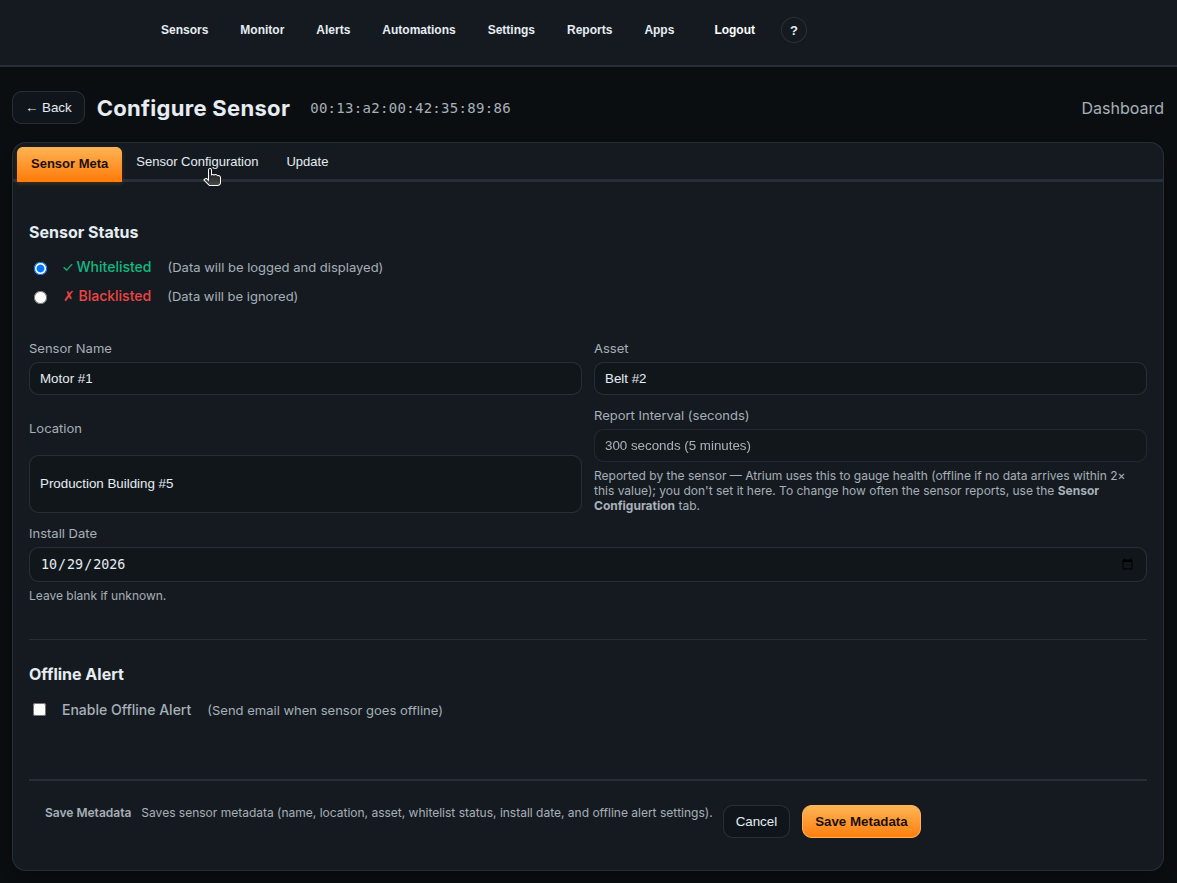
Navigate to the Sensor Configuration tab.
Step 4: Review the Configuration Interface
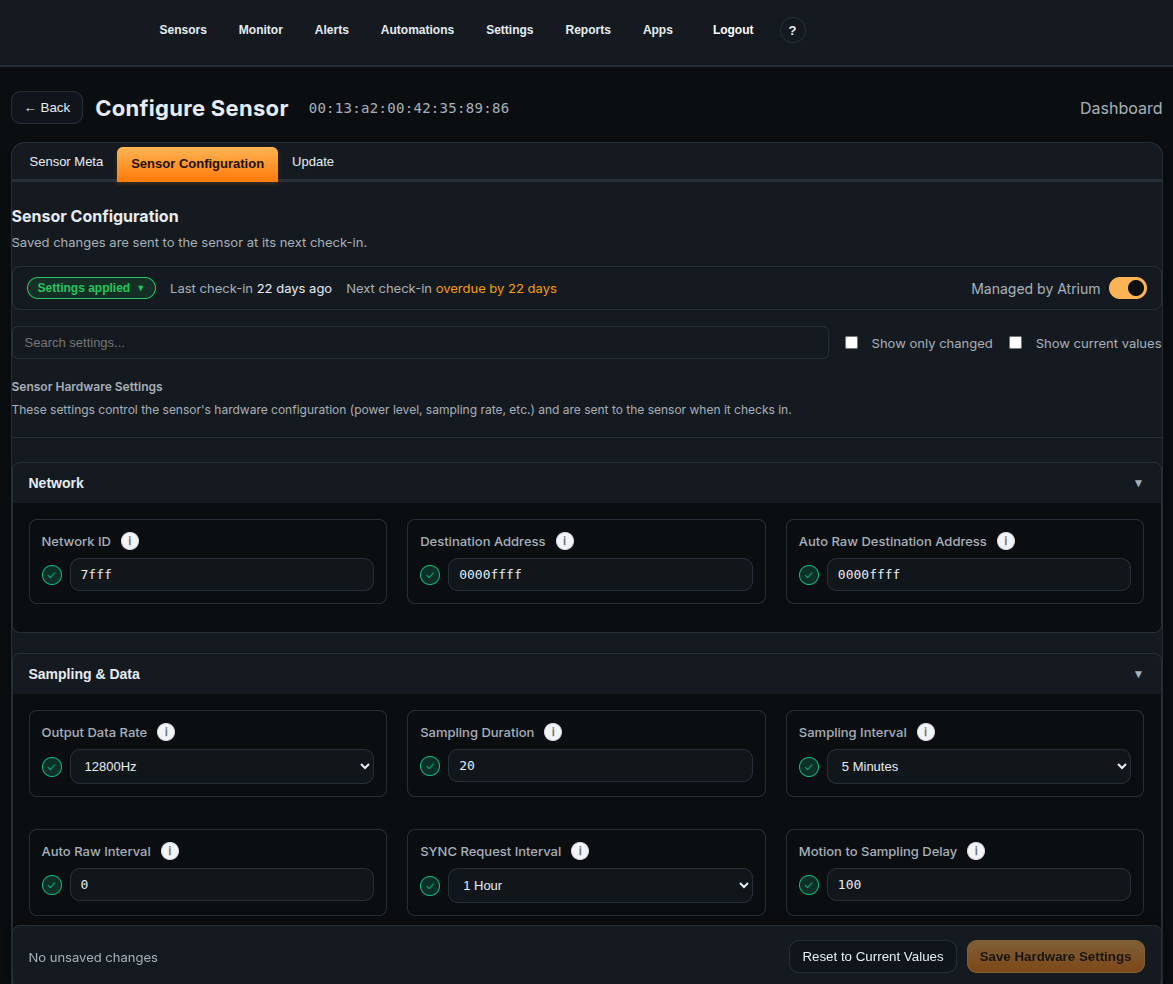
This window provides a consolidated view where you can:
- View all available settings for your specific NCD sensor, including detailed descriptions.
- Check the current settings active on the sensor (captured during its last sync message).
- Use the provided inputs (text fields, dropdowns) to modify any desired parameters.
Step 5: Modify Your Desired Settings
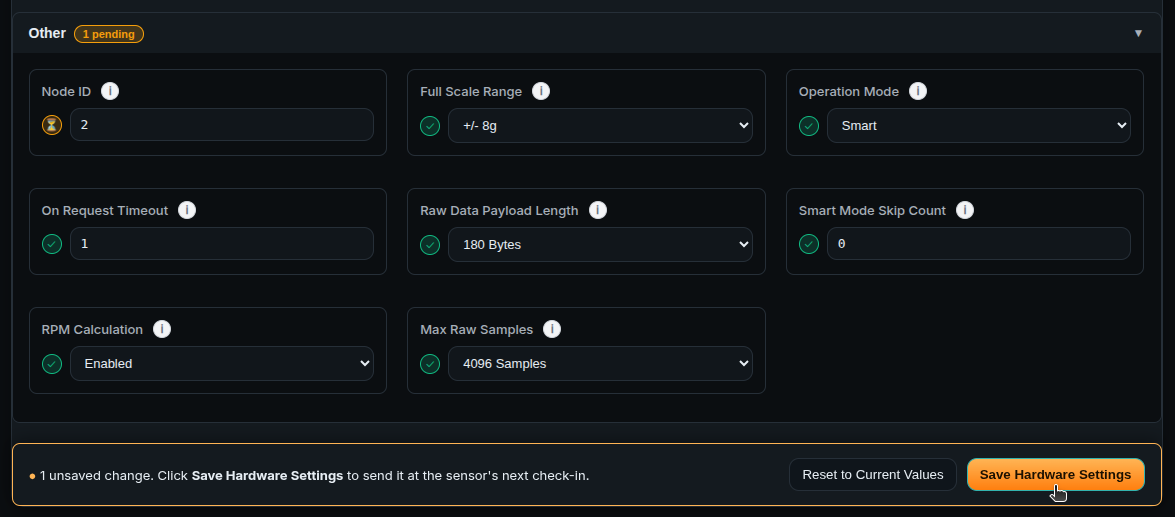
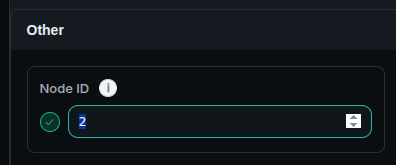
Example: Changing the Node ID. Scroll down to the ‘Other’ section and locate the Node ID setting. This is a user-defined identifier. The factory default is 0. Change this value to 2 (valid range is 0-255).
Note: You can modify multiple settings during a single configuration session. Once all desired changes are staged, click the Save Hardware Settings button in the bottom right corner.
Step 6: Queue Settings on the Gateway
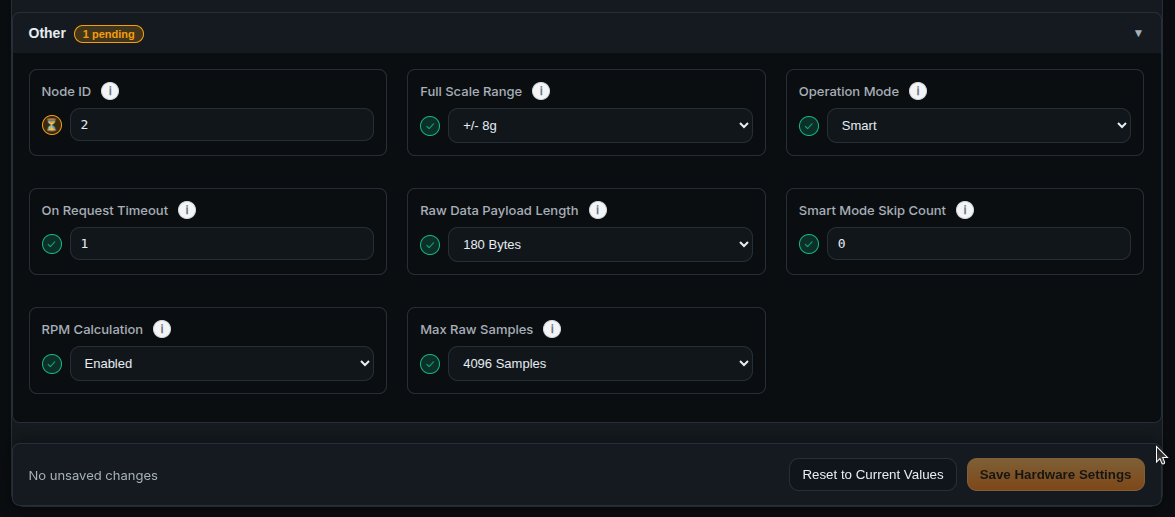
At this stage, the new settings are saved to the Atrium Gateway and marked as pending. They have not been applied to the physical sensor yet. The Gateway is now holding the payload, waiting for the sensor to check in.
Step 7: Apply Settings to the Sensor
The Atrium Gateway will push the settings the next time the sensor enters Configuration Mode.
- Automatic (Hourly): Check the “Next check-in” timer in the UI for an estimate of when the sensor will auto-sync.
- Manual (Immediate): To apply settings immediately, physically reset the sensor to force it into Configuration Mode.
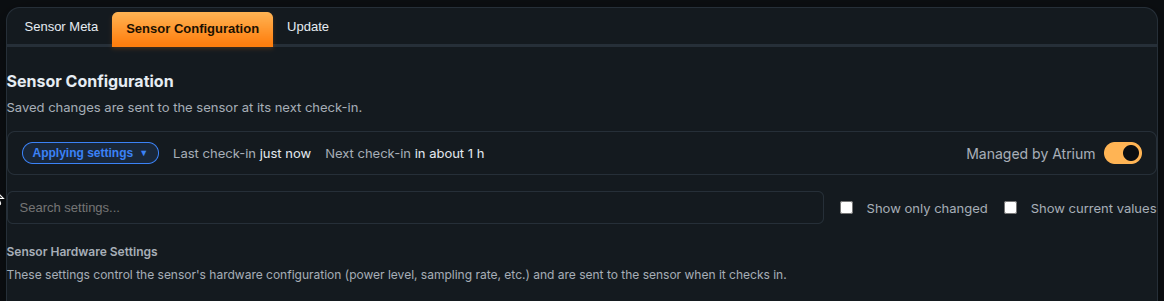
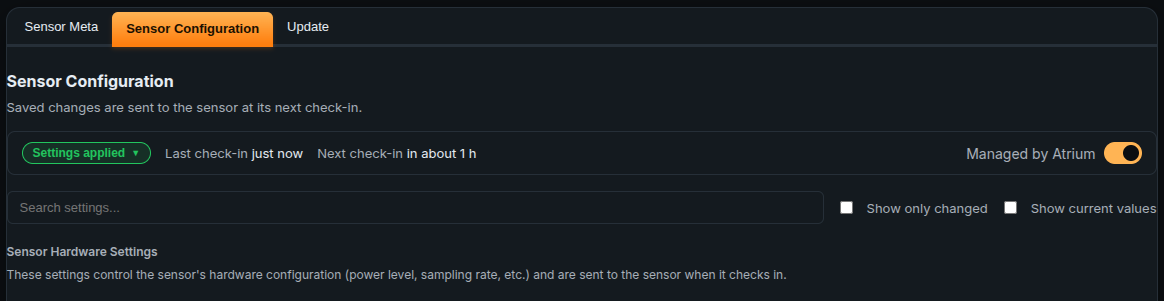
During the transfer, the Atrium interface will display an “Applying settings” status. Once the configuration is successful, the status will update to “Settings applied”, and the pending hourglass icon will change to a green check mark.
04Troubleshooting
Changed a Sensor Setting and Nothing Happened? You can review this artilce: Sensor Setting not updating