

Ignition User Guide
Publish every NCD wireless sensor on an Atrium gateway to Inductive Automation Ignition over MQTT Sparkplug B. Ignition’s MQTT Engine creates the tags, folders and data types on its own, so there is nothing to build on the Ignition side before data arrives.
01Overview
Ignition is a SCADA and industrial application platform. This app connects an Atrium gateway to the MQTT broker your Ignition system uses and publishes each sensor as a Sparkplug B device. Ignition’s MQTT Engine module turns those messages into tags.
Sparkplug B is the MQTT convention Ignition uses for plug-and-play devices. A device announces itself with a birth message listing every value it will send, and MQTT Engine creates a tag for each one. When the device goes away, the broker announces its death and Ignition marks its tags stale. You enter one broker address in the app; everything else follows from those messages.
02Requirements
What has to be in place on each side before you start.
| Item | Requirement |
|---|---|
| Atrium platform | 2.8.0 or newer. The app opens its own connection to your broker, which earlier platform versions do not allow. |
| Gateway | Atrium EG5120 or EG5100. |
| Sensors | Any NCD wireless sensor the gateway has whitelisted. Each sensor’s decoded values are published as they are stored in Atrium. |
| Ignition | A gateway with the Cirrus Link MQTT Engine module installed and running. MQTT Engine is sold separately by Inductive Automation and runs in trial mode until licensed. |
| MQTT broker | Any MQTT 3.1.1 broker both the Atrium gateway and Ignition can reach. Most Ignition sites use the Cirrus Link MQTT Distributor module, which runs the broker inside Ignition itself. |
| Network | The Atrium gateway must reach the broker on its MQTT port, usually 1883 (or 8883 with TLS). MQTT does not pass through the gateway’s HTTP proxy setting. |
| License | The Atrium app is free and needs no license. |
03Installing
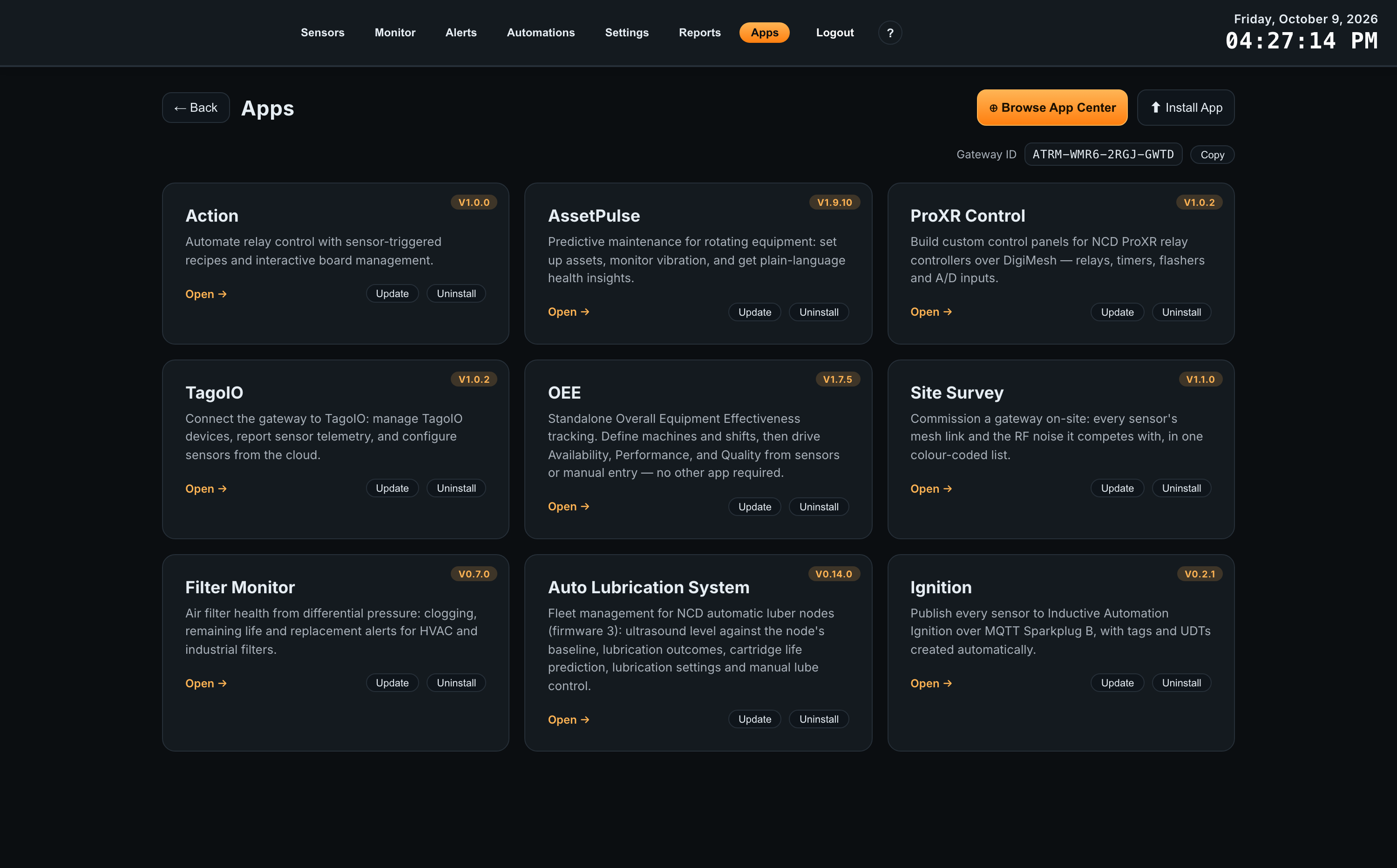
Install the app from the gateway’s Apps page like any other Atrium app.
-
1
Open Apps on the gateway dashboardClick Browse App Center and install Ignition, or click Install App and upload the app package you were given.
-
2
Wait for the services to restartInstalling restarts the gateway’s services, which takes a few seconds. The app then appears on the Apps page as Ignition.
-
3
Open the appClick Open on the card. The app opens on the Connection screen. Nothing is published until you enter a broker.
Uninstalling keeps the app’s settings and device list unless you choose to delete its data, so a reinstall picks up where it left off.
04First-Time Setup
The shortest path from a freshly installed app to sensor tags in Ignition. On a site where Ignition already runs MQTT Distributor and MQTT Engine, this takes about five minutes.
1. Find your broker details
You need four things from whoever runs your Ignition system:
| Detail | With MQTT Distributor |
|---|---|
| Broker host | The Ignition server’s host name or IP address, as the Atrium gateway reaches it. |
| Port | 1883, or 8883 if Distributor’s TLS listener is used. |
| Username and password | A user listed under Connections > MQTT Distributor > Users in the Ignition gateway web interface. A new Distributor installation has one user, admin, with the password changeme; change it on any production system, or use Create User to add one for the gateway. |
| Primary Host ID | Optional. The Primary Host ID of MQTT Engine’s server set, under Connections > MQTT Engine > Configuration > Sets (IamHost in the Default Set). Only needed if you want the gateway to publish only while that Ignition is online. See Sparkplug settings. |
2. Connect the gateway
-
1
Open the Connection screenThe header chip reads Not publishing and the first checklist step, Broker set, is waiting.
-
2
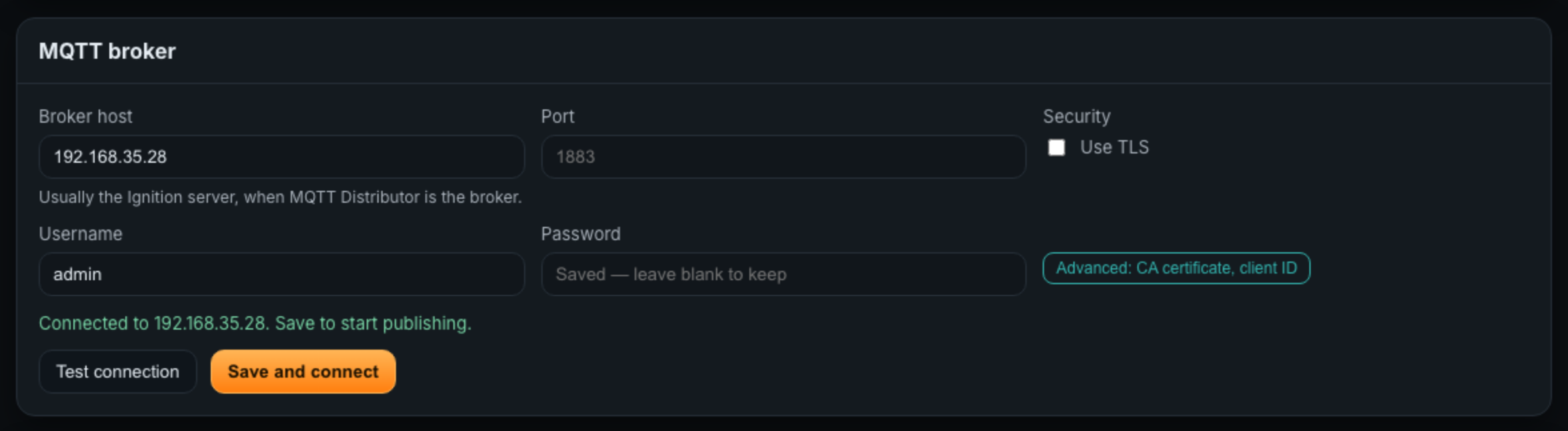
Fill in the MQTT broker panelEnter the Broker host, the Port if it is not 1883, the Username and the Password. Tick Use TLS only if the broker’s listener uses TLS.
-
3
Click Test connectionThe gateway connects to the broker once, without publishing anything, and reports the result under the form. Success reads Connected to <host>. Save to start publishing. A failure says what went wrong; see MQTT broker.
-
4
Click Save and connectThe gateway connects within a few seconds and announces every sensor. The checklist ticks through each step, the last reading Sensors published, and the header chip changes to Publishing to Ignition.
Every whitelisted sensor is published by default, including ones added to the gateway later. To publish only some, turn the others off on the Devices screen.
3. Find the tags in Ignition
-
1
Open the Ignition DesignerThe tags live in the MQTT Engine tag provider. Ignition’s gateway web pages show only a tag count per provider, so use the Designer’s Tag Browser to see the tags themselves.
-
2
Select the MQTT Engine providerIn the Tag Browser, switch the provider from default to MQTT Engine.
-
3
Open Edge NodesExpand Edge Nodes > NCD > <gateway name>. There is one folder per sensor, named by its radio address. Open Info inside a folder to see which sensor it is.
05Connection
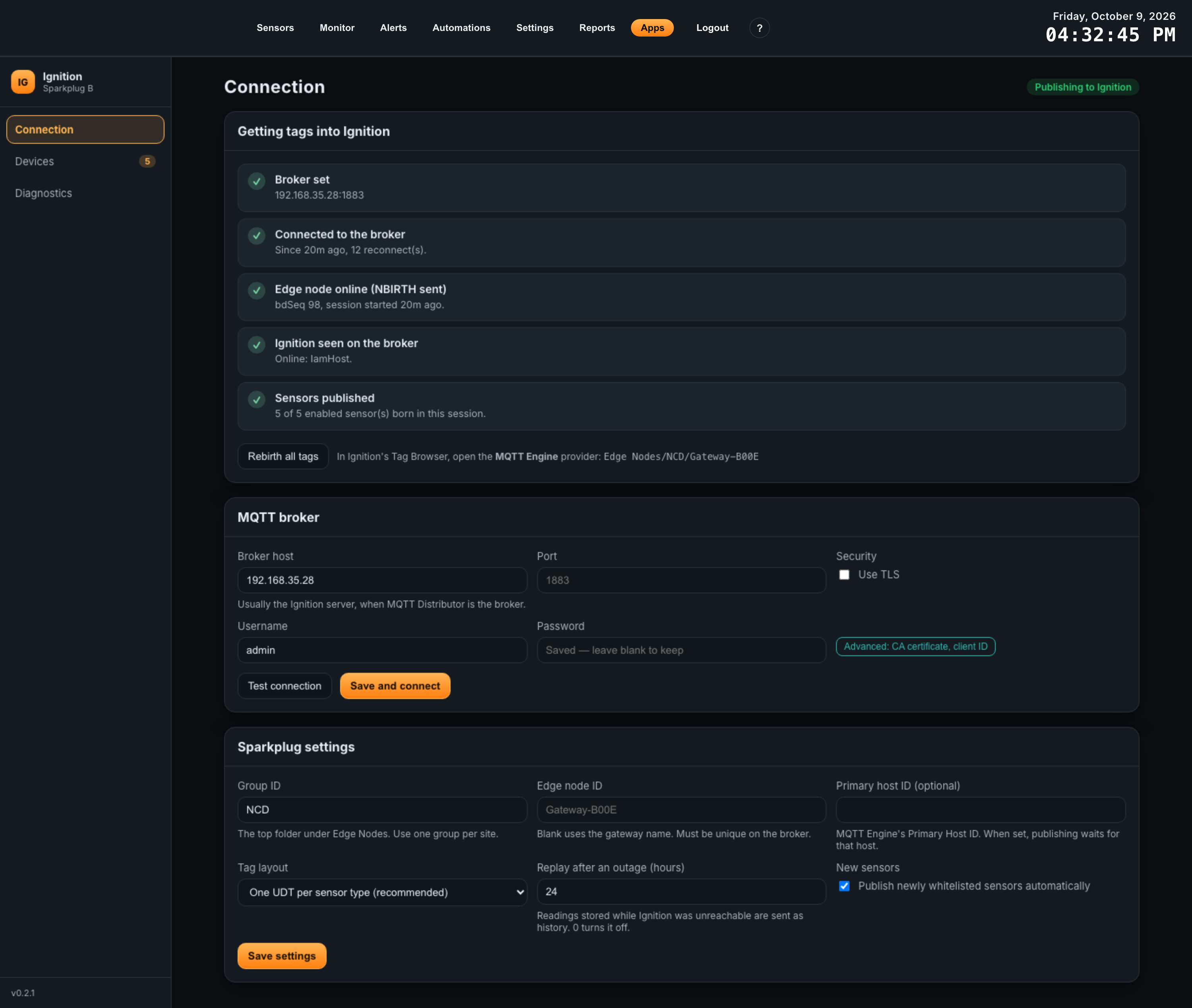
Everything about the link to Ignition is on this one screen: whether it is working, the broker, and how the gateway identifies itself to Ignition.
The checklist
Getting tags into Ignition lists what must be true before tags appear, in order. The first step without a tick is the one to fix.
| Step | Ticked when | If it is not |
|---|---|---|
| Broker set | A broker host is saved. Shows the host and port. | Fill in the MQTT broker panel and click Save and connect. If the platform is older than 2.8.0, this step says so. |
| Connected to the broker | The broker accepted the connection. Shows how long ago, and how many reconnects there have been. | Shows Retrying: and the broker’s error. The gateway retries every 5 seconds. |
| Edge node online (NBIRTH sent) | The gateway has announced itself to Ignition on this connection. | Happens the moment the connection is accepted, unless a Primary Host ID is set and that host is offline. |
| Ignition seen on the broker | An MQTT Engine on the same broker has announced itself. Shows its host ID. | MQTT Engine is not running, or is connected to a different broker. |
| Sensors published | At least one sensor has been announced. Shows how many of the enabled sensors. | Turn sensors on in Devices. |
Below the checklist, the line In Ignition’s Tag Browser, open the MQTT Engine provider shows the exact folder this gateway publishes to.
MQTT broker
| Field | Default | Notes |
|---|---|---|
| Broker host | empty | Host name or IPv4 address. Letters, numbers, dots, hyphens and underscores only; no mqtt:// prefix. |
| Port | 1883, or 8883 with TLS | Leave blank to use the default for the security setting. |
| Use TLS | off | Encrypts the connection. Turn on only if the broker’s listener uses TLS. |
| Verify the broker’s certificate | on | Shown when TLS is on. Leave on unless you are testing against a broker with a certificate the gateway cannot verify. |
| Username, Password | empty | The password is stored encrypted on the gateway and never shown again. Leave it blank when changing other fields to keep the saved one. |
| CA certificate (PEM, optional) | empty | Under Advanced. Only for a broker whose certificate comes from a private certificate authority. |
| Client ID (optional) | unique per gateway | Under Advanced. Leave blank unless the broker’s access rules require a specific client ID. Two clients with the same ID disconnect each other. |
Test connection connects once with what is in the form, including unsaved changes, and disconnects without publishing. A blank password tests with the saved one. Failures are reported with advice:
| Result | Meaning |
|---|---|
| Nothing accepted the connection | Wrong host or port, or the broker is not running. |
| The broker refused the username or password | The credentials do not match a user on the broker. |
| The TLS handshake failed | The port is not the TLS one, or the broker’s certificate cannot be verified. Supply the CA certificate if it is private. |
| No answer | Usually a firewall between the gateway and the broker. The test gives up after 10 seconds. |
| The gateway can’t resolve that host name | DNS on the gateway does not know the name. Use the IP address. |
Save and connect stores the form and the gateway reconnects within a few seconds. Saving an empty host disconnects. Moving to a different broker announces the gateway’s departure on the old broker first.
Sparkplug settings
| Field | Default | Effect |
|---|---|---|
| Group ID | NCD | The folder under Edge Nodes that this gateway’s node appears in. Use one group per site to keep large systems organized. Cannot contain /, + or #. |
| Edge node ID | the gateway name | The folder for this gateway inside the group. Must be unique among gateways on the same broker and group. Left blank, it follows the gateway name, with spaces and symbols replaced by hyphens. |
| Primary host ID (optional) | empty | When set, the gateway publishes only while the Ignition with that host ID is online, and reconnects when it goes offline so the broker marks this node offline too. Must match the Primary Host ID configured in MQTT Engine. |
| Tag layout | One UDT per sensor type (recommended) | Readings appear in a Sensor UDT instance. Plain folders puts them in a Data folder instead. See One UDT per sensor type. |
| Replay after an outage (hours) | 24 | How far back readings missed during an outage are sent as history, 0 to 168. 0 turns replay off. |
| New sensors | on | Publish newly whitelisted sensors automatically. When off, new sensors appear on the Devices screen turned off. |
Save settings applies the changes within a few seconds.
Rebirth all tags
Rebirth all tags makes the gateway announce itself and every sensor again, so Ignition rebuilds the tags from scratch with current values. Use it if tags look wrong or incomplete in Ignition. It is the same as the Rebirth command MQTT Engine can send to an edge node, which the gateway also answers.
06Devices
Every whitelisted sensor on the gateway, whether it is published to Ignition, and where its tags are.
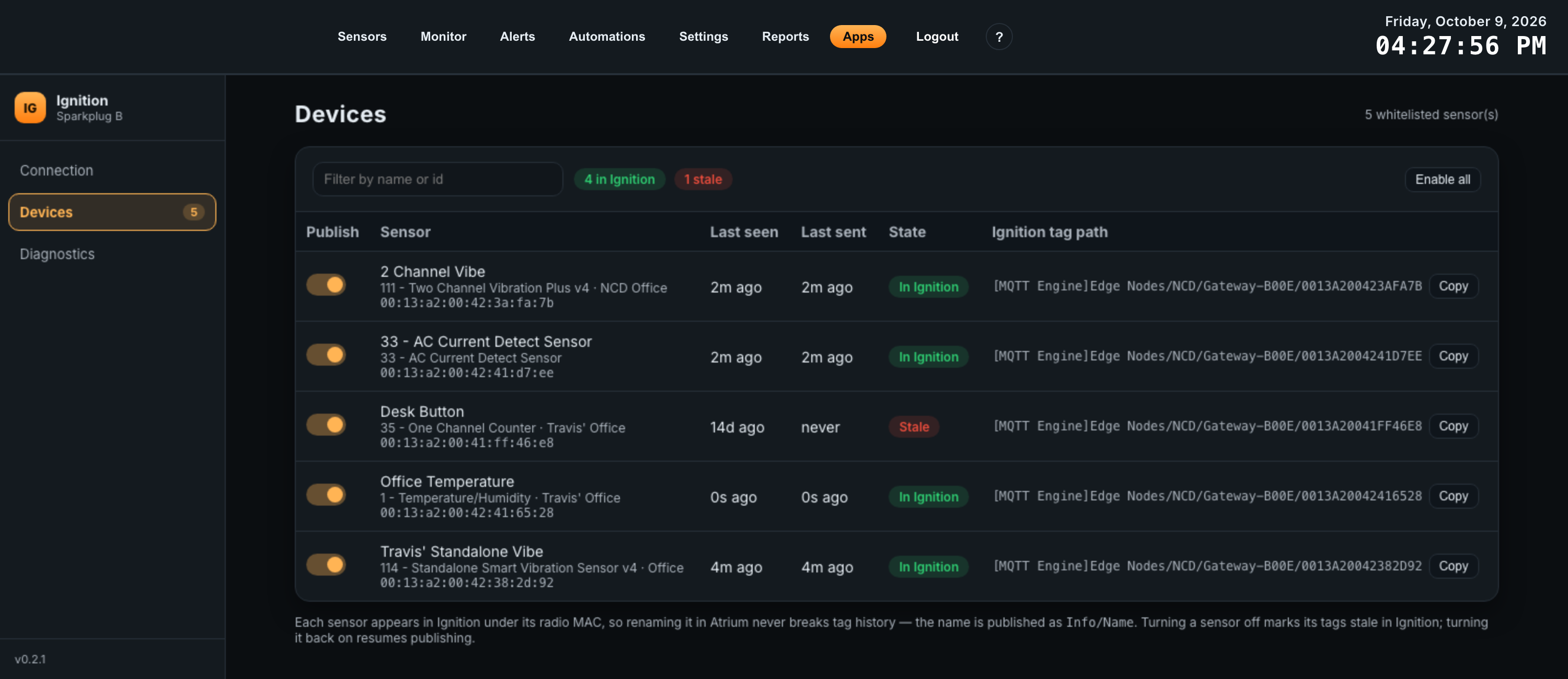
| Column | Shows |
|---|---|
| Publish | Whether the sensor is published to Ignition. Turning it off marks the sensor’s tags stale in Ignition; turning it back on announces it again. |
| Sensor | The sensor’s name in Atrium, its model and location, and its radio address. |
| Last seen | When the gateway last heard from the sensor. |
| Last sent | When a reading was last sent to Ignition. replaying history… means readings from an outage are still being sent. |
| State | See below. |
| Ignition tag path | The sensor’s folder in the MQTT Engine provider. Copy puts it on the clipboard. |
| State | Meaning |
|---|---|
| In Ignition | Announced to Ignition on the current connection and reporting. |
| Waiting | Enabled, but not yet announced: the gateway is not connected, or is about to announce it. |
| Stale | Announced, but the sensor has missed three report intervals. Its Health/Stale tag is true in Ignition. |
| Off | Not published. |
The chips above the table count sensors in each state. Enable all turns on every sensor that is off. The filter matches sensor names and radio addresses.
Renaming a sensor in Atrium updates its Info/Name tag; the folder stays named by radio address, so tag paths never change.
07Diagnostics
What the gateway actually sent, for support and for confirming a problem is on the Ignition side. Counts reset when the gateway’s services restart.
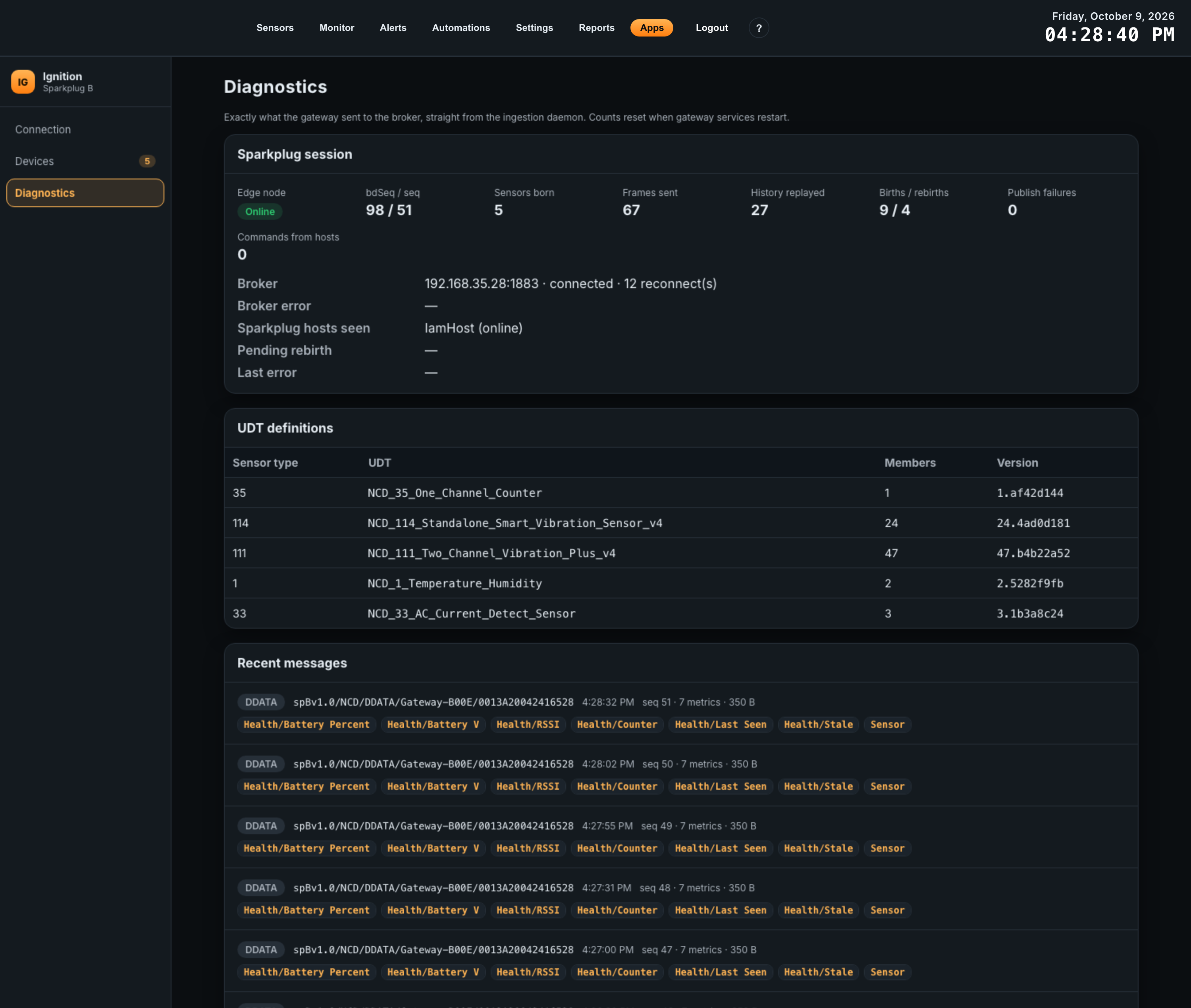
| Panel | Shows |
|---|---|
| Sparkplug session | Whether the edge node is online, its current bdSeq and seq, sensors announced, frames sent, history replayed, births and rebirths, publish failures, and commands received from Ignition. Below: the broker and its connection state, every Sparkplug host seen, any pending rebirth, and the last error. |
| UDT definitions | One row per sensor type: the UDT name, how many members it has, and its version. |
| Recent messages | The last 30 messages sent: type, topic, time, sequence number, size and the first metric names. History replays are labeled historical. |
08The Tags in Ignition
What MQTT Engine creates from the gateway’s messages, and how it behaves.
Folder layout
Edge Nodes/
  NCD/                          Group ID
    Gateway-B00E/               Edge node ID
      Gateway/                  Name, Model, Platform Version, App Version
      Node Status/              Sensors Reporting, Sensors Stale
      Node Control/Rebirth
      0013A20042382D92/         one folder per sensor, its radio address
        Info/                   Name, Location, Asset, Sensor Model, MAC, Sensor Type
        Health/                 Battery Percent, Battery V, RSSI, Counter, Last Seen, Stale
        Sensor                  the readings, a UDT instance (or Data/ in plain folders)
MQTT Engine adds its own Node Info and Device Info folders alongside these, with connection details such as online state and birth and death counts.
Reading names are the metric names Atrium stores, for example x_rms_acc_g, x_velocity_mm_sec or humidity. All readings are 64-bit floating point.
One UDT per sensor type
With the default layout, the gateway defines one data type per sensor model, named NCD_<type>_<model>, for example NCD_114_Standalone_Smart_Vibration_Sensor_v4. MQTT Engine creates these under _types_ in its provider, and each sensor’s Sensor tag is an instance of its type. A template or screen built against the type works for every sensor of that model.
Members carry engineering units where the unit is certain from the reading:
| Reading name ends in | Engineering units |
|---|---|
| _velocity_mm_sec | mm/s |
| _displacement_mm | mm |
| _rms_acc_g, _max_acc_g | g |
| _hz | Hz |
| humidity | % |
A data type only grows. If a sensor starts sending a reading its type does not have yet, the gateway adds the member and announces itself again, and a member is never removed. Screens bound to a member keep working.
Health and staleness
| Tag | Meaning |
|---|---|
| Health/Battery Percent, Battery V | The sensor’s battery, in % and V. |
| Health/RSSI | Signal strength of the sensor’s last report, as Atrium shows it. |
| Health/Counter | The sensor’s report counter. |
| Health/Last Seen | When the gateway last heard from the sensor. |
| Health/Stale | True once the sensor has missed three report intervals, false again at its next report. Checked every minute. |
| Node Status/Sensors Stale | How many of this gateway’s sensors are stale. |
Health/Stale covers a sensor that goes quiet while the gateway is fine. If the gateway itself drops off the network, the broker publishes its death message about 45 seconds later and MQTT Engine marks every tag from the gateway stale. Both are good candidates for alarms.
Outages and history
Atrium keeps storing readings while the broker or Ignition is unreachable. When the gateway reconnects, it announces each sensor with its newest stored reading, then sends the readings it missed, oldest first, flagged as historical data with their original timestamps, so MQTT Engine does not treat them as the current value.
- Replay reaches back as far as Replay after an outage (hours), 24 hours by default.
- A gateway can take over a minute to notice that its network connection has died. Readings sent in that window may never have arrived, so after an unexpected disconnect the replay also covers the 90 seconds before it. Ignition receives some readings twice; the values and timestamps are identical.
- What MQTT Engine does with historical data is set by Store Historical Events under Connections > MQTT Engine > General Settings, which writes historical change events directly to the history provider instead of updating the tag value.
09Sparkplug Details
For integrators working with the broker directly or with another Sparkplug host.
| Item | Value |
|---|---|
| Specification | Eclipse Sparkplug B (namespace spBv1.0), MQTT 3.1.1, protobuf payloads |
| Node topics | spBv1.0/<group>/NBIRTH|NDATA|NDEATH/<edge node> |
| Device topics | spBv1.0/<group>/DBIRTH|DDATA|DDEATH/<edge node>/<radio address> |
| Last Will | NDEATH on the node topic, QoS 1, not retained, carrying the connection’s bdSeq |
| Births and data | QoS 0, not retained. seq 0 on NBIRTH, then +1 per message, wrapping at 255. |
| bdSeq | Int64, one per connection attempt, persisted across restarts. A rebirth on the same connection keeps it. |
| Keepalive | 30 seconds |
| Subscriptions | spBv1.0/STATE/+ and STATE/+ (host online state), NCMD for the node, DCMD for its devices |
| Commands | Node Control/Rebirth is answered with a full rebirth. Device commands (DCMD) are received and counted on Diagnostics but not acted on; sensor settings are changed in Atrium. |
| Host state | Rebirths when a Sparkplug host comes online after this session started. With a Primary Host ID set, publishes only while that host is online. |
| Graceful shutdown | When the gateway’s services restart, the app sends NDEATH itself before disconnecting. |
10Troubleshooting
The Connection screen’s checklist shows which link is broken; Diagnostics shows exactly what was sent. Start with whichever step is not ticked.
Connecting
| Symptom | Cause | Fix |
|---|---|---|
| The broker refused the username or password | The credentials do not match a broker user. | Check the user under Connections > MQTT Distributor > Users. Re-enter the password; a blank field keeps the old one. |
| Nothing accepted the connection | Wrong host or port, or the broker module is not running. | Confirm the address from the gateway’s network, and that MQTT Distributor is running in Ignition. |
| No answer | A firewall blocks the MQTT port. | Allow TCP 1883 (or 8883) from the gateway to the broker. |
| Test connection works, but Connected to the broker keeps retrying | The test used unsaved form values. | Click Save and connect. |
| Ignition seen on the broker never ticks | MQTT Engine is stopped, or connected to a different broker. | Under Connections > MQTT Engine > Configuration > Servers, check a server points at the same broker and reads Connected. |
| Edge node online says it is holding for a primary host | A Primary Host ID is set and no host with that ID is online. | Match it to the Primary Host ID under Connections > MQTT Engine > Configuration > Sets, or clear it. |
Tags
| Symptom | Cause | Fix |
|---|---|---|
| All checklist steps ticked, but no tags in Ignition | Looking in the wrong provider. | Select MQTT Engine in the Tag Browser, not default, and open Edge Nodes. |
| Tags from two gateways mixed together, or a gateway’s tags keep going stale and returning | Two gateways use the same Edge node ID in the same group. | Give each gateway a unique Edge node ID. The default follows the gateway name, so rename one of the gateways or set the ID by hand. |
| A sensor is missing | Its Publish switch is off, or it is not whitelisted in Atrium. | Turn it on in Devices. Only whitelisted sensors are listed. |
| A sensor’s tags show old values and Health/Stale is true | The sensor has stopped reporting. | Check the sensor’s battery and signal in Atrium. |
| Tags look incomplete or out of date | Ignition missed a birth, for example after its own restart. | Click Rebirth all tags, or use MQTT Engine’s Rebirth on the edge node. |
| MQTT Engine’s Data Latency for the node is negative | The gateway’s clock is ahead of Ignition’s. | Synchronize both with NTP. Timestamps come from the gateway. |
| Tags under the old path after changing the Group ID or Edge node ID | Ignition keeps tags from the old node, stale. | Delete the old edge node folder in MQTT Engine once nothing uses it. |
11Reference
Metrics, data types and limits.
Node metrics
| Metric | Type | Notes |
|---|---|---|
| bdSeq | Int64 | Birth/death sequence of the current connection. |
| Node Control/Rebirth | Boolean | Write true from Ignition to request a rebirth. |
| Gateway/Name, Model, Platform Version, App Version | String | Identify the gateway. |
| Node Status/Sensors Reporting, Sensors Stale | Int32 | Updated when they change, checked every minute. |
Device metrics
| Metric | Type | Notes |
|---|---|---|
| Info/Name, Location, Asset, Sensor Model, MAC | String | From Atrium. Name, Location and Asset update when changed in Atrium. |
| Info/Sensor Type | Int32 | NCD sensor type number. |
| Health/Battery Percent, Battery V, RSSI, Counter | Double | From each report. |
| Health/Last Seen | DateTime | |
| Health/Stale | Boolean | Three missed report intervals. |
| Sensor | Template (UDT instance) | Members are Double. Data/<reading> with the plain-folders layout. |
Limits and timing
| Item | Value |
|---|---|
| Reconnect interval | 5 seconds |
| Stale threshold | 3 missed report intervals, using the report interval set for the sensor in Atrium (600 seconds if unset) |
| Outage replay | 0 to 168 hours, default 24 |
| Replay window before an unexpected disconnect | 90 seconds (3 keepalives) |
| Test connection timeout | 10 seconds |
| Raw vibration waveforms | Not published. Processed vibration readings are. |