

- Device Overview
- Openning up the Sensor
- Hardware Controls
- Default Factory Configuration
- Software Integration - Node-Red Overview
- Wireless Gateway Nodes
- Wireless Node Configuration
- Wireless Device Nodes
- Sensor Specific Configurations
- Mode
- LED Alert Mode
- LED Accelerometer Threshold
- LED Velocity Threshold
- Set On Request Timeout
- Set Filtering
- Probe 1 Output Data Rate
- Probe 1 Sampling Duration
- Probe 1 Set Low Pass Filter
- Probe 1 Set High Pass Filter
- Sampling Interval
- Set Auto Raw Interval
- Set Auto Raw Destination Address
- Probe 1 Set Smart Mode Threshold
- Set Smart Mode Skip Interval
- Probe 1 Set Acceleration Wake Interrupt Threshold
- Full Scale Range
- Set Dead Band in mg
- Set FLY Interval
- RPM Calculate Status
- Set RTC
- Set Max Raw Sample
- Set Ultrasound Max Raw Sample
- Clear Probe Uptimers
- Set Motion to Sampling Delay
- Set Max Number Motion Tx Per Interval
- Payload Length
- Sensor Configuration Process
- Troubleshooting
Explore the Wireless Vibration, Ultrasound and Temperature Sensor Capabilities
Device Overview
Introducing NCD’s Wireless Vibration, Ultrasound and Temperature Sensor. Engineered for industrial predictive maintenance. They track 3-axis acceleration, vibration severity (RMS/Peak), temperature, and RPM. By capturing data up to 25.6kHz, they help detect mechanical faults (e.g., bearing wear, imbalance) before unexpected machine failures occur it also integrated ultrasound capabilities to capture high-frequency acoustic emissions.
This addition is critical because ultrasound detects the earliest stages of friction, lubrication starvation, and potential leaks long before detectable vibrations or temperature spikes occur. By combining both technologies, the sensor provides comprehensive visibility across the entire equipment degradation curve, allowing your team to identify and resolve anomalies weeks or months earlier than relying on vibration analysis alone.
- It Helps to Detect: Misalignment, Looseness, Imbalance, Bearing wear, Gearbox wear, Lubrication.
- Senses Vibration, Ultrasound and Temperature.
- Analyzes On-Device: FFT, Time-Domain Data, Overall, RPM, Uptime.
- Always-Listening Mode: Stays on to capture machines that cycle on and off.
- Small & lightweight for ease of installation.
- IP67 rated sealed enclosure for dust &
moisture protection. - D-cell battery for long-lasting operation.
- A versatile user-configurable sample rate for slow or fast-running machines.
- In-Built Machine Learning optimizes power consumption.
- Asset On-Time Calculator automatically tracks operational status.
- Hardware Accelerator enhances vibration sampling accuracy.
- Configurable Sample Rate – 100Hz to 25.6KHz
- Available Wireless Transmission Frequencies – 900Mhz, 868Mhz, and 2.4Ghz
- Supports MESH networking via DigiMesh
- Fully open Node-RED library for configuration and data ingestion
- No Monthly Cost.
- Total Data Owner Ship.
Openning up the Sensor
Device and Tooling
We recommend using the special Spanner Wrench we offer in our store, specifically designed to easily take apart the Wireless Vibration, Ultrasound and Temperature Sensor.
It is possible to open it up using alternative tooling, however for best results we recommend using our Spanner Wrench.
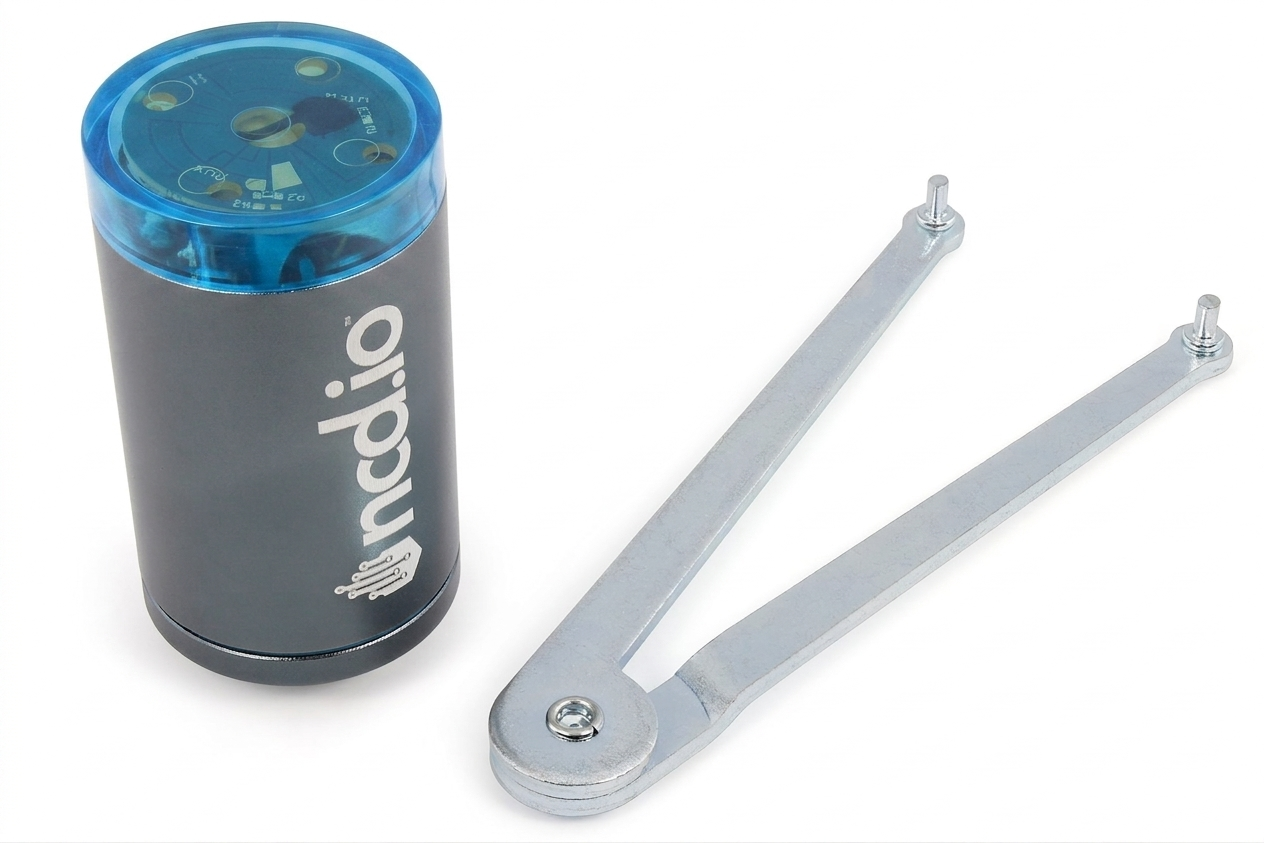
Magnetic Attachment Base
The sensor comes with a magnetic attachment base design for easy mounting to the harness of a motor for example.
In order to open up the sensor, you would need to remove it, which is easily done by hand. Simply rotate it anti-clockwise until it is separated from the body of the device.

Unscrewing the Sensor Base
Once you have removed the magnetic attachment base, you will expose the two indents that are used as mounting points for the spanner wrench. Insert is as per the image (adjusting it as needed to fit both holes) and rotate it anti-clockwise. You need to firmly grip the other end of the sensor in order for the bottom lid where the spanner wrench is mounted to start unscrewing. Once you have made a few rotations you should be able to use your hand instead of the spanner wrench to quickly unscrew it.

Separating the Enclosure from the Base
The base you just unscrewed is actually the portion of the device the electronics is attached to. If you pull the top portion (gripping the device around the plastic, orange ring) and the sensor base you will separate the cylindrical part of the enclosure and the base with the electronics attached to it.
At this point you will be able to access the physical buttons, board, RF module, antenna and battery.
Refer to the next section for a detailed image and explanation of the components.
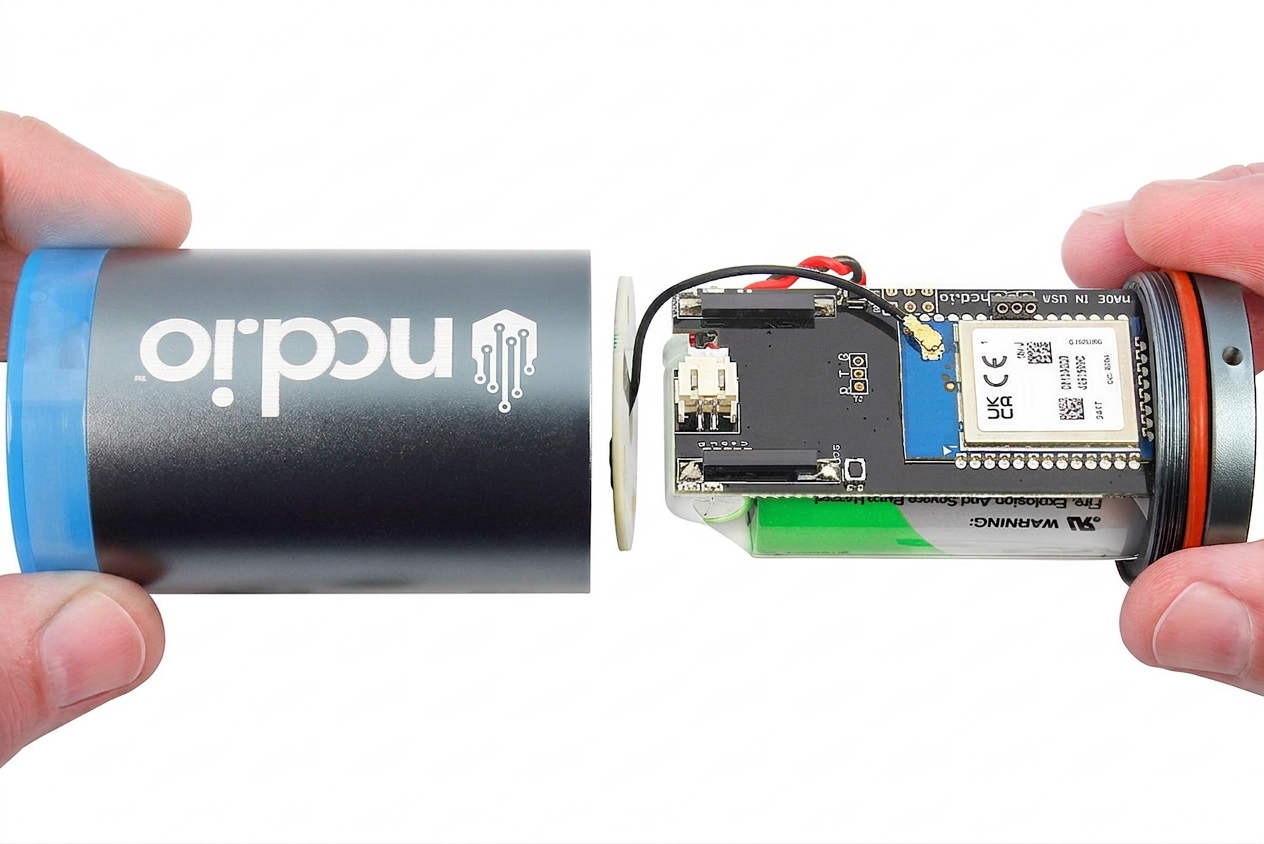
Components Breakdown
Now that your device has been disassembled you have full access to the components.
Refer to the image for a breakdown of the specific parts and their location.

Disconnecting the Battery
You should not need to replace the battery, for years. However, in case you need to disconnect it for some reason you can do this via the connector on the top of the PCB (refer to the image).
The connector is very solidly inserted, the best way to separate it is to pull on the wire itself, not the connector head, gently wiggling it out.

Hardware Controls
Powering on the sensor
The device comes with the battery installed and connected, it is powered on and already broadcasting with the default network settings.
The sensor comes in Always on mode and Always sampling mode, meaning it is constantly measuring data. This is useful in case where machines operate for brief intermittent periods or where you have a sudden increase in vibration.
This device can be set up to operate in a special Smart mode, where the device will learn the vibrational pattern of the machine in nominal operation and will only measure/transmit data if the vibration is above a user defined vibration level. It will periodically wake up and check and only transmit if need be. It will also send a sample every 10 wake-up periods, as a keep-alive more than a vibration measurement frame.
You can Learn More about Smart Mode in this article: Understanding Data Transmission in Smart Mode.
RESET / CONFIGURE the sensor
Magnetic RESET Switch
The Magnetic RESET Switch will power cycle the sensor. When the sensor first powers up it will send a sensor_mode message with the mode of RUN.
Magnetic CFG Switch
Magnetic CFG Switch serves two functions.
The first is change the mode of the sensor when pressed immediately after a power cycle of the sensor. See section Configuration Button Timing Overview for more information on this.
The second is to test for the presence of power on the sensor. If the CFG button is pressed the TEST LED on the board will light up indicating that the board has power. If no LED comes on check that the Power Switch is in the correct position and that the battery/power supply is good.
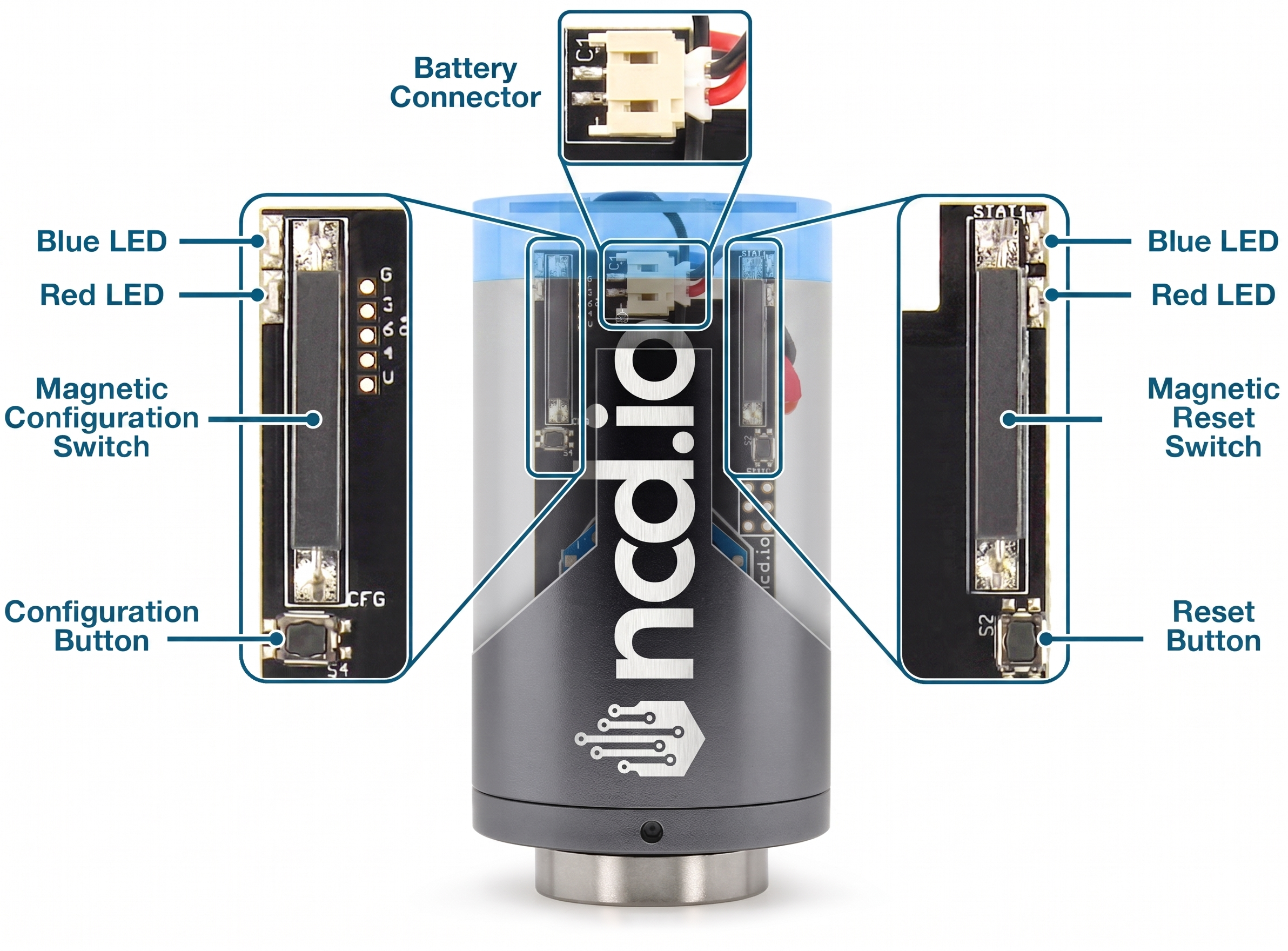
Hardware Mode Selection
Run Mode
Run Mode is the default state of the sensor when powered up. No hardware interaction is necessary to enter this state other than power. Triggering the Magnetic RESET Switch will restart the sensor and put it in the RUN Mode state if no other switches are triggered.
Configuration Mode
Configuration Mode is the state in which the sensor enters in order to change the sensor’s configurable parameters such as Reporting Interval, Transmission Power, and Network ID. When the sensor is in Configuration Mode it will change the settings of the wireless protocol temporarily. The network ID of PGM Mode is 7BCD.
You can enter in this mode by briefly triggering the Magnetic RESET Switch and then immediately triggering and holding the Magnetic CFG Switch for ~5 seconds. Refer to the graph below for the precise timing of the Magnetic CFG timings.
This is a temporary mode that is not intended for long-term operation. You will need to Reset the device after a successful configuration in order to resume normal operations.
See section Sensor Configuration Processes for more information on this configuration process.
Factory Default/Reset
A Factory Reset of the sensor will revert all changes and configurations made to the sensor to their default settings from the Factory. Immediately after a factory reset the sensor will go into Configuration Mode in order to be reconfigured with the desired settings.
Refer to the graph below for the precise timing of the CFG button press.
Using Buttons
- Press and release the RESET button
- Wait for a second, then press and hold the CONFIGURATION button
- Hold the CONFIGURATION button for about 20 seconds
- Release the CONFIGURATION button
- Wait for 3-5 seconds
- Press and release the RESET button.
Using Magnetic Switches
You can perform a Factory Reset using the following sequence:
- Move a magnet near the RESET switch and then move it away
- Wait for 1 second
- Hold the magnet near the CONFIGURATION switch for about 20 seconds
- Move the Magnet away from the CONFIGURATION switch
- Wait for 3-5 seconds
- Move a magnet near the RESET switch and then move it away
Configuration Button Timing Overview
As with the Factory Reset procedure you have two options here as well depending on the model of your device.
Timing Using Buttons
- Press and Release the RESET button
- Configuration Button Pressed and held 1 second after Reset for:
- < 5 second – device starts normally in RUN Mode
- 5 to 15 seconds – device goes into Configuration Mode
- > 15 seconds – the device reverts back to the Factory Default Settings, which is followed by a Configuration Mode Frame
Timing Using Magnetic Switches
- Move a magnet near the Reset switch and then move it away
- Hold the magnet near the Configuration Switch for:
- < 5 second – device starts normally in RUN Mode
- 5 to 15 seconds – device goes into Configuration Mode
- > 15 seconds – the device reverts back to the Factory Default Settings, which is followed by a Configuration Mode Frame
- Move the Magnet away from the Configuration Switch
Default Factory Configuration
| Parameter | Default Value | Unit | Note |
|---|---|---|---|
| Output Data Rate | 12800 | Hz | |
| Sampling Duration | 20 (1000msec) | msec | 20*50 = 1000msec *Sampling Duration depends on the ODR value |
| Low Pass Filter | 4 | ||
| High Pass Filter | 2048 | ||
| Full Scale Range | 8 | g | |
| Sampling Interval | 30 | min | |
| Filter Status | Enabled | ||
| Operation Mode | 3 - Smart | ||
| Data on Request Timeout | 1 | sec | |
| Acceleration Dead Band | 20 | mg | |
| Acceleration Wake/Interrupt Threshold | 10 (500mg) | mg | 10*50 = 500mg |
| LED Accelerometer Threshold | 10 (500mg) | mg | 10*50 = 500mg |
| LED Velocity Threshold | 5 | mm/sec | |
| LED Alert Mode | Acceleration | ||
| Payload Length | 180 | bytes | |
| Auto Raw Interval | Disabled | ||
| Auto Raw Destination Address | 0000FFFF | hex | |
| Smart Mode Skip Interval | 3 | ||
| Sync Interval | 60 | min | |
| RPM Calculate Status | Enabled | ||
| Max Raw Sample | 4096 | Samples | |
| Real-Time Clock | Disabled | ||
| Clear Probe Uptimers | Disabled | ||
| Smart Mode Threshold | 10 (500mg) | mg | 10*50 = 500mg |
| Set Motion to Sampling Delay | 100 (5000msec) | msec | |
| Set Max Number Motion Tx Per Interval | 1 | ||
| Ultrasound Max Raw Sample | 16384 | Samples |
Software Integration - Node-Red Overview
We built our primary software drivers into a software system called Node-Red. Node-Red is a visual based drag-and-drop low/no code flow builder. It allows you to build simple or complex logic and data dissemination applications quickly and easily. It can integrate with third party software/cloud services using a number of protocols such as MQTT, HTTP(S), TCP, UDP, and OPC UA.
For more information and a general introduction on what Node-Red is and how it works you can view Node-Red’s official web site at https://nodered.org/.
All Enterprise Gateway we offer will come with Node-Red and our library running as a service by default to allow quick and easy access to Node-Red and the sensor data from our sensors. If you are using your own gateway or computer you will need a USB or Ethernet Modem, Node-Red, and our library @ncd-io/node-red-enterprise-sensors.
You can find our library on Node-Red with the name: @ncd-io/node-red-enterprise-sensors
In this section will will go over the nodes introduced by our library, what kind of data they will provide your flow, and how to use them.
Wireless Gateway Nodes
Wireless Gateway Nodes are a virtual representation of the wireless protocol connected to your Gateway. They will output all incoming data from the wireless network and all of the sensors on that network into the connected flows from a single entry point.
This is the recommended method for ingesting data from large numbers of sensors at a single location in order to simplify data handling and reduce the complexity of the resulting flow.
Wireless Gateway Node Statuses
Wireless Gateway nodes have multiple states they can show in Node-Red to indicate their current mode or functionality.
Wireless Gateway Ready State
When the Wireless Gateway Node’s status indicates “Ready”, as shown in the picture on the right, it means that the wireless network is successfully connected to Node-Red and is ready to receive data from the sensor(s). Sensors that support FLY messages can be automatically configured while in this mode if a corresponding Wireless Device node is configured to do so. See section Sensor Configuration Processes for more information.

Wireless Gateway Configuring State
When the Wireless Gateway Node’s status indicates “Configuring”, as shown in the picture on the right, it means that the wireless network is successfully connected to Node-red and is ready to configure any sensors entering Configuration Mode.
Any sensor put into configuration mode through the use of the Reset and CFG buttons will be seen by the gateway while in this mode. If Node-Red has a corresponding Wireless Device node for the sensor reporting in then Node-Red will begin configuring that sensor if set to do so. You can enter Config mode or leave Config mode to resume Normal Operations using the button on the left side of the node.
When the Wireless Gateway is in this mode the Wireless Network will change to the Configuration Network. This means that the network ID will change to 7BCD.

Wireless Gateway Failed to Connect State
When the Wireless Gateway Node’s status indicates “Failed to Connect”, as shown in the picture on the right, it means that Node-Red was unable to connect to the wireless network. This usually indicates that incorrect settings were used while configuring the Gateway.
For more information on configuring your Wireless Gateway Node’s communications see section Wireless Gateway Node Configuration.
For more information on troubleshooting your Wireless Gateway Node’s communications see section Troubleshooting

Wireless Gateway Connecting State
When the Wireless Gateway Node’s status indicates “Connecting…”, as shown in the picture on the right, it means that Node-Red is waiting to initialize the connection to the Wireless Network. This state will last for 5 seconds before Node-Red attempts to open communication to ensure that all hardware and software is initialized.
No incoming or outgoing data will be handled while in this state.

Wireless Gateway No State
When the Wireless Gateway Node has no status indication, as shown in the picture on the right, it means that the node is not configured properly and no communications have been indicated for the node. For more information on configuring the Wireless Gateway Node see section Wireless Gateway Node Configuration.

Wireless Gateway Node Messages
All messages from the Wireless Gateway Node will come through as Javascript Objects and are output by default as JSON representations when viewed or sent over most protocols. In Node-Red the primary object to reference the message will be msg. You can access sub-properties using msg.payload or msg.payload.nodeId etc.
modem_mac Message
A modem_mac message indicates the unique address of the wireless module connected to the Wireless Gateway Node. This message is sent when Node-RED is deployed and when the Wireless Gateway is put into Configuration Mode or Ready Mode. An example modem_mac message can be found on the right.
- topic
- Indicates the type of message this is
- payload
- Contains the unique address of the wireless module on the Wireless Gateway Node
- time
- Timestamp of the message
					{
  "topic": "modem_mac",
  "payload": "00:13:A2:00:41:F5:2C:D3",
  "time": 1721424259706,
  "_msgid": "83ad39df1328dea7"
}
Wireless Gateway Processed Sensor Data Message
Sensor data is the primary message that will come from a Wireless Gateway Node. These messages can be discerned from other message types by the topic which will always be “sensor_data”
To the right is an example of a Sensor Data message.
- nodeID
- A user configurable parameter allowing a user to input a simple id for a particular sensor
- For a unique identifier it is recommended to use the “addr” property as it is tied to the individual sensor’s wireless module and will always be unique
- firmware
- This identifies the firmware version of the sensor sending the packet
- battery
- The current voltage level of the batteries at the time of transmission
- The batteries that come with the sensors drop off quickly once they reach 2.6 volts
- battery_percent
- The current battery percent at the time of transmission
- counter
- The number of transmissions since boot or counter rollover
- The counter will rollover after a counter value of 255
- sensor_type
- The machine identifiable type of the sensor
- It is recommended to use this property to dictate dashboard generation and/or data integrity checks
- sensor_data
- Object containing all sensor data related to this sensor
- See section msg.payload.sensor_data Breakdown for more information
- sensor_name
- Human Readable Sensor Type Identifier
- type
- An easily passed message type declaration
- This property will be a duplicate of msg.topic
- addr
- The unique identifier of the sensor that transmitted the data
- received
- Epoch indicator of when the data was received by Node-Red
- original
- Auxiliary information on the packet and underlying protocol
- modem_mac
- The unique identifier of the Gateway/Modem that received the data
- Primarily used to tie locations/projects to sensors/sensor data
					{
  "topic": "sensor_data",
  "payload": {
    "nodeId": 0,
    "firmware": 10,
    "battery": "3.28",
    "battery_percent": "98.56",
    "counter": 26,
    "sensor_type": 127,
    "sensor_data": {
        "mode": 3,
        "msg_type": "regular",
        "odr":"12800Hz",
        "temperature":23.67,
        "x_rms_ACC_G": 0.001,
        "x_max_ACC_G": 0.002,
        "x_velocity_mm_sec": 0.03,
        "x_displacement_mm": 0.04,
        "x_peak_one_Hz": 5,
        "x_peak_two_Hz": 6,
        "x_peak_three_Hz": 7,
        "y_rms_ACC_G": 0.008,
        "y_max_ACC_G": 0.009,
        "y_velocity_mm_sec": 0.1,
        "y_displacement_mm": 0.11,
        "y_peak_one_Hz": 12,
        "y_peak_two_Hz": 13,
        "y_peak_three_Hz": 14,
        "z_rms_ACC_G": 0.015,
        "z_max_ACC_G": 0.162,
        "z_velocity_mm_sec": 1.63,
        "z_displacement_mm": 1.64,
        "z_peak_one_Hz": 165,
        "z_peak_two_Hz": 166,
        "z_peak_three_Hz": 256,
        "rpm": 167,
        "ultrasonic_rms_dBuV": 53,
        "ultrasonic_peak_to_peak_dBuV": 67,
        "crest_factor": 2.62
    },
    "sensor_name": "Wireless Vibration, Ultrasound and Temperature Sensor",
    "type": "sensor_data",
    "addr": "00:13:a2:00:42:37:73:52",
    "received": 1721424191583,
    "original": {...},
    "modem_mac": "00:13:A2:00:41:F5:2C:D3"
  },
  "time": 1721424191584,
  "_msgid": "d7f3341ef39225df"
}
Wireless Gateway Processed Sensor Data Breakdown
- mode
- The sensor works in one of 4 modes:
- 0 – Processed – FFT is performed by the sensor and the measurement data is presented in condensed form (both time and frequency parameters)
- 1 – Raw/Time domain – the Raw/ Time-Domain (Accelerometer) data is gathered and transmitted and it is up to the client to perform the FFT if needed. This is a very large data packet.
- 2 – On demand – sending Processed data regularly, with the option to request a RAW data packet (Accelerometer or Ultrasound data).
- 3 – Smart – a cutting-edge operational setting. In this mode, the sensor delivers Processed Data (Overall Data) at user-defined intervals, with a Time Domain on Request option for requesting detailed Raw data packets (Accelerometer and Ultrasound), complemented by an Auto Raw Interval that dictates how often the sensor automatically transmits Time-Domain (Accelerometer) measurement data for continuous insights. It features smart mode threshold, triggering data transmission when RMS acceleration exceeds a user-set value on any X, Y, or Z axis, alongside smart skip threshold, which intelligently skips sending data a specified number of times when vibrations fall below the threshold, optimizing efficiency, paired with 24/7 sampling to capture spontaneous issues—ideal for intermittent machine operation—ensuring real-time adaptability and comprehensive monitoring with precision.
- The sensor works in one of 4 modes:
- msg_type
- The message type:
- regular – data sent at regular interval
- motion – data triggered by the vibration crossing a predefined threshold
- The message type:
- odr
- This is the Vibration sample rate in Hz
- temperature
- The temperature measured by the temperature sensor in Celsius
- x_rms_ACC_G
- The RMS Acceleration over the X axis in G
- x_max_ACC_G
- The MAX Acceleration over the X axis in G
- x_velocity_mm_sec
- The Velocity over the X axis in mm/sec
- x_displacement_mm
- The Displacement over the X axis in mm
- x_peak_one_Hz
- The frequency at which the First Highest Energy/ Amplitude Peak occurs in Hz, over the X axis
- x_peak_two_Hz
- The frequency at which the Second Highest Energy/ Amplitude Peak occurs in Hz, over the X axis
- x_peak_three_Hz
- The frequency at which the Third Highest Energy/ Amplitude Peak occurs in Hz, over the X axis
- y_rms_ACC_G
- The RMS Acceleration over the Y axis in G
- y_max_ACC_G
- The MAX Acceleration over the Y axis in G
- y_velocity_mm_sec
- The Velocity over the Y axis in mm/sec
- y_displacement_mm
- The Displacement over the Y axis in mm
- y_peak_one_Hz
- The frequency at which the First Highest Energy/ Amplitude Peak occurs in Hz, over the Y axis
- y_peak_two_Hz
- The frequency at which the Second Highest Energy/ Amplitude Peak occurs in Hz, over the Y axis
- y_peak_three_Hz
- The frequency at which the Third Highest Energy/ Amplitude Peak occurs in Hz, over the Y axis
- z_rms_ACC_G
- The RMS Acceleration over the Z axis in G
- z_max_ACC_G
- The MAX Acceleration over the Z axis in G
- z_velocity_mm_sec
- The Velocity over the Z axis in mm/sec
- z_displacement_mm
- The Displacement over the Z axis in mm
- z_peak_one_Hz
- The frequency at which the First Highest Energy/ Amplitude Peak occurs in Hz, over the Z axis
- z_peak_two_Hz
- The frequency at which the Second Highest Energy/ Amplitude Peak occurs in Hz, over the Z axis
- z_peak_three_Hz
- The frequency at which the Third Highest Energy/ Amplitude Peak occurs in Hz, over the Z axis
- rpm
- The rate of rotation of the machine in revolutions per minute
- ultrasonic_rms_dBuV
- ultrasonic vibrations RMS(root mean square) in units of dBuV
- ultrasonic_peak_to_peak_dBuV
- ultrasonic vibrations peak-to-peak in units of dBuV
- crest_factor
- Factor to describe peakiness of ultrasonic vibrations
Wireless Gateway Time-Domain Sensor Data Message (Accelerometer)
Sensor data is the primary message that will come from a Wireless Gateway Node. These messages can be discerned from other message types by the topic which will always be “sensor_data”
To the right is an example of a Sensor Data message.
- nodeID
- A user configurable parameter allowing a user to input a simple id for a particular sensor
- For a unique identifier it is recommended to use the “addr” property as it is tied to the individual sensor’s wireless module and will always be unique
- firmware
- This identifies the firmware version of the sensor sending the packet
- battery
- The current voltage level of the batteries at the time of transmission
- The batteries that come with the sensors drop off quickly once they reach 2.6 volts
- battery_percent
- The current battery percent at the time of transmission
- counter
- The number of transmissions since boot or counter rollover
- The counter will rollover after a counter value of 255
- sensor_type
- The machine identifiable type of the sensor
- It is recommended to use this property to dictate dashboard generation and/or data integrity checks
- sensor_data
- Object containing all sensor data related to this sensor
- See section Raw/time domain Data msg.payload.sensor_data Breakdown for more information
- sensor_name
- Human Readable Sensor Type Identifier
- type
- An easily passed message type declaration
- This property will be a duplicate of msg.topic
- addr
- The unique identifier of the sensor that transmitted the data
- received
- Epoch indicator of when the data was received by Node-Red
- original
- Auxiliary information on the packet and underlying protocol
- modem_mac
- The unique identifier of the Gateway/Modem that received the data
- Primarily used to tie locations/projects to sensors/sensor data
					{
  "topic": "sensor_data",
  "payload": {
    "nodeId": 0,
    "firmware": 10,
    "battery": "3.28",
    "battery_percent": "98.56",
    "counter": 26,
    "sensor_type": 127,
    "sensor_data": {
        "mode": 1,
        "source_type": "accelerometer",
        "msg_type": "regular",
        "time_id": "01:20",
        "mac_address": "00:13:a2:00:42:53:64:53",
        "fsr": "8g",
        "odr": 13090,
        "temperature": 31.53,
        "total_samples": 4096,
        "fft_confidence": "100%",
        "data": {
        "x": [-0.004, -0.015, ...],
        "y": [-0.001, -0.002, ...],
        "z": [0.001, 0.003, ...]
        }
    },
    "sensor_name": "Wireless Vibration, Ultrasound and Temperature Sensor",
    "type": "sensor_data",
    "addr": "00:13:a2:00:42:37:73:52",
    "received": 1721424191583,
    "original": {...},
    "modem_mac": "00:13:A2:00:41:F5:2C:D3"
  },
  "time": 1721424191584,
  "_msgid": "d7f3341ef39225df"
}
Wireless Gateway Time Domain Sensor Data Breakdown
- mode
- In this type of message, mode always be 1 (Raw/ Time-Domain data).
- msg_type
- The message type:
- regular – data sent at regular interval.
- motion – Time-Domain data triggered by the vibration crossing a predefined motion threshold.
- The message type:
- time_id
- The time when the reading was taken
- mac_address
- The MAC address of the device (used to identify it on the network)
- fsr
- Full Scale Range of the sensor
- odr
- This is the Vibration sample rate in Hz
- temperature
- The measured temperature in Celsius
- total_samples
- Number of Raw data samples taken by each axis.
- fft_confidence
- Definition: fft_confidence is a percentage metric that represents the completeness and integrity of a reconstructed Time-Domain data message. Because Time-Domain data is too large to fit into a single wireless transmission, the sensor fragments the data into multiple sequential packets. This value indicates how many of those packets were successfully received by the gateway versus how many were lost due to wireless interference.
How it Works: Each transmission includes a “Current Packet” index and a “Total Expected Packets” count. The NCD Library waits for the final packet (where Current = Total) to trigger the reconstruction of the full data message.
- If all packets are received, the confidence is 100%.
- If packets are missed during transmission, the library still builds the message using the available data once the final packet arrives, but the confidence value will be lower.
Calculation: fft_confidence = Total Packets Received \ Total Packets Expected * 100
Why it Matters:
Data Reliability: A high confidence value (90–100%) ensures that the resulting FFT analysis is based on a nearly complete dataset.
Troubleshooting: A consistently low confidence value (e.g., 40%) suggests significant wireless interference or that the sensor is too far from the gateway, which may result in inaccurate or “gapped” vibration analysis.
- Definition: fft_confidence is a percentage metric that represents the completeness and integrity of a reconstructed Time-Domain data message. Because Time-Domain data is too large to fit into a single wireless transmission, the sensor fragments the data into multiple sequential packets. This value indicates how many of those packets were successfully received by the gateway versus how many were lost due to wireless interference.
- data
- data over each of the enabled axis in “g”. You will have multiple samples here depending on the chosen rate
Wireless Gateway Time-Domain Sensor Data Message (Ultrasound)
Sensor data is the primary message that will come from a Wireless Gateway Node. These messages can be discerned from other message types by the topic which will always be “sensor_data”
To the right is an example of a Sensor Data message.
- nodeID
- A user configurable parameter allowing a user to input a simple id for a particular sensor
- For a unique identifier it is recommended to use the “addr” property as it is tied to the individual sensor’s wireless module and will always be unique
- firmware
- This identifies the firmware version of the sensor sending the packet
- battery
- The current voltage level of the batteries at the time of transmission
- The batteries that come with the sensors drop off quickly once they reach 2.6 volts
- battery_percent
- The current battery percent at the time of transmission
- counter
- The number of transmissions since boot or counter rollover
- The counter will rollover after a counter value of 255
- sensor_type
- The machine identifiable type of the sensor
- It is recommended to use this property to dictate dashboard generation and/or data integrity checks
- sensor_data
- Object containing all sensor data related to this sensor
- See section Raw/time domain Data msg.payload.sensor_data Breakdown for more information
- sensor_name
- Human Readable Sensor Type Identifier
- type
- An easily passed message type declaration
- This property will be a duplicate of msg.topic
- addr
- The unique identifier of the sensor that transmitted the data
- received
- Epoch indicator of when the data was received by Node-Red
- original
- Auxiliary information on the packet and underlying protocol
- modem_mac
- The unique identifier of the Gateway/Modem that received the data
- Primarily used to tie locations/projects to sensors/sensor data
					{
  "topic": "sensor_data",
  "payload": {
    "nodeId": 0,
    "firmware": 10,
    "battery": "3.28",
    "battery_percent": "98.56",
    "counter": 26,
    "sensor_type": 127,
    "sensor_data": {
        "mode": 1,
        "source_type": "ultrasound",
        "msg_type": "regular",
        "time_id": "00:25",
        "mac_address": "00:13:a2:00:42:53:64:53",
        "fsr": "120dbuV",
        "odr": 83329
        "temperature": 23.37,
        "total_samples": 4096,
        "fft_confidence": "100%",
        "data": [
            10.404,
            -7.803,
            0.867,
            ...
        ]
    },
    "sensor_name": "Wireless Vibration, Ultrasound and Temperature Sensor",
    "type": "sensor_data",
    "addr": "00:13:a2:00:42:37:73:52",
    "received": 1721424191583,
    "original": {...},
    "modem_mac": "00:13:A2:00:41:F5:2C:D3"
  },
  "time": 1721424191584,
  "_msgid": "d7f3341ef39225df"
}
Wireless Gateway Raw Sensor Data Breakdown
- mode
- In this type of message, mode always be 1 (Raw/ Time-Domain data).
- msg_type
- The message type:
- regular – data sent at regular interval
- motion – data triggered by the vibration crossing a predefined motion threshold
- The message type:
- time_id
- The time when the reading was taken
- mac_address
- The MAC address of the device (used to identify it on the network)
- fsr
- Full Scale Range of the sensor
- odr
- This is the Vibration sample rate in Hz
- temperature
- The Temperature value in Celsius
- total_samples
- Numer of Raw Ultrasound data samples taken by sensor.
- fft_confidence
- Definition: fft_confidence is a percentage metric that represents the completeness and integrity of a reconstructed Raw data message. Because Raw data is too large to fit into a single wireless transmission, the sensor fragments the data into multiple sequential packets. This value indicates how many of those packets were successfully received by the gateway versus how many were lost due to wireless interference.
How it Works: Each transmission includes a “Current Packet” index and a “Total Expected Packets” count. The NCD Library waits for the final packet (where Current = Total) to trigger the reconstruction of the full data message.
- If all packets are received, the confidence is 100%.
- If packets are missed during transmission, the library still builds the message using the available data once the final packet arrives, but the confidence value will be lower.
Calculation: fft_confidence = Total Packets Received \ Total Packets Expected * 100
Why it Matters:
Data Reliability: A high confidence value (90–100%) ensures that the resulting FFT analysis is based on a nearly complete dataset.
Troubleshooting: A consistently low confidence value (e.g., 40%) suggests significant wireless interference or that the sensor is too far from the gateway, which may result in inaccurate or “gapped” ultrasound data analysis.
- Definition: fft_confidence is a percentage metric that represents the completeness and integrity of a reconstructed Raw data message. Because Raw data is too large to fit into a single wireless transmission, the sensor fragments the data into multiple sequential packets. This value indicates how many of those packets were successfully received by the gateway versus how many were lost due to wireless interference.
- data
- Time-Domain Sensor Data (Ultrasound).
Wireless Gateway RUN Message
A RUN message received simply indicates that the sensor indicated in the msg.payload.mac is powered up and communicating with the wireless network. An example RUN message can be found on the right.
- topic
- Indicates the type of message this is
- payload
- Contains the primary data of the message
- payload.mac
- Indicates the unique address of the sensor sending the mode message
- payload.type
- Indicates the type of sensor sending the mode message
- payload.nodeId
- A user configurable parameter allowing a user to input a simple id for a particular sensor
- payload.mode
- indicates the current mode of the sensor
- payload.lastHeard
- Timestamp of the message
					{
  "topic": "sensor_mode",
  "payload": {
    "mac": "00:13:a2:00:42:37:73:52",
    "type": 127,
    "nodeId": 0,
    "mode": "RUN",
    "lastHeard": 1721424191056
  },
  "time": 1721424191056,
  "_msgid": "f41dad7923ece27c"
}
Wireless Gateway PGM Message
A PGM message received indicates that the sensor indicated in the msg.payload.mac has been put into configuration mode using the onboard buttons. If Node-Red has a Wireless Device node with Auto Config selected corresponding to the sensor that sent the PGM then Node-Red will begin to configure that sensor. An example PGM message can be found on the right.
- topic
- Indicates the type of message this is
- payload
- Contains the primary data of the message
- payload.mac
- Indicates the unique address of the sensor sending the mode message
- payload.type
- Indicates the type of sensor sending the mode message
- payload.nodeId
- A user configurable parameter allowing a user to input a simple id for a particular sensor
- payload.mode
- indicates the current mode of the sensor
- payload.lastHeard
- Timestamp of the message
					{
  "topic": "sensor_mode",
  "payload": {
    "mac": "00:13:a2:00:42:37:73:52",
    "type": 127,
    "nodeId": 0,
    "mode": "PGM",
    "lastHeard": 1721424000999
  },
  "time": 1721424000999,
  "_msgid": "36ac745134de68ee"
}
Wireless Gateway PUM Message
A PUM message indicates that the sensor indicated in the msg.payload.mac has been factory reset. A PGM message will come from the sensor immediately after a PUM message is received so you can configure the factory reset sensor. Even if no configuration is triggered by the subsequent PGM message a reset of the sensor is required after factory reset to resume normal operation. An example PUM message can be found on the right.
- topic
- Indicates the type of message this is
- payload
- Contains the primary data of the message
- payload.mac
- Indicates the unique address of the sensor sending the mode message
- payload.type
- Indicates the type of sensor sending the mode message
- payload.nodeId
- A user configurable parameter allowing a user to input a simple id for a particular sensor
- payload.mode
- indicates the current mode of the sensor
- payload.lastHeard
- Timestamp of the message
					{
  "topic": "sensor_mode",
  "payload": {
    "mac": "00:13:a2:00:42:37:73:52",
    "type": 127,
    "nodeId": 0,
    "mode": "PUM",
    "lastHeard": 1721424000789
  },
  "time": 1721424000789,
  "_msgid": "e361ba7bdfe0bc4b"
}
Wireless Gateway Sync Check In Message
This sync_check_in message reports sensor information and allows for sync initialization if configuration changes are necessary.
A sync_check_in message indicates that the sensor is in RUN mode, but is entering a temporary state where it can be configured. The sensor will send the sync_check_in message on boot (after RUN and sensor_data messages) and once an hour after boot to check in. Once the sensor sends a sync_check_in message Node-RED has 2 seconds to respond with a configuration Master Command.
If Node-RED has a Wireless Device node with Mac Address, Auto Config and OTF Config selected corresponding to the sensor that sent the sync_check_in message then Node-RED will begin to configure that sensor.
An example sync check-in message can be found on the right.
- topic
- Indicates the message is a sync message
- payload
- Contains the primary data of the message
- payload.type
- Indicates the type of sync message.
- payload.address
- Indicates the unique address of the sensor sending the sync message
- payload.sensor_type
- Indicates the type of sensor sending the mode message
- payload.human_readable object
- It contains the human readable data, display configuration set up on the sensor at the time of the sync transmission.
- payload.human_readable.core_version
- payload.human_readable.firmware_version
- The actual firmware version running on device.
- payload.human_readable.sensor_type
- Displays the sensor type.
- payload.human_readable.tx_lifetime_counter
- Tracks the total number of data packets transmitted by the CPU since the device first booted
- payload.human_readable.hardware_id
- This value indicates the hardware version of the device
- payload.human_readable.network_id
- This value indicates the network Id configured on the device, by default all ncd devices uses 0x7FFF.
- payload.human_readable.destination_address
- Shows the current destination address configured on the sensor. The default setting is broadcast mode “00:00:FF:FF”
- payload.human_readable.node_id
- A user configurable parameter allowing a user to input a simple id for a particular sensor
- payload.human_readable.odr
- Specifies the current number of samples the device captures per second
- payload.human_readable.sampling_duration
- Reflects the amount of time over which the sample is taken
- payload.human_readable.lpf_coefficient
- Displays the current value assigned to the Low Pass Filter
- payload.human_readable.hpf_coefficient
- Displays the current value assigned to the High Pass Filter
- payload.human_readable.full_scale_range
- Shows the maximum range of acceleration the device is capable of measuring
- payload.human_readable.axes_enabled
- Shown the enabled axes.
- payload.human_readable.sampling_interval
- Indicates how often, in minutes, the sensor wirelessly transmits measurement data
- payload.human_readable.filter_status
- Indicates whether the sensor’s filters are currently enabled or disabled
- payload.human_readable.operation_mode
- Indicates the current operating mode configured on the sensor
- payload.human_readable.on_request_timeout
- Specifies how long, in seconds, the device remains active while awaiting a Raw data request command before returning to sleep mode
- payload.human_readable.deadband
- Represents the minimum acceleration threshold required for the sensor to register a measurement
- payload.human_readable.motion_detection_threshold
- Indicates the threshold value configured for the interrupt based configuration (motion detection).
- payload.human_readable.led_acceleration_alert_threshold
- Indicates the minimum acceleration value to make LED indicator red configured on the device.
- payload.human_readable.led_velocity_alert_threshold
- Indicates the minimum velocity value to make LED indicator red configured on the device.
- payload.human_readable.smart_accelerometer_threshold
- Indicates the minimum acceleration value required to evaluate a data transmission in Smart Mode
- payload.human_readable.led_alert_mode
- Indicated the LED indicator mode configured on the device
- payload.human_readable.raw_packet_length
- Indicates the size of the Raw data payload (in bytes) transmitted by the sensor with each message
- payload.human_readable.auto_raw_interval
- Specifies the frequency, in minutes, at which Time Domain Data is transmitted
- payload.human_readable.auto_raw_destination_address
- Displays the current destination address for Time Domain Data transmission. The default is the broadcast address “00:00:FF:FF”
- payload.human_readable.smart_mode_skip_count
- Shows the number of times the sensor will skip sending data if the vibration level falls below the smart mode threshold
- payload.human_readable.sync_interval
- Indicates the interval at which the sensor will transmit sync packets.
- payload.human_readable.rpm_compute_status
- Indicates whether the RPM calculation feature is enabled or disabled
- payload.human_readable.max_raw_samples
- Indicates the maximum number of samples the sensor captures for Time Domain (Raw) data configured on the device.
- payload.human_readable.motion_to_sampling_delay
- Indicates the configured duration before sampling and computing vibration data.
- payload.human_readable.max_motion_tx_per_interval
- Indicates the number of times it will send data per interval due to motion triggers.
- payload.human_readable.probe_uptime
- The uptime detected by the Accelerometer in seconds.
- payload.human_readable.ultrasound_max_raw_samples
- Indicates the maximum number of samples the sensor captures for (Raw) Ultrasound data configured on the device.
- payload.machine_values
- The Raw data the sensor reports
- description
- Indicates information about the current sync message.
					{
  "topic": "sync",
  "payload": {
    "type": "sync_check_in",
    "address": "00:13:a2:00:42:35:89:86",
    "sensor_type": 127,
    "human_readable": {
      "core_version": 23,
      "firmware_version": 10,
      "sensor_type": 127,
      "tx_lifetime_counter": 13,
      "hardware_id": {
        "data": [ 99, 61, 0]
      },
      "network_id": "7fff",
      "destination_address": "0000ffff",
      "node_id": 0,
      "odr": "3200Hz",
      "sampling_duration": "150msec",
      "lpf_coefficient": "4",
      "hpf_coefficient": "2048",
      "full_scale_range": "+/- 8g",
      "axes_enabled": 7,
      "sampling_interval": "60 Minutes",
      "filter_status": "Disabled",
      "operation_mode": "Smart",
      "measurement_mode": 0,
      "on_request_timeout": "5 Seconds",
      "deadband": "15mg",
      "motion_detection_threshold": "500mg",
      "led_acceleration_alert_threshold": 10,
      "led_velocity_alert_threshold": 10,
      "smart_accelerometer_threshold": "500mg",
      "led_alert_mode": "Acceleration",
      "raw_packet_length": "180 Bytes",
      "auto_raw_interval": 0,
      "auto_raw_destination_address": "00000000",
      "smart_mode_skip_count": 15,
      "sync_interval": "18 Hours",
      "rpm_compute_status": "Enabled",
      "max_raw_samples": "4096 Samples",
      "motion_to_sampling_delay": "5000msec",
      "max_motion_tx_per_interval": 1,
      "probe_uptime": "10 Seconds"
      "ultrasound_max_raw_samples": "2046 Samples"
    },
    "machine_values": { ... }
  },
  "description" : "...",
  "packet_info": {
      "ack": 0,
      "broadcast": 0,
      "type": ""
      }
  "time": 1781217138869,
  "_msgid": "33fd88e3ea54492c"
}
Wireless Gateway UPTHWRN Message
An UPTHWRN message indicates that the sensor’s Acceleration Wake/Interrupt Threshold is set too low, causing it to trigger frequently. This can lead to battery drain.
An example UPTHWRN message can be found on the right.
- topic
- Indicates the type of message this is
- payload
- Contains the primary data of the message
- payload.mac
- Indicates the unique address of the sensor sending the mode message
- payload.type
- Indicates the type of sensor sending the mode message
- payload.nodeId
- A user configurable parameter allowing a user to input a simple id for a particular sensor
- payload.mode
- indicates the current mode of the sensor
- payload.lastHeard
- Timestamp of the message
					{
  "topic": "sensor_mode",
  "payload": {
    "mac": "00:13:a2:00:42:37:73:52",
    "type": 127,
    "nodeId": 0,
    "mode": "UPTHWRN",
    "lastHeard": 1721424191766
  },
  "time": 1721424191767,
  "_msgid": "5f6f01b6651b2f82"
}
Wireless Gateway MOFF Message
A MOFF message indicates that, after a processed data transmission, if the sensor successfully receives a smart request Raw command within the specified timeout window and the sensor detects that the vibration level is below the Acceleration Wake/Interrupt Threshold, then the sensor transmits a MOFF message instead of the requested raw data. This message confirms the sensor’s assessment that the asset is not running, as the machine is considered to be “off.”
An example MOFF message can be found on the right.
- topic
- Indicates the type of message this is payload. Contains the primary data of the message
- payload.mac
- Indicates the unique address of the sensor sending the mode message
- payload.type
- Indicates the type of sensor sending the mode message
- payload.nodeId
- A user configurable parameter allowing a user to input a simple id for a particular sensor
- payload.mode
- Indicates the current mode of the sensor
- payload.lastHeard
- Timestamp of the message
- payload.data
- Bytes for MOFF message
					{
  "topic": "sensor_mode",
  "payload": {
    "mac": "00:13:a2:00:42:37:73:52",
    "type": 127,
    "nodeId": 0,
    "mode": "MOFF",
    "lastHeard": 1721424191766,
    "status": 255,
    "data": [...]
  },
  "time": 1721424191767,
  "_msgid": "5f6f01b6651b2f82"
}
Wireless Gateway Assertion Reason Message
A Assertion Reason message will be used for debugging purpose, It will show the code line number and function name.
An example Assertion Reason message can be found on the right.
					{
  "topic": "assert_rsn",
  "payload": {
    "addr": "00:13:a2:00:42:37:73:52",
    "type": 127,
    "nodeId": 0,
    "line_number": 1435,
    "function_name": "app_start_fly_timer"
  },
  "time": 1721424191767,
  "_msgid": "5f6f01b6651b2f82"
}
Wireless Node Configuration
Wireless Gateway Edit Pane
You can edit a Wireless Gateway node by double clicking on it once placed in a flow. Below is a description of the primary elements of this edit pane corresponding to the elements numbered to the right.
- Name
- An arbitrary name given to this node
- Serial Device*
- A drop down to choose between configured communication interfaces
- The default Serial Device for our Enterprise Gateways is “/dev/ttymxc2”
- To add a new configuration option you will want to choose “Add new ncd-gateway-config…” from this dropdown
- Serial Device Edit Icon
- Clicking this icon will take you to a submenu to edit the particulars of the device chosen in the Serial Device dropdown
- To add a new configuration option you will want to choose “Add new ncd-gateway-config…” from this dropdown
- For More information on the submenu this icon bring up see section ncd-gateway-config Nodes
- Output data from Unknown Devices
- Enabling this feature allows other devices using the Digimesh wireless protocol to send their data to Node-Red
- When selected, data from unknown devices will be output from a secondary output

Wireless Device Nodes
Wireless Device nodes are a virtual representation of a single sensor or a type of sensor. These nodes will output all sensor data and configuration messages from the sensor.
Wireless Device nodes are the primary method of configuring individual or groups of sensors. Their message structure is slightly different from the data coming from a Wireless Gateway.
Wireless Device Node Statuses
The Wireless Device node will display a status based on the last message received to easily identify what is going on with the sensor. Below we will cover each status the Wireless Device node can enter and what it means.
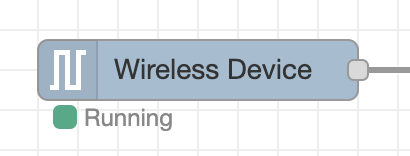
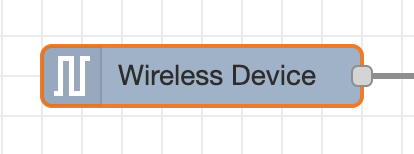
Running Mode
When the Wireless Sensor Node’s status indicates “Running”, as shown in the picture on the right, it means that the wireless sensor has successfully sent at least one packet to the configured Wireless Network. The packet must be a sensor_mode message with a mode of RUN or a sensor_data message.
No Mode
When the Wireless Sensor Node has no status, as shown in the picture on the right, it means that the wireless sensor has not sent a packet over the wireless network since Node-Red was run. The packet must be a sensor_mode message with a mode of RUN or a sensor_data message.
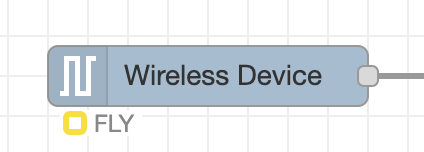
FLY Mode
When the Wireless Sensor Node’s status indicates “FLY,” as shown in the picture to the right, it means the sensor has sent a sync message to check in for an Over-the-Air (OTA) configuration, and the synchronization process has been successfully completed.
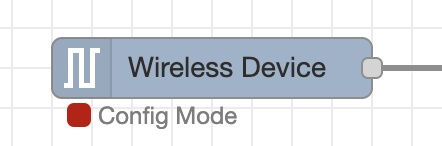
Config Mode
When the Wireless Sensor Node’s status indicates “Config Mode”, as shown in the picture on the right, it means that the wireless sensor has sent a PGM packet to the receiver and is ready for configuration.
If this Wireless Device node has Auto Config enabled then Node-Red will attempt to configure the device with the settings configured in the Wireless Device edit pane.
Wireless Device Node Messages
Processed Sensor Data Message
Sensor data is the primary message that will come from a Wireless Gateway Node. These messages can be discerned from other message types by the topic which will always be “sensor_data”
To the right is an example of a Sensor Data message.
- topic
- Indicates the type of message this is
- data
- Contains the sensor data and all other pertinent details of the sensor
- data.nodeID
- A user configurable parameter allowing a user to input a simple id for a particular sensor
- For a unique identifier it is recommended to use the msg.data.addr property as it is tied to the individual sensor’s wireless module and will always be unique
- data.firmware
- This identifies the firmware version of the sensor sending the packet
- data.battery
- The current voltage level of the batteries at the time of transmission
- The batteries that come with the sensors drop off quickly once they reach 2.6 volts
- data.battery_percentage
- The current battery percent at the time of transmission
- data.counter
- The number of transmissions since boot or counter rollover
- The counter will rollover after a counter value of 255
- data.sensor_type
- The machine identifiable type of the sensor
- It is recommended to use this property to dictate dashboard generation and/or data integrity checks
- data.sensor_data
- Object containing all sensor data related to this sensor
- This property is a duplicate of the payload property
- data.sensor_name
- Human Readable Sensor Type Identifier
- data.type
- An easily passed message type declaration
- This property will be a duplicate of msg.topic
- data.addr
- The unique identifier of the sensor that transmitted the data
- data.received
- Timestamp of the message
- data.original
- Auxiliary information on the packet and underlying protocol
- data.modem_mac
- The unique identifier of the Gateway/Modem that received the data
- Primarily used to tie locations/projects to sensors/sensor data
- payload
- Object containing all sensor data related to this sensor
- See msg.payload Breakdown for more information
- time
- Timestamp of the message
					{
  "topic": "sensor_data",
  "data": {
    "nodeId": 0,
    "firmware": 10,
    "battery": "3.28",
    "battery_percent": "98.56",
    "counter": 26,
    "sensor_type": 127,
    "sensor_data": {
        "mode": 3,
        "msg_type": "regular",
        "odr":"12800Hz",
        "temperature":23.67,
        "x_rms_ACC_G": 0.001,
        "x_max_ACC_G": 0.002,
        "x_velocity_mm_sec": 0.03,
        "x_displacement_mm": 0.04,
        "x_peak_one_Hz": 5,
        "x_peak_two_Hz": 6,
        "x_peak_three_Hz": 7,
        "y_rms_ACC_G": 0.008,
        "y_max_ACC_G": 0.009,
        "y_velocity_mm_sec": 0.1,
        "y_displacement_mm": 0.11,
        "y_peak_one_Hz": 12,
        "y_peak_two_Hz": 13,
        "y_peak_three_Hz": 14,
        "z_rms_ACC_G": 0.015,
        "z_max_ACC_G": 0.162,
        "z_velocity_mm_sec": 1.63,
        "z_displacement_mm": 1.64,
        "z_peak_one_Hz": 165,
        "z_peak_two_Hz": 166,
        "z_peak_three_Hz": 256,
        "rpm": 167,
        "ultrasonic_rms_dBuV": 53,
        "ultrasonic_peak_to_peak_dBuV": 67,
        "crest_factor": 2.62
    },
    "sensor_name": "Wireless Vibration, Ultrasound and Temperature Sensor",
    "type": "sensor_data",
    "addr": "00:13:a2:00:42:37:73:52",
    "received": 1721424191583,
    "original": {...},
    "modem_mac": "00:13:A2:00:41:F5:2C:D3"
  },
  "payload": {
        "mode": 3,
        "msg_type": "regular",
        "odr":"12800Hz",
        "temperature":23.67,
        "x_rms_ACC_G": 0.001,
        "x_max_ACC_G": 0.002,
        "x_velocity_mm_sec": 0.03,
        "x_displacement_mm": 0.04,
        "x_peak_one_Hz": 5,
        "x_peak_two_Hz": 6,
        "x_peak_three_Hz": 7,
        "y_rms_ACC_G": 0.008,
        "y_max_ACC_G": 0.009,
        "y_velocity_mm_sec": 0.1,
        "y_displacement_mm": 0.11,
        "y_peak_one_Hz": 12,
        "y_peak_two_Hz": 13,
        "y_peak_three_Hz": 14,
        "z_rms_ACC_G": 0.015,
        "z_max_ACC_G": 0.162,
        "z_velocity_mm_sec": 1.63,
        "z_displacement_mm": 1.64,
        "z_peak_one_Hz": 165,
        "z_peak_two_Hz": 166,
        "z_peak_three_Hz": 256,
        "rpm": 167,
        "ultrasonic_rms_dBuV": 53,
        "ultrasonic_peak_to_peak_dBuV": 67,
        "crest_factor": 2.62
  },
  "time": 1721424191584,
  "_msgid": "48e99332fc104565"
}
Processed Sensor Data Breakdown
- mode
- The sensor works in one of 4 modes:
- 0 – Processed – FFT is performed by the sensor and the measurement data is presented in condensed form (both time and frequency parameters)
- 1 – Raw/Time domain – the Raw/ Time-Domain (Accelerometer) data is gathered and transmitted and it is up to the client to perform the FFT if needed. This is a very large data packet.
- 2 – On demand – sending Processed data regularly, with the option to request a RAW data packet (Accelerometer or Ultrasound data).
- 3 – Smart – a cutting-edge operational setting. In this mode, the sensor delivers Processed Data (Overall Data) at user-defined intervals, with a Time Domain on Request option for requesting detailed Raw data packets (Accelerometer and Ultrasound), complemented by an Auto Raw Interval that dictates how often the sensor automatically transmits Time-Domain (Accelerometer) measurement data for continuous insights. It features smart mode threshold, triggering data transmission when RMS acceleration exceeds a user-set value on any X, Y, or Z axis, alongside smart skip threshold, which intelligently skips sending data a specified number of times when vibrations fall below the threshold, optimizing efficiency, paired with 24/7 sampling to capture spontaneous issues—ideal for intermittent machine operation—ensuring real-time adaptability and comprehensive monitoring with precision.
- The sensor works in one of 4 modes:
- msg_type
- The message type:
- regular – data sent at regular interval
- motion – data triggered by the vibration crossing a predefined threshold
- The message type:
- odr
- This is the Vibration sample rate in Hz
- temperature
- The temperature measured by the temperature sensor in Celsius
- x_rms_ACC_G
- The RMS Acceleration over the X axis in G
- x_max_ACC_G
- The MAX Acceleration over the X axis in G
- x_velocity_mm_sec
- The Velocity over the X axis in mm/sec
- x_displacement_mm
- The Displacement over the X axis in mm
- x_peak_one_Hz
- The frequency at which the First Highest Energy/ Amplitude Peak occurs in Hz, over the X axis
- x_peak_two_Hz
- The frequency at which the Second Highest Energy/ Amplitude Peak occurs in Hz, over the X axis
- x_peak_three_Hz
- The frequency at which the Third Highest Energy/ Amplitude Peak occurs in Hz, over the X axis
- y_rms_ACC_G
- The RMS Acceleration over the Y axis in G
- y_max_ACC_G
- The MAX Acceleration over the Y axis in G
- y_velocity_mm_sec
- The Velocity over the Y axis in mm/sec
- y_displacement_mm
- The Displacement over the Y axis in mm
- y_peak_one_Hz
- The frequency at which the First Highest Energy/ Amplitude Peak occurs in Hz, over the Y axis
- y_peak_two_Hz
- The frequency at which the Second Highest Energy/ Amplitude Peak occurs in Hz, over the Y axis
- y_peak_three_Hz
- The frequency at which the Third Highest Energy/ Amplitude Peak occurs in Hz, over the Y axis
- z_rms_ACC_G
- The RMS Acceleration over the Z axis in G
- z_max_ACC_G
- The MAX Acceleration over the Z axis in G
- z_velocity_mm_sec
- The Velocity over the Z axis in mm/sec
- z_displacement_mm
- The Displacement over the Z axis in mm
- z_peak_one_Hz
- The frequency at which the First Highest Energy/ Amplitude Peak occurs in Hz, over the Z axis
- z_peak_two_Hz
- The frequency at which the Second Highest Energy/ Amplitude Peak occurs in Hz, over the Z axis
- z_peak_three_Hz
- The frequency at which the Third Highest Energy/ Amplitude Peak occurs in Hz, over the Z axis
- rpm
- The rate of rotation of the machine in revolutions per minute
- ultrasonic_rms_dBuV
- ultrasonic vibrations RMS(root mean square) in units of dBuV
- ultrasonic_peak_to_peak_dBuV
- ultrasonic vibrations peak-to-peak in units of dBuV
- crest_factor
- Factor to describe peakiness of ultrasonic vibrations
Time Domain Sensor Data Message (Accelerometer)
Sensor data is the primary message that will come from a Wireless Gateway Node. These messages can be discerned from other message types by the topic which will always be “sensor_data”
To the right is an example of a Sensor Data message.
- topic
- Indicates the type of message this is
- data
- Contains the sensor data and all other pertinent details of the sensor
- data.nodeID
- A user configurable parameter allowing a user to input a simple id for a particular sensor
- For a unique identifier it is recommended to use the msg.data.addr property as it is tied to the individual sensor’s wireless module and will always be unique
- data.firmware
- This identifies the firmware version of the sensor sending the packet
- data.battery
- The current voltage level of the batteries at the time of transmission
- The batteries that come with the sensors drop off quickly once they reach 2.6 volts
- data.battery_percentage
- The current battery percent at the time of transmission
- data.counter
- The number of transmissions since boot or counter rollover
- The counter will rollover after a counter value of 255
- data.sensor_type
- The machine identifiable type of the sensor
- It is recommended to use this property to dictate dashboard generation and/or data integrity checks
- data.sensor_data
- Object containing all sensor data related to this sensor
- This property is a duplicate of the payload property
- data.sensor_name
- Human Readable Sensor Type Identifier
- data.type
- An easily passed message type declaration
- This property will be a duplicate of msg.topic
- data.addr
- The unique identifier of the sensor that transmitted the data
- data.received
- Timestamp of the message
- data.original
- Auxiliary information on the packet and underlying protocol
- data.modem_mac
- The unique identifier of the Gateway/Modem that received the data
- Primarily used to tie locations/projects to sensors/sensor data
- payload
- Object containing all sensor data related to this sensor
- See msg.payload Breakdown for more information
- time
- Timestamp of the message
					{
  "topic": "sensor_data",
  "data": {
    "nodeId": 0,
    "firmware": 10,
    "battery": "3.28",
    "battery_percent": "98.56",
    "counter": 26,
    "sensor_type": 127,
    "sensor_data": {
        "mode": 1,
        "source_type": "accelerometer",
        "msg_type": "regular",
        "time_id":"04:20",
        "mac_address": "00:13:a2:00:42:53:64:53",
        "fsr": "8g",
        "odr": 13090,
        "temperature": 19.56,
        "total_samples": 4096,
        "fft_confidence": "100%",
        "data": {
           "x": [-0.004, -0.015, ...],
           "y": [-0.001, -0.002, ...],
           "z": [0.001, 0.003, ...]
        }
    },
    "sensor_name": "Wireless Vibration, Ultrasound and Temperature Sensor",
    "type": "sensor_data",
    "addr": "00:13:a2:00:42:37:73:52",
    "received": 1721424191583,
    "original": {...},
    "modem_mac": "00:13:A2:00:41:F5:2C:D3"
},
  "payload": {
    "mode": 1,
    "source_type": "accelerometer",
    "msg_type": "regular",
    "time_id":"04:20",
    "mac_address": "00:13:a2:00:42:53:64:53",
    "fsr": "8g",
    "odr": 13090,
    "temperature": 19.56,
    "total_samples": 4096,
    "fft_confidence": "100%",
    "data": {
       "x": [-0.004, -0.015, ...],
       "y": [-0.001, -0.002, ...],
       "z": [0.001, 0.003, ...]
    }
  },
  "time": 1721424191584,
  "_msgid": "d7f3341ef39225df"
}
Time Domain Sensor Data Breakdown
- mode
- In this type of message, mode always be 1 (Raw/ Time-Domain data).
- msg_type
- The message type:
- regular – data sent at regular interval.
- motion – Time-Domain data triggered by the vibration crossing a predefined motion threshold.
- The message type:
- time_id
- The time when the reading was taken
- mac_address
- The MAC address of the device (used to identify it on the network)
- fsr
- Full Scale Range of the sensor
- odr
- This is the Vibration sample rate in Hz
- temperature
- The measured temperature in Celsius
- total_samples
- Number of Raw data samples taken by each axis.
- fft_confidence
- Definition: fft_confidence is a percentage metric that represents the completeness and integrity of a reconstructed Time-Domain data message. Because Time-Domain data is too large to fit into a single wireless transmission, the sensor fragments the data into multiple sequential packets. This value indicates how many of those packets were successfully received by the gateway versus how many were lost due to wireless interference.
How it Works: Each transmission includes a “Current Packet” index and a “Total Expected Packets” count. The NCD Library waits for the final packet (where Current = Total) to trigger the reconstruction of the full data message.
- If all packets are received, the confidence is 100%.
- If packets are missed during transmission, the library still builds the message using the available data once the final packet arrives, but the confidence value will be lower.
Calculation: fft_confidence = Total Packets Received \ Total Packets Expected * 100
Why it Matters:
Data Reliability: A high confidence value (90–100%) ensures that the resulting FFT analysis is based on a nearly complete dataset.
Troubleshooting: A consistently low confidence value (e.g., 40%) suggests significant wireless interference or that the sensor is too far from the gateway, which may result in inaccurate or “gapped” vibration analysis.
- Definition: fft_confidence is a percentage metric that represents the completeness and integrity of a reconstructed Time-Domain data message. Because Time-Domain data is too large to fit into a single wireless transmission, the sensor fragments the data into multiple sequential packets. This value indicates how many of those packets were successfully received by the gateway versus how many were lost due to wireless interference.
- data
- data over each of the enabled axis in “g”. You will have multiple samples here depending on the chosen rate
Time Domain Sensor Data Message (Ultrasound)
Sensor data is the primary message that will come from a Wireless Gateway Node. These messages can be discerned from other message types by the topic which will always be “sensor_data”
To the right is an example of a Sensor Data message.
- nodeID
- A user configurable parameter allowing a user to input a simple id for a particular sensor
- For a unique identifier it is recommended to use the “addr” property as it is tied to the individual sensor’s wireless module and will always be unique
- firmware
- This identifies the firmware version of the sensor sending the packet
- battery
- The current voltage level of the batteries at the time of transmission
- The batteries that come with the sensors drop off quickly once they reach 2.6 volts
- battery_percent
- The current battery percent at the time of transmission
- counter
- The number of transmissions since boot or counter rollover
- The counter will rollover after a counter value of 255
- sensor_type
- The machine identifiable type of the sensor
- It is recommended to use this property to dictate dashboard generation and/or data integrity checks
- sensor_data
- Object containing all sensor data related to this sensor
- See section Raw/time domain Data msg.payload.sensor_data Breakdown for more information
- sensor_name
- Human Readable Sensor Type Identifier
- type
- An easily passed message type declaration
- This property will be a duplicate of msg.topic
- addr
- The unique identifier of the sensor that transmitted the data
- received
- Epoch indicator of when the data was received by Node-Red
- original
- Auxiliary information on the packet and underlying protocol
- modem_mac
- The unique identifier of the Gateway/Modem that received the data
- Primarily used to tie locations/projects to sensors/sensor data
					{
  "topic": "sensor_data",
  "data": {
    "nodeId": 0,
    "firmware": 10,
    "battery": "3.28",
    "battery_percent": "98.56",
    "counter": 26,
    "sensor_type": 127,
    "sensor_data": {
        "mode": 1,
        "source_type": "ultrasound",
        "msg_type": "regular",
        "time_id": "21:25",
        "mac_address": "00:13:a2:00:42:53:64:53",
        "fsr": "120dbuV",
        "odr": 83329
        "temperature": 23.37,
        "total_samples": 4096,
        "fft_confidence": "100%",
        "data": [
            10.404,
            -7.803,
            0.867,
            ...
        ]
    },
    "sensor_name": "Wireless Vibration, Ultrasound and Temperature Sensor",
    "type": "sensor_data",
    "addr": "00:13:a2:00:42:37:73:52",
    "received": 1721424191583,
    "original": {...},
    "modem_mac": "00:13:A2:00:41:F5:2C:D3"
},
  "payload": {
    "mode": 1,
    "source_type": "ultrasound",
    "msg_type": "regular",
    "time_id": "21:25",
    "mac_address": "00:13:a2:00:42:53:64:53",
    "fsr": "120dbuV",
    "odr": 83329
    "temperature": 23.37,
    "total_samples": 4096,
    "fft_confidence": "100%",
    "data": [
        10.404,
        -7.803,
        0.867,
        ...
    ]
    },
  },
  "time": 1721424191584,
  "_msgid": "d7f3341ef39225df"
}
Time Domain (Ultrasound) Sensor Data Breakdown
- mode
- In this type of message, mode always be 1 (Raw/ Time-Domain data).
- msg_type
- The message type:
- regular – data sent at regular interval
- motion – data triggered by the vibration crossing a predefined motion threshold
- The message type:
- time_id
- The time when the reading was taken
- mac_address
- The MAC address of the device (used to identify it on the network)
- fsr
- Full Scale Range of the sensor
- odr
- This is the Vibration sample rate in Hz
- temperature
- The temperature value in celsius
- total_samples
- Numer of Raw Ultrasound data samples taken by sensor.
- fft_confidence
- Definition: fft_confidence is a percentage metric that represents the completeness and integrity of a reconstructed Raw data message. Because Raw data is too large to fit into a single wireless transmission, the sensor fragments the data into multiple sequential packets. This value indicates how many of those packets were successfully received by the gateway versus how many were lost due to wireless interference.
How it Works: Each transmission includes a “Current Packet” index and a “Total Expected Packets” count. The NCD Library waits for the final packet (where Current = Total) to trigger the reconstruction of the full data message.
- If all packets are received, the confidence is 100%.
- If packets are missed during transmission, the library still builds the message using the available data once the final packet arrives, but the confidence value will be lower.
Calculation: fft_confidence = Total Packets Received \ Total Packets Expected * 100
Why it Matters:
Data Reliability: A high confidence value (90–100%) ensures that the resulting FFT analysis is based on a nearly complete dataset.
Troubleshooting: A consistently low confidence value (e.g., 40%) suggests significant wireless interference or that the sensor is too far from the gateway, which may result in inaccurate or “gapped” ultrasound data analysis.
- Definition: fft_confidence is a percentage metric that represents the completeness and integrity of a reconstructed Raw data message. Because Raw data is too large to fit into a single wireless transmission, the sensor fragments the data into multiple sequential packets. This value indicates how many of those packets were successfully received by the gateway versus how many were lost due to wireless interference.
- data
- Time-Domain Sensor Data (Ultrasound).
Sync Check In Message
This sync_check_in message reports sensor information and allows for sync initialization if configuration changes are necessary.
A sync_check_in message indicates that the sensor is in RUN mode, but is entering a temporary state where it can be configured. The sensor will send the sync_check_in message on boot (after RUN and sensor_data messages) and once an hour after boot to check in. Once the sensor sends a sync_check_in message Node-RED has 2 seconds to respond with a configuration Master Command.
If Node-RED has a Wireless Device node with Mac Address, Auto Config and OTF Config selected corresponding to the sensor that sent the sync_check_in message then Node-RED will begin to configure that sensor.
					{
  "topic": "sync",
  "type": "sync_check_in",
  "address": "00:13:a2:00:42:35:89:86",
  "sensor_type": 127,
  "payload": {
    "type": "sync_check_in",
    "address": "00:13:a2:00:42:35:89:86",
    "sensor_type": 127,
    "human_readable": {
      "core_version": 23,
      "firmware_version": 10,
      "sensor_type": 127,
      "tx_lifetime_counter": 13,
      "hardware_id": {
        "data": [ 99, 61, 0]
      },
      "network_id": "7fff",
      "destination_address": "0000ffff",
      "node_id": 0,
      "odr": "3200Hz",
      "sampling_duration": "150msec",
      "lpf_coefficient": "4",
      "hpf_coefficient": "2048",
      "full_scale_range": "+/- 8g",
      "axes_enabled": 7,
      "sampling_interval": "60 Minutes",
      "filter_status": "Disabled",
      "operation_mode": "Smart",
      "measurement_mode": 0,
      "on_request_timeout": "5 Seconds",
      "deadband": "15mg",
      "motion_detection_threshold": "500mg",
      "led_acceleration_alert_threshold": 10,
      "led_velocity_alert_threshold": 10,
      "smart_accelerometer_threshold": "500mg",
      "led_alert_mode": "Acceleration",
      "raw_packet_length": "180 Bytes",
      "auto_raw_interval": 0,
      "auto_raw_destination_address": "00000000",
      "smart_mode_skip_count": 15,
      "sync_interval": "18 Hours",
      "rpm_compute_status": "Enabled",
      "max_raw_samples": "4096 Samples",
      "motion_to_sampling_delay": "5000msec",
      "max_motion_tx_per_interval": 1,
      "probe_uptime": "10 Seconds"
      "ultrasound_max_raw_samples": "2046 Samples"
    },
    "machine_values": { ... }
  },
  "description" : "...",
  "packet_info": {
      "ack": 0,
      "broadcast": 0,
      "type": ""
      },
  "time": 1781217138869,
  "_msgid": "33fd88e3ea54492c"
}
Sync Acknowledgment Message
A sync acknowledgment is received from the sensor in response to a configuration command. This message provides the current sensor status or reports any errors encountered during the configuration process. You may verify the current sensor configuration by examining the human_readable property within the message.
An example of a Sync Acknowledgment message is provided for your reference on the right.
					{
  "topic": "sync",
  "type": "sync_acknowledgment",
  "address": "00:13:a2:00:42:35:89:86",
  "sensor_type": 127,
  "payload": {
    "type": "sync_acknowledgment",
    "address": "00:13:a2:00:42:35:89:86",
    "sensor_type": 127,
    "response_bytes": [ ... ],
    "human_readable": { ... },
    "machine_values": { ... }
  },
  "description" : "...",
  "sent": [...],
  "packet_info": {
      "ack": 0,
      "broadcast": 0,
      "type": ""
      },
  "time": 1781217138869,
  "_msgid": "33fd88e3ea54492c"
}
Sync End Message
Sync process finished. Sensor is reporting its new values after Sync and resuming normal operations.
User can find the new settings after sync into “human_readable” property.
					{
  "topic": "sync",
  "type": "sync_end",
  "address": "00:13:a2:00:42:35:89:86",
  "sensor_type": 127,
  "payload": {
    "type": "sync_end",
    "address": "00:13:a2:00:42:35:89:86",
    "sensor_type": 127,
    "human_readable": { ... },
    "machine_values": { ... }
  },
  "description" : "...",
  "sent": [...],
  "packet_info": {
      "ack": 0,
      "broadcast": 0,
      "type": ""
      },
  "time": 1781217138869,
  "_msgid": "33fd88e3ea54492c"
}
Sync Response Success Message
Indicates that the sync configuration is complete and displays the specific values and properties applied to the settings.
					{
  "topic": "sync",
  "type": "sync_response",
  "address": "00:13:a2:00:42:35:89:86",
  "sensor_type": 127,
  "payload": {
    "address": "00:13:a2:00:42:35:89:86",
    "sensor_type": 127,
    "values": { ... },
    "pass": { ... },
    "status": "Success",
    "exit_otn_mode": { ... }
    },
  "time": 1781217138869,
  "_msgid": "33fd88e3ea54492c"
}
Sync Response Skip Message
A “Sync Response Skip” message indicates that the settings currently active within the corresponding Wireless Device node already match the sensor’s actual configuration. Consequently, the library bypasses the synchronization process. This functionality allows the library to verify if the sensor’s reported configuration aligns with the desired parameters, thereby optimizing the process by skipping redundant updates.
If you encounter this message, it confirms that the sensor is already configured with the desired settings as defined in the sync message.
					{
  "topic": "sync",
  "type": "sync_response",
  "address": "00:13:a2:00:42:35:89:86",
  "sensor_type": 127,
  "payload": {
    "address": "00:13:a2:00:42:35:89:86",
    "sensor_type": 127,
    "info": "Reported configurations match desired configurations. Skipping Sync."
    },
  "time": 1781217138869,
  "_msgid": "33fd88e3ea54492c"
}
Configuration Options
Our Node-Red library lets you configure any of sensor easily, simply by adjusting a few fields in your Node-RED flow and triggering a configuration update either through the CFG button on the sensor or waiting for a FLY message sent every hour during normal operations (or when the device is reset).
You can edit a Wireless Device node by double clicking the node once it is placed in a flow.
Primary Configurations
These configurations are responsible for configuring the Wireless Device node and how node-red should interact with the sensor.
- Name
- Arbitrary name of this node
- Primarily used for easy identification in the flow
- Serial Device*
- The primary communication interface used to receive data from the sensor
- Clicking the edit icon will take you to a submenu to edit the particulars of the device chosen in the Serial Device dropdown
- To add a new configuration option you will want to choose “Add new ncd-gateway-config…” from this dropdown
- For More information on the submenu the edit icon brings up see section ncd-gateway-config Nodes
- Serial Device for Config
- A secondary communication interface used to configure sensors without losing sensor data
- If no option is selected the communication interface selected under Serial Device will be used for configuration
- A second modem will be required to make full use of this option
- Mac Address
- Using this field allows you to choose a specific sensor that corresponds to this Wireless Device node
- Leaving this field blank allows any sensor of the type chosen under the Sensor Type field to correspond with this Wireless Device Node
- A search icon on the right can be clicked to search for Wireless Devices that the Serial Device has heard from to auto fill information for that device
- Sensor Type*
- This field limits the sensors that correspond to this Wireless Device node to a particular type of sensor
- Auto Config
- Checking the box next to this field tells Node-Red that the sensor(s) corresponding to this Wireless Device node should be configured when put into Configuration Mode manually
- OTF Config
- Checking the box next to this field AND having Auto Config checked tells Node-Red that the sensor(s) corresponding to this Wireless Device node should be configured when a FLY message is detected
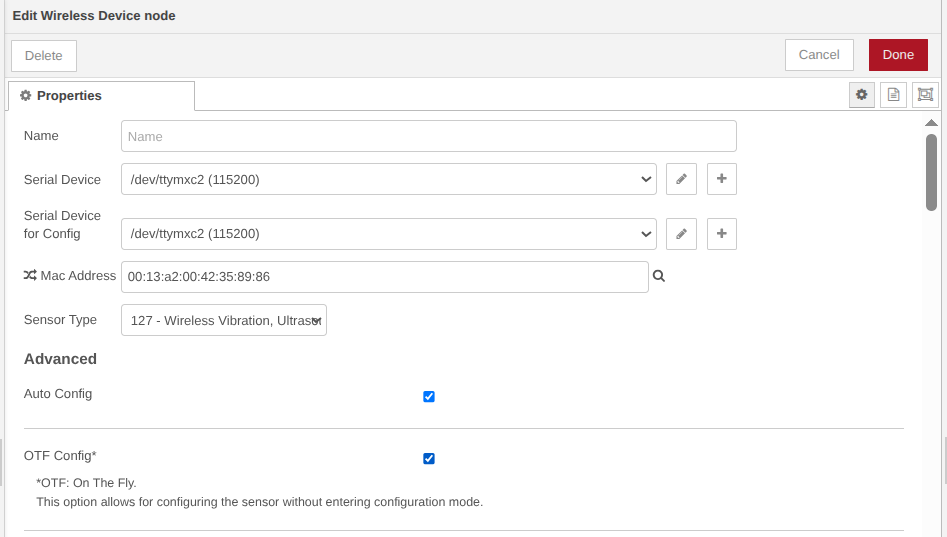
- Wait for Network Formation
- This option sends three commands to all local devices on the wireless network to help form the mesh network
- Destination Address
- This option will tell the sensor to ONLY send its data to a single receiver
- For more information on how to get the Address of the receiver module connected to Node-Red see section Wireless Gateway modem_mac Message
- Network ID
- This option allows you to change the Network ID that the sensor will use to report its data while in RUN module
- You will need to make sure that a Gateway or Modem is configured to use this network ID in order to receive sensor data from it after configuration
- Node ID
- Node ID allows you to set an easy to understand unique ID for a particular sensor
- Power
- This option allows you to set the transmission power level of the sensor
- Retries
- Sets the maximum number of retries the sensor will attempt before considering a packet transmission failed

Sensor Specific Configurations
Mode
Sets the Sensor Operation Mode:
• Processed: FFT is performed by the sensor and the measurement data is transmitted in condensed form (both time and frequency parameters).
• Time Domain (Raw): The Time Domain (Raw) data is gathered and transmitted and it is up to the client to perform the FFT if needed. This is a very large data packet.
• Processed + Raw on demand: Transmit Processed data at intervals, with the option to request a Time Domain (Raw) data packet.
• Smart: Transmit Processed data at intervals and Time Domain (Raw) data on request, with auto Time Domain (Raw) data transmission option. Option to triggers on RMS acceleration exceeding thresholds on X, Y, Z axes, with smart skip to limit sends when vibrations are low.
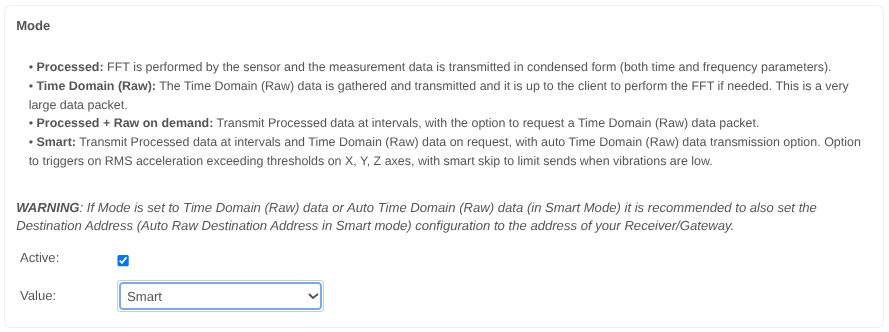
LED Alert Mode
Choose whether the LED indicator should be based on Acceleration or Velocity

LED Accelerometer Threshold
Set the minimum acceleration value to make LED indicator red.
This will be an integer value that increments the threshold by 50mg. A value of 1 means turn the LED red if acceleration is above 50mg, 2 means 100mg, etc.
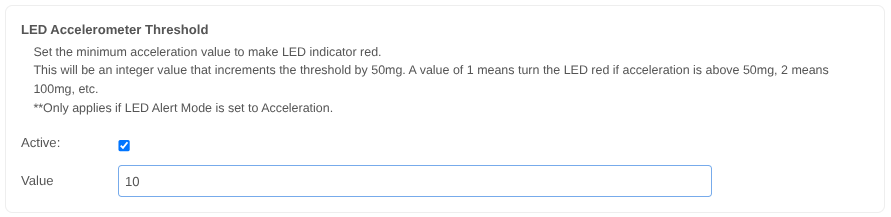
LED Velocity Threshold
Set the minimum velocity value to make LED indicator red.
This will be an integer value that increments the threshold by 2mm/second. A value of 1 means turn the LED red if velocity is above 2mm/sec, 2 means 4mm/second, etc.
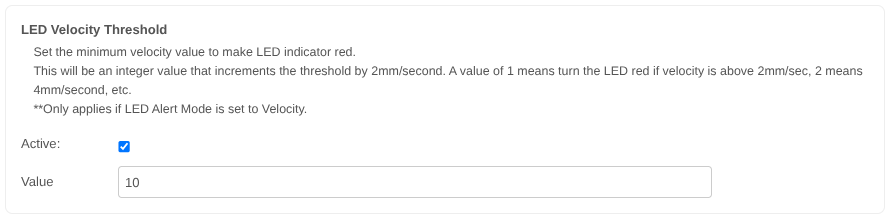
Set On Request Timeout
Set how long device will stay awake and wait for Time Domain (Raw) request from command.
Valid range: 1-10 Seconds
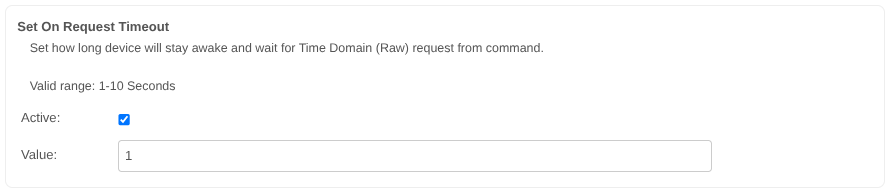
Set Filtering
Enable/Disable built-in filters

Probe 1 Output Data Rate
This would determine how many samples the output data has, which is directly related to the highest frequency components that can be measured.
In accordance with the Nyquist equation:
f_max = ODR/2.56 Hz
| Sample Rate (ODR) | Sample Duration Max |
|---|---|
| 100Hz | 80sec |
| 200Hz | 40sec |
| 400Hz | 20sec |
| 800Hz | 10sec |
| 1600Hz | 5sec |
| 3200Hz | 2.5sec |
| 6400Hz | 1.26sec |
| 12800Hz | 0.63sec |
| 25600Hz | 0.31sec |
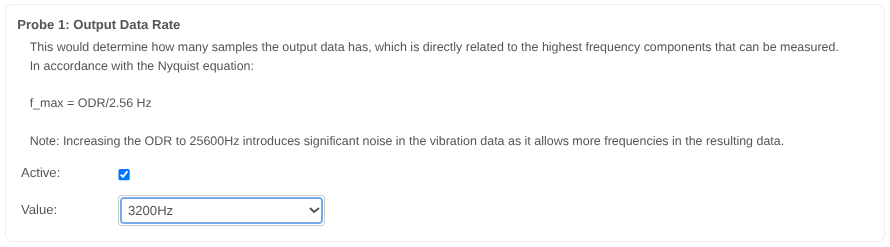
Probe 1 Sampling Duration
Set the amount of time which the samples are taken.
1= 50msec, 2= 100msec
Valid range: 1 – 100.
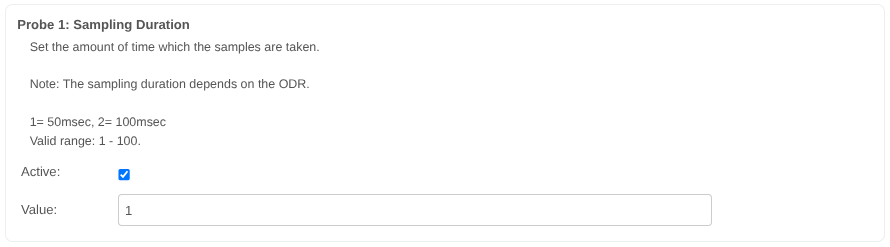
Probe 1 Set Low Pass Filter
This setting will set the LPF freq to ODR divided by Selected Value
Example: ODR = 800 and Filter Coefficient = 4
LPF freq = 800/4 = 200Hz
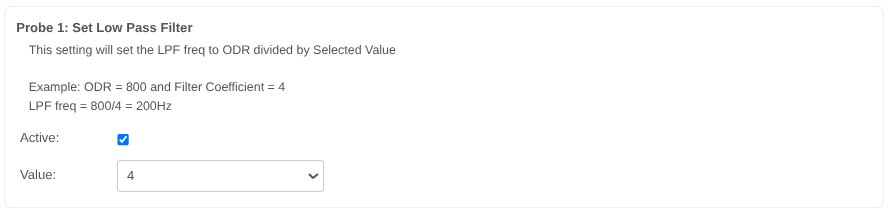
Probe 1 Set High Pass Filter
This setting will set the HPF freq to ODR divided by Selected Value
Example: ODR = 800 and Filter Coefficient = 64
HPF freq = 800/64 = 12.5Hz
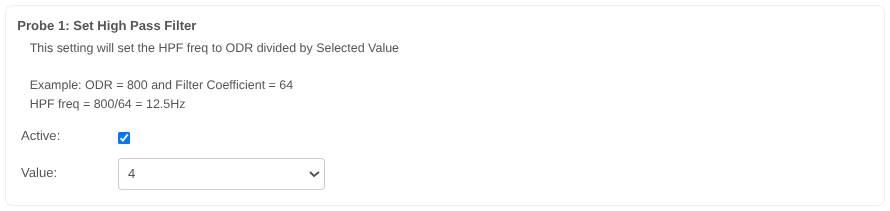
Sampling Interval
Set how often will the sensor transmit measurement data.
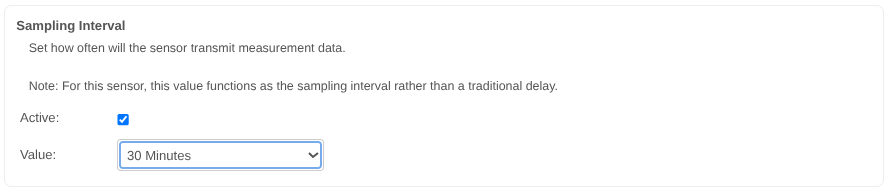
Set Auto Raw Interval
Set the Auto Time Domain (Raw) data transmission Interval, this interval is multiplied by the sample interval to determine how often the sensor should automatically transmit Time Domain (Raw) data.
The Auto Raw interval is determined by the sample interval value.
Example:
If the Auto Raw value is set to 1 and the sample interval is set to 10 minutes, Time Domain (Raw) data will be transmitted automatically every 10 minutes.
If the Auto Raw value is set to 5 and the sample interval is set to 10 minutes, Time Domain (Raw) data will be transmitted automatically every 50 minutes.
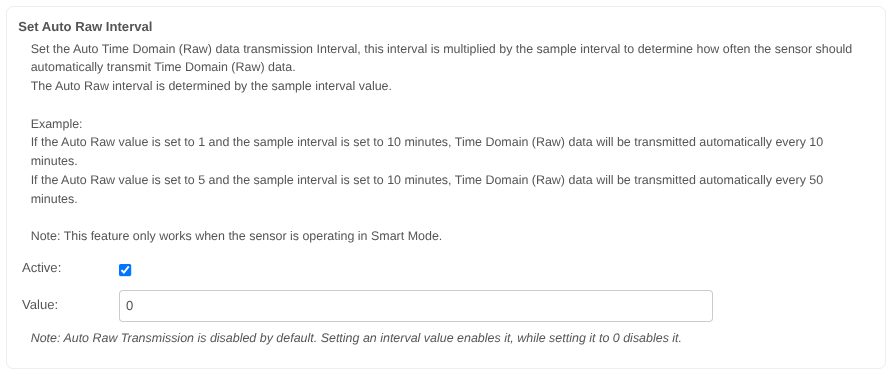
Set Auto Raw Destination Address
Set the address where the Auto Time Domain (Raw) data will be transmitted, we recommend setting this to your gateway’s address.
Default value: 0000FFFF for Broadcast Mode
Example of targeted address: 41D5EC37
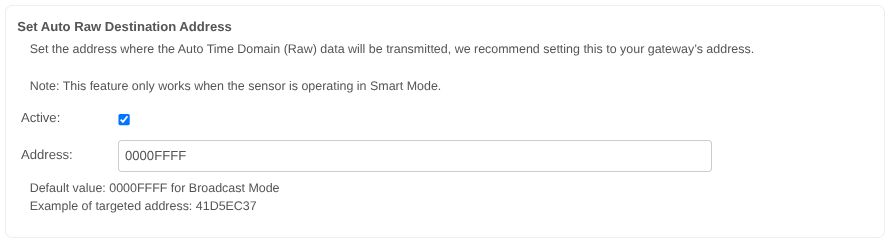
Probe 1 Set Smart Mode Threshold
If RMS acceleration is above this in any axis, it will send data. This will be an integer value that increments the interrupt threshold by 50 mg. A value of 1 means to wake the sensor if acceleration is above 50 mg, 2 means 100 mg, etc.
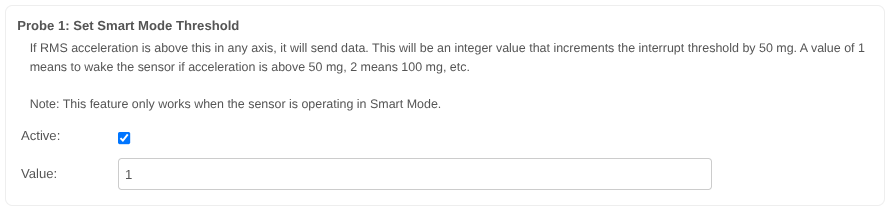
Set Smart Mode Skip Interval
Sensor will skip sending data this many times if vibration is below the smart threshold.
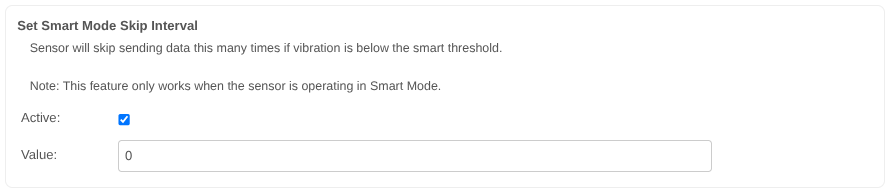
Probe 1 Set Acceleration Wake Interrupt Threshold
Set a motion detection threshold for the sensor to trigger a data transmission. This is an interrupt-based configuration, making it ideal for devices with minimal workload or uptime. The transmitted message will have a msg_type property of ‘motion’.
This will be an integer value that increments the interrupt threshold by 50mg. A value of 1 wakes the sensor if acceleration is above 50mg, 2 means 100mg, etc.
Valid Input Range: 0 – 40
A value of 0 will disable this feature.
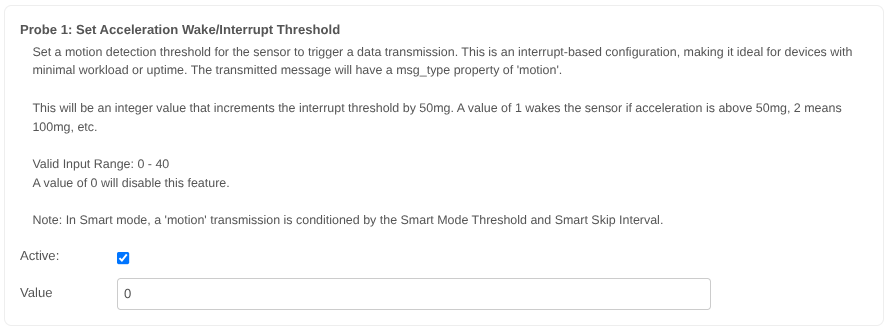
Full Scale Range
Set how large of a range the device can measure acceleration in.
Example: +/- 8g would mean that it would measure at most up to 8g and down to -8g.
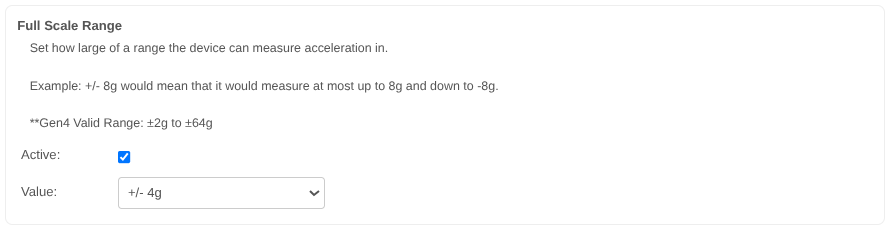
Set Dead Band in mg
Filters out acceleration values below the dead band threshold, treating them as noise.
This value determines the minimum acceleration would have to be for it to be registered as a measurement. Values below the threshold it would be perceived as 0.
Example: A value of 10 would mean that vibrations below 10mg would be considered as 0.
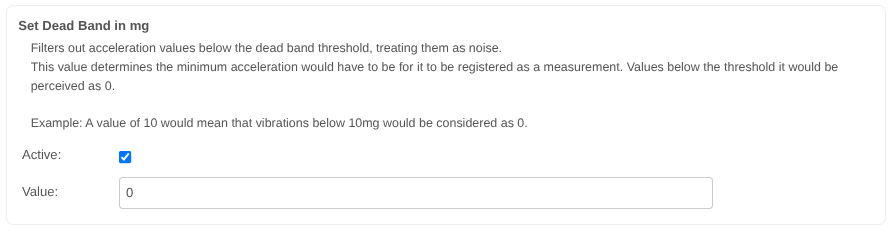
Set FLY Interval
Set the interval at which the sensor will transmit SYNC packets. SYNC packets are what allows Node-RED to reconfigure the sensor so this determines how often the sensor should check in for updated configurations.

RPM Calculate Status
Enable/Disable Revolutions Per Minute Calculate Status
When a measurement sample is taken you can choose to not calculate the RPM, this will shorten the measurement time and save on battery.

Set RTC
Set the value for the Internal Real Time Clock.

Set Max Raw Sample
Set the maximum number of samples the sensor captures for Time Domain (Raw) data , by reducing the sample duration.

Set Ultrasound Max Raw Sample
Set the maximum number of samples the ultrasound sensor captures for Raw data , by reducing the sample duration.

Clear Probe Uptimers
This setting will zero out the uptime value.

Set Motion to Sampling Delay
Once motion is detected, the sensor will wait for the configured duration before sampling and computing vibration data.
1= 50msec, 2= 100msec, 100= 5000msec (5sec)
Default value: 100 (5000msec)
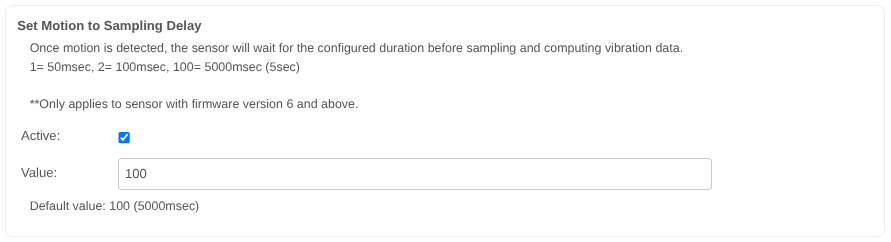
Set Max Number Motion Tx Per Interval
Set Number of times it will send data due to motion triggers.
Default value: 1
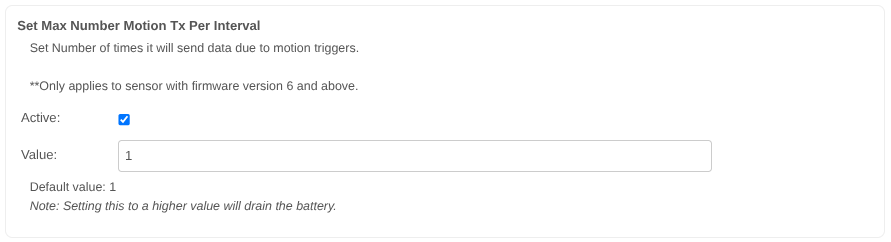
Payload Length
Set the size of the data payload the sensor sends when it transmit a message.
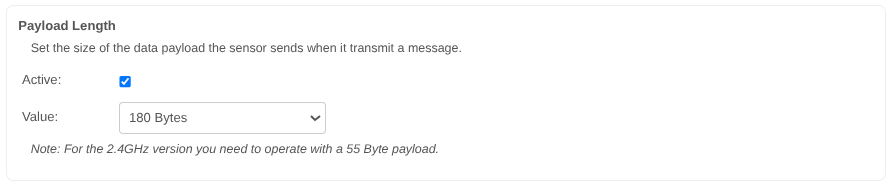
Sensor Configuration Process
OTF Automatic Configuration
This sensor supports configuration while in Run Mode. We call this configuration OTF or On the Fly. This configuration is initiated by a SYNC message from the Sensor with the topic of sync. These messages are sent over the standard Run Mode wireless network so there is no need to change the Wireless Gateway nodes mode or manually manipulate the buttons on the sensor.
Sync messages are sent once an hour and on boot and tell Node-RED that the sensor is ready for configuration changes. Node-RED has two seconds to respond with a configuration command or extend this temporary configuration mode.
If you have a Wireless Device node with Mac address, Auto Config and OTF Config corresponding to the sensor that sent the sync message then Node-Red will begin configuring that sensor according to the settings entered on the Wireless Device node.
See section Primary Wireless Device Node Configurations for more information on how to set up a Wireless Device to configure a sensor.
Example Auto Configuration Process
If you have entered the sensor Mac address, selected the Auto Config and OTF Config boxes, your sensor will pick up any configuration changes you have made to the Sensor Specific parameters and automatically apply them.
This process is not immediate and requires the device send a sync Message to the Gateway (this happens once every hour or when the device is reset).
Once the sync message has been received the device will enter OTN mode (indicated by a corresponding message) and update any parameters that have been changed.
Once done the device will continue its normal operating with the updated parameter values.
Let us look at an example to better illustrate how the process should work out.
Step 1
Draw and drop a Wireless Device node and connect a debug node at the Wireless Device node, then double click on Wireless Device node to access its properties. Enter the Mac Address of the target sensor, check the two boxes, the one next to “Auto Config” and the one next to “OTF Config”. This will allow the device to work in a mode where it will Automatically pick up the configuration changes.
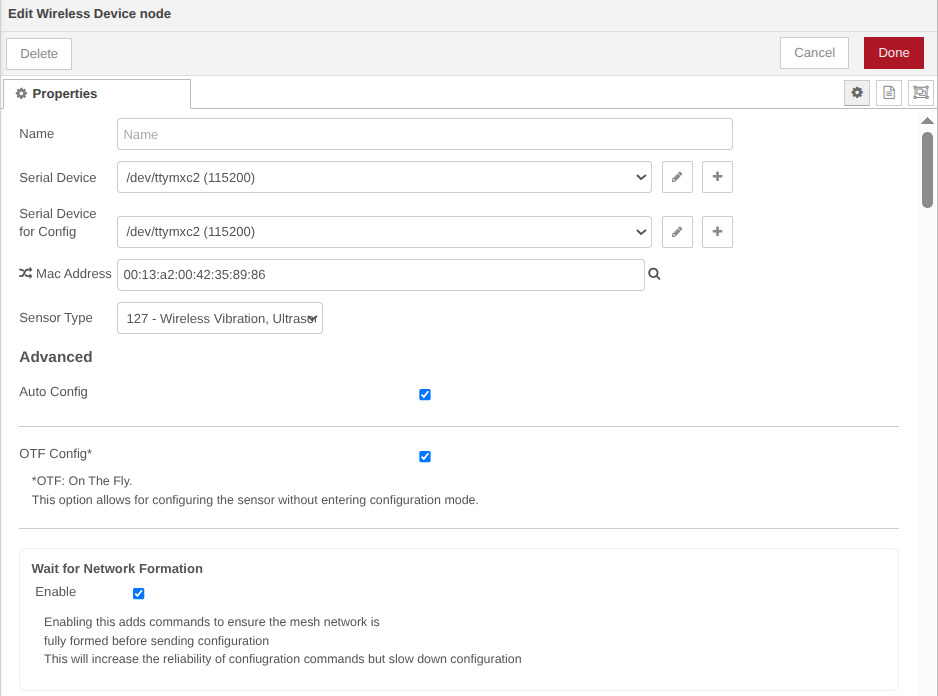
Step 2
Select the parameter you want to modify.
Let’s go to the “Sampling Interval” and change its value. This parameter determines how often the sensor wakes up, performs a vibration measurement and transmits the data.
The default value is 30 minutes, let’s change it to 5 minutes (keep in mind this will drain the battery faster, but it is a good example as it is easy to observe the change).
Make sure you check the “Active” check box, this will let the sensor know that it needs to update this parameter.
Select the value from the drop down menu, in this case 5 minutes.
Press the “Done” button to close the Wireless Device node.
Press the “Deploy” button so you can update the flow.
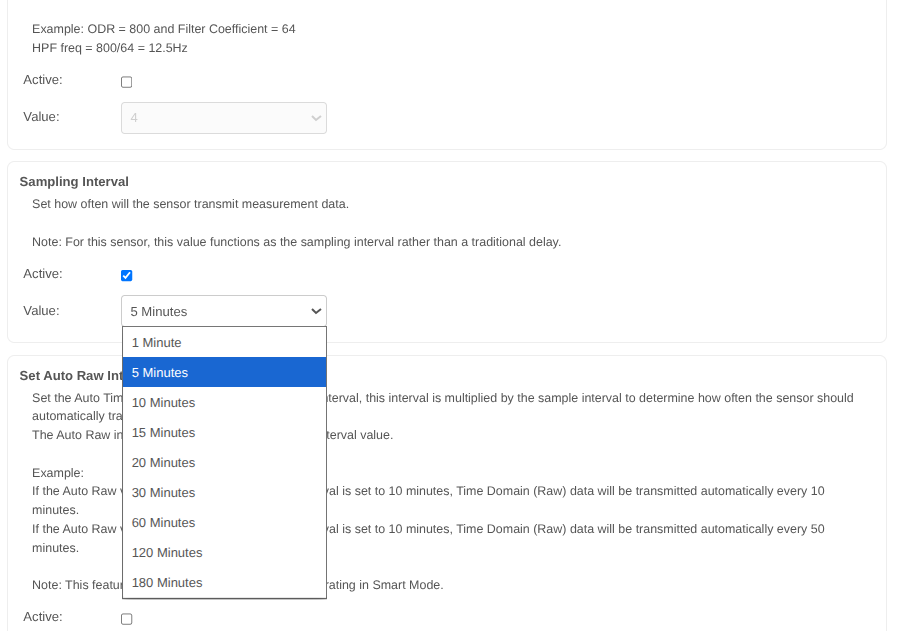
Step 3
Reset the sensor in order to trigger a sync message (this will speed things up so you don’t need to wait for the 1 hour automatic sync message time).
You will receive a series of messages which are normally sent after deploy and the sensor starts (modem_mac, RUN, sensor_data, then sync_check_in).
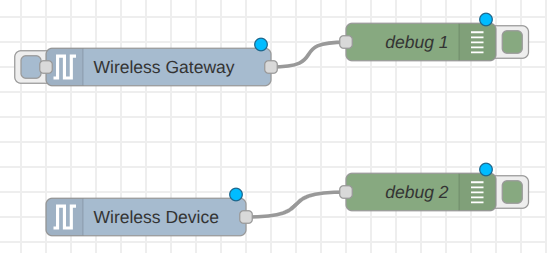
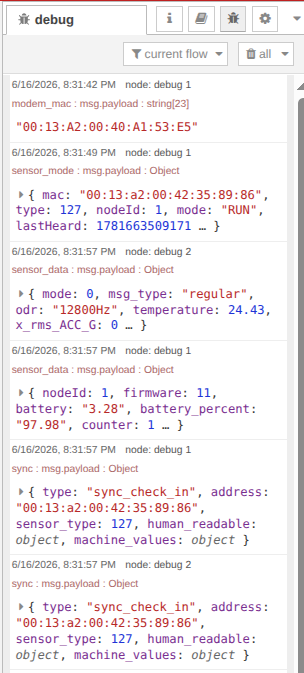
The most important element here is the sync_check_in message, which reports the device’s current configuration at the moment it is transmitted. You can view an example of this message on the right for your reference.
Once the sensor sends a sync_check_in message, Node-RED receives it and compares the sensor’s current settings with your newly desired settings. If they do not match, Node-RED recognizes that an update is needed and automatically sends a master command to apply the new configuration.
For example, in this specific case, the sensor’s current sampling_interval is set to 30 minutes, but we want to update it to 5 minutes. Because Node-RED detects this difference, it will automatically initiate the sync configuration process to update your device.
					{
  "topic": "sync",
  "type": "sync_check_in",
  "address": "00:13:a2:00:42:35:89:86",
  "sensor_type": 127,
  "payload": {
    "type": "sync_check_in",
    "address": "00:13:a2:00:42:35:89:86",
    "sensor_type": 127,
    "human_readable": {
      "core_version": 23,
      "firmware_version": 10,
      "sensor_type": 127,
      "tx_lifetime_counter": 13,
      "hardware_id": {
        "data": [ 99, 61, 0]
      },
      "network_id": "7fff",
      "destination_address": "0000ffff",
      "node_id": 23,
      "odr": "3200Hz",
      "sampling_duration": "150ms",
      "lpf_coefficient": "4",
      "hpf_coefficient": "2048",
      "full_scale_range": "+/- 8g",
      "axes_enabled": 7,
      //This is the setting we want to set in this example
      "sampling_interval": "30 Minutes",
      //--------------------------------
      "filter_status": "Disabled",
      "operation_mode": "Smart",
      "measurement_mode": 0,
      "on_request_timeout": "5 Seconds",
      "deadband": "15mg",
      "motion_detection_threshold": 10,
      "led_acceleration_alert_threshold": 22,
      "led_velocity_alert_threshold": 10,
      "smart_accelerometer_threshold": "500mg",
      "led_alert_mode": "Acceleration",
      "raw_packet_length": "180 Bytes",
      "auto_raw_interval": 0,
      "auto_raw_destination_address": "00000000",
      "smart_mode_skip_count": 15,
      "sync_interval": "1 Hours",
      "rpm_compute_status": "Enabled",
      "max_raw_samples": "4096 Samples",
      "motion_to_sampling_delay": "5000msec",
      "max_motion_tx_per_interval": 1,
      "ultrasound_max_raw_samples": 2046
    },
    "machine_values": { ... }
  },
  "description" : "...",
  "packet_info": { ... },
  "time": 1781217138869,
  "_msgid": "33fd88e3ea54492c"
}
					{
  "topic": "sync",
  "type": "sync_response",
  "address": "00:13:a2:00:42:35:89:86",
  "sensor_type": 127,
  "payload": {
    "address": "00:13:a2:00:42:35:89:86",
    "sensor_type": 127,
    "info": "Reported configurations match desired configurations. Skipping Sync."
    },
  "time": 1781217138869,
  "_msgid": "33fd88e3ea54492c"
}
Once Node-RED sends the master command with the new desired settings, the sensor will respond with a sync_acknowledgment message, followed by a sync_end message, and finally a sync message with a “success” status. This sequence indicates that the configuration process is complete.
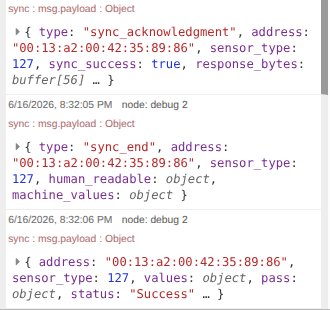
After the sync configuration has finished, you can verify the new sensor settings by expanding the sync_end message in the debug window. There, you can review the human-readable properties to see the actual configurations applied to the sensor. In this example, the sampling_interval will now show as 5 minutes.
					{
  "topic": "sync",
  "type": "sync_end",
  "address": "00:13:a2:00:42:35:89:86",
  "sensor_type": 127,
  "payload": {
    "type": "sync_end",
    "address": "00:13:a2:00:42:35:89:86",
    "sensor_type": 127,
    "human_readable": {
      "core_version": 23,
      "firmware_version": 10,
      "sensor_type": 127,
      "tx_lifetime_counter": 13,
      "hardware_id": {
        "data": [ 99, 61, 0]
      },
      "network_id": "7fff",
      "destination_address": "0000ffff",
      "node_id": 23,
      "odr": "3200Hz",
      "sampling_duration": "150ms",
      "lpf_coefficient": "4",
      "hpf_coefficient": "2048",
      "full_scale_range": "+/- 8g",
      "axes_enabled": 7,
      //This is the setting we change
      "sampling_interval": "5 Minutes",
      //--------------------------------
      "filter_status": "Disabled",
      "operation_mode": "Smart",
      "measurement_mode": 0,
      "on_request_timeout": "5 Seconds",
      "deadband": "15mg",
      "motion_detection_threshold": 10,
      "led_acceleration_alert_threshold": 22,
      "led_velocity_alert_threshold": 10,
      "smart_accelerometer_threshold": "500mg",
      "led_alert_mode": "Acceleration",
      "raw_packet_length": "180 Bytes",
      "auto_raw_interval": 0,
      "auto_raw_destination_address": "00000000",
      "smart_mode_skip_count": 15,
      "sync_interval": "1 Hours",
      "rpm_compute_status": "Enabled",
      "max_raw_samples": "4096 Samples",
      "motion_to_sampling_delay": "5000msec",
      "max_motion_tx_per_interval": 1,
      "ultrasound_max_raw_samples": 2046
    },
    "machine_values": { ... }
  },
  "description" : "...",
  "sent": [...],
  "packet_info": {
      "ack": 0,
      "broadcast": 0,
      "type": ""
      },
  "time": 1781217138869,
  "_msgid": "33fd88e3ea54492c"
}
Troubleshooting
Check Sensor Power
Press the CFG button on the sensor. If the TEST LED on the sensor lights up then the sensor has power. If the LED does not light up try swapping out the battery.
If the LED still doesn’t light up after changing the battery contact us for additional troubleshooting steps.
Factory Reset Sensor
If the power tests above show that power is on and the TEST LED lights up then you can attempt a factory reset. There are certain configurations that can be made to the sensor that will prevent data from being received properly such as Destination Address and Network ID. A factory reset will revert these to default settings.
- Factory Reset the Sensor
- Factory reset by pressing and release the RESET button, wait for a second, then press and hold the CONFIGURATION button, hold the CONFIGURATION button for more than 15 seconds, release CONFIGURATION button, then Wait for 3-5 seconds, finally press and release the RESET button.
- You should receive a sensor_mode message with the mode of PUM and then a second sensor_mode message with the mode of RUN
- It is recommended to have a Debug node connected directly to the Wireless Gateway node to see these messages
Multiple Gateways
If you have multiple Gateways in the vicinity of a sensor that is having issues you will need to make sure that only one Gateway is set to configure these sensors using OTF Config. Multiple OTF Configuration attempts simultaneously will cause failures during configuration.
Additionally if one Gateway is setting the Destination Address or Network ID of the sensor it will prevent the other Gateways from seeing its sensor data or being able to perform OTF Configurations to that sensor.
The recommended resolution is to make sure that only one gateway is set to configure the device. If communications are down to the intended receiver perform a factory reset of the device.
See section Hardware Mode Selection for more information on performing a factory reset.
Move Devices Closer
Its possible that there was an environmental change at the install location that is causing the Wireless range of the sensor to be reduced. To check for this it is recommended to move the sensor closer to approximately 3 feet or 1 meter from the gateway and press the RESET button to see if the sensor_mode message with the mode of RUN is received.
If it is determined that it is a range issue you can check that the antenna is fully seated. If there appears to be no issue with the antenna this can usually be resolved by adding a Repeater between the Sensor and the Receiver/Gateway running Node-Red.
If the range is limited to a few feet contact us for additional troubleshooting steps.