Introduction
In the competitive landscape of industrial manufacturing, the reliability of critical assets is the backbone of operational success. However, a significant disconnect often exists between the scheduled maintenance plan and the actual condition of the machinery. For decades, maintenance teams have relied on calendar-based schedules derived from OEM manuals—triggering work orders based on time rather than actual wear. This traditional approach presents a costly inefficiency: if a critical machine operates only 50% of the time, a time-based schedule forces technicians to replace components, lubricate systems, and halt production lines for assets that still possess significant useful life. This results in inflated MRO (Maintenance, Repair, and Operations) costs, unnecessary downtime, and wasted technician hours.
Simultaneously, production teams often struggle with a lack of granular visibility into equipment performance. Without real-time data on Availability, Performance, and Quality, the factory floor operates in a “black box,” making it difficult to pinpoint the root causes of efficiency losses. This is where the principles of Overall Equipment Effectiveness (OEE) become essential. By quantifying efficiency, teams can transition from reactive fire-fighting to strategic optimization.
- How OEE Works (and the Sensors You Need to Measure It)
The solution
To address these twin challenges, this article introduces two distinct, deployment-ready Node-RED Dashboard Templates:
- The Maintenance Team Dashboard Template: Focused on monitoring Machine Cycles and Runtime, allowing teams to transition from rigid calendar schedules to precise usage-based maintenance.
- The OEE Production Dashboard Template: A comprehensive tool for monitoring real-time efficiency, integrating data on production counts, quality rejects, and machine status.
We will demonstrate how these solutions are powered by NCD’s ecosystem of non-invasive IIoT sensors. By leveraging diverse inputs—such as CT current transformers, accelerometers, and optical sensors—and utilizing long-range wireless DigiMesh technology, we can capture the “heartbeat” of your machinery. Whether you are looking to extend the lifecycle of your assets or drive continuous improvement on the production line, these templates provide the agnostic, scalable foundation needed to digitize your factory floor.
OEE Production Dashboard Template
This NCD Dashboard template provides a plug-and-play example to monitor OEE (Overall Equipment Effectiveness), Production, Quality, and Machine Uptime using NCD Wireless IoT Sensors and Node-RED.
Hardware Connection Example
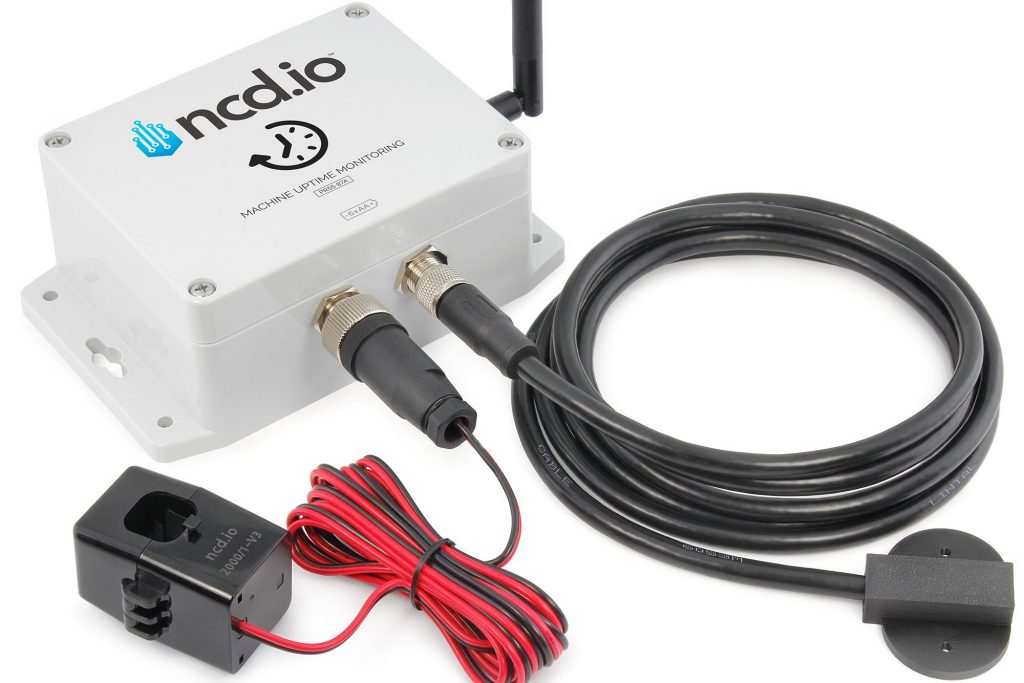
This guide demonstrates the functionality of the NCD OEE Dashboard Template using the PR55-87A Machine Uptime Monitoring Sensor (User can configure and use different compatible sensor types).
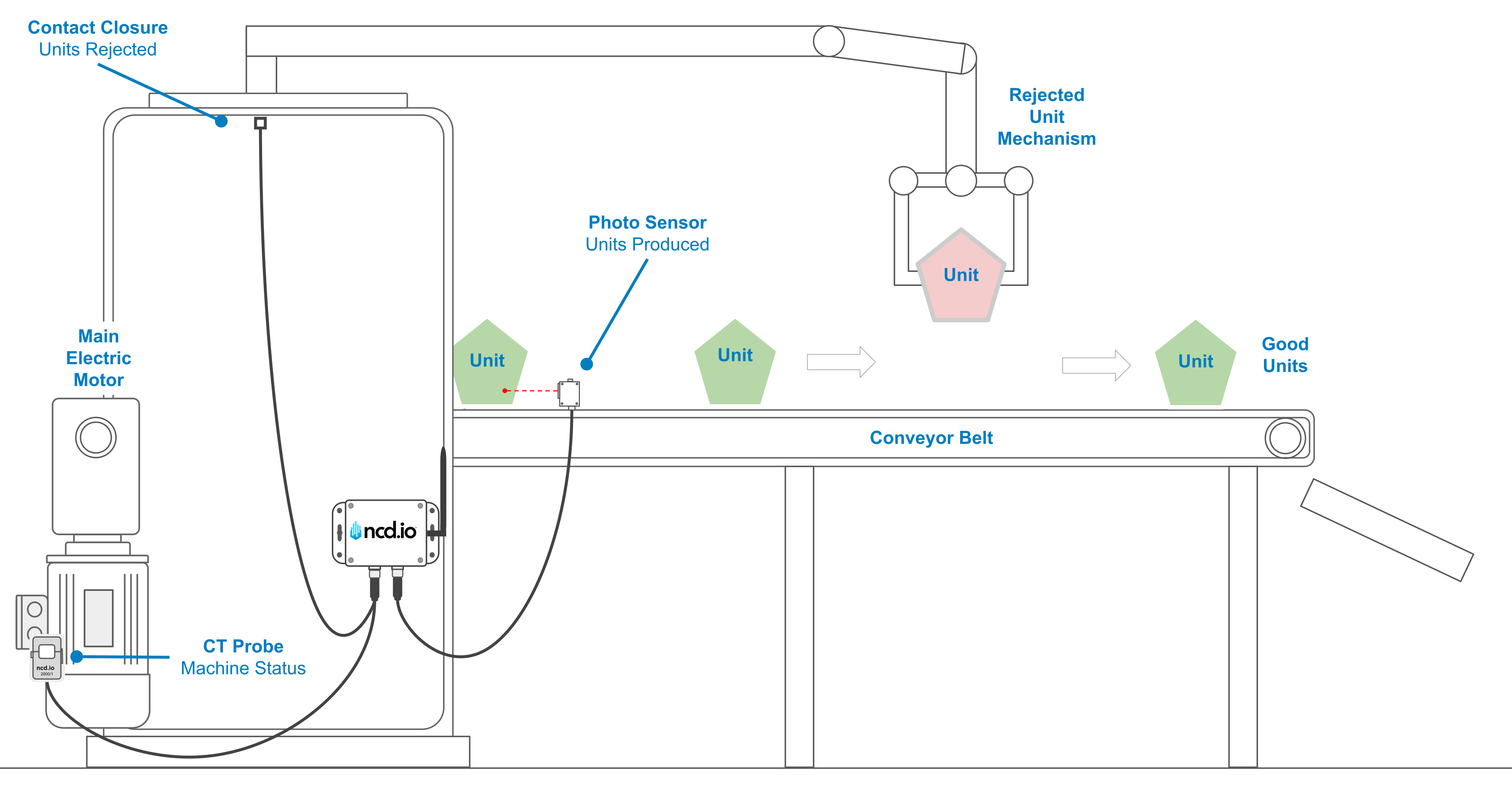
In this example, the sensor is connected to a machine to capture four distinct signals: real-time status, accumulated uptime, total production count, and rejected unit count. The table below details how each hardware signal correlates to the sensor inputs and the resulting dashboard data.
| Machine Component | Input Method | Description / Logic | Dashboard Data Point |
|---|---|---|---|
| Main AC Electric Motor | CT Current Probe | Detects the presence of AC current to determine if the machine is ON or OFF. Triggers an immediate state change (Interrupt). | Current Machine Status. (Input_ct) |
| Main AC Electric Motor | CT Current Probe | Measures the duration the AC current is present to calculate the total runtime in seconds. | Machine Uptime in Seconds (ct_input_uptime) |
| Product Output | Photoelectric Sensor | Detects individual units as they pass the sensor and increments the counter. | Production Counter (opto_input_counter) |
| Reject Bin / Station | Contact Closure | Detects a signal (e.g., switch, manual button or reject gate) and increments the counter for each rejected unit. | Rejected Counter (digital_input_counter) |
| NCD Sensor Internal | Real-Time Clock | Provides the timestamp for every data transmission. Essential for calculating downtime duration and logging event history. | Time Reference (rtc) |
The following image illustrates the hardware connection overview between the machine and the NCD Sensor:
- Machine Uptime Monitoring Sensor Datasheet: https://ncd.io/blog/machine-up-time-monitor-datasheet/
NCD Sensors
This flow template supports the following NCD Wireless OEE Sensors:
- PR55-87A – Machine Uptime Monitoring Sensor
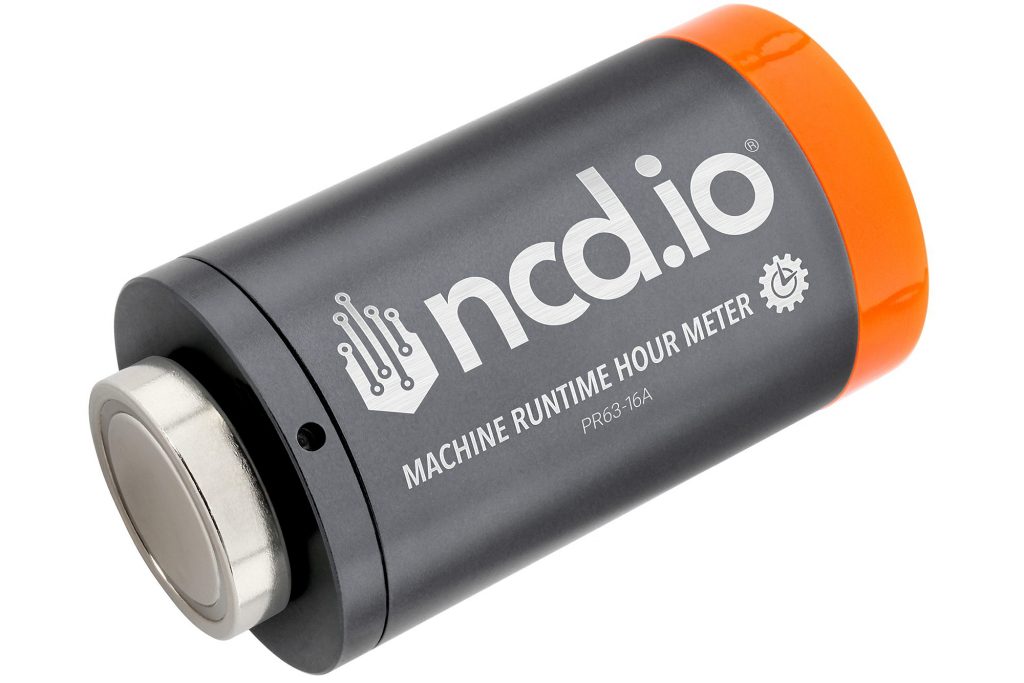
- PR63-16A – Machine Runtime Hour Meter
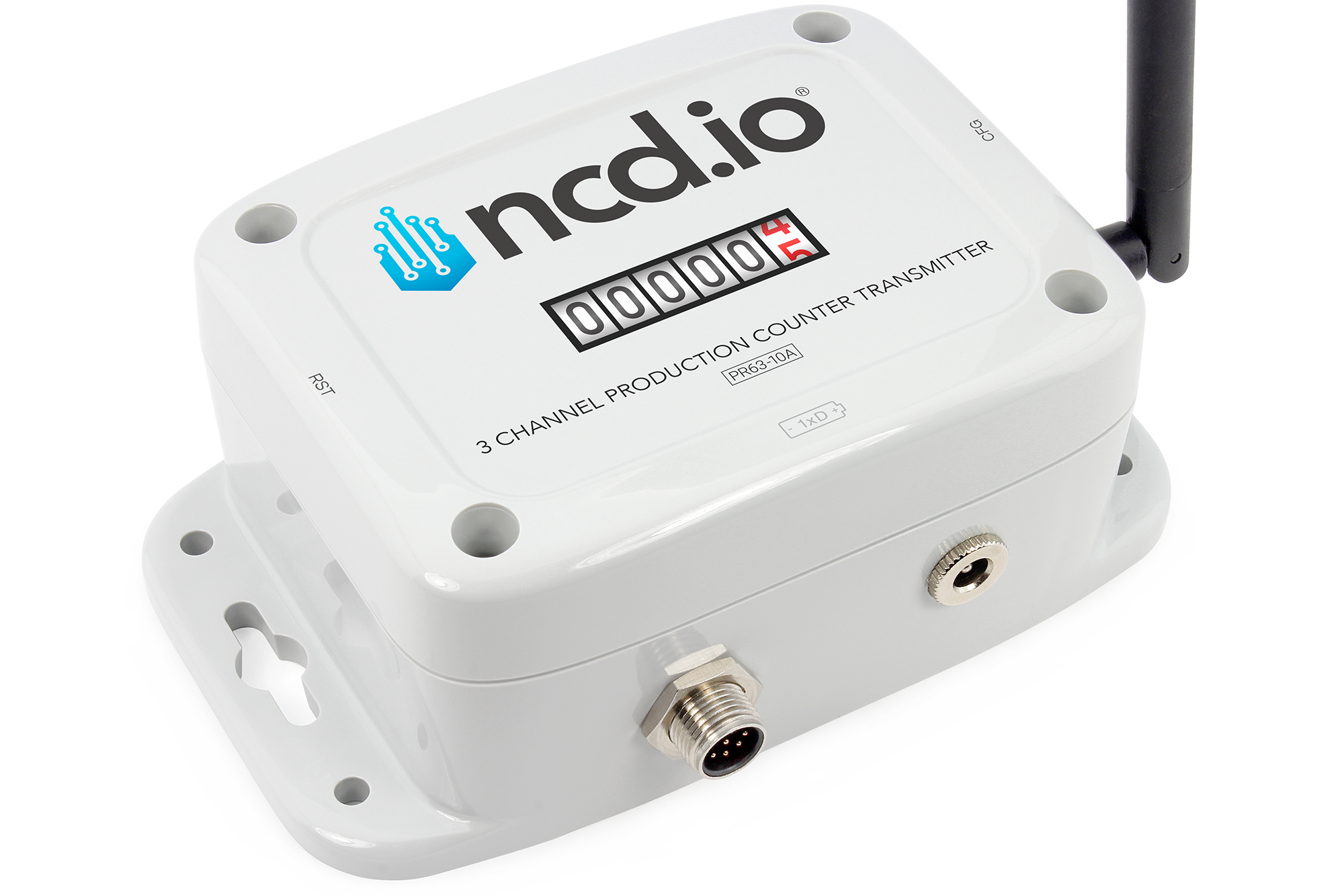
- PR63-10A_PWR – 3-Channel Production Counter
You can use a Single Sensor to handle all signals (Uptime, Production, Rejects) or split the signals across up to three different sensors.
Prerequisites
To successfully follow and implement the steps outlined in this guide, you will need the following components and software:
Hardware:
- An Industrial IoT Wireless Sensor (OEE).
- An Enterprise IIoT Gateway or an Enterprise IIoT Gateway Lite.
- A computer equipped with Wi-Fi or Ethernet connectivity to connect to the Enterprise IIoT Gateway and access Node-RED.
Software:
- Node-RED: (Pre-installed on the Enterprise IIoT Gateway)
- NCD Library: (Pre-installed on the Enterprise IIoT Gateway)
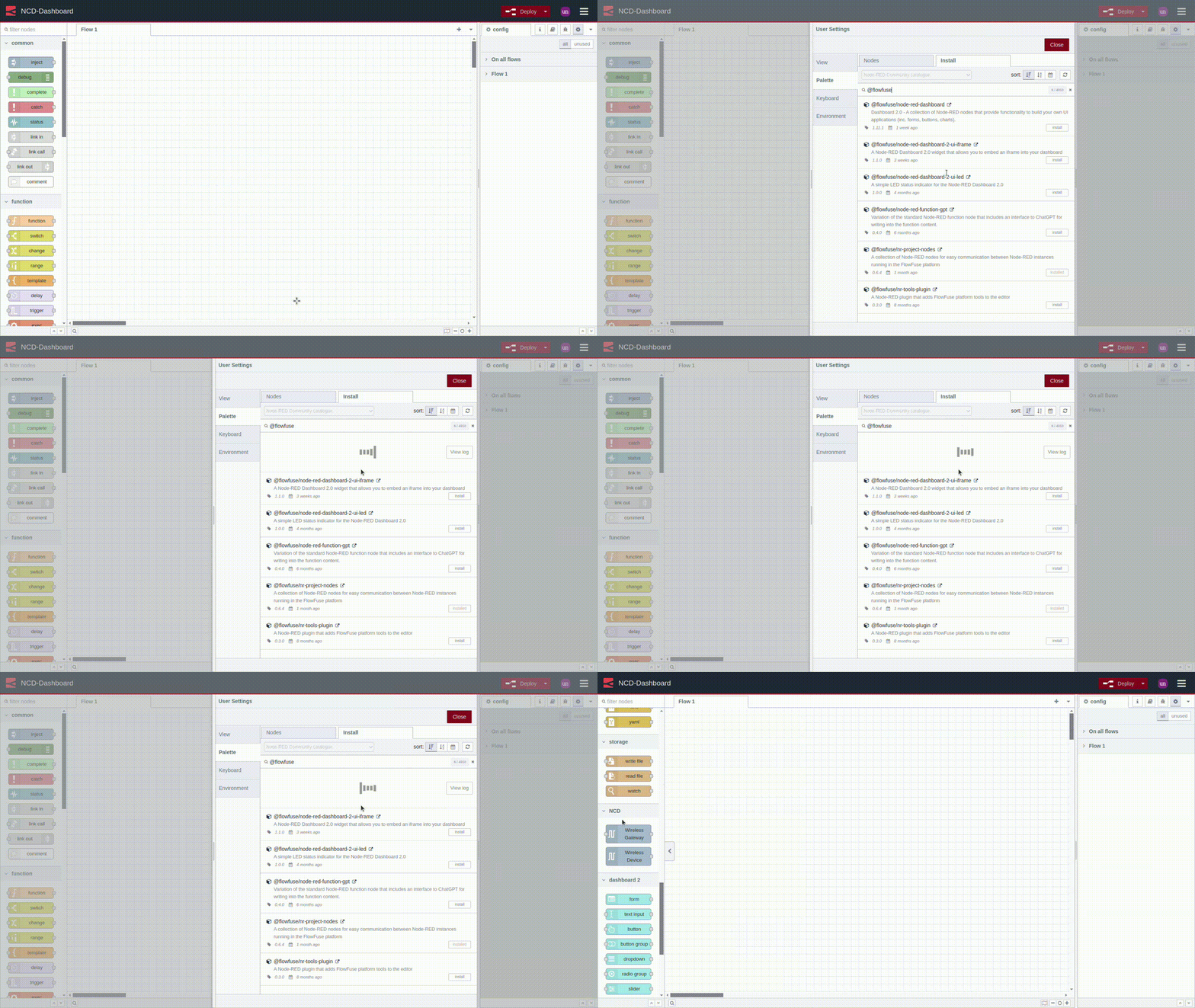
- FlowFuse Dashboard 2: This must be installed as per the instructions provided in its documentation.
Dashboard Library
FlowFuse Dashboard 2.0 is an easy to use collection of nodes for Node-RED that allows you to create data-driven Dashboards & data visualizations. Installation procedure is similar to the previous one, FlowFuse’s Node-RED Dashboard 2.0 is also available in the Node-RED Palette Manager.
- Source: https://dashboard.flowfuse.com/
Sensor Configuration
Crucial, before using the dashboard, configure your NCD Sensor using Node-RED to match the dashboard logic.
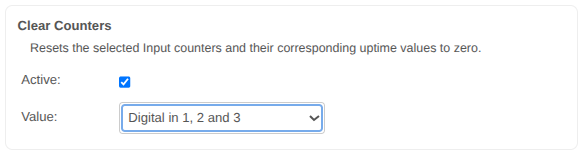
Clear Counters: This option will reset the selected input counters and their corresponding uptime values to zero. This is useful when you have finished testing the input signals and sensor behavior and are ready to proceed with the dashboard connection, as it helps you start the dashboard with zero values in the counters. (The use of this function will depend on your specific application.)
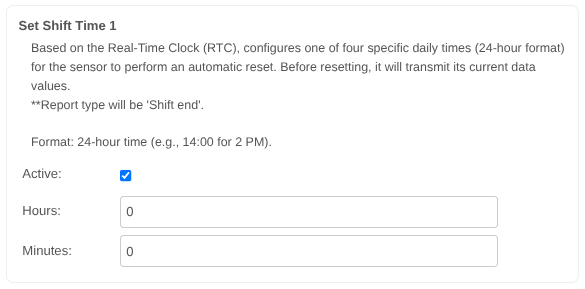
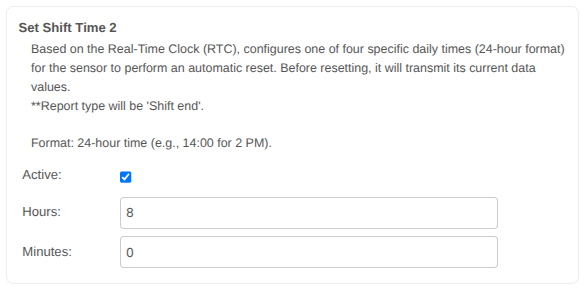
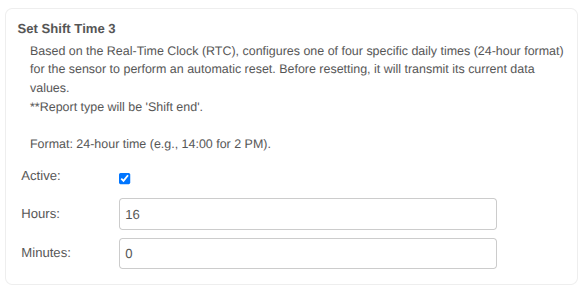
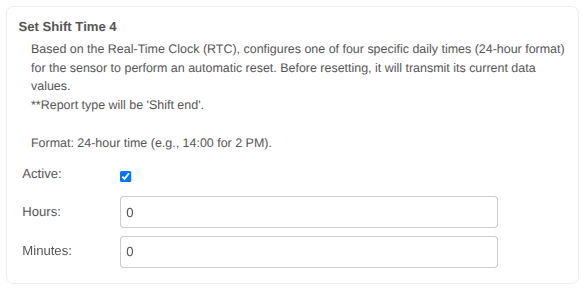
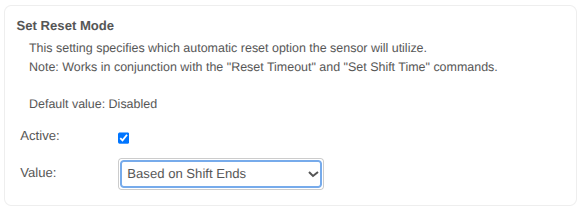
Shift Timers (Shift Ends): Configure the sensor to reset counters automatically at the end of every shift. Before resetting, the sensor will transmit its currency data values, in a ‘Shift End’ message. This template uses a 3-Shift system:
- Shift 1: 00:00
- Shift 2: 08:00
- Shift 3: 16:00
- Shift 4: 00:00 (Disabled, same as shift 1)
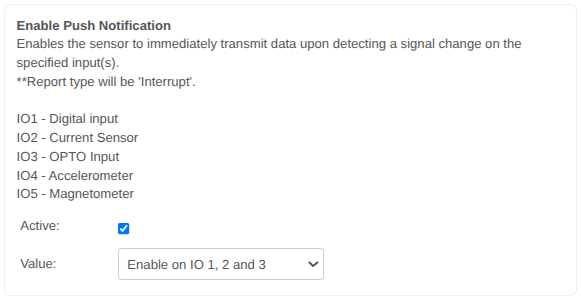
Push Notifications (Interrupts):
Machine Status: Enable “Push Notification” on the input detecting Machine ON/OFF (e.g., CT Current). This ensures immediate Live Status updates.
Production Counter:
- Low Speed: Enable Push Notification if production is slow (e.g., >60 sec/unit).
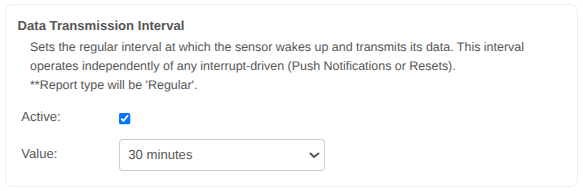
- High Speed: Disable Push Notification if production is fast (<60 sec/unit) to prevent Wireless network saturation. Rely on the “Regular” interval updates instead.
Dashboard Flow Setup
Now you are ready to import the NCD Dashboard Template, which has been specifically designed and optimized for seamless integration with NCD sensors. The import process is straightforward; however, it is essential to follow these steps carefully:
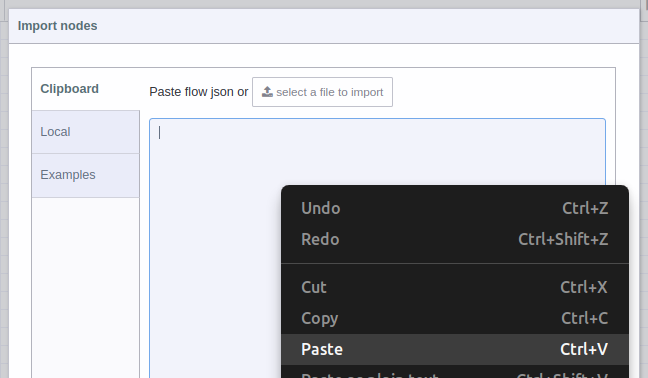
- Copy the JSON: First, locate and copy the contents of the NCD Dashboard Template JSON file.
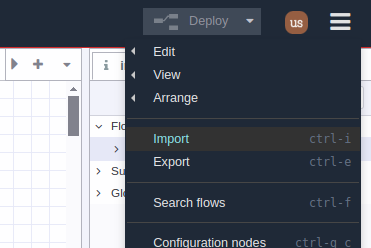
- Import the JSON: Within your Node-RED workspace, utilize the import function (typically found in the Node-RED menu) to bring in the copied JSON data.
Successfully completing these steps will import the NCD Dashboard elements directly into your Node-RED workspace, enabling you to visualize and interact with your NCD sensor data effectively.
Step 1. Click on the following link to access the NCD Dashboard Template source code:
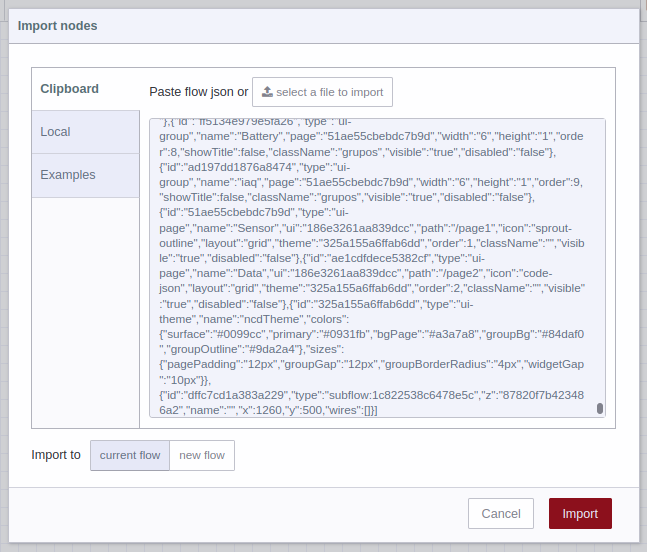
Step 5. You should see the JSON code in text-box, now you can press the red “Import” button at the bottom right:
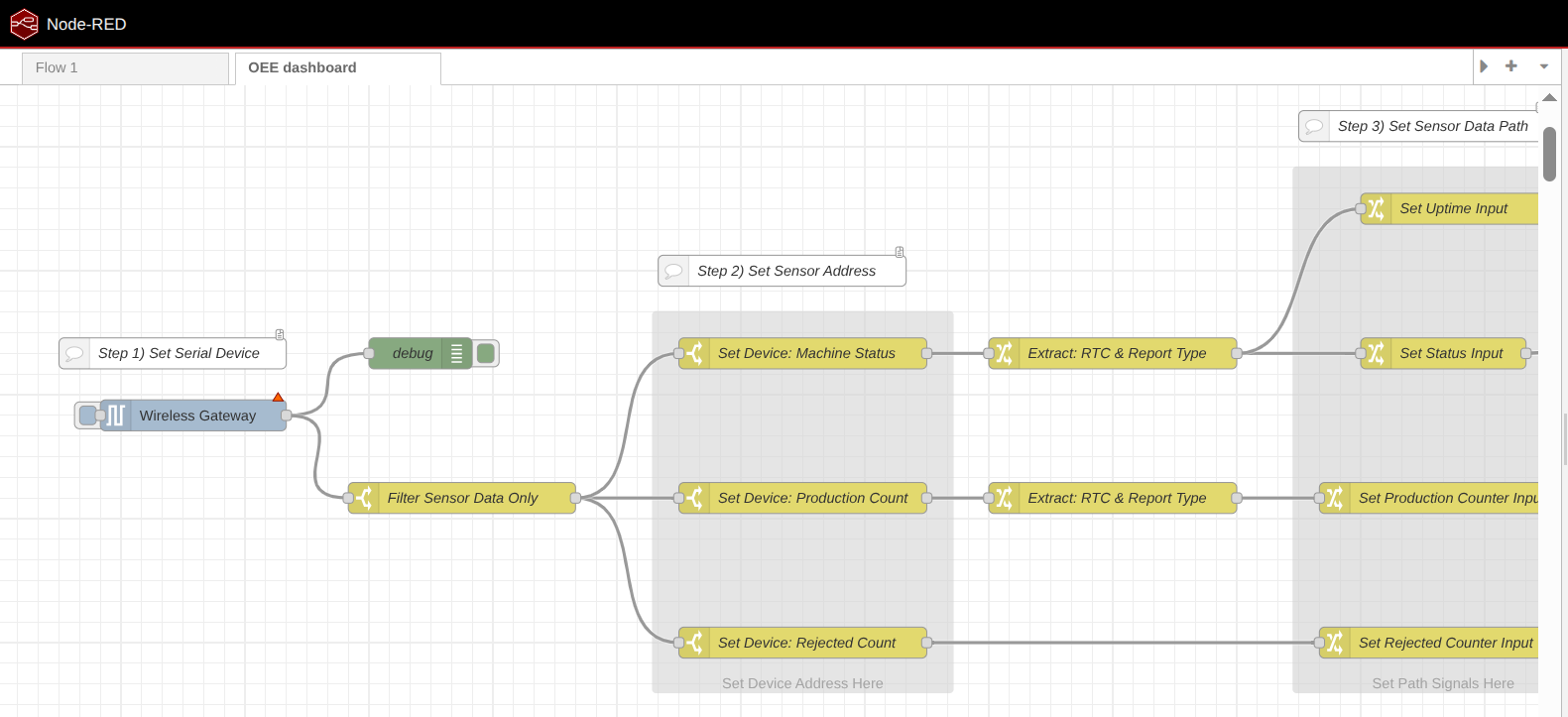
Step 6. Once imported, you will see a new tab in your workspace. Clicking on it will display the Node-RED workflow. You will need to follow the steps below to configure it.
Configuring Flow
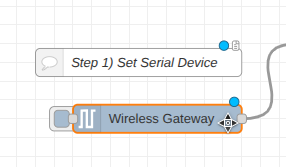
Step 1. Configure Wireless Gateway Node: Open the Wireless Gateway node properties by double-clicking on the node.
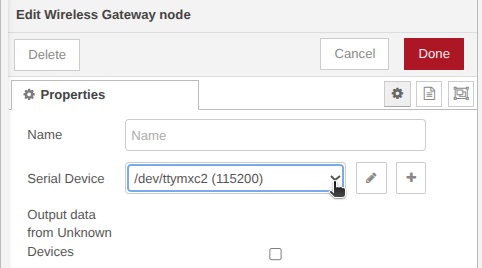
Select your Serial Device from the dropdown menu and click the “Done” button. (If you are using Gateway, the default serial device is ‘/dev/ttymxc2’).
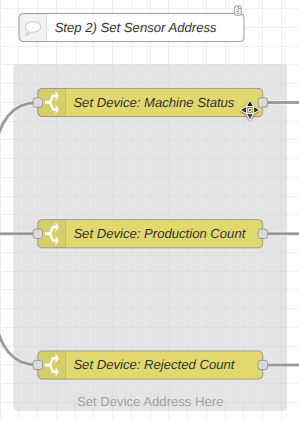
Step 2. Select Devices (MAC Address): Locate the “Set Device Address Here” section. Enter your Sensor’s MAC address in the switch nodes.
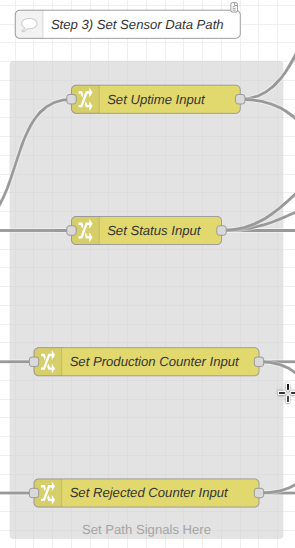
Step 3. Map Data Signals: Locate the “Set Path Signals Here” section.
Map the specific payload path to the correct dashboard variable based on your sensor type (e.g., CT, Opto, Accelerometer):
- Uptime: e.g., msg.payload.sensor_data.ct_input_uptime
- Status: e.g., msg.payload.sensor_data.input_ct
- Production: e.g., msg.payload.sensor_data.opto_input_counter
- Rejects: e.g., msg.payload.sensor_data.digital_input_counter
See Sensor User Manual for reference:
- IoT Wireless Machine Runtime Hour Meter User Manual: https://ncd.io/blog/iot-wireless-machine-run-time-hour-meter-user-manual/
- Industrial Wireless 3 Channel Production Counter User Manual: https://ncd.io/blog/industrial-wireless-3-channel-production-counter-user-manual/
- Machine Uptime Monitor User Manual: https://ncd.io/blog/machine-uptime-monitor-user-manual/
Customization and Extensibility
This dashboard template utilizes Function nodes containing JavaScript code to process sensor signals and perform all necessary OEE and runtime calculations.
The code is fully documented and intended to be a foundational example for users to modify according to their specific application logic.
The scripting logic is straightforward. If you are unfamiliar with JavaScript, you can easily use modern AI coding assistants (AI agents) to analyze, explain, or safely modify the code blocks.
Dashboard Overview
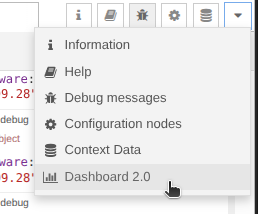
In order to access to the Dashboard go to right menu and click on ‘Dashboard 2.0’ option:
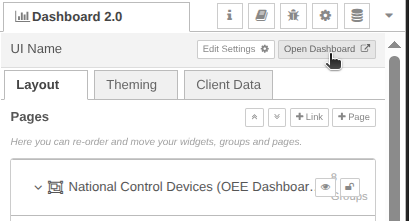
Then click on the ‘Open Dashboard’ button:
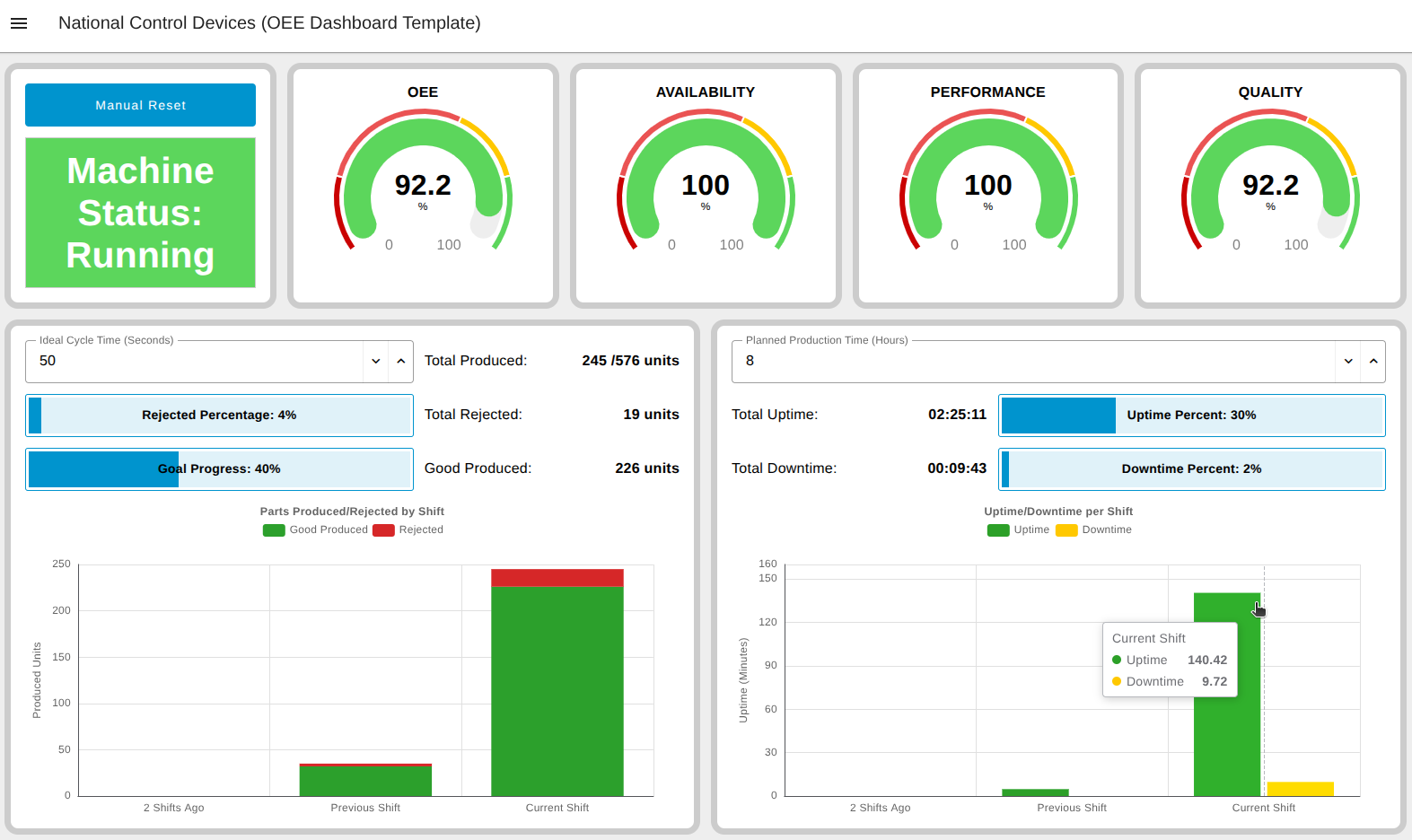
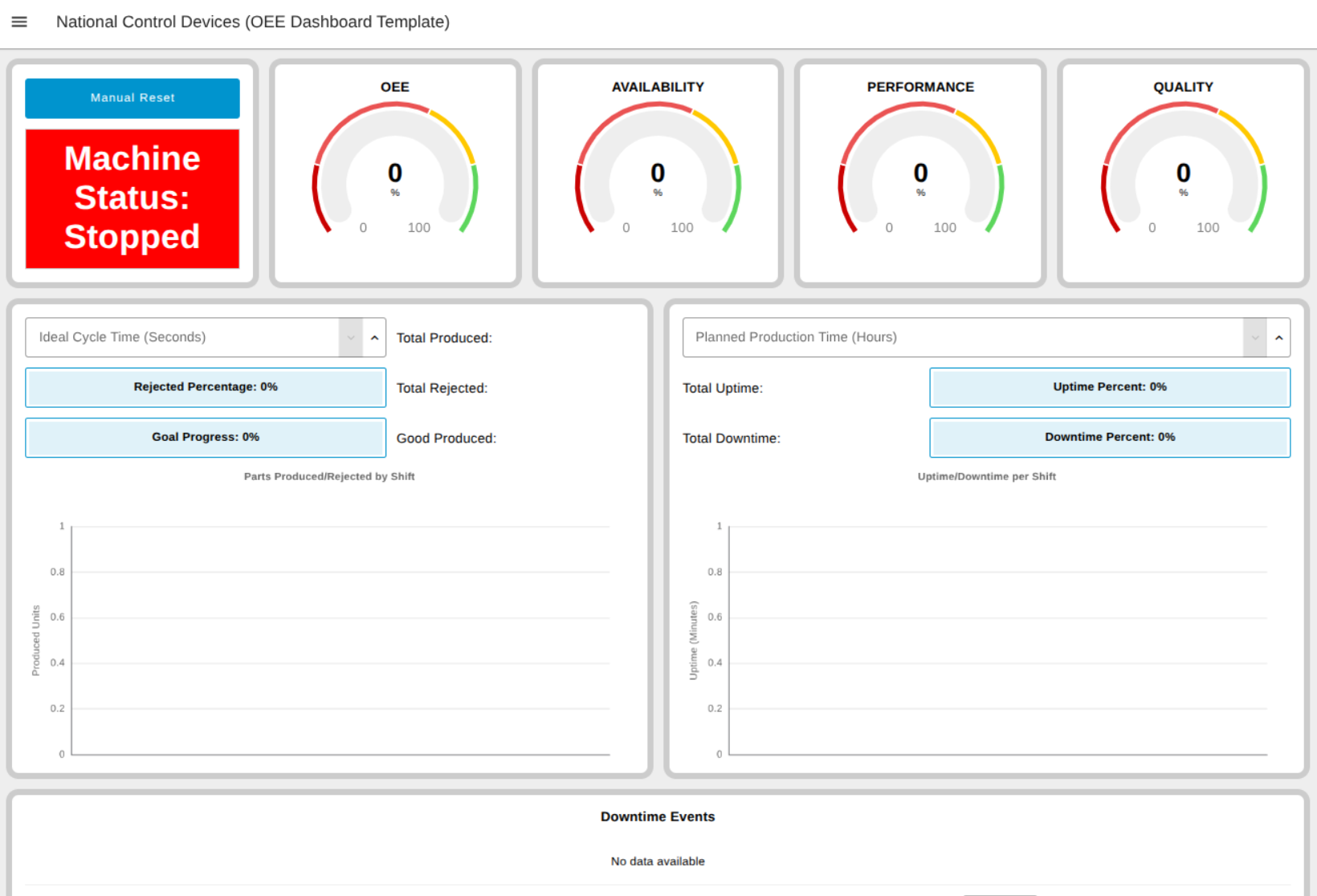
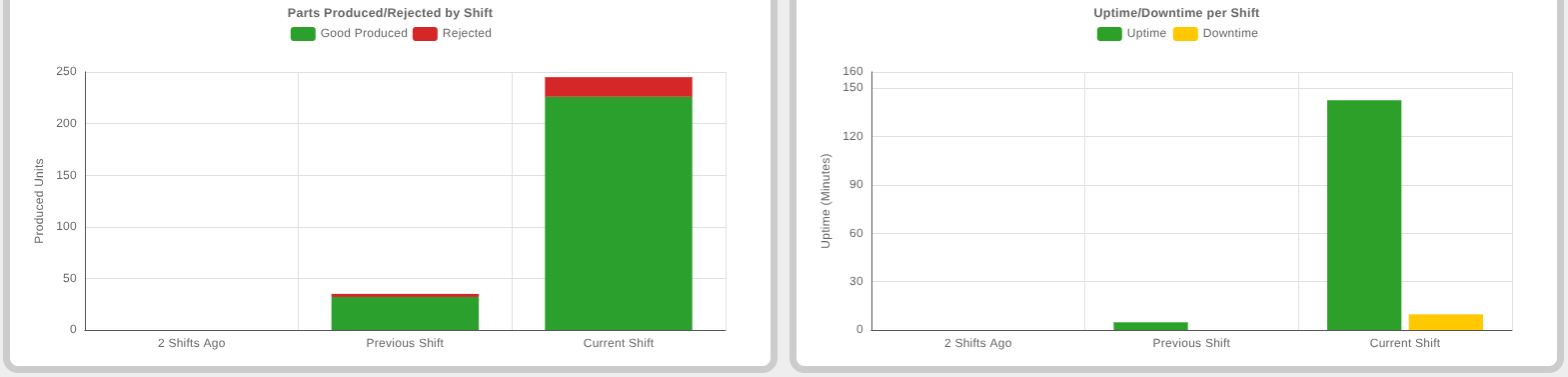
Once configured, the dashboard provides the following metrics managed by an 8-hour Shift logic (00:00-08:00, 08:00-16:00, 16:00-00:00):
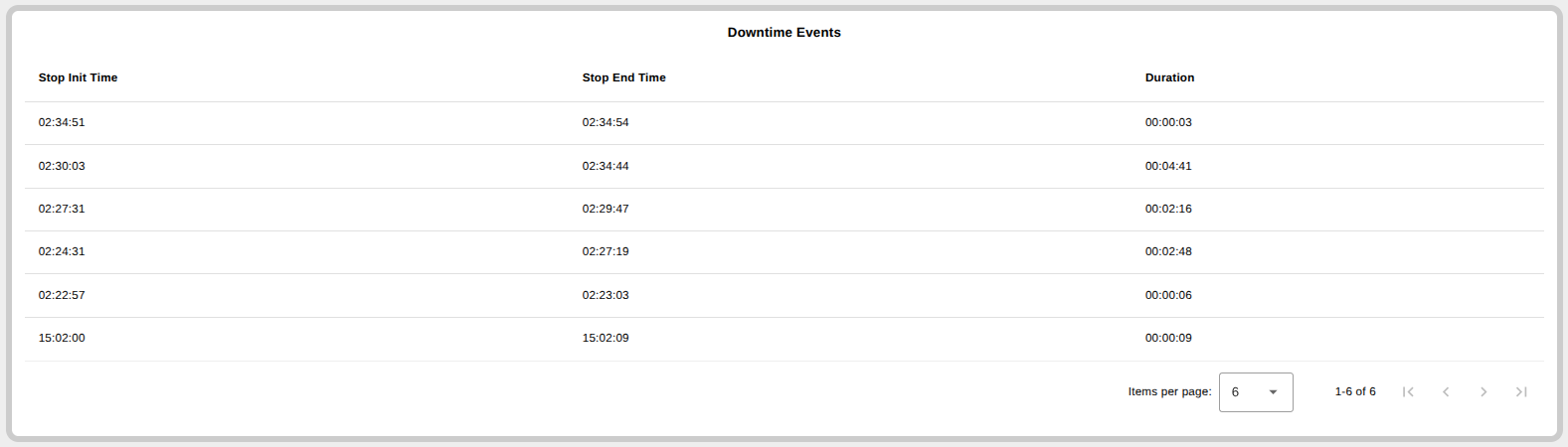
Downtime Events: A log table showing the last 6 stops, including Start Time, End Time, and Duration (HH:MM:ss).
User Inputs: Users can manually input Ideal Cycle Time (seconds) and Planned Production Time (hours) directly on the dashboard to tune OEE calculations.
Connect
Seeking next-generation IIoT Wireless Production Counter, Machune Runtime Sensors and support? Here are some next steps:
- Cuntact us to talk to a NCD Technicial Support.
- Visit our Blog Entries to learn about emerging trends.
- Shop for solutions from NCD and our partners.