

Same sensor, same moment, two charts, two answers. Not anymore.
Atrium 2.7.0 started with something a customer noticed.
They compared the same moment on two charts. At 12:00 PM, the 1-hour chart said 40 °F. The 30-day chart said 42 °F. Same sensor, same moment, two different numbers.
Both numbers were real, and that was the problem. On a long time range, each point on the chart is an average of many readings. Those averages were being drawn at the start of the window they covered. While the temperature was rising, the whole curve slid earlier, and the longer the range, the further it slid.
Here is what changed in 2.7.0, starting with that chart.
1. Charts that line up at every time range
In 2.7.0, every averaged point is drawn at the time of the readings it covers. A trend now lines up whether you are looking at an hour or a month.
We checked it against every raw reading from a full day of data, and the charts got closer to the true values at every time range we tested.
2. A chart that shows its work
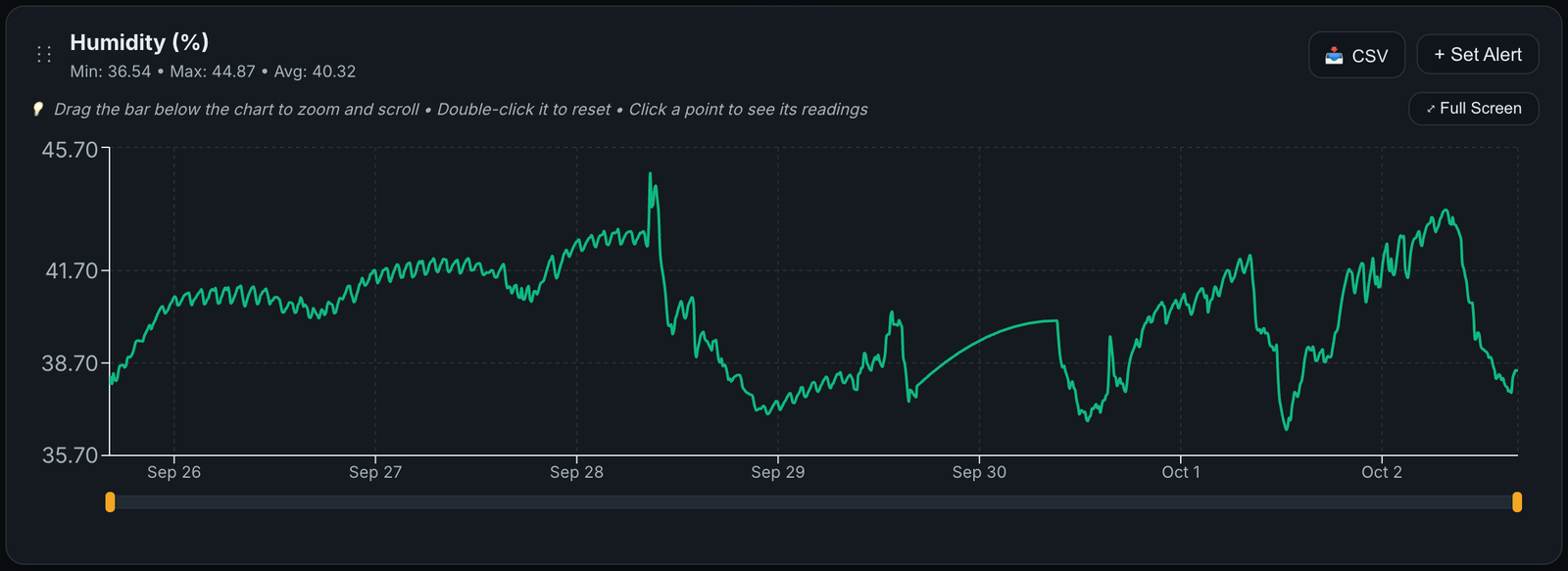
The chart now tells you what you are looking at:
- Hover a point to see whether it is an average, the window it covers, how many readings went into it, and their minimum and maximum.
- Click a point to list every reading behind it, with exact times.
- Zoom with the bar under the chart. Drag either end to focus on a stretch of time, drag the middle to scroll, and double-click to reset. Leave the window at the right-hand end and it follows new readings as they arrive.
- Full Screen opens any chart in a larger view with the same controls.
3. CSV exports with every reading, at any range
The CSV button on a chart now exports every reading in the time range you picked, each with its exact time. Before 2.7.0, anything past one hour gave you the chart’s averages, stamped with the start of each window, and nothing in the file said so.
Now a 30-day export is 30 days of raw readings, not a summary of them. It follows your °C/°F setting and any conversion formula you have set, and the column header names the unit.
See it in action. This short walkthrough shows the new charts, the zoom bar and the raw CSV export.
A 5-minute walkthrough of the 2.7.0 charts, zoom and CSV export.
4. More than one gateway at a site? Keep them apart
Wireless sensors talk to a gateway on a shared network ID. Until now, every Atrium gateway used the same one, so two gateways in the same building could hear each other’s sensors.
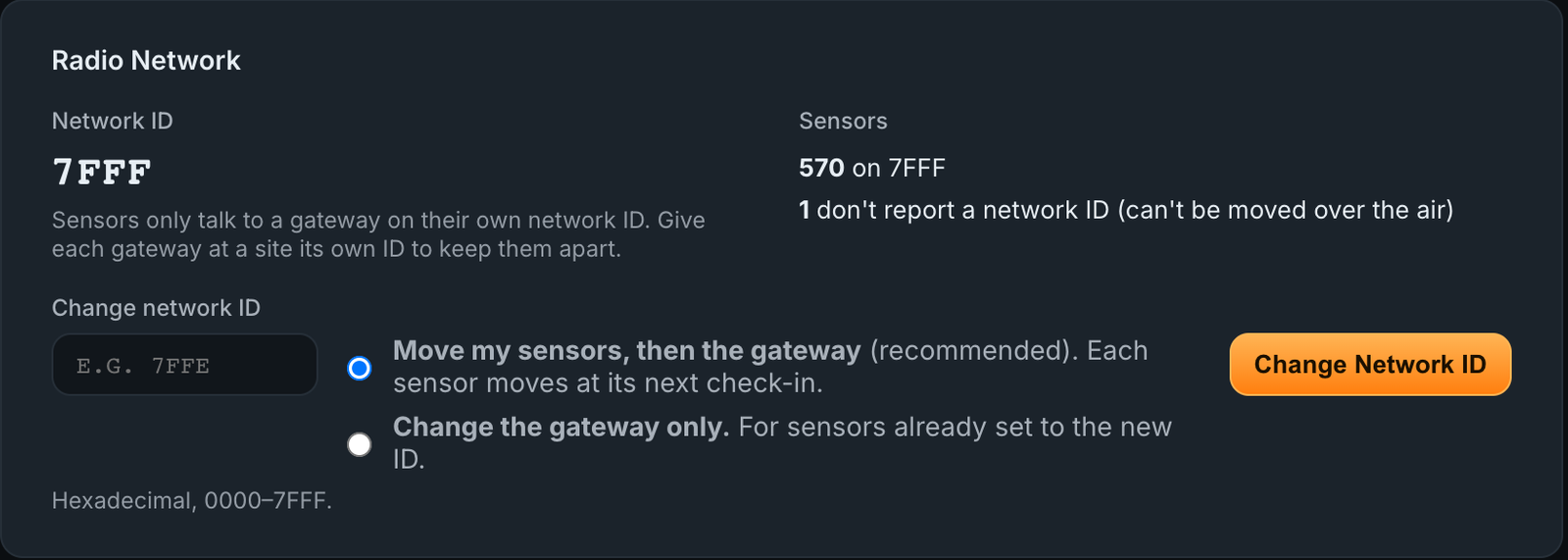
2.7.0 adds a Radio Network card under Settings → General. It shows the gateway’s network ID and how many sensors are on it, and it changes the ID in the right order:
- Move my sensors, then the gateway (recommended). Each sensor moves to the new ID at its next check-in. The gateway follows once they have all moved, so no sensor is left stranded on the old one.
- Change the gateway only, for sensors that are already set to the new ID.
Sensors that cannot be moved over the air are counted on the card, so you know before you start. Changing the network ID needs admin access.
5. Configuration changes that reach the sensor
A battery sensor listens for only a moment after it checks in, and a configuration change has to arrive inside that window. We found a case where it could not. An installed app polling a device the gateway could not reach, such as a relay board that was unplugged or out of range, kept the radio busy long enough that replies to sensors arrived after they had gone back to sleep.
The gateway now backs off from a device that is not answering, and a sensor’s listening window takes priority over app traffic. Your configuration changes land while the sensor is still listening.
6. For AI assistant users
If you have connected an AI assistant to your gateway, it can now check whether your sensors have firmware updates available, and view or change the radio network ID.
Anything irreversible takes two steps. The assistant first gets the same warning the Atrium screen shows you: which sensors would move, and which could not. It has to put that warning to you before it can act. Changing the network ID also needs its own permission (radio:network), which you grant on purpose or not at all.
Coming soon: sensor firmware updates over the air
This is the one we are most excited about, and it is already on your gateway.
2.7.0 includes over-the-air firmware updates for NCD wireless sensors. From a sensor’s Configure → Update tab you will see the firmware it is running, the published builds for that exact sensor, and its update history. Pick a build, or install a file NCD sent you directly, and the gateway delivers it the next time the sensor wakes. No ladder, no laptop, no taking the sensor down.
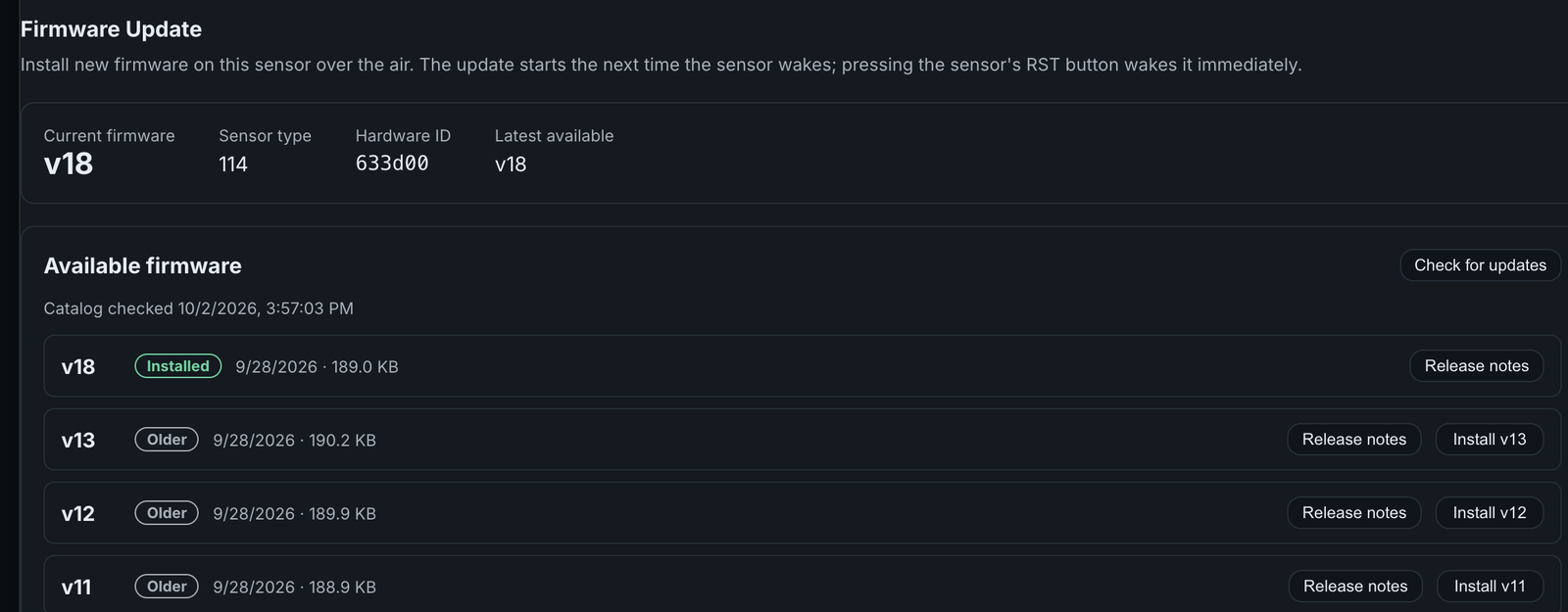
It switches on with the next release of the Sensor Decoder Library (2.0.7), which we will announce as soon as it is available. Until then, the Update tab tells you what it is waiting for. When it arrives, you install it from Settings → Updates. No platform update needed.
Getting 2.7.0
Go to Settings → Updates and press Check for updates on the Platform card. The update applies one database migration and restarts the gateway services. Your sensor data, reports and settings are kept. Gateways on 2.6.0 or 2.6.8 update directly, and newly flashed EG5120 units ship on 2.7.0.
Don’t have a gateway yet? See the Atrium IIoT Gateway.
Questions about the update? Ask on the NCD Community forum, where our engineers answer.