

ProXR Control User Guide
Build operator control panels for NCD ProXR relay controllers reached over the gateway’s DigiMesh radio — relays, banks, on-board timers, flashers and analog inputs, with sequences, schedules and a raw command console behind them.
01Overview
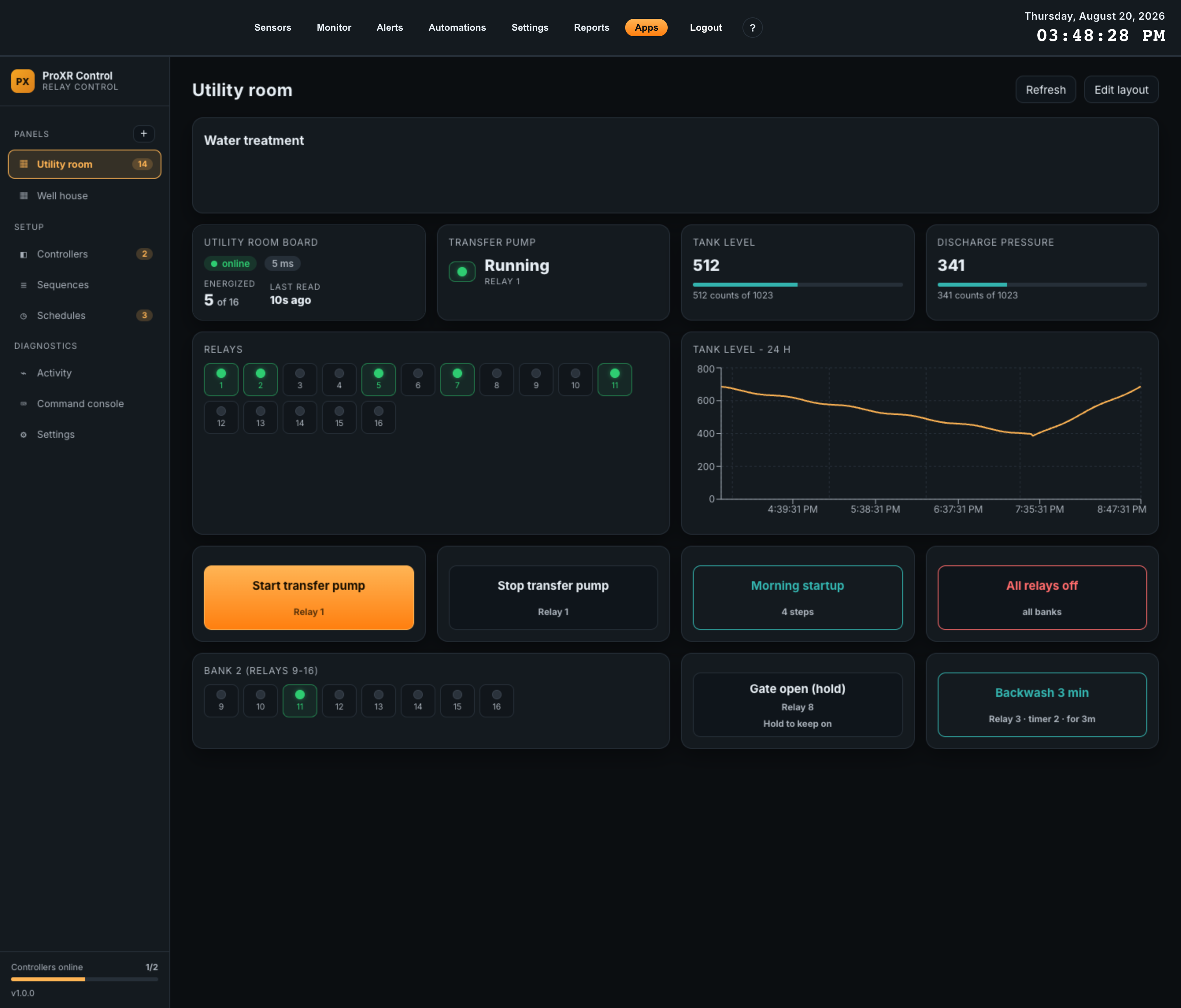
ProXR Control turns an NCD ProXR relay controller into an operator screen on the gateway. You register each board once, then assemble a panel out of cards: command buttons, relay indicators, relay grids, analog readouts, trend charts and controller status. The app polls every board it owns, so the panel shows the state the controller reports rather than the state that was last commanded.
What it does not do
- It reads no sensor telemetry. ProXR boards are not sensors, so nothing the app does appears on the gateway’s Sensors, Monitor or Reports pages.
- It cannot authorize its own hardware. Registering a board’s radio is an operator action on the gateway, covered in First-Time Setup.
- It does not watch the inter-app bus. It publishes its own state and offers commands, but you decide on the gateway’s Automations page what connects to what.
02Requirements
Two things have to be true before the app can be useful: the gateway has to be new enough, and each ProXR board needs a DigiMesh radio the gateway is allowed to talk to.
Gateway
| Item | Requirement | Why |
|---|---|---|
| Platform version | 2.4.0 or newer | 2.4.0 added the inter-app bus the app publishes to. An older gateway refuses the install rather than failing later. |
| Gateway model | Any Atrium gateway with a DigiMesh radio | The app declares no model restriction. It needs the radio, not a particular chassis. |
| License | Not required | ProXR Control is a free app. There is no key to enter and no locked state. |
| Sensors | None | No sensor needs to be paired, whitelisted or assigned. |
Per ProXR board
| Item | Requirement |
|---|---|
| Controller | Any NCD ProXR or ProXR Lite relay controller, 1 to 512 relays. |
| Power | A regulated 12 V DC switching supply sized for the board and its relays. |
| Radio | A DigiMesh module fitted in the controller’s communication socket, in transparent mode (AP=0), with its destination address (DH/DL) pointing at this gateway or set to broadcast. |
| Authorization | The radio’s 64-bit MAC registered under Settings > Devices > DigiMesh Peers on the gateway. |
| Analog inputs | Optional. ProXR Lite and ZAD boards carry eight on-board A/D inputs; the app reads up to eight per board at 8-bit or 10-bit resolution. |
03Installing
ProXR Control installs like any other Atrium app, from the App Center or from a package file. Nothing about the install needs a ProXR board present.
From the App Center
- 1Open AppsClick Apps in the gateway’s top navigation.
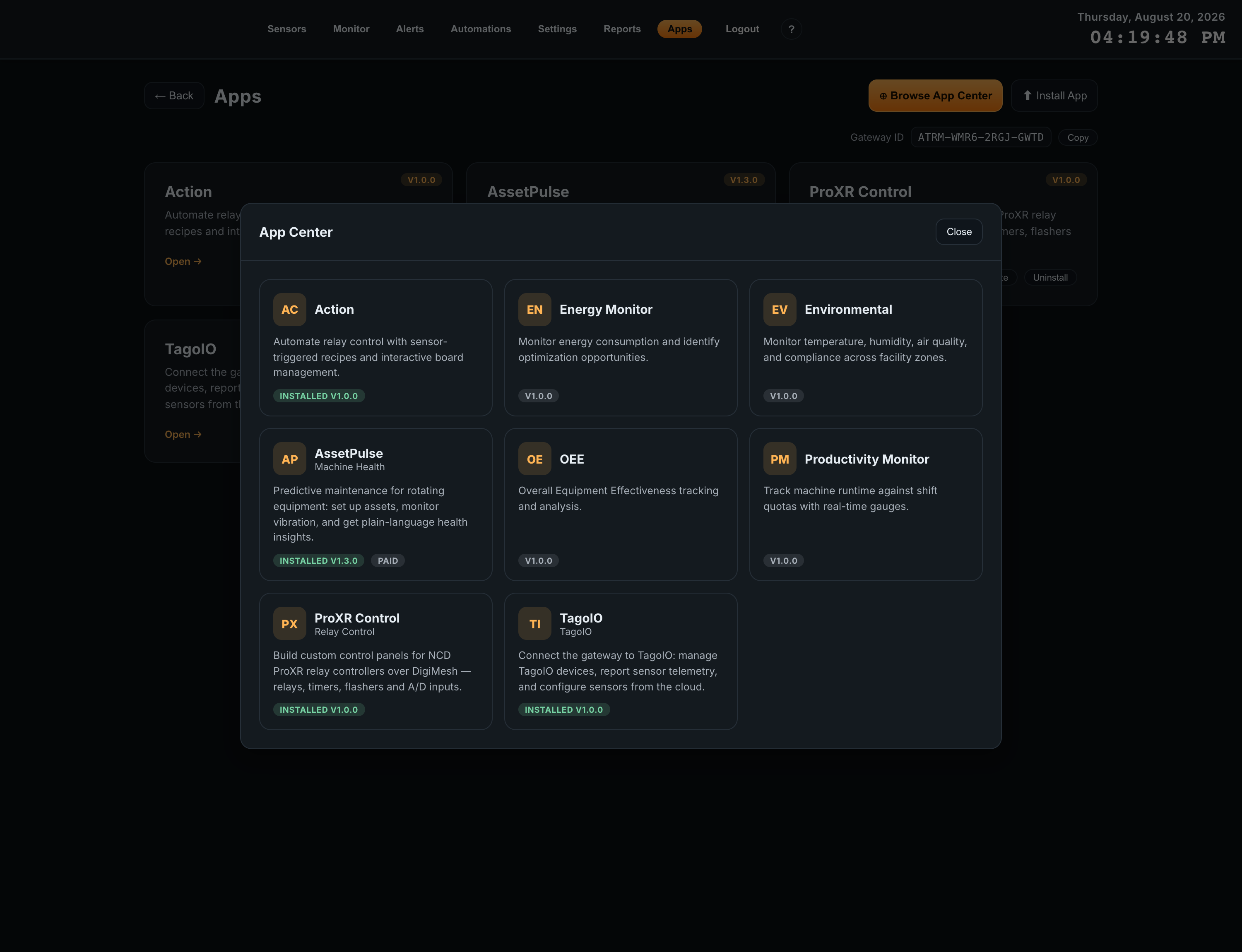
- 2Click Browse App CenterThe catalog lists every app available to this gateway. Apps already installed are marked INSTALLED with their version.
- 3Choose ProXR ControlThe tile shows the icon PX and the subtitle Relay Control. Install it, and the gateway restarts its API and ingest services when the install finishes.
From a package file
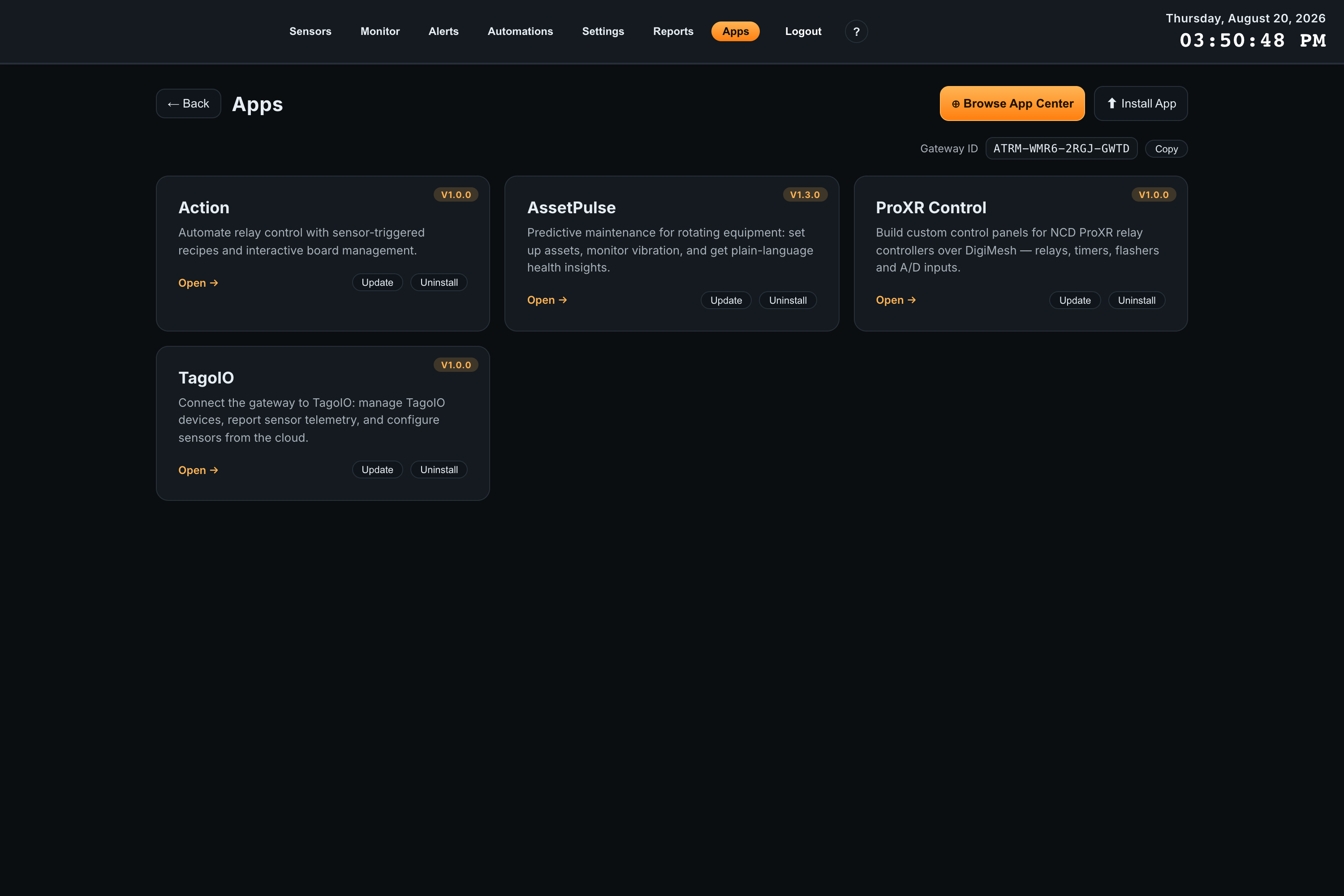
If NCD sent you a .tar.gz package directly, click Install App
on the Apps page and choose the file. Install App opens your browser’s file
chooser; there is no upload dialog of its own.
Where the app appears afterwards
The installed app gets a card on the Apps page with Open,
Update and Uninstall. Open takes you to
/apps/proxr-control, which is where the rest of this guide happens. The app’s own
screens have real addresses, so /apps/proxr-control/controllers and
/apps/proxr-control/schedules can be bookmarked.
04First-Time Setup
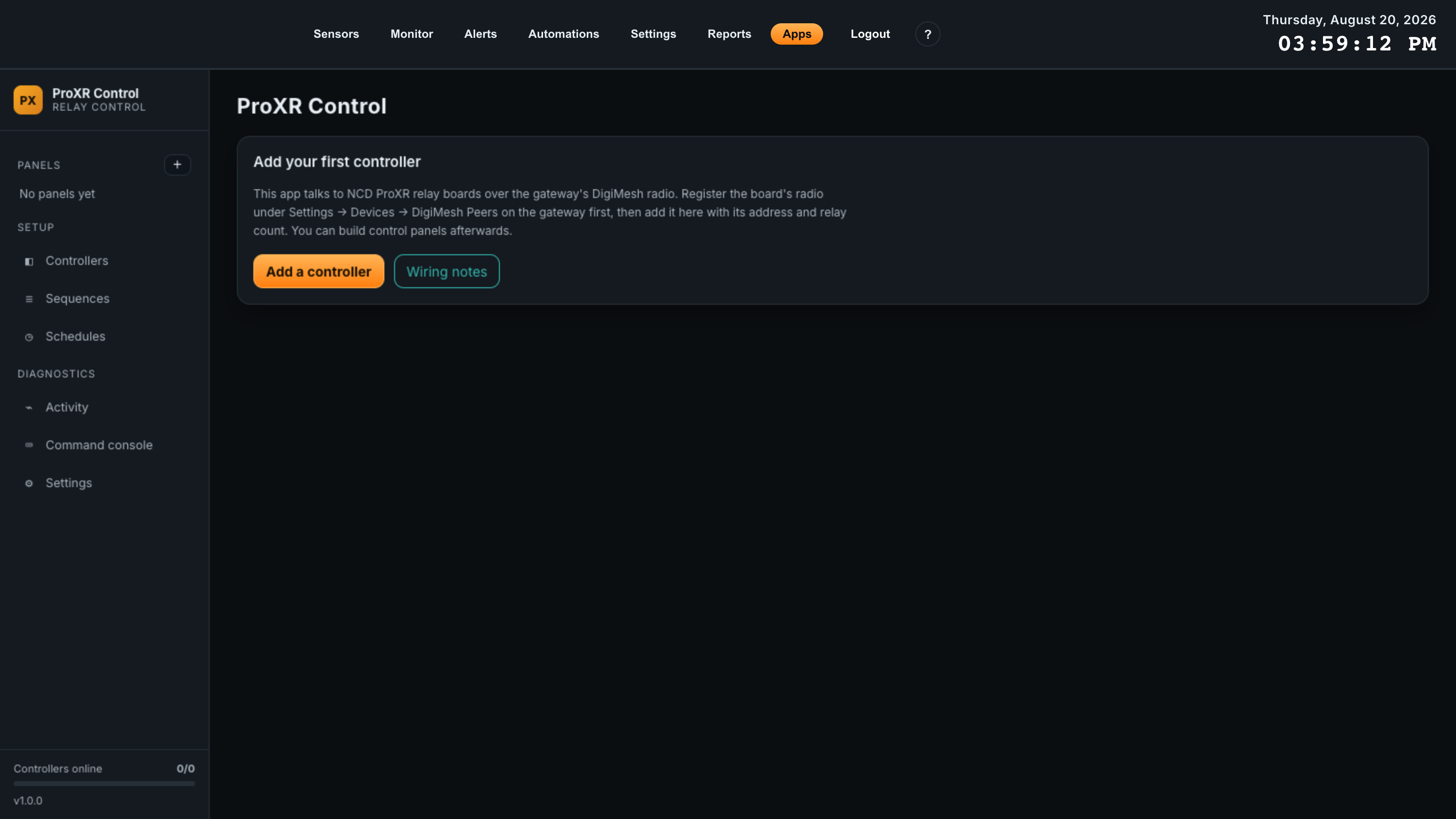
Four steps get you from a freshly installed app to a board that answers. The first two happen outside the app — on the gateway and on the radio — and they are where almost every commissioning problem comes from.
1. Register the radio as a DigiMesh peer
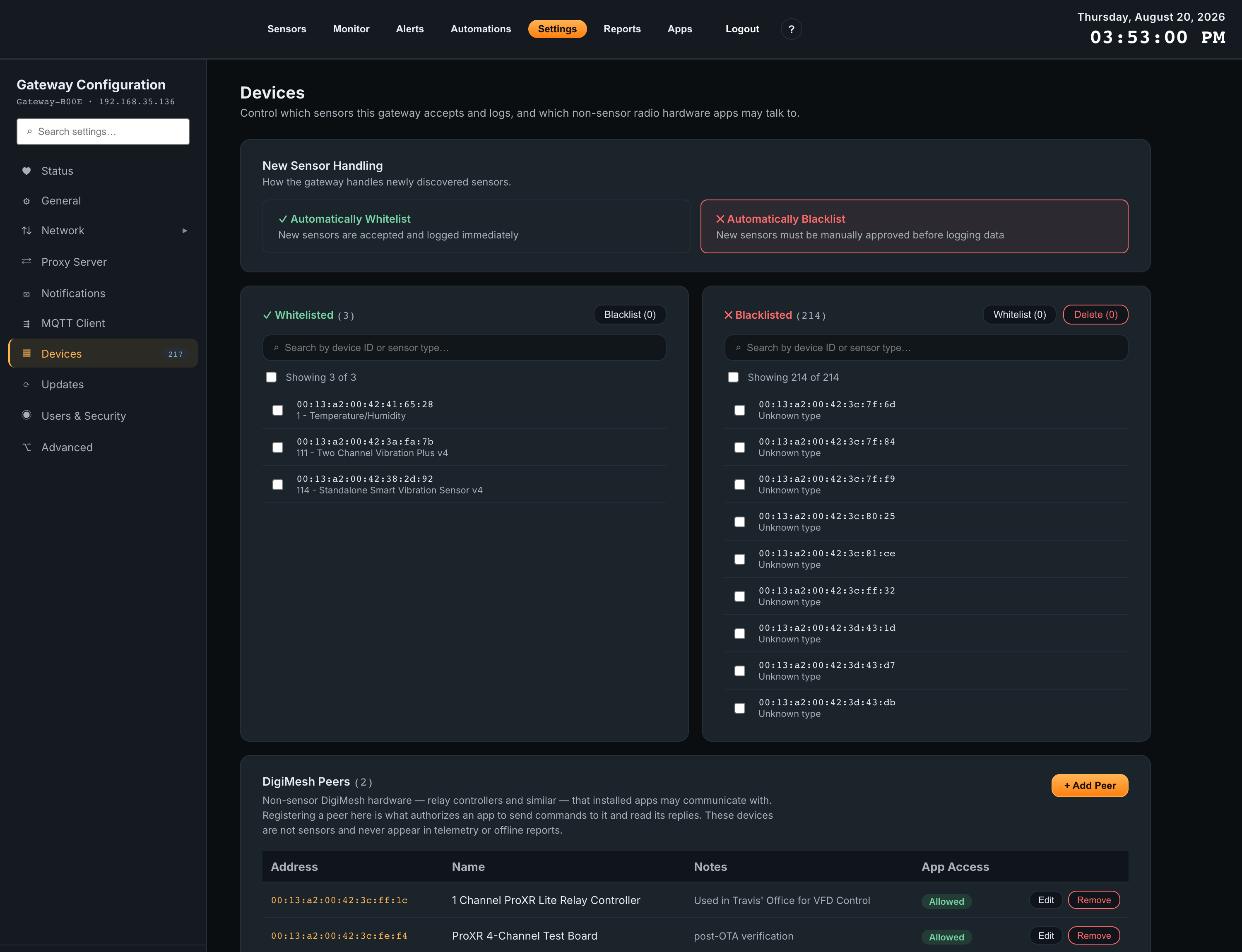
An app can never grant itself permission to talk to radio hardware. Registering a peer is the authorization, and only an operator can do it. Until the board’s radio is registered, ProXR Control shows the controller as not connected and names the address you need to add.
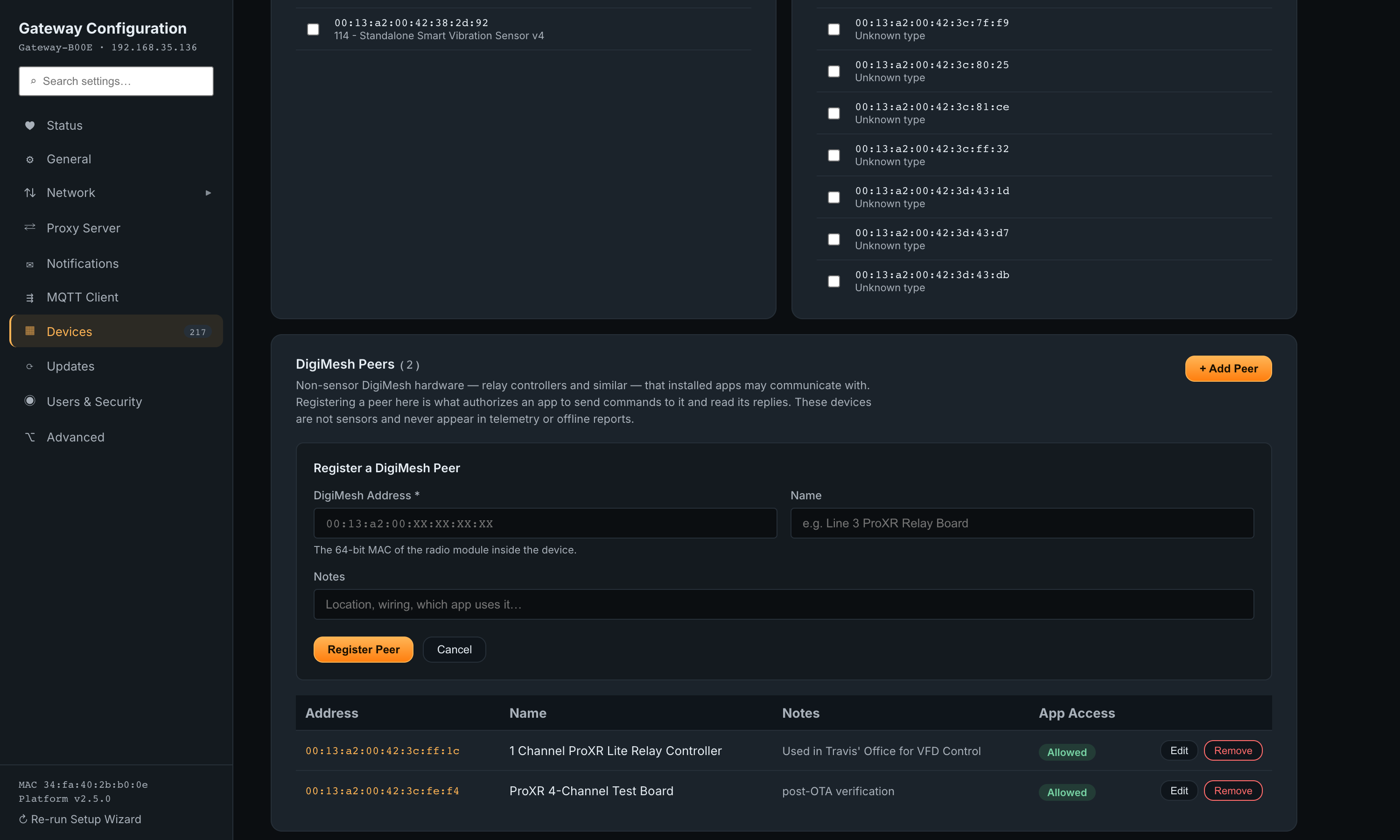
- 1Open Settings > DevicesScroll past the sensor whitelist and blacklist to the DigiMesh Peers panel at the bottom of the page.
- 2Click + Add PeerEnter the DigiMesh Address — the 64-bit MAC of the radio module inside the controller, not the controller’s own part number. A Name and Notes are optional but worth filling in; the name is what the app offers you in its address dropdown.
- 3Click Register PeerThe peer appears in the table with App Access: Allowed. Registered peers are not sensors and never show up in telemetry or offline reports.
2. Set the radio mode and destination
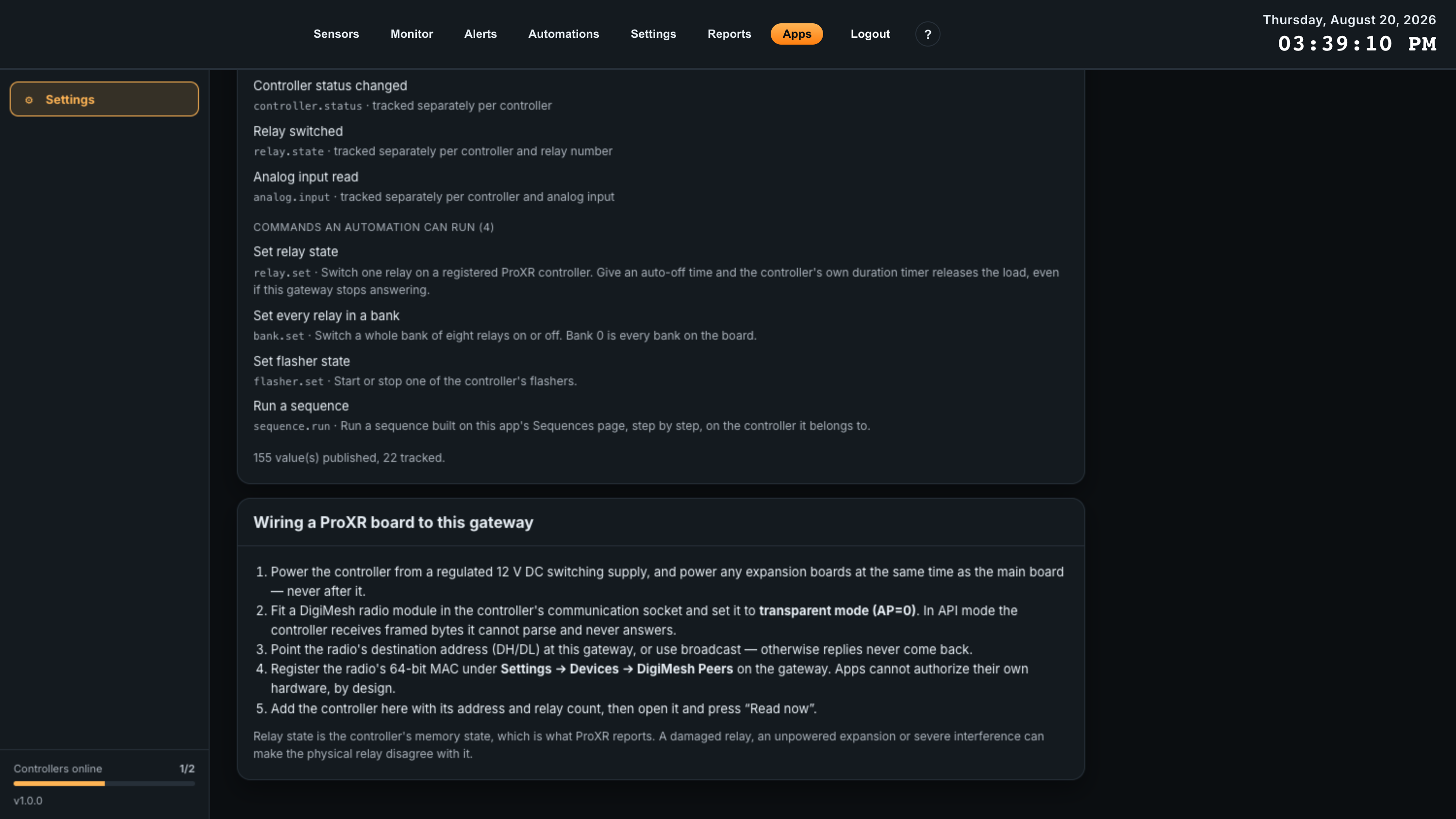
The radio in the ProXR board has to pass bytes through untouched, and it has to send the board’s replies back to this gateway. Two settings decide both.
| Setting | Value | What goes wrong otherwise |
|---|---|---|
AP (API enable) |
0 — transparent mode | In API mode the controller receives framed bytes it cannot parse and never answers. The gateway still reports the transmit as delivered, so the failure looks like a dead board. |
DH / DL (destination) |
This gateway’s radio address, or the broadcast address | The board answers, but the reply goes somewhere else. The app sees timeouts on every read. |
The app repeats this list on its own Settings page, under Wiring a ProXR board to this gateway, so an operator standing at the panel does not need this document.
3. Add the controller in the app
Open Controllers in the app’s sidebar and click Add controller. Only three fields matter to get a board answering: the name, the address and the relay count. Everything else has a sensible default and can be changed later.
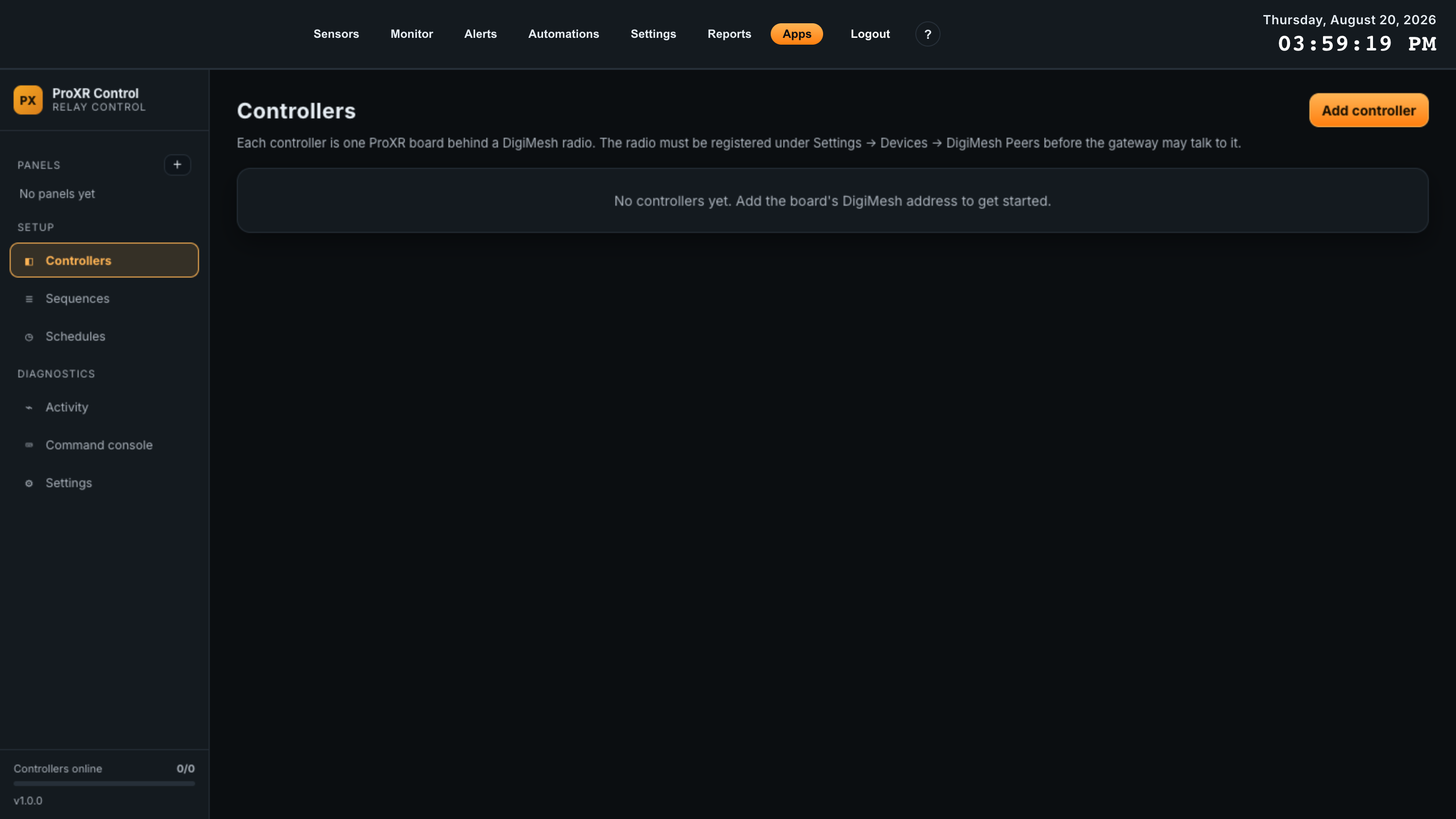
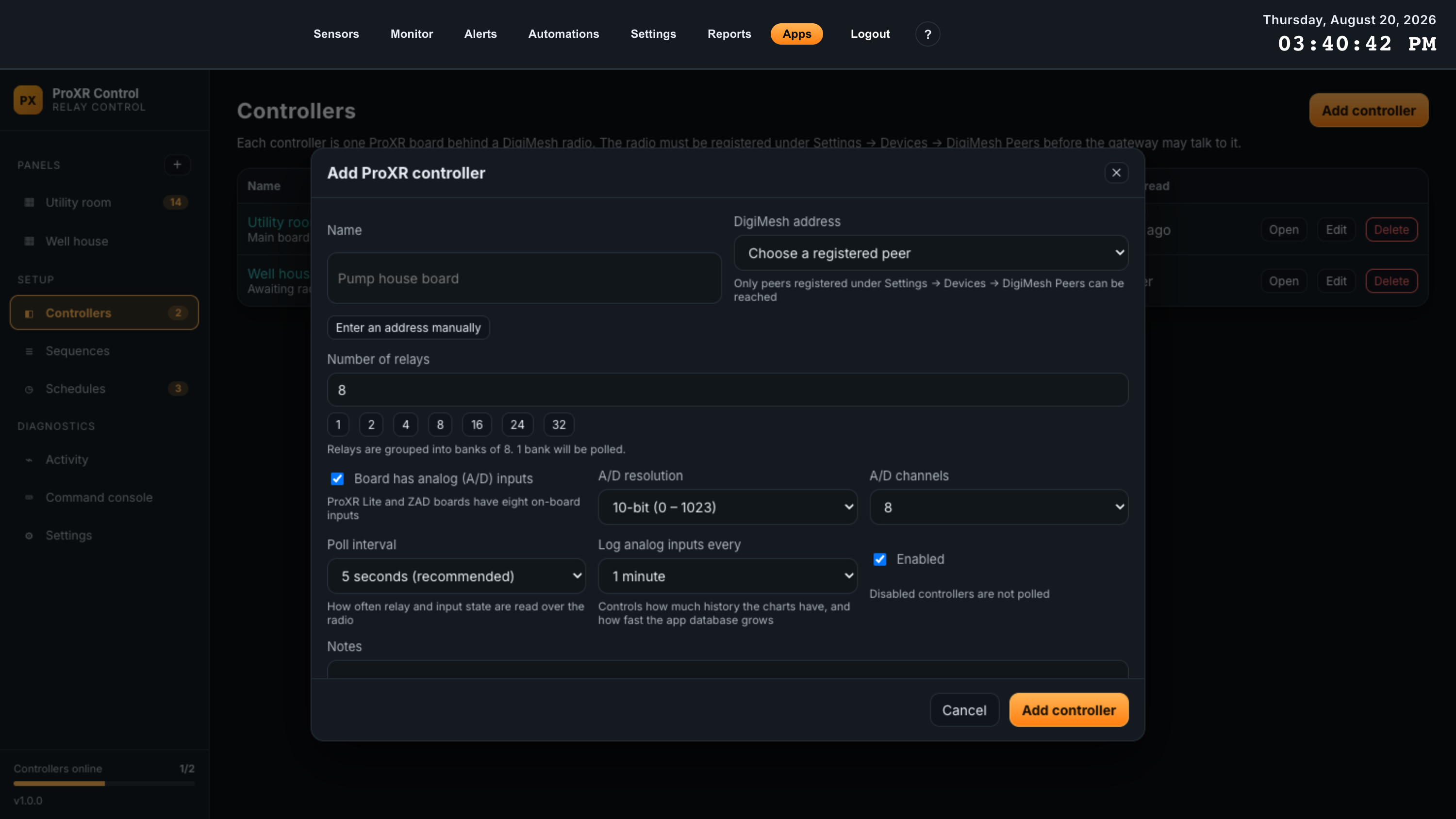
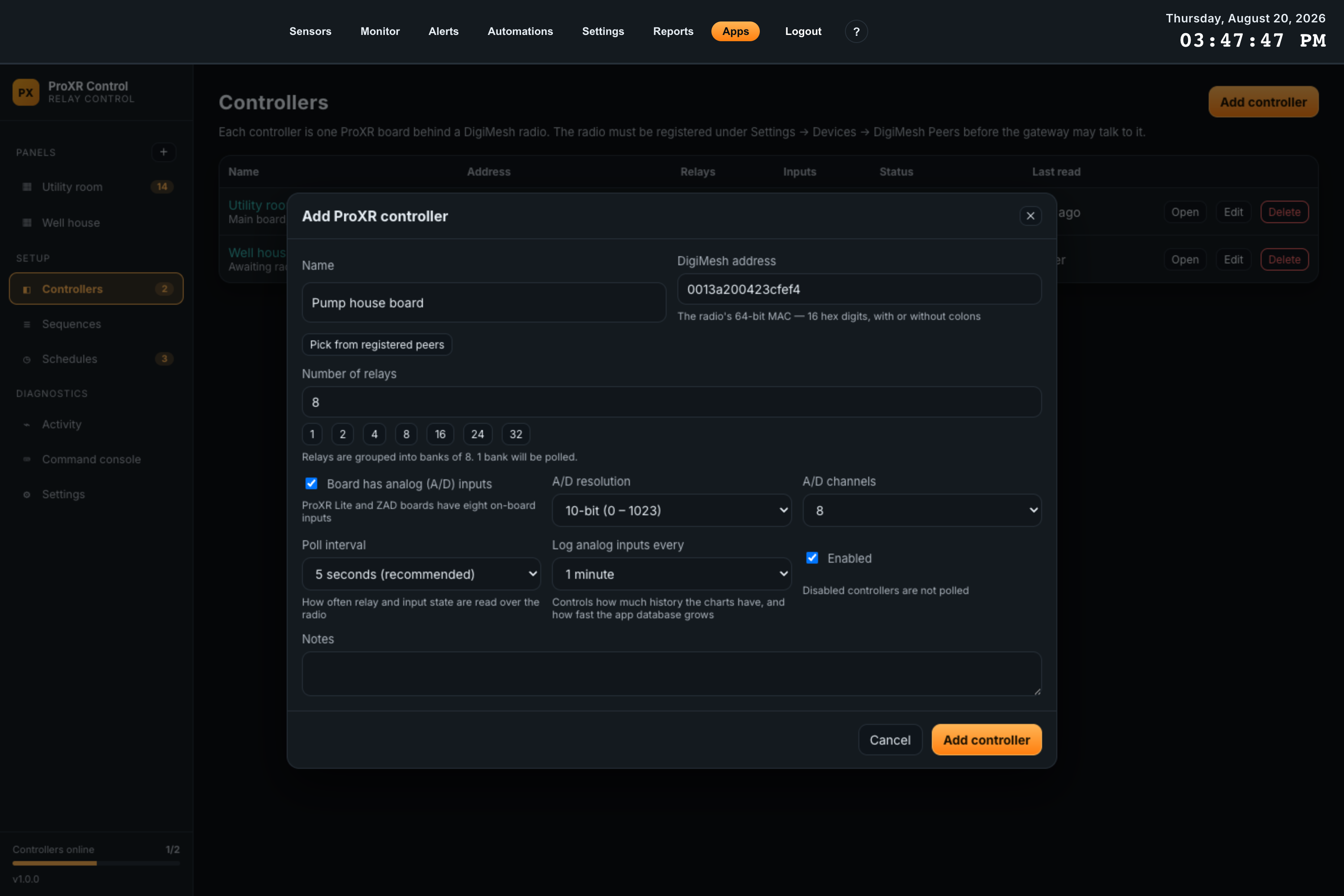
The address accepts the 64-bit MAC with or without colons —
0013a200423cfef4 and 00:13:a2:00:42:3c:fe:f4 are the same board.
The relay count sets how many banks get polled: relays are grouped in eights, and the dialog
tells you how many banks that works out to as you type.
Every field on this dialog is documented in Controller settings.
4. Prove the link before you build anything
Open the controller and press Read now. A board that is wired, powered, authorized and in transparent mode answers within a few hundred milliseconds, and the header chip turns to online.
- 1Press Read nowThis polls the board immediately instead of waiting for the next poll interval. Response time in the Link panel fills in, and Last successful read becomes just now.
- 2Press Identify boardThe controller reports which command sets it implements. The Board features panel then lists them, with the raw identification bytes above. This is the fastest way to confirm you are talking to the board you think you are.
- 3Check Recent trafficOutbound frames with no reply mean the board is not answering. Frames in both directions mean the link is good and any remaining problem is a configuration one.
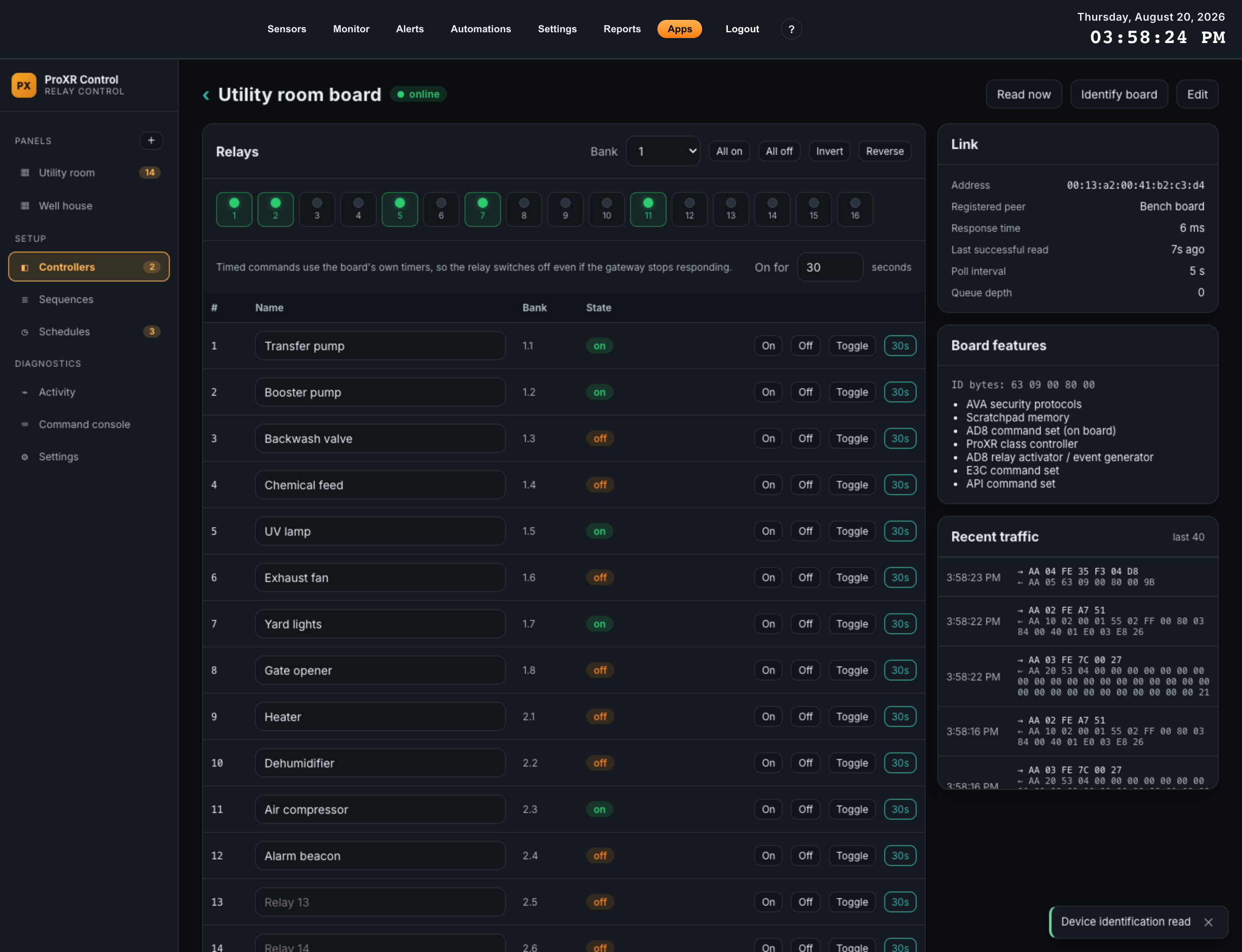
With the board answering, go to Creating a panel. If it is not answering, work through Troubleshooting — the symptom table is ordered by how often each cause actually turns out to be the problem.
05Overview Screen
The app’s landing screen answers one question at a glance: is everything talking, and what is currently on. It is also the setup path when nothing is configured yet.
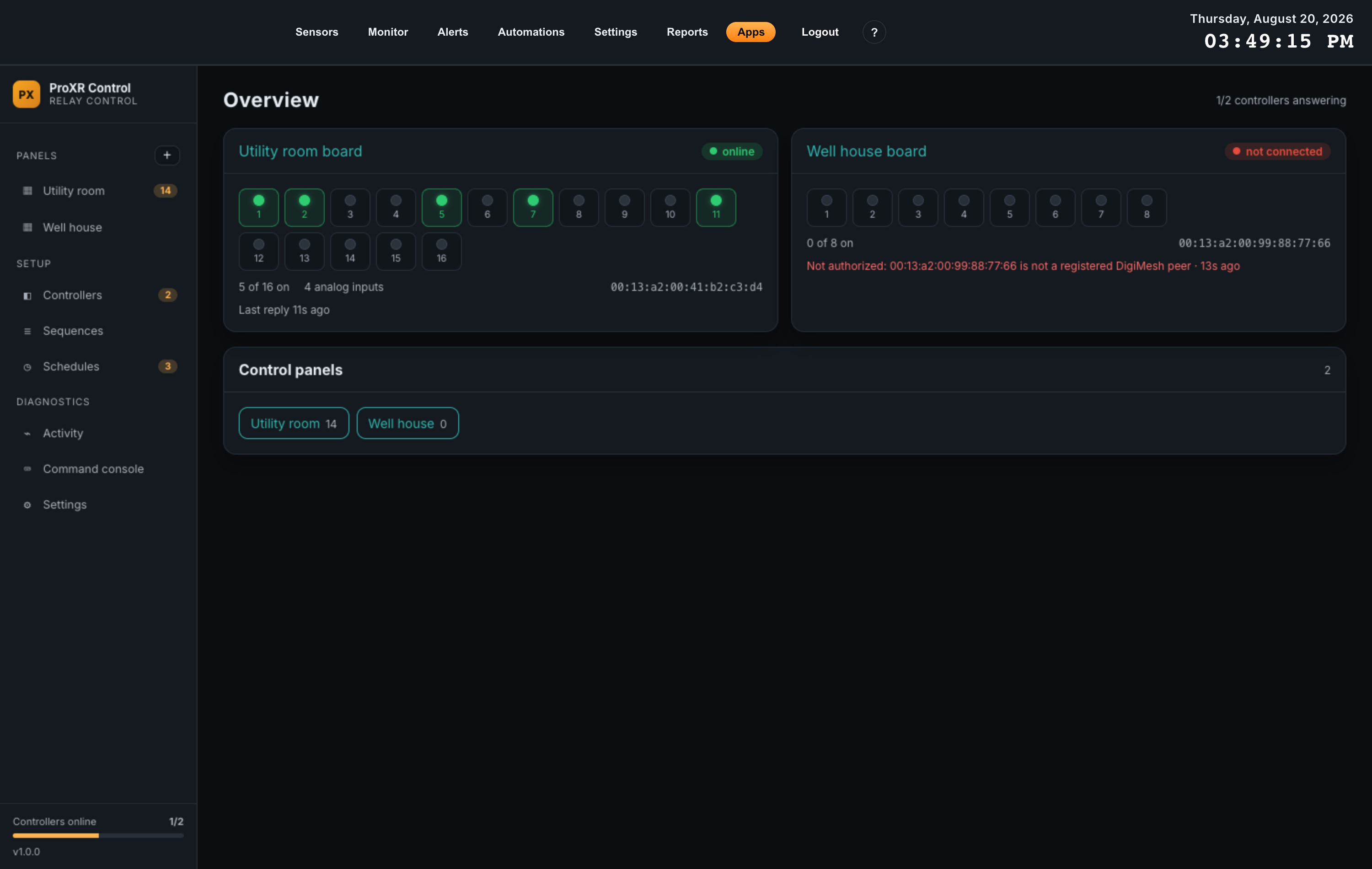
The header
The count beside the title reads online / total — how many controllers answered their most recent poll out of how many are configured. The same figure appears at the bottom of the sidebar as a bar, along with the installed app version.
One card per controller
Each card names the controller, shows its state chip, draws a lamp for every relay on the board, and reports how many are energized. Clicking the controller’s name opens its controller page.
| Chip | Meaning | What to do |
|---|---|---|
| online | The board answered its most recent poll. | Nothing. |
| no reply | The radio is authorized and the gateway is transmitting, but the board is not answering. | Check power, the radio’s AP mode and its DH/DL destination. |
| not connected | The gateway is not allowed to talk to this address — the peer is missing or disabled. | Register or re-enable the peer under Settings > Devices > DigiMesh Peers. |
| paused | The controller is configured but its Enabled box is cleared, so it is not polled at all. | Edit the controller and tick Enabled. |
Below the lamps, the card reports how many relays are on out of the total, how many analog inputs are reading, and the board’s address. If the last exchange failed, the error and its age replace the “Last reply” line, in red.
Control panels
The card at the bottom lists every panel with its card count. With no panels yet it explains how to create one and points out that the app can generate a starter set for you.
06Control Panels
A panel is the screen an operator uses day to day. You build it from cards, arrange them on a grid, and from then on nobody needs to know anything about ProXR command codes.
Panel anatomy
Panels live at the top of the sidebar, above Setup, each with the number of cards it holds. The panel itself has two controls when you are not editing it:
| Control | Effect |
|---|---|
| Refresh | Re-reads live state for every controller immediately, instead of waiting for the automatic 5-second refresh. |
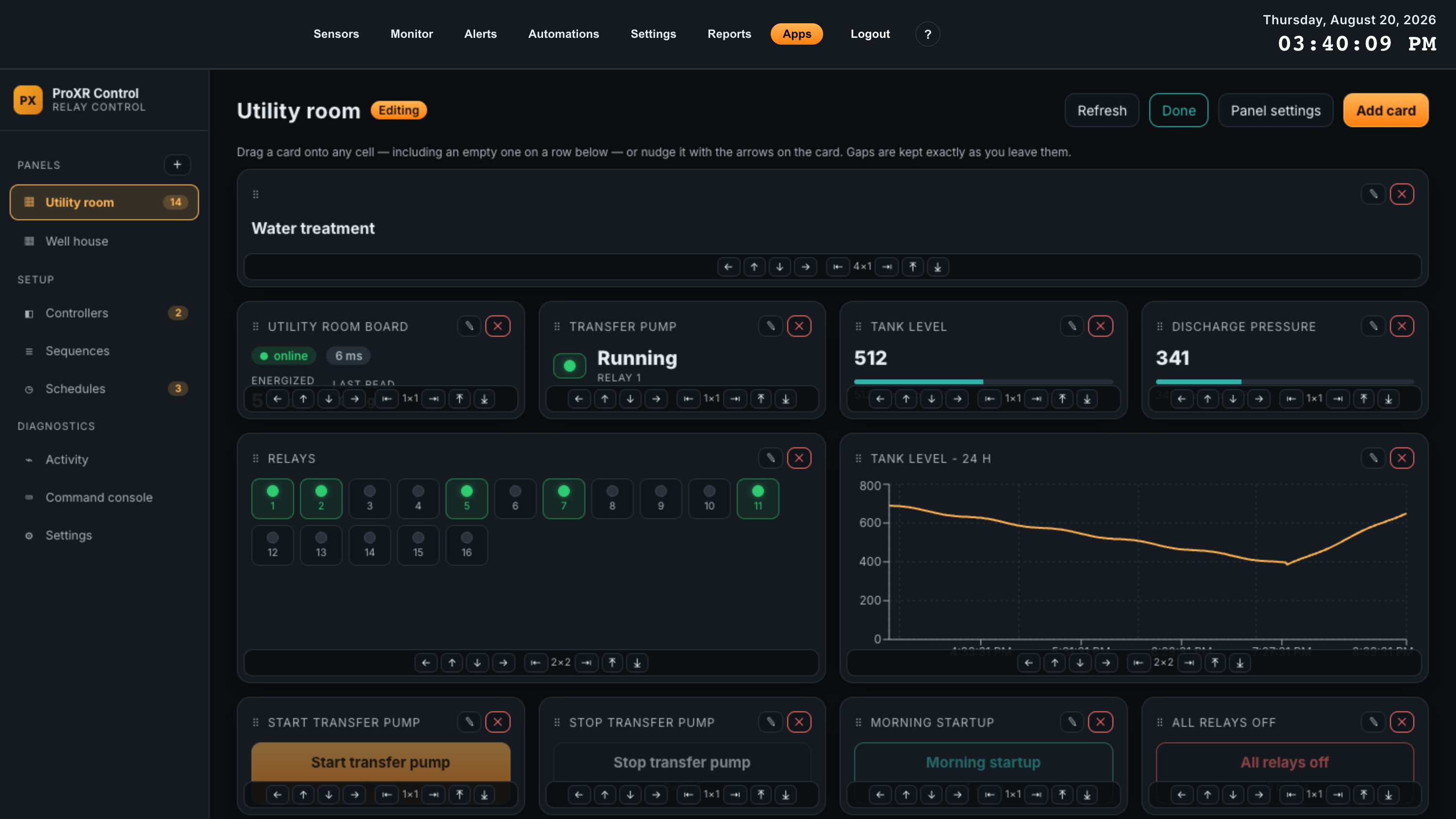
| Edit layout | Switches the panel into editing mode: cards gain a drag handle and a move/resize bar, and the header gains Panel settings and Add card. Command buttons are deliberately inert while editing, so you cannot fire a load by clicking a card you meant to drag. |
While a panel is open, a yellow banner names any controller used by its cards that is not authorized yet, so a panel that looks dead explains itself.
Creating a panel
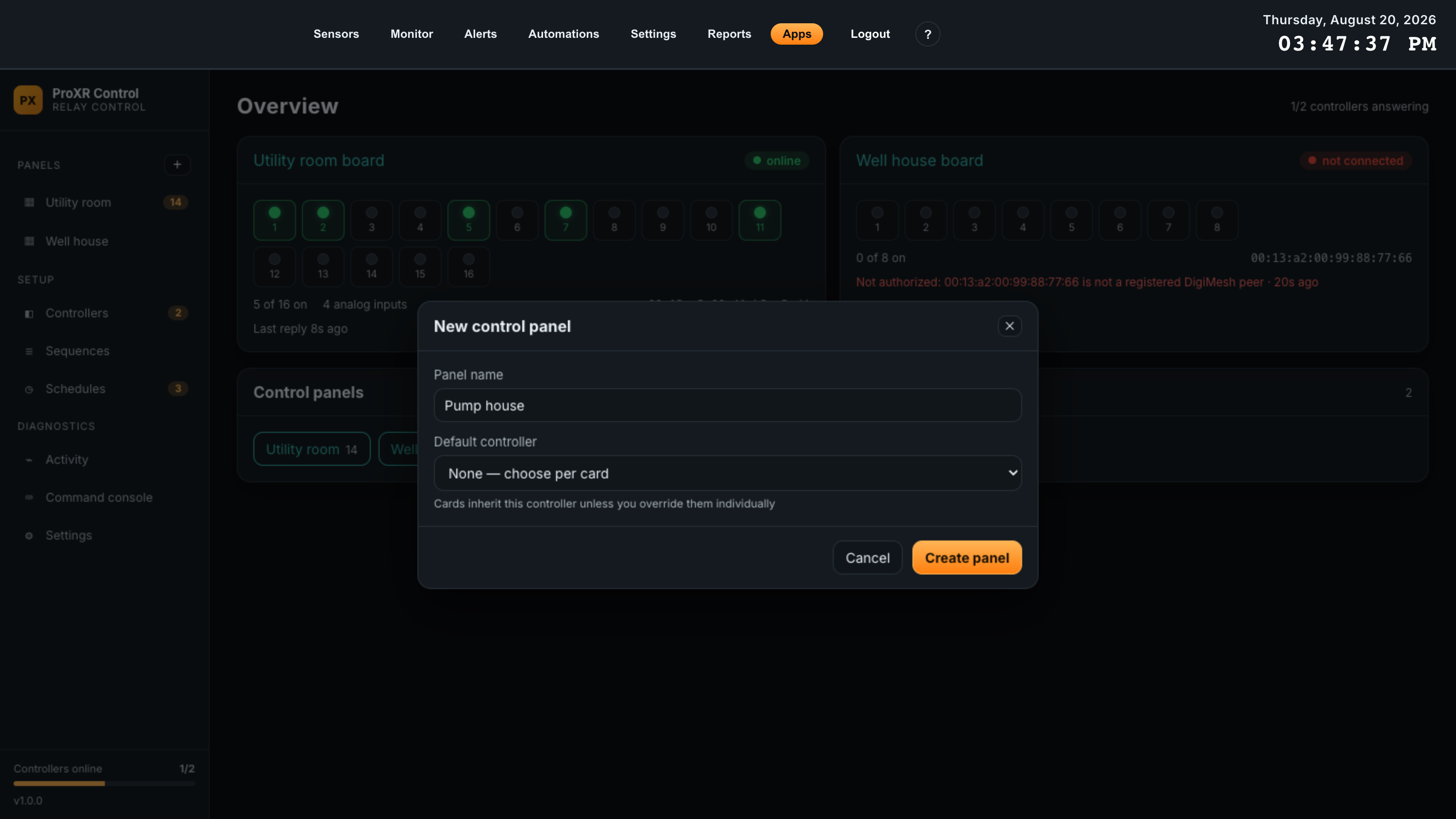
- 1Click the plus beside PANELS in the sidebarThe New control panel dialog opens.
- 2Name the panelName it after the place or the process an operator thinks in — Utility room, Line 3, Pump house. The name is the sidebar entry.
- 3Choose a default controllerCards inherit this controller unless you override them one by one. Leave it on None — choose per card only if the panel really does drive more than one board.
- 4Click Create panelThe app opens the new, empty panel.
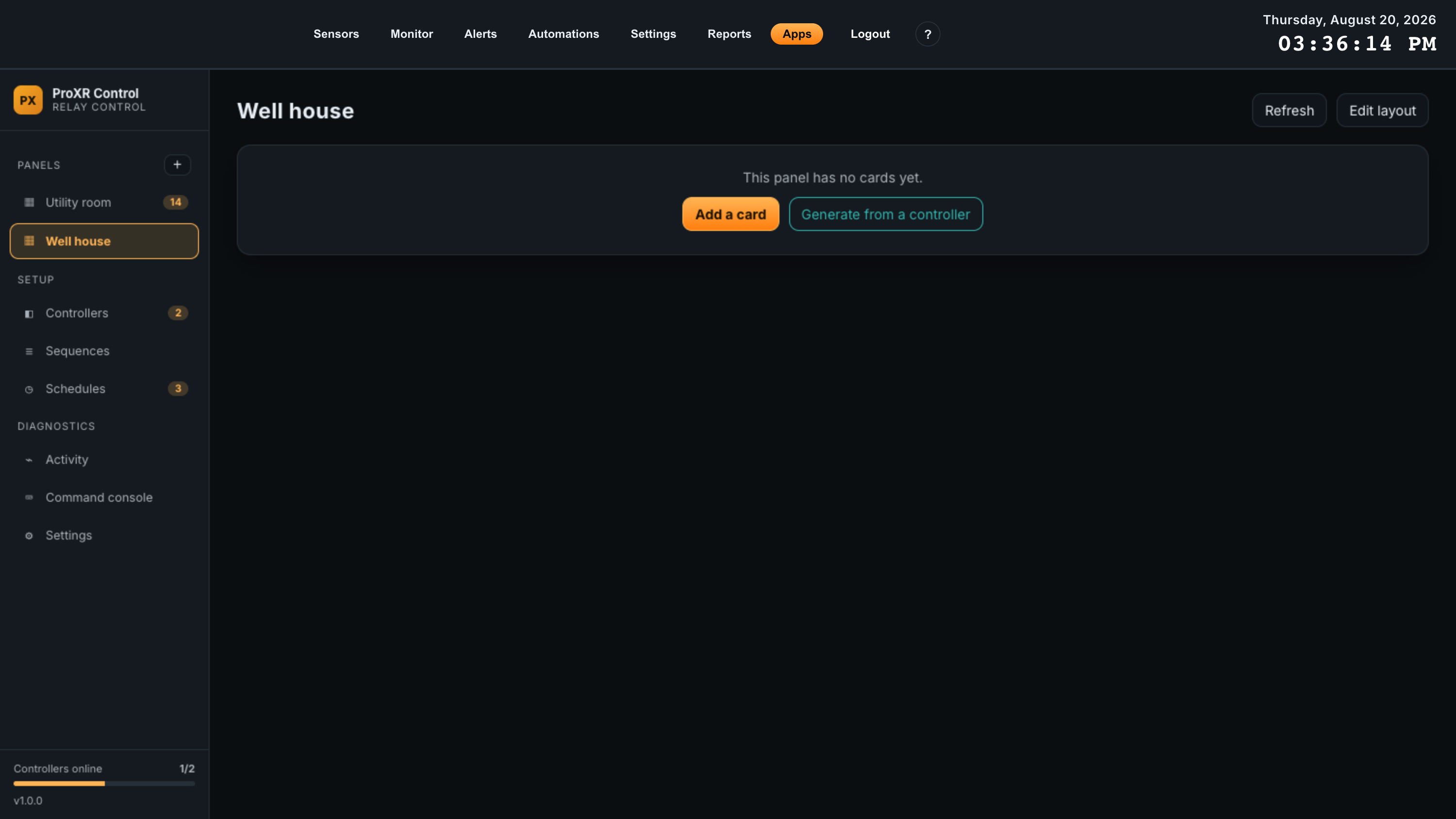
Generate from a controller
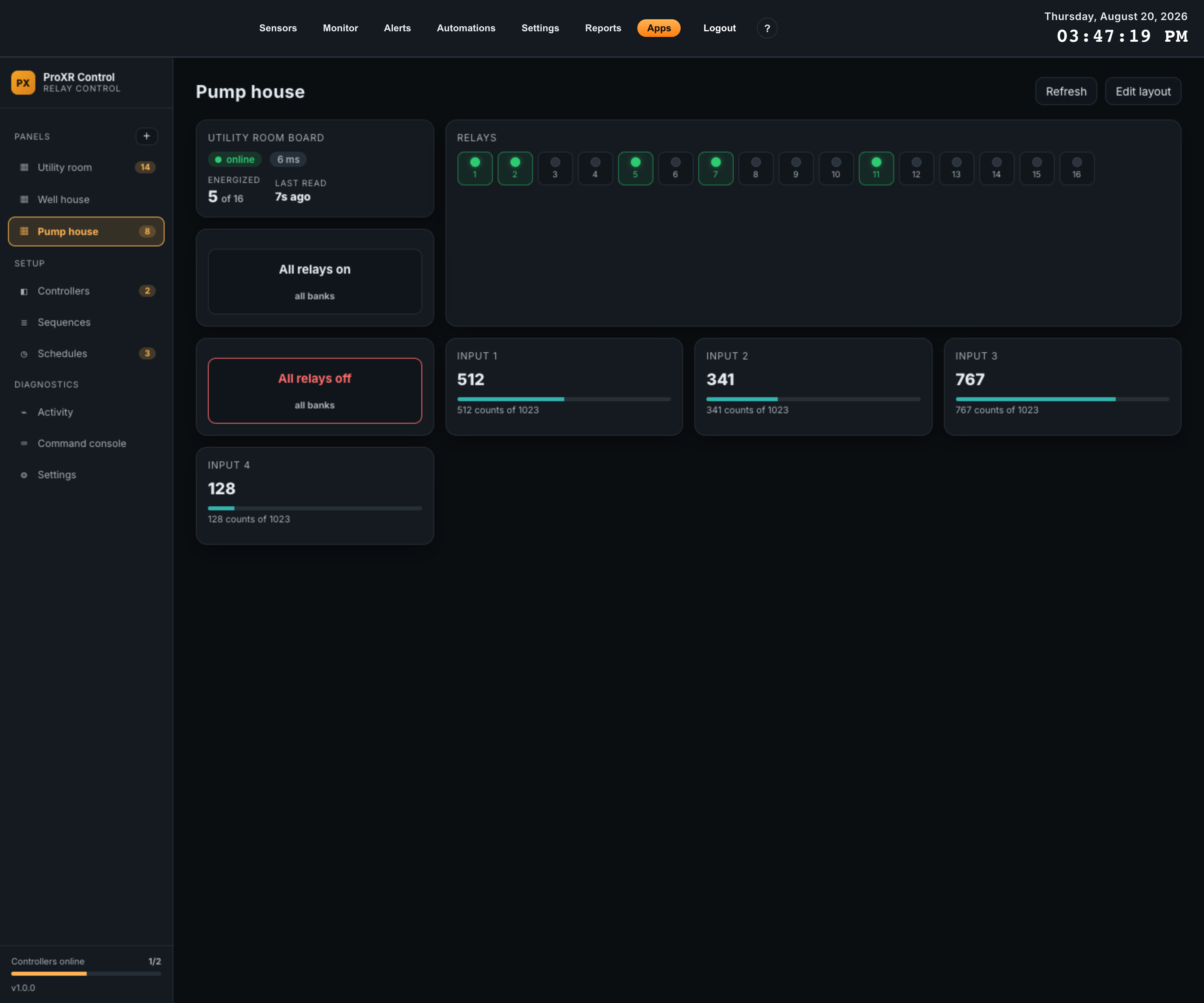
Generate from a controller is the fastest way to something usable. It adds a fixed starter set for the chosen board:
- A Controller status card titled with the board’s name.
- A Relay grid three columns wide, titled Relays.
- An All relays on button, set to ask for confirmation.
- An All relays off button, styled destructive and set to ask for confirmation.
- One Analog input card per configured A/D channel, if the board has analog inputs enabled.
Generating onto a panel that already has cards fills the gaps rather than pushing anything around, so you can generate a starter set and then keep adding to it.
Adding cards
In editing mode, Add card opens a form that is generated from the installed app’s own catalogs — so it always offers exactly what this version supports, and it can never let you save something the board would reject.
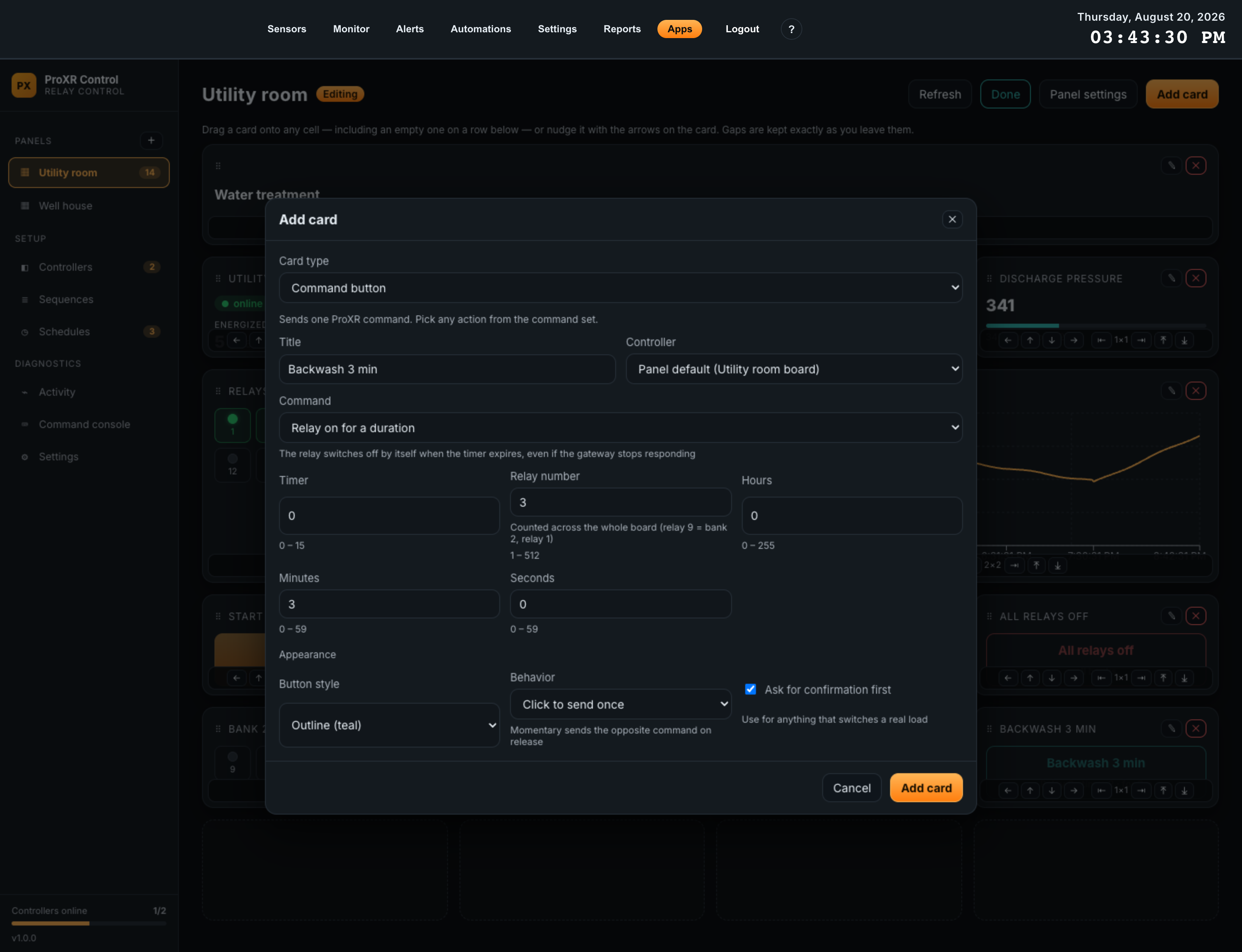
| Field | What it does | Default |
|---|---|---|
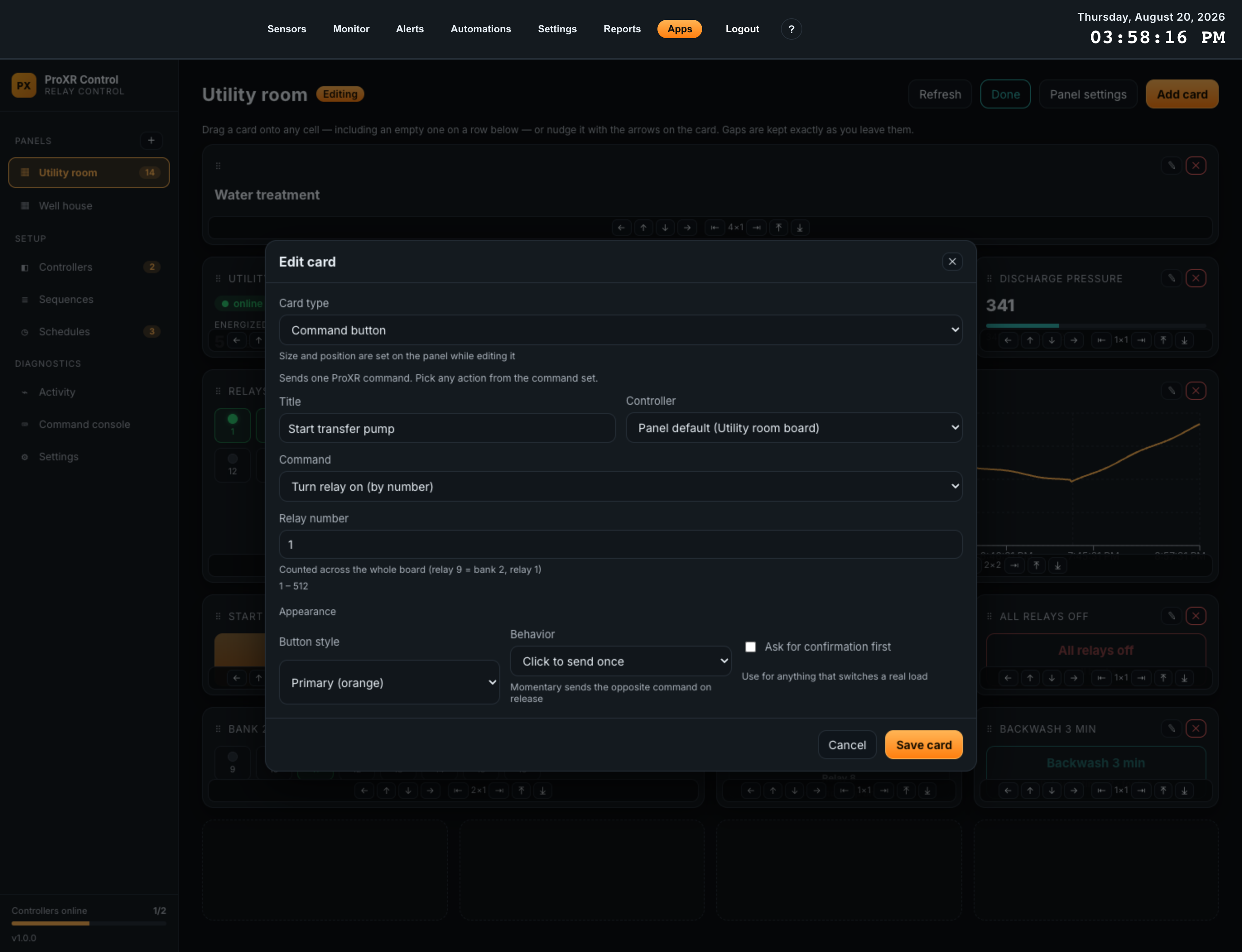
| Card type | Which of the nine card types this is. Changing it resets the parameters and appearance options below to that type’s defaults. A one-line description of the selected type appears underneath. | Command button |
| Title | The card’s heading, or the button’s label. Left empty, the card falls back to a generated title — the command’s name for a button, Relay N for a relay card, Bank N for a bank card, Input N for an analog card, the controller’s name for a status card. | Empty |
| Controller | Which board this card drives. Left on the panel default, it follows the panel. Absent for the Section heading card, which drives nothing. | Panel default |
| Command | Command buttons only. A dropdown of all 42 ProXR commands, grouped as Relays, Banks, Timers, Flashers, Read, Refresh, Configuration and Advanced. Commands with a caveat show it under the dropdown — for example that Toggle relay needs ProXR firmware 3.9 or later. | Turn relay on |
| Sequence | Sequence buttons only. Which saved sequence to run. Only sequences belonging to the selected controller are offered. | None |
| Command parameters | Whatever the chosen command or card type needs — relay number, bank, pattern, timer index, hours/minutes/seconds, channel, flasher. Each field shows its permitted range underneath and is validated on save. | Per command |
| Appearance | The card type’s display options: button style, click or momentary behavior, confirmation, meter visibility, relay numbering, chart time span, on/off labels. | Per card type |
Editing and removing a card
In editing mode each card carries two icon buttons: a pencil that reopens the same form, and a red cross that removes the card after a confirmation. Removing a card affects the panel only — the controller and its relays are untouched. The edit form is identical to the add form except that it reminds you size and position are set on the panel itself.
Buttons that switch real loads
Three appearance options exist for exactly this problem:
| Option | Behavior | Use it for |
|---|---|---|
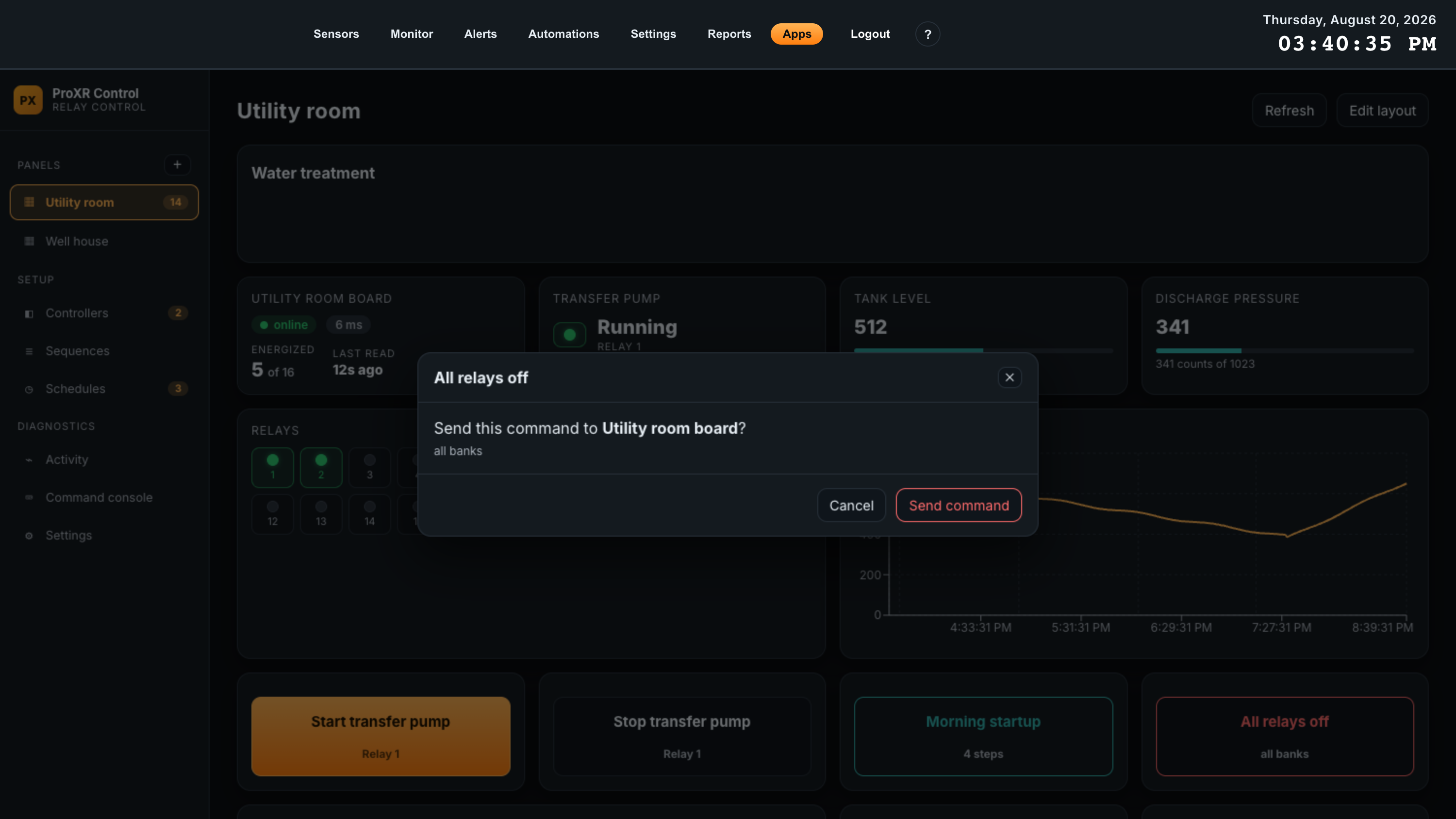
| Ask for confirmation first | Clicking opens a dialog naming the command and the controller. Nothing is transmitted until Send command is clicked. | Anything that starts or stops equipment, and every all-banks command. |
| Momentary (on while held) | Sends the command on press and the opposite command on release — including when the pointer leaves the button. The card shows Hold to keep on. | Jog controls, gate and door opens, anything that must stop when the operator lets go. |
| Destructive (red) | Colour only, but it also makes the confirmation dialog read as a destructive action. | All-off and all-banks buttons. |
Card types
Nine card types. The Default size column is the footprint a new card takes on the grid, in columns by rows; you can resize any of them afterwards.
| Card type | Shows | Options | Default size |
|---|---|---|---|
| Command button | A button that sends one ProXR command. Under the label it summarises what the command targets — the relay, the bank, the timer and duration — so two buttons on the same command are still tellable apart. | Button style (Neutral, Primary orange, Outline teal, Destructive red); Behavior (Click to send once, Momentary); Ask for confirmation first | 1 × 1 |
| Sequence button | A button that runs a saved sequence, with its step count underneath. Reads Sequence was deleted and goes inert if the sequence is gone. | Button style; Ask for confirmation first | 1 × 1 |
| Relay state card | One relay as a large lamp plus a word. Shows a dash and an unlit lamp until the relay has actually been read. | Label when on (default On); Label when off (default Off) |
1 × 1 |
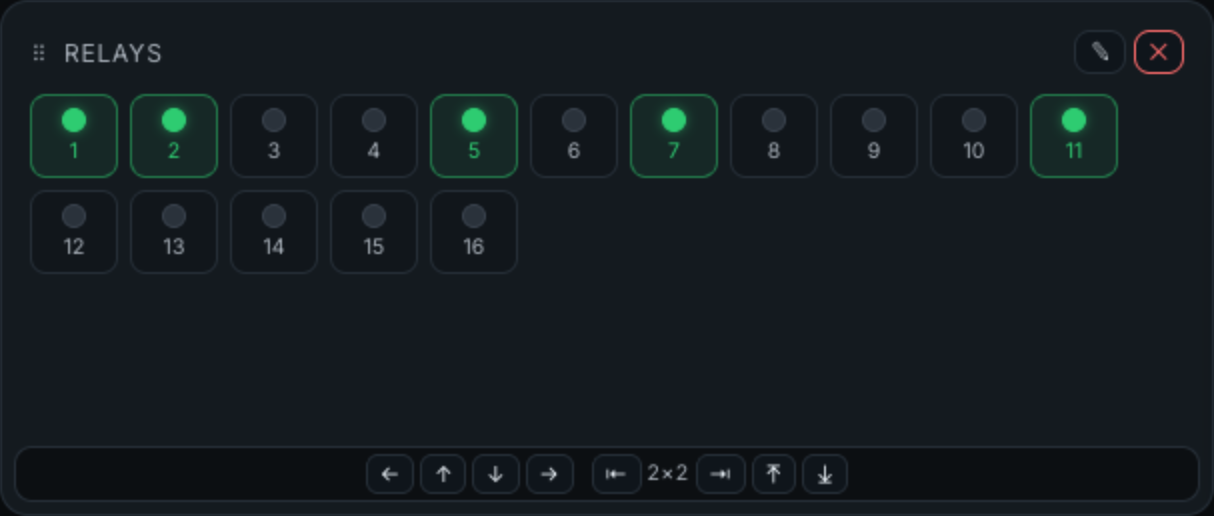
| Relay grid | Every relay on the board as a lamp. Optionally clickable to toggle. A relay that has never been read is drawn dimmed, not off. | Click a relay to toggle it (default on); Show relay numbers (default on) | 2 × 2 |
| Bank indicator | The eight relays of one bank as a row of lamps. Read-only. | Bank (1 – 32); Show relay numbers | 2 × 1 |
| Analog input card | One A/D input as a large number, with a level meter and the raw count beneath it. | Analog input (1 – 8); Show a level meter (default on) | 1 × 1 |
| Analog input chart | A trend of one A/D input drawn from logged samples. Grows to whatever height you give the card. | Analog input; Time span in hours (1 – 720, default 24) | 2 × 2 |
| Controller status | Link chip, radio round-trip time, how many relays are energized out of the total, and how long ago the last successful read was. Shows the last error when the board is not answering. | None | 1 × 1 |
| Section heading | Plain text for grouping cards. Drives nothing and has no controller. | Text | 4 × 1 |
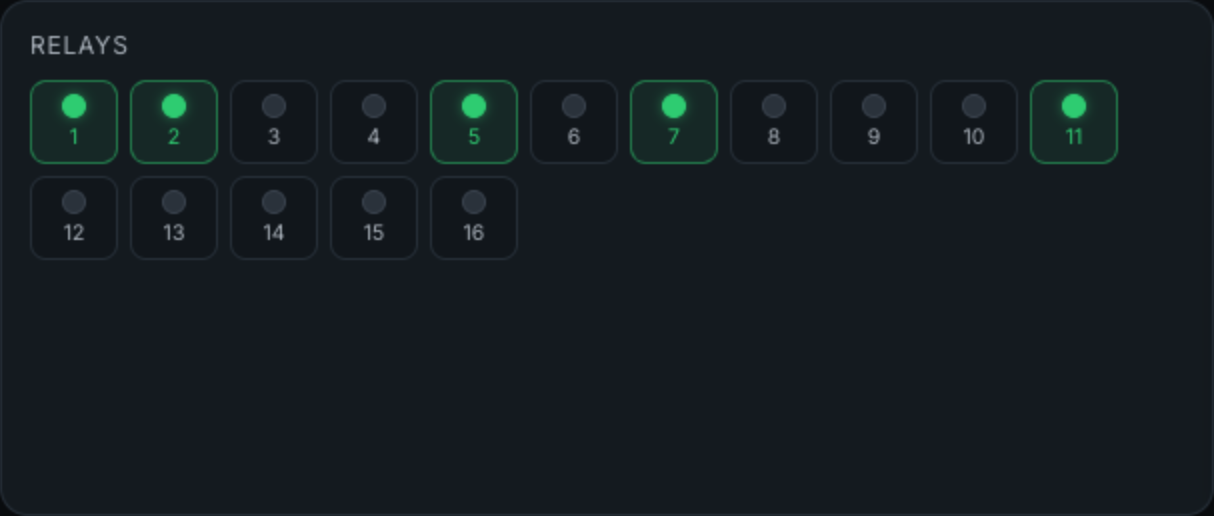
Clicking a relay in a clickable grid sends turn relay on or turn relay off by number — never toggle — so the grid works on ProXR firmware older than 3.9, and so a lost reply can never invert the load.
Arranging the grid
A panel is a grid of fixed cells — 1 to 6 columns wide, up to 40 rows deep. Cards occupy whole cells, and the app never rearranges your work: a gap you leave stays a gap.
| Action | How | Notes |
|---|---|---|
| Move a card | Drag it onto any cell, including an empty cell on a row below the last card. Or use the four arrows on its bar to nudge it one cell at a time. | The arrows are the only way to move a card when the cell you want is behind another card, and the only way that works on a touchscreen or with a keyboard. |
| Swap two cards | Drop a card squarely onto another card of exactly the same size. | This is the one collision the app assumes you meant. Any other overlap is refused with No room there — move the card in the way first, or make this one smaller. |
| Resize a card | The second group on the bar: narrower, wider, shorter, taller. The readout between them shows the current size. | Maximum height is 6 rows; maximum width is the panel’s column count. Growing into an occupied cell is refused with Another card is in the way, and growing past the right edge with That would run off the right edge of the panel. |
| Finish | Click Done. | Every move is saved as you make it — there is no separate save step, and no way to discard a layout change other than moving the card back. |
Panel settings
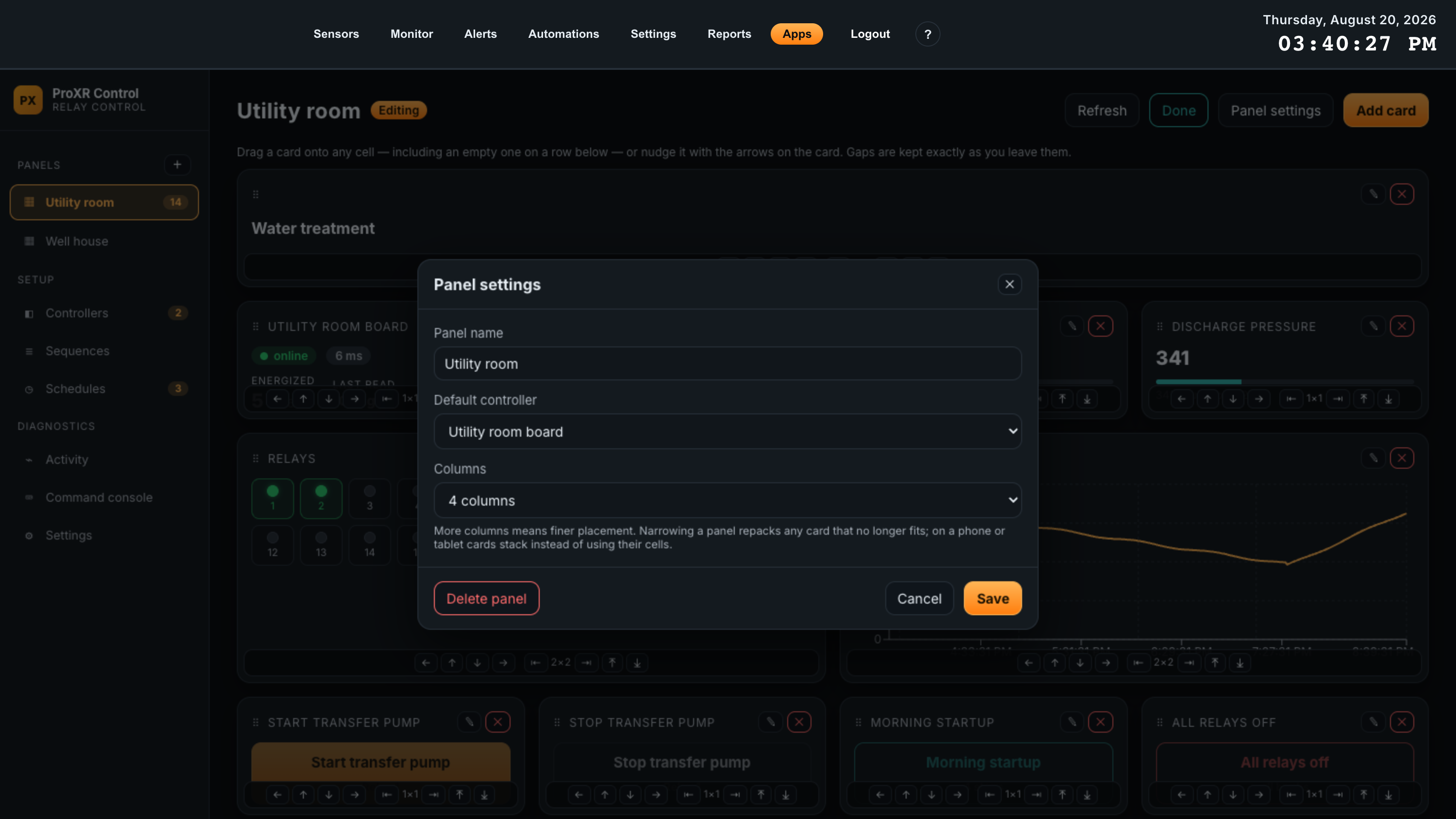
Panel settings appears in the header while editing. It holds the three panel-wide properties, and the only route to deleting the panel.
| Field | Effect | Default |
|---|---|---|
| Panel name | The sidebar entry and the page title. | As created |
| Default controller | Which board cards follow when they have no controller of their own. Changing it re-points every card that was inheriting. | As created |
| Columns | 1 to 6. More columns means finer placement. Narrowing a panel repacks any card that no longer fits, which is the one case where the app moves your cards for you. | 4 |
| Delete panel | Deletes the panel and all of its cards after a confirmation. Controllers, relays and their state are untouched. | — |
On a phone or a narrow tablet, cards stack in one column and ignore their grid cells entirely, so a wide panel is still usable in the field — just in a different order.
07Controllers
One controller is one ProXR board behind one DigiMesh radio. This is where you commission a board, name its relays, scale its analog inputs, and drive it directly without building a panel first.
The controller list
| Column | Contents |
|---|---|
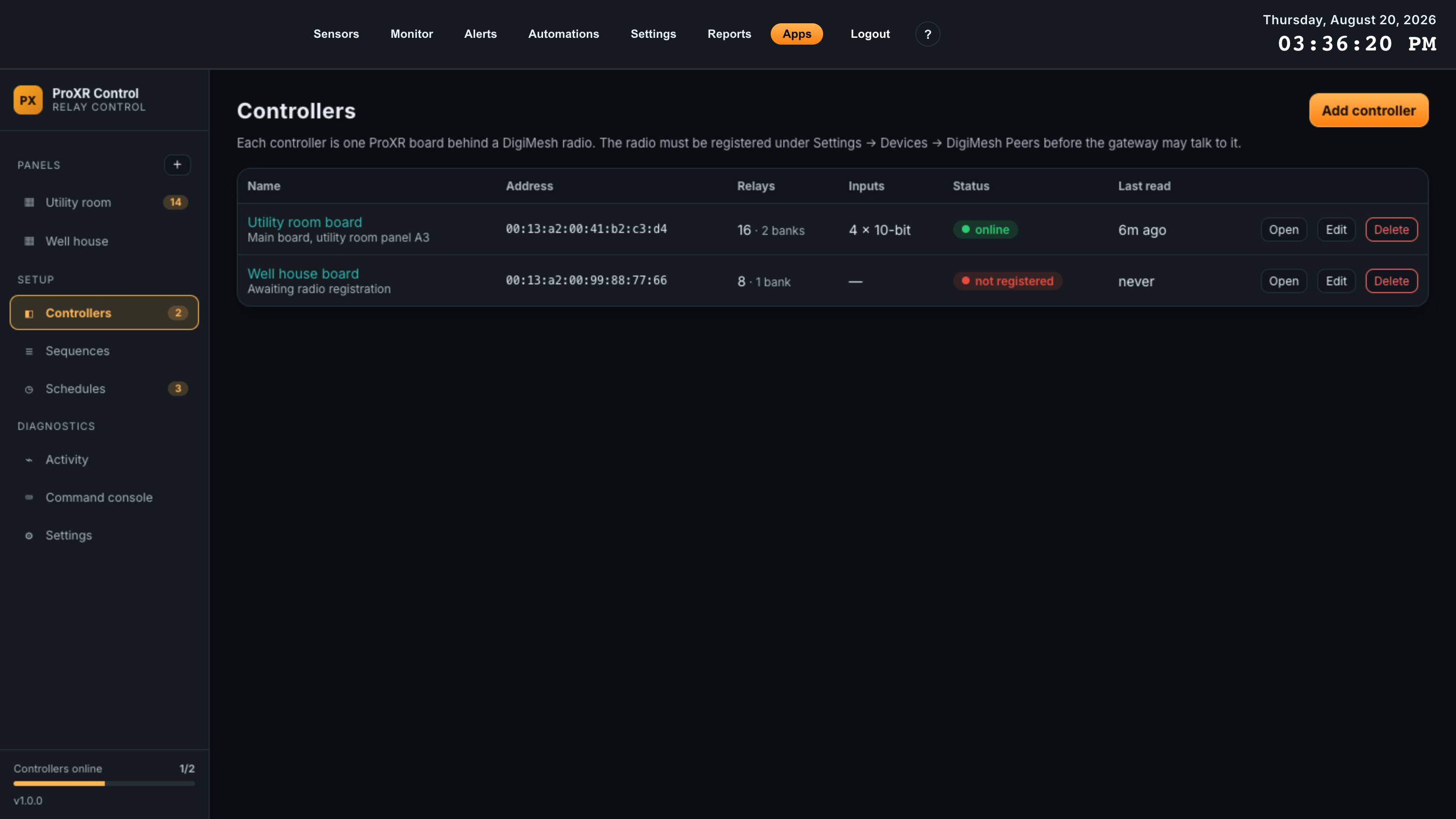
| Name | A link to the controller page, with the controller’s notes underneath if any were entered. |
| Address | The radio’s 64-bit MAC, normalized to colon-separated lower case however you typed it. |
| Relays | The configured relay count, and how many banks of eight that comes to. |
| Inputs | Channels and resolution, for example 4 × 10-bit. A dash means analog inputs are switched off for this board. |
| Status | One of online, no reply, not connected, not registered, peer disabled or disabled. The last three tell you the problem is on the gateway rather than on the wire. |
| Last read | How long ago the board last answered. Hover for the exact timestamp, in the gateway’s display timezone. |
Controller settings
The same dialog serves Add controller and Edit. Every field:
| Field | What it does | Range | Default |
|---|---|---|---|
| Name | How the board is identified everywhere in the app, and in the state it publishes to Automations. | Up to 120 characters | Required |
| DigiMesh address | The radio’s 64-bit MAC. A dropdown of registered peers not already claimed by another controller; Enter an address manually switches it to a text field, and back. Two controllers cannot share an address. | 16 hex digits, with or without colons | Required |
| Number of relays | How many relays the app believes the board has, which decides how many banks are polled and how big a relay grid is. Preset buttons cover 1, 2, 4, 8, 16, 24 and 32; the field takes any value in range for larger expansion stacks. | 1 – 512 | 8 |
| Board has analog (A/D) inputs | Whether to poll analog inputs at all. Clearing it disables the three fields below and hides the Analog inputs panel on the controller page. | — | Ticked |
| A/D resolution | Which read command is used, and therefore the full-scale count: 10-bit reads 0 – 1023, 8-bit reads 0 – 255. It has to match the board. | 10-bit or 8-bit | 10-bit |
| A/D channels | How many inputs to read and offer as cards. | 1 – 8 | 8 |
| Poll interval | How often relay and input state are read over the radio. Faster panels cost more radio traffic; every board on the mesh shares the air. | 2 s, 5 s (recommended), 10 s, 30 s, 1 min | 5 s |
| Log analog inputs every | How often a sample is written for the trend charts. Throttled separately from polling, so a 2-second poll for responsive panels does not multiply stored rows. | 10 s, 1 min, 5 min, 15 min | 1 min |
| Enabled | Clearing it stops polling entirely. The controller keeps all its configuration, its panels keep their cards, and the list shows it as disabled. Use this for a board that is off for maintenance rather than deleting it. | — | Ticked |
| Notes | Free text shown under the name in the controller list. Panel location, circuit numbers, who to call. | Up to 1000 characters | Empty |
Relays
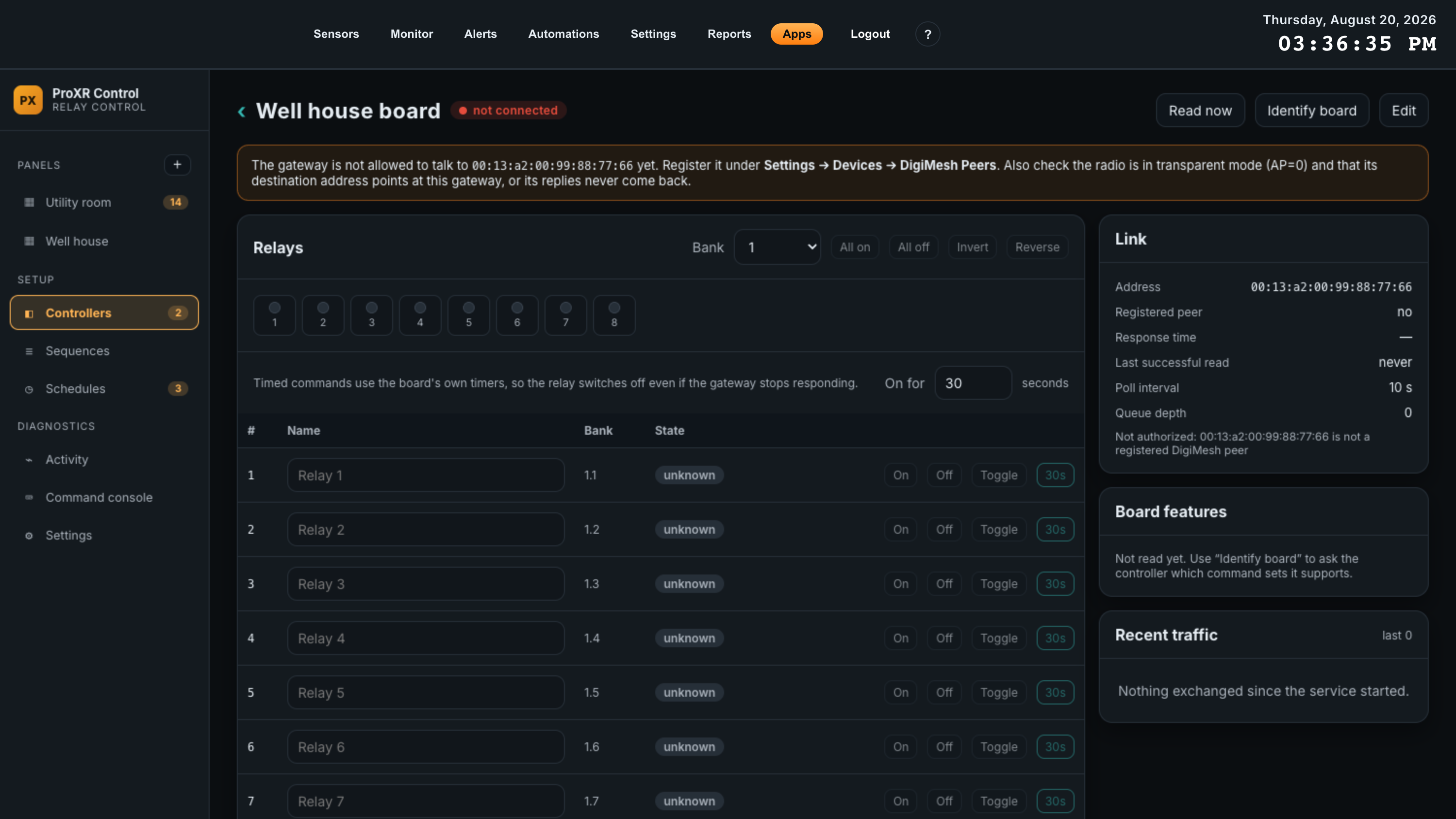
The controller page is the direct-control screen. The header carries the board’s state chip and three buttons — Read now polls immediately, Identify board asks the controller which command sets it implements, and Edit reopens the settings dialog.
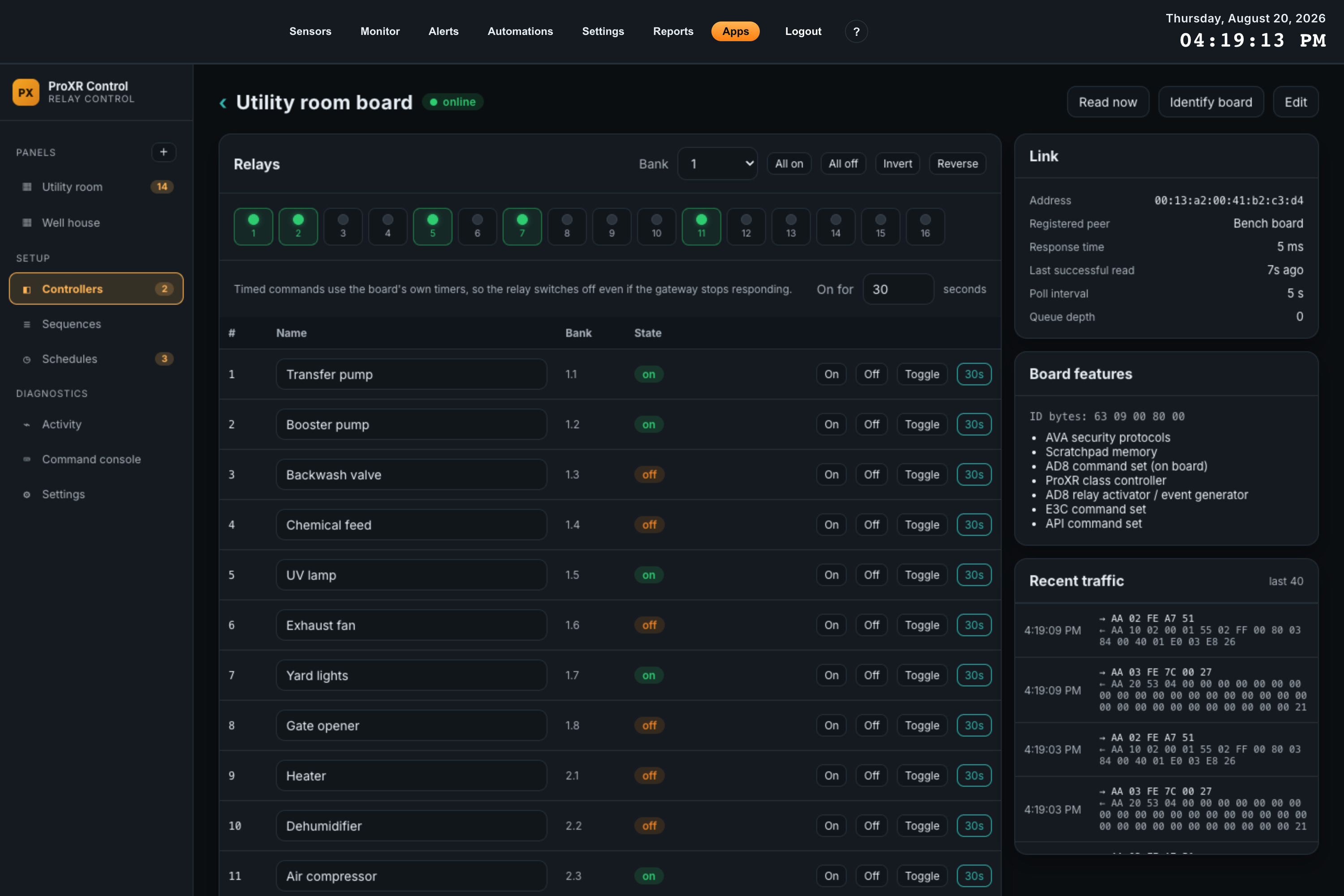
Bank controls
The toolbar above the lamps selects a bank and applies one of four commands to it. The bank selector lists only the banks the configured relay count actually covers.
| Button | Effect on the selected bank |
|---|---|
| All on | Energizes all eight relays in the bank. |
| All off | De-energizes all eight. |
| Invert | Every relay in the bank takes the opposite state. |
| Reverse | Reverses the pattern end to end — relay 1 takes relay 8’s state, 2 takes 7’s, and so on. |
The relay table
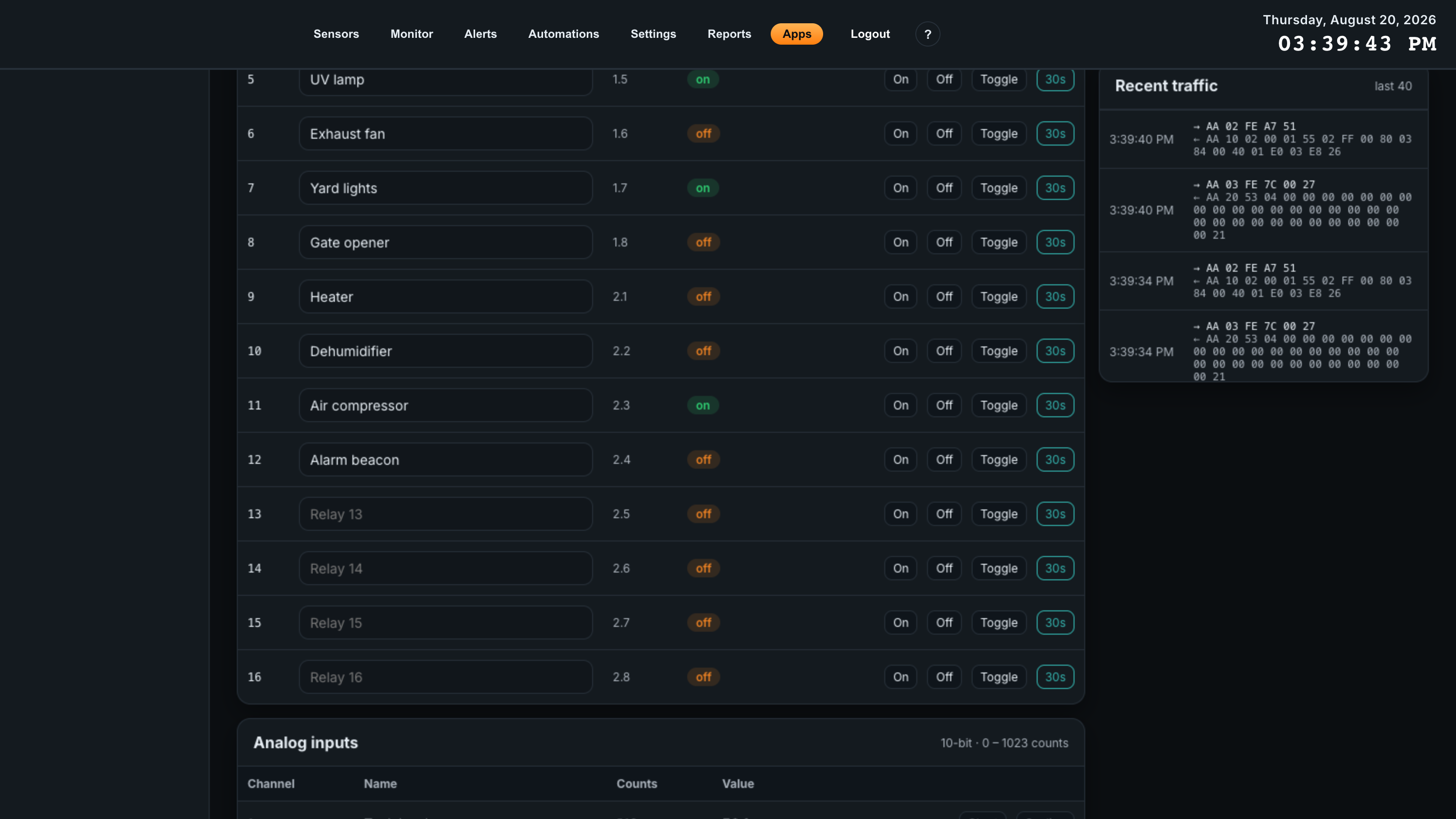
| Column | Contents |
|---|---|
| # | The relay number, counted across the whole board. Relay 9 is the first relay of bank 2. |
| Name | An editable field. Type a name and press Enter, or click away, and it is saved. This name is used on this page and in the values the app publishes to Automations. Left empty it falls back to Relay N. |
| Bank | The same relay expressed as bank.relay, which is how the ProXR protocol addresses it. Relay 11 reads 2.3. |
| State | on, off, or unknown if the relay has not been read since the service started. |
| Buttons | On, Off, Toggle and a timed button labelled with the current duration. All four are disabled while the controller is not connected. |
Timed commands
The On for field above the table sets a duration in seconds, from 1 to 59. The button on each row then energizes that relay for that long using one of the controller’s own duration timers, so the relay switches off by itself — even if this gateway loses power, loses the network, or is switched off mid-cycle.
The timer used is derived from the relay number, cycling through the board’s sixteen timers, so pressing the same relay’s timed button twice reuses one timer instead of leaving two racing each other. Hovering the button names the timer it will use. For durations longer than 59 seconds, put a Relay on for a duration command on a panel button or in a sequence, where hours and minutes are available too.
Analog inputs
The Analog inputs panel appears only when the board has analog inputs enabled. Its header states the resolution and the full-scale count, for example 10-bit · 0 – 1023 counts.
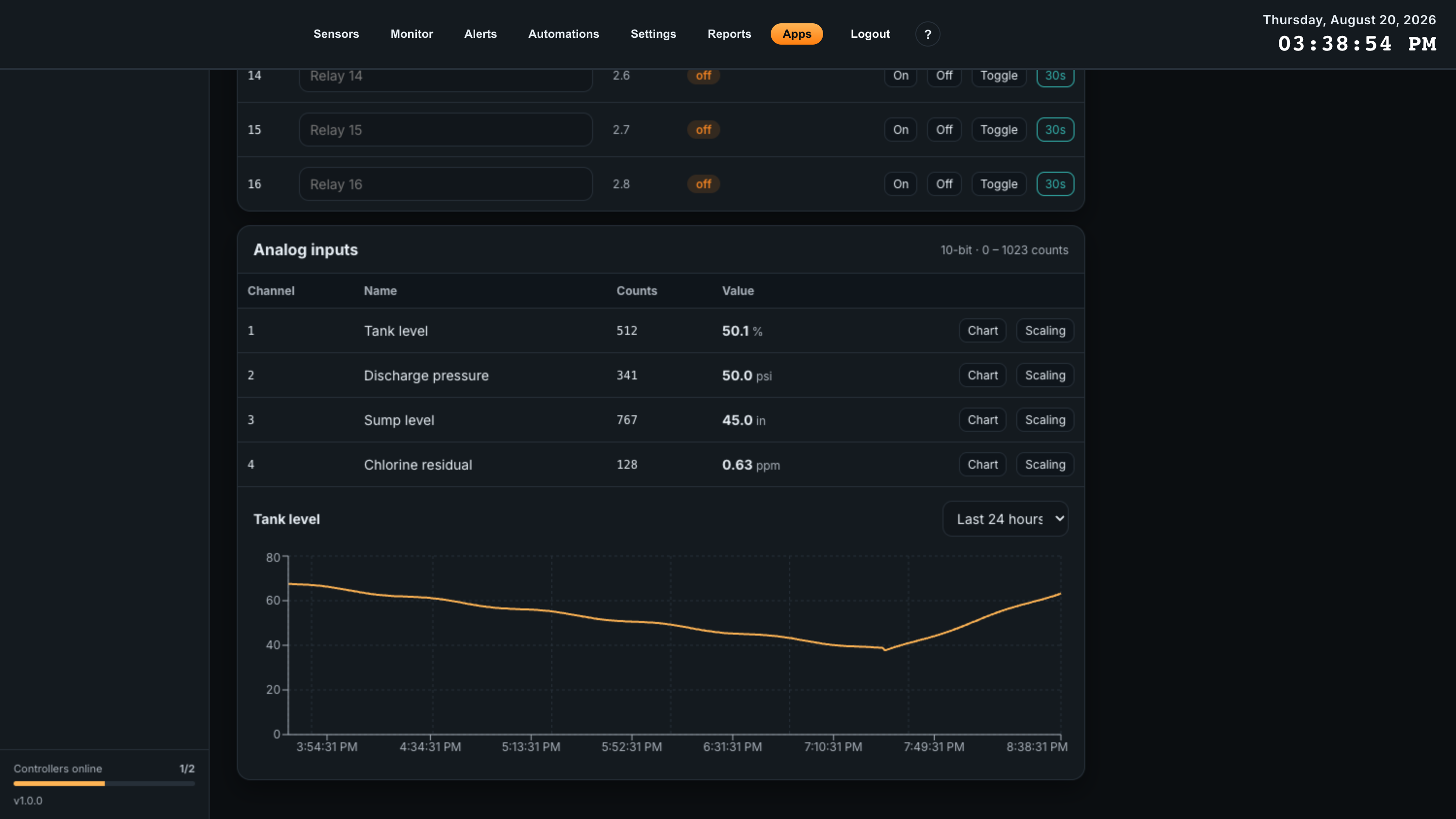
| Column | Contents |
|---|---|
| Channel | The input number, 1 to 8. |
| Name | What you called this input, or Input N. |
| Counts | The raw A/D reading, exactly as the board reported it. |
| Value | The same reading scaled into your engineering units and rounded to your chosen number of decimals, with the unit beside it. |
| Chart | Points the chart below the table at this channel. |
| Scaling | Opens the scaling dialog for this channel. |
The chart under the table plots the selected channel over Last hour, Last 6 hours, Last 24 hours or Last 7 days, in engineering units. It is drawn from logged samples, averaged into buckets, so a long span stays readable rather than dense.
Scaling an input
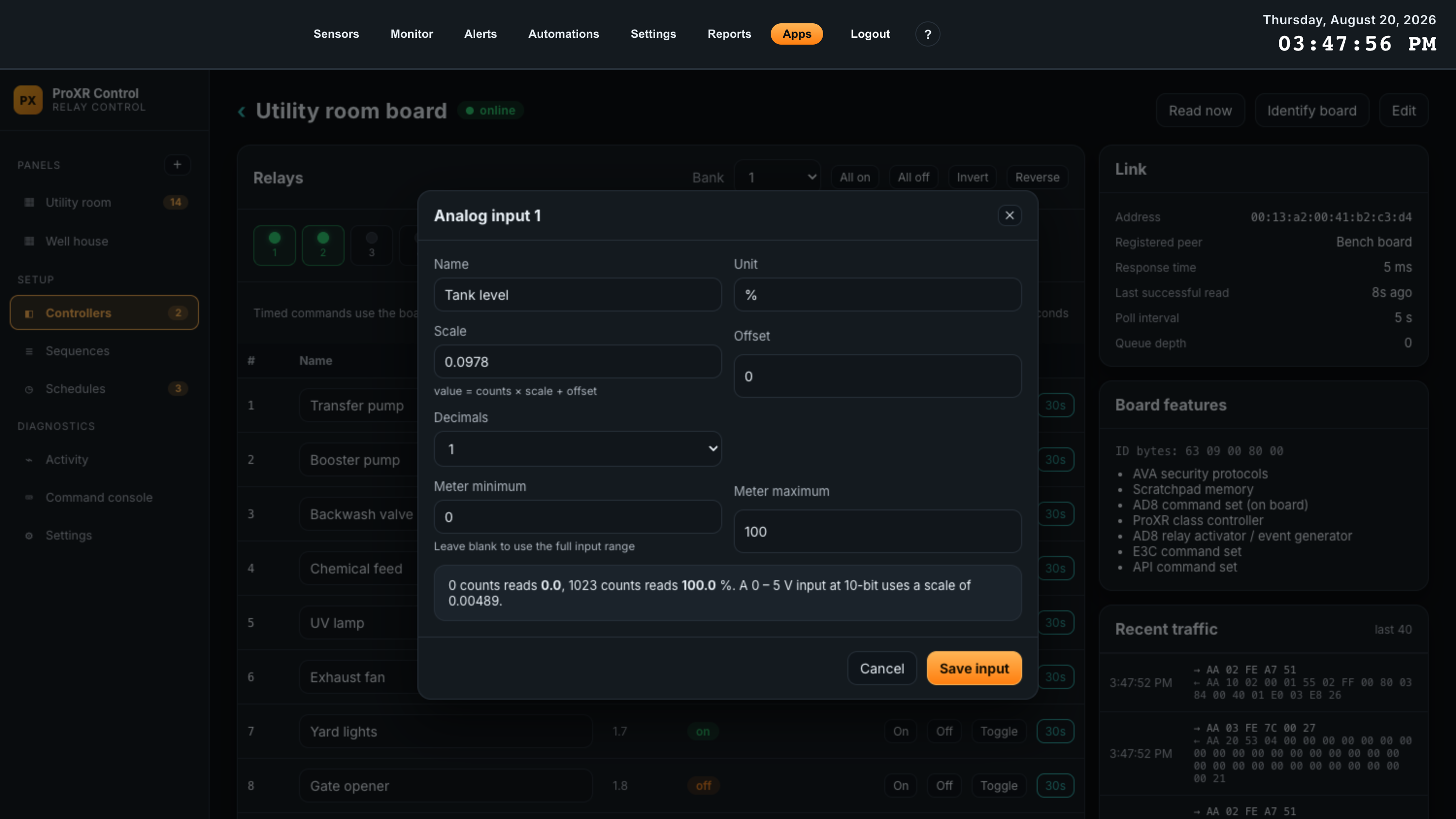
Scaling is a straight line: value = counts × scale + offset.
| Field | What it does | Default |
|---|---|---|
| Name | What this input is called on this page, on the chart, and in the values published to Automations. | Input N |
| Unit | Shown beside the value and on the chart’s axis. Free text — psi, %, V, in, ppm. | Empty |
| Scale | Multiplier applied to the raw count. For a linear sensor across the full input range this is range divided by full scale: a 0 – 5 V input at 10-bit is 5 / 1023 = 0.00489. The dialog states the right figure for a 0 – 5 V input at the board’s resolution. | 1 |
| Offset | Added after scaling. Use it for a sensor whose output does not start at zero — a 4 – 20 mA loop, or a gauge reading against atmosphere. | 0 |
| Decimals | How many decimal places the value is rounded to for display. 0 to 4. | 0 |
| Meter minimum / Meter maximum | The ends of the level meter on an analog card. Leave both blank and the meter spans the full input range; set them to the part of the range that matters and the meter becomes readable. Display only — they do not clamp the value. | Blank |
The banner at the bottom of the dialog states what 0 counts and full scale would read with the numbers you have entered. Check both ends there before saving; it catches a scale that is off by a factor of ten immediately.
Link and board features
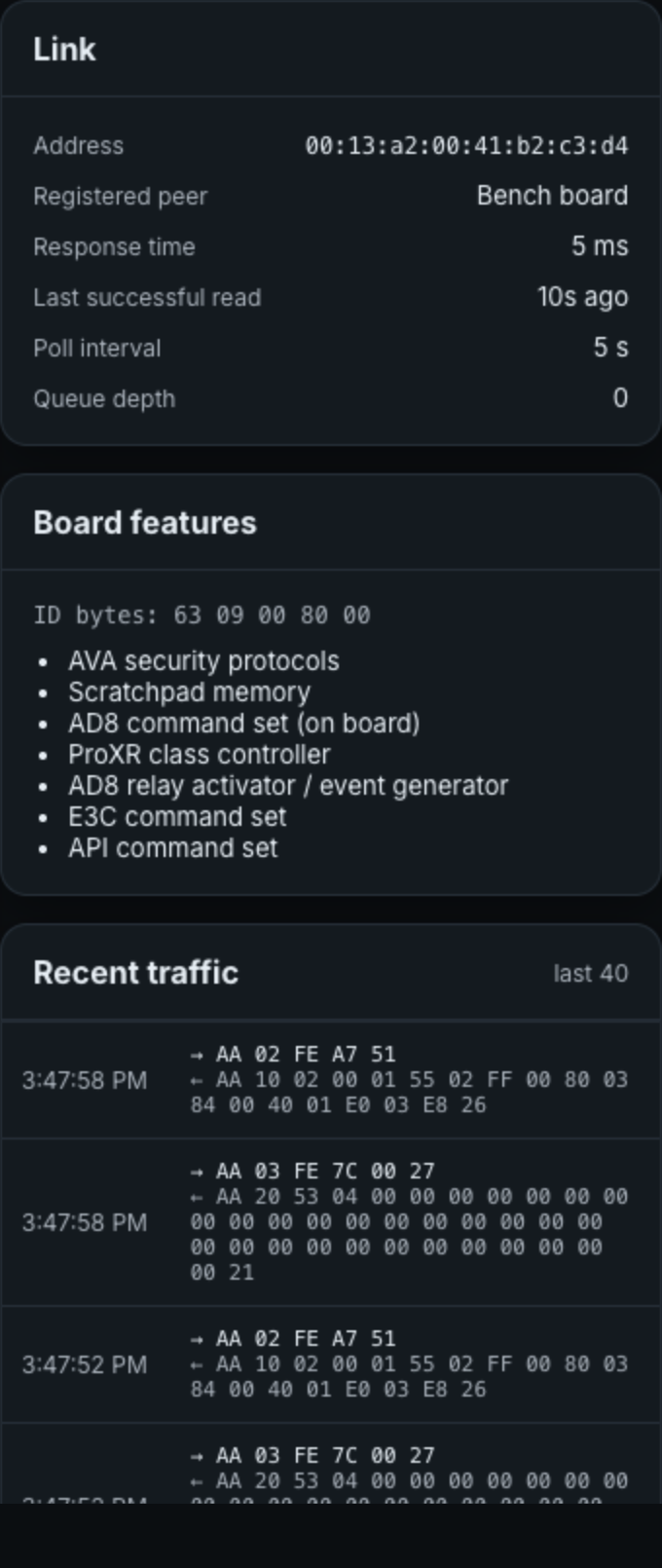
| Row | Meaning |
|---|---|
| Address | The radio address this controller uses. |
| Registered peer | The name the peer was registered under on the gateway, which confirms you matched the right hardware. Reads no if the peer does not exist. |
| Response time | The radio round-trip for the last exchange, in milliseconds. A single figure in the hundreds is normal for DigiMesh; a figure that climbs steadily over days usually means mesh congestion or a marginal link. |
| Last successful read | How long ago the board last answered. Hover for the exact time. |
| Poll interval | The configured interval, for confirmation. |
| Queue depth | How many commands are waiting to go out to this board. ProXR boards answer one exchange at a time, so commands queue. Anything other than 0 or 1 for more than a moment means commands are arriving faster than the radio can carry them. |
Board features is empty until you press Identify board. The controller then returns its identification bytes, which the app decodes into a plain list — whether it is a ProXR class controller, whether the AD8 command set is on board, whether it has scratchpad memory, contact closure scan, a Taralist time-activated relay, and so on. The raw bytes are printed above the list. Use it to confirm a command set exists before relying on it: the Read contact closure inputs command, for example, needs AD8 contact closure hardware, and the identification card is where you check.
Recent traffic holds the last 40 exchanges with this board since the ingest service started, transmitted frames marked with an arrow out and replies with an arrow in, errors in red. Unlike the Activity log, this includes polling traffic, which is what makes it the right place to prove a link is alive.
Removing a controller
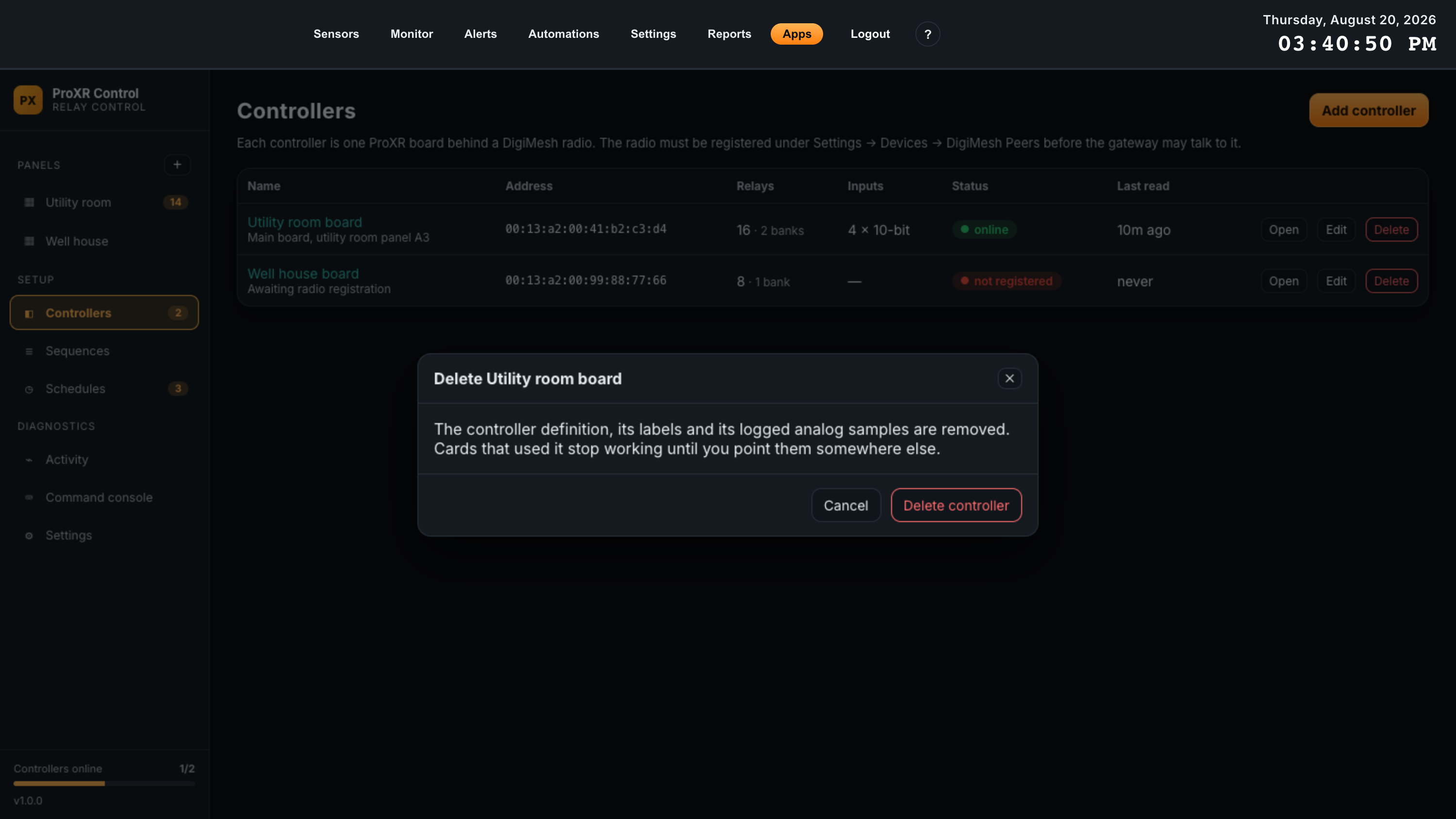
Deleting a controller removes its definition, its relay names, its analog input scaling and its logged analog samples. Cards that used it stop working until you point them somewhere else; the panels themselves are not deleted. The board’s DigiMesh peer registration belongs to the gateway and is untouched, so re-adding the controller later needs only the address and relay count again.
If the board is only temporarily out of service, clear Enabled on the controller instead. That stops the polling and the “no reply” noise while keeping every name, scale and card intact.
08Sequences
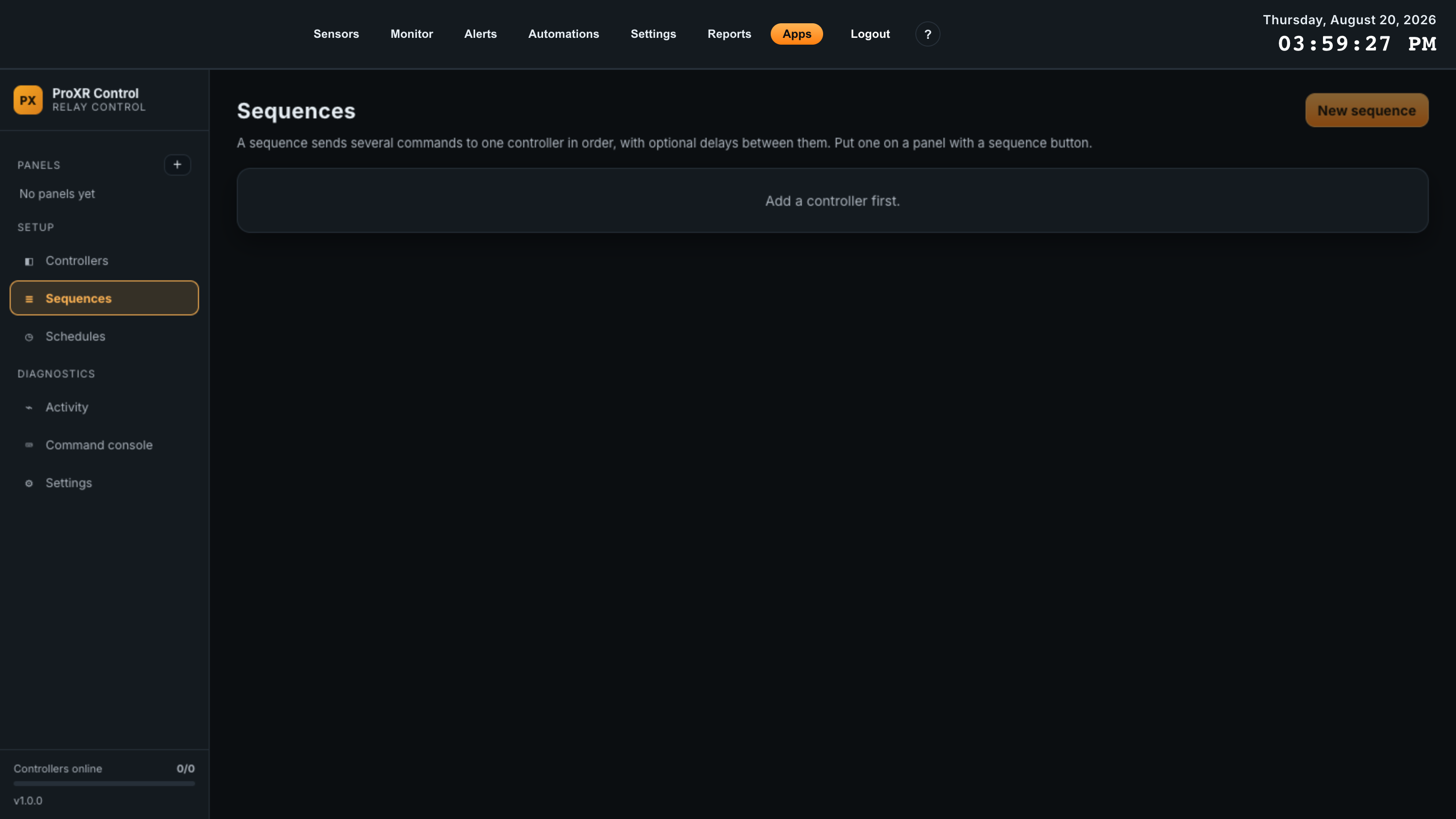
A sequence sends several commands to one controller in order, with an optional wait before each one. Startup interlocks, shutdown orders, backwash cycles, test runs — anything where the order and the gaps matter.
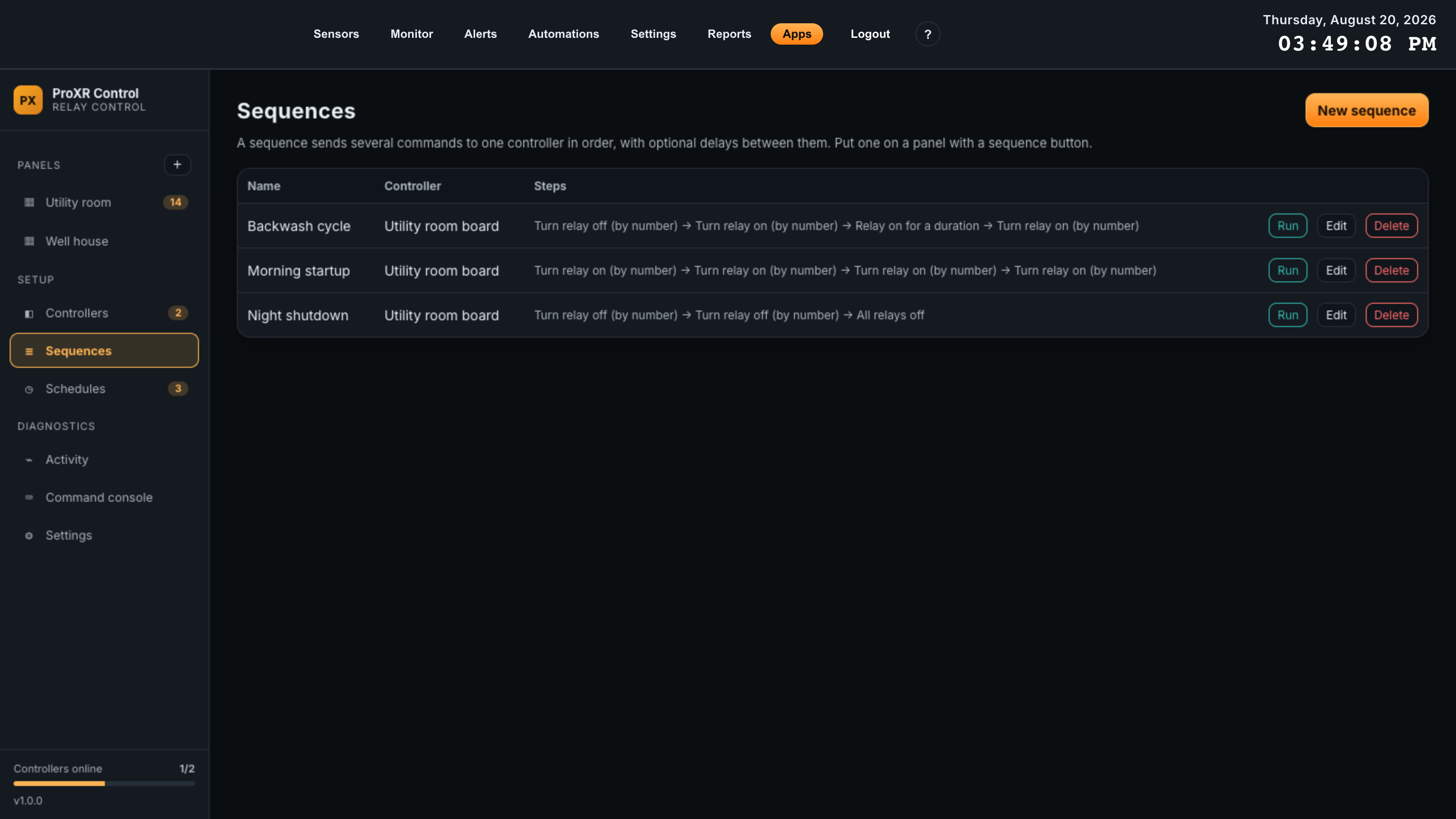
Sequences run on the gateway’s ingest service, one command at a time, and stop at the first failure. That matters: a sequence is not fire-and-forget on the controller, so a board that stops answering half way through leaves the sequence half applied. Where the whole state must be guaranteed, end the sequence with an absolute command — an all-off or a pattern — rather than relying on every earlier step having landed.
Building a sequence
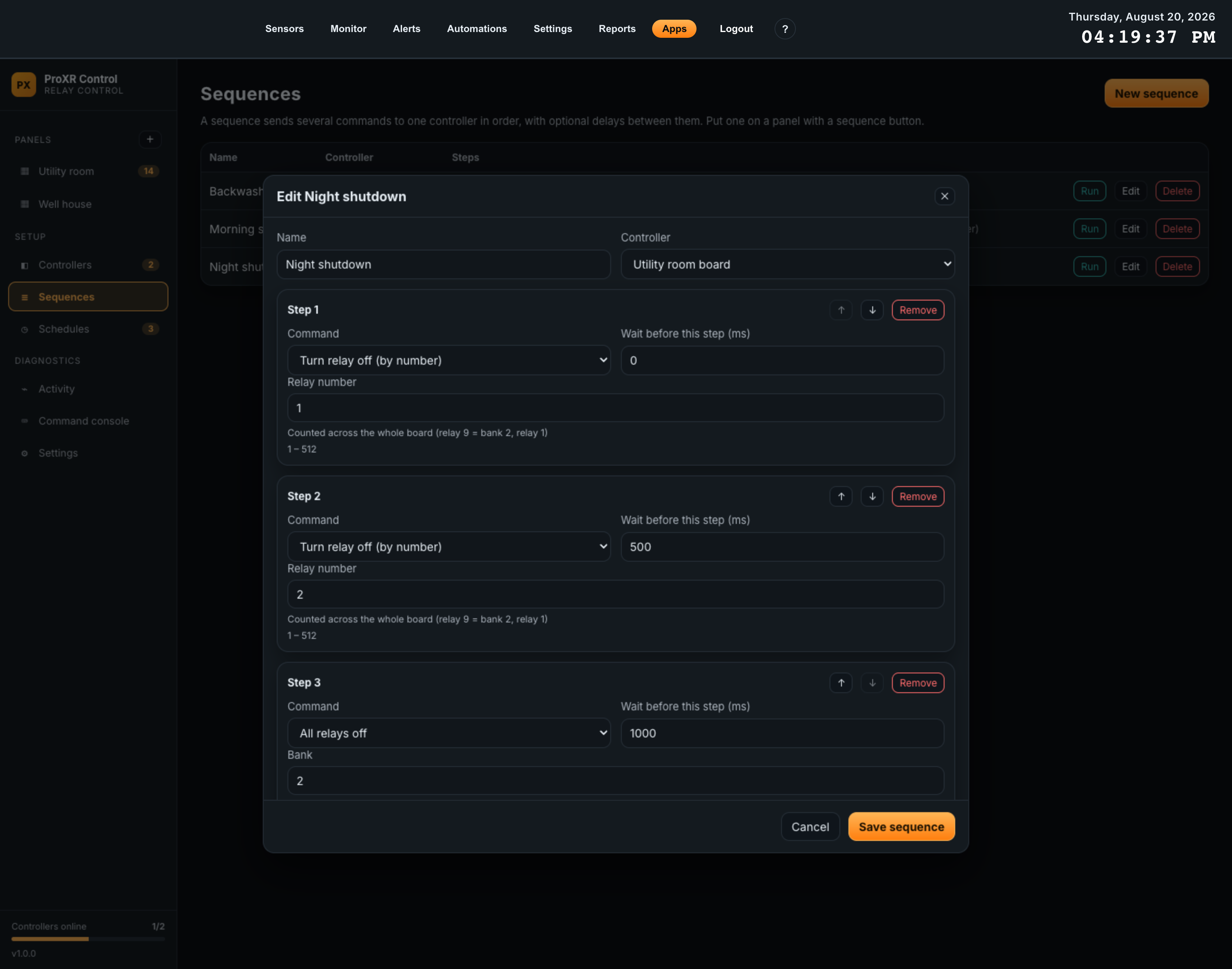
| Field | What it does | Range |
|---|---|---|
| Name | What the sequence is called on this page, on sequence buttons, in schedules and in the Automations action Run a sequence. | Required |
| Controller | Which board every step runs against. A sequence cannot span two boards; use two sequences, or an automation, for that. | Required |
| Command | Per step. The same grouped dropdown of all 42 commands as everywhere else. Changing it resets that step’s parameters to the command’s defaults. | — |
| Wait before this step (ms) | How long to pause before sending this step. Set it on step 1 to delay the whole sequence. | 0 – 10000 ms, in steps of 100 |
| Step parameters | Whatever the chosen command needs, with its permitted range shown. Validated when you save, so a saved sequence cannot fail validation later at run time. | Per command |
| Reorder / remove | The up and down arrows move a step; Remove deletes it. A sequence must keep at least one step. | Up to 32 steps |
Running one
- Run on the Sequences page runs it now and reports the result, naming the failed step if one fails.
- A Sequence button card puts it on a panel, where it shows its step count under the label.
- A schedule can run it at a time of day.
- The Automations action Run a sequence lets anything else on the gateway trigger it.
09Schedules
A schedule sends one command, or runs one sequence, at a time of day. Schedules are evaluated once a second on the gateway, in the gateway’s own display timezone.
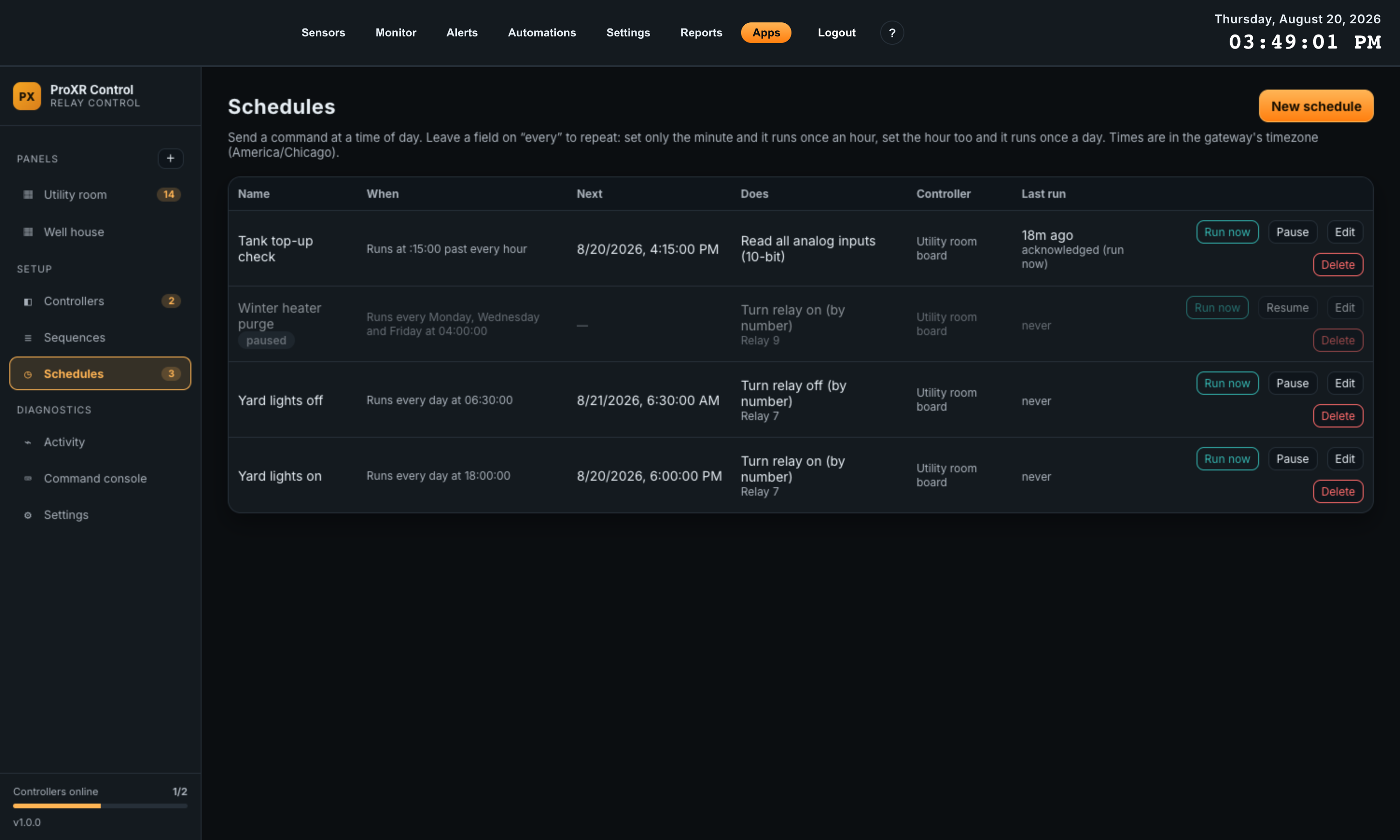
| Column | Contents |
|---|---|
| Name | Yours. Paused schedules also carry a paused chip and the whole row is dimmed. |
| When | The rule written out — Runs every Tuesday and Friday at 02:30:00, Runs at :15:00 past every hour. This sentence comes from the same code the gateway matches against, so it is not a paraphrase. |
| Next | The next firing, as an absolute time. Hover to see the next three. |
| Does | The command’s name, or Sequence: name, with the target underneath — which relay, bank or input. |
| Controller | The board. Blank for a sequence, which carries its own controller. |
| Last run | How long ago it last fired and what happened — acknowledged when the controller answered, or the error in red. never until it has run once. |
How the time fields work
Day, hour, minute and second are each optional, and this is the part worth reading twice. An unset field that is coarser than the finest one you set means every. An unset field that is finer is treated as zero.
| What you set | What it means | How often it fires |
|---|---|---|
| Minute = 15 | Runs at :15:00 past every hour | 24 times a day |
| Hour = 6, Minute = 30 | Runs every day at 06:30:00 | Once a day |
| Hour = 6 | Runs every day at 06:00:00 — the unset minute and second are zero, not “every” | Once a day |
| Second = 30 | Runs at 30 seconds past every minute | 1440 times a day |
| Days = Tue, Fri; Hour = 2; Minute = 30 | Runs every Tuesday and Friday at 02:30:00 | Twice a week |
| Nothing | Refused — Pick at least one of day, hour, minute or second | — |
You never have to work this out in your head. The banner at the bottom of the editor states the rule in plain English and lists the next three firings, and it updates as you click. If the banner does not say what you meant, the schedule is wrong — before you save it.
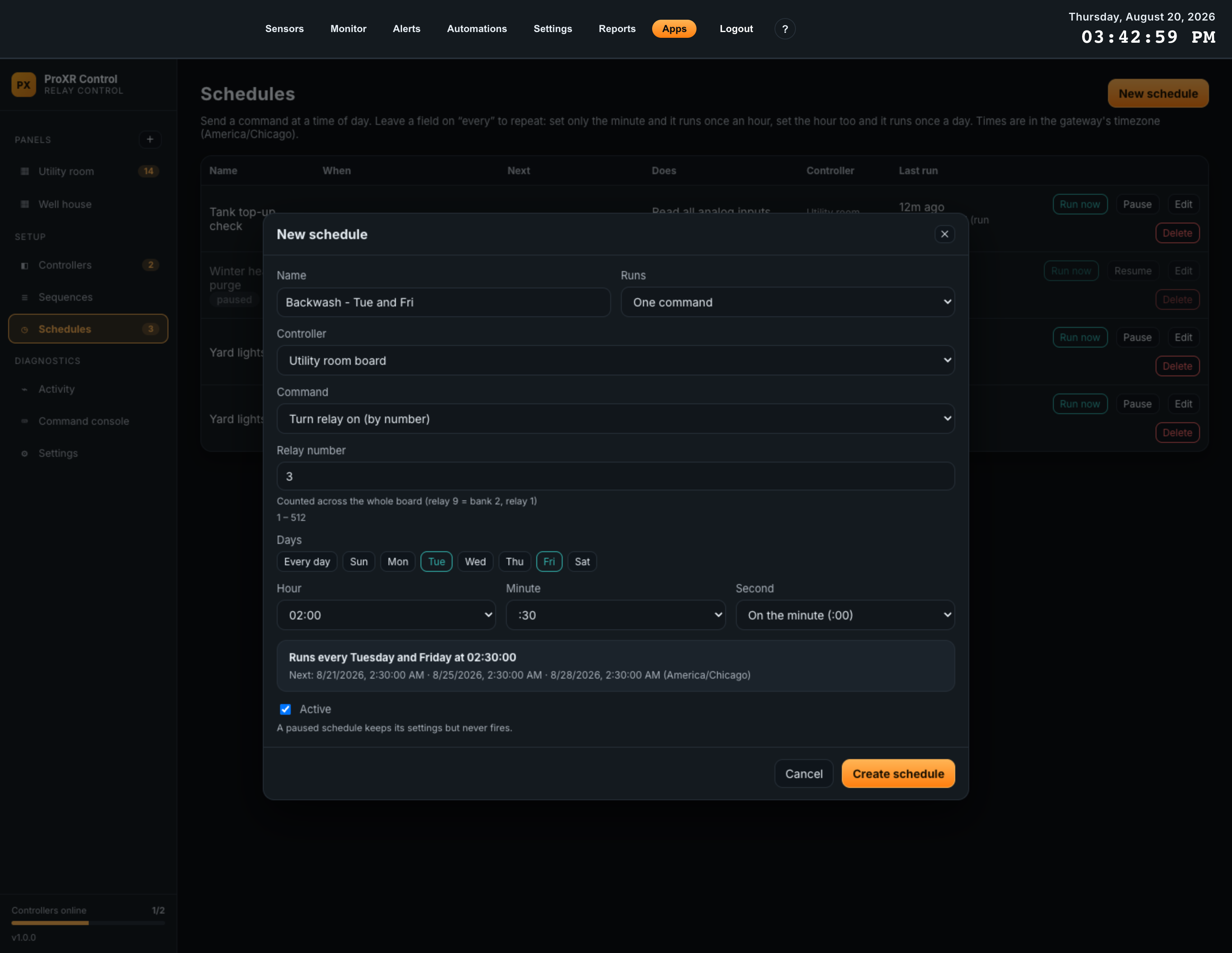
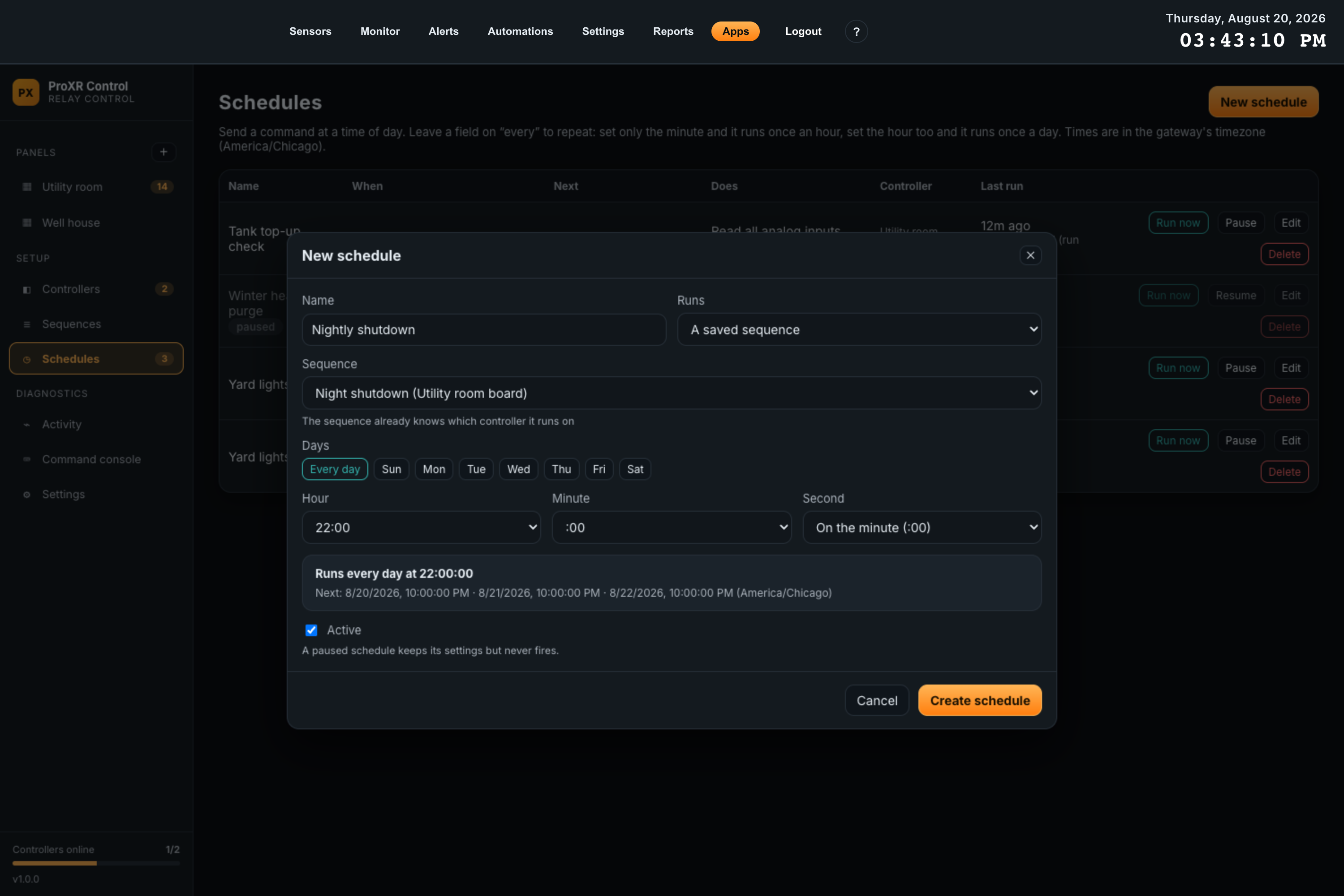
| Field | What it does | Options |
|---|---|---|
| Name | How the schedule is listed and logged. | Required |
| Runs | Whether this schedule fires a single command or a saved sequence. | One command; A saved sequence |
| Controller | Which board the command goes to. Hidden in sequence mode — the sequence already knows its controller. | Any configured controller |
| Command | Any of the 42 commands, grouped, with its parameters below and its caveat note if it has one. | Command mode only |
| Sequence | Which saved sequence to run. | Sequence mode only |
| Days | Every day, or any combination of the seven day buttons. Selected days are highlighted. | Every day, or Sun – Sat |
| Hour | Every hour, or a specific hour on the 24-hour clock. | Every hour, 00:00 – 23:00 |
| Minute | Every minute, or a specific minute. | Every minute, :00 – :59 |
| Second | On the minute (:00), or a specific second. | On the minute, :00 – :59 |
| Active | A cleared box keeps every setting but never fires. | Ticked by default |
Testing and pausing
| Button | Effect |
|---|---|
| Run now | Fires the schedule immediately, without waiting for its time and without affecting when it next fires. Use it to prove a schedule works the day you build it, rather than finding out at 02:30. |
| Pause / Resume | Toggles Active without opening the editor. |
| Delete | Stops the schedule immediately. Relays stay exactly as they are — deleting a schedule never switches anything. |
10Automations
ProXR Control publishes what its boards are doing, and offers four commands anything else on the gateway can trigger. You connect the two on the gateway’s own Automations page — not inside the app. That click is the authorization: this app holds permission to transmit on the radio, and no other app gets to borrow it without an operator saying so.
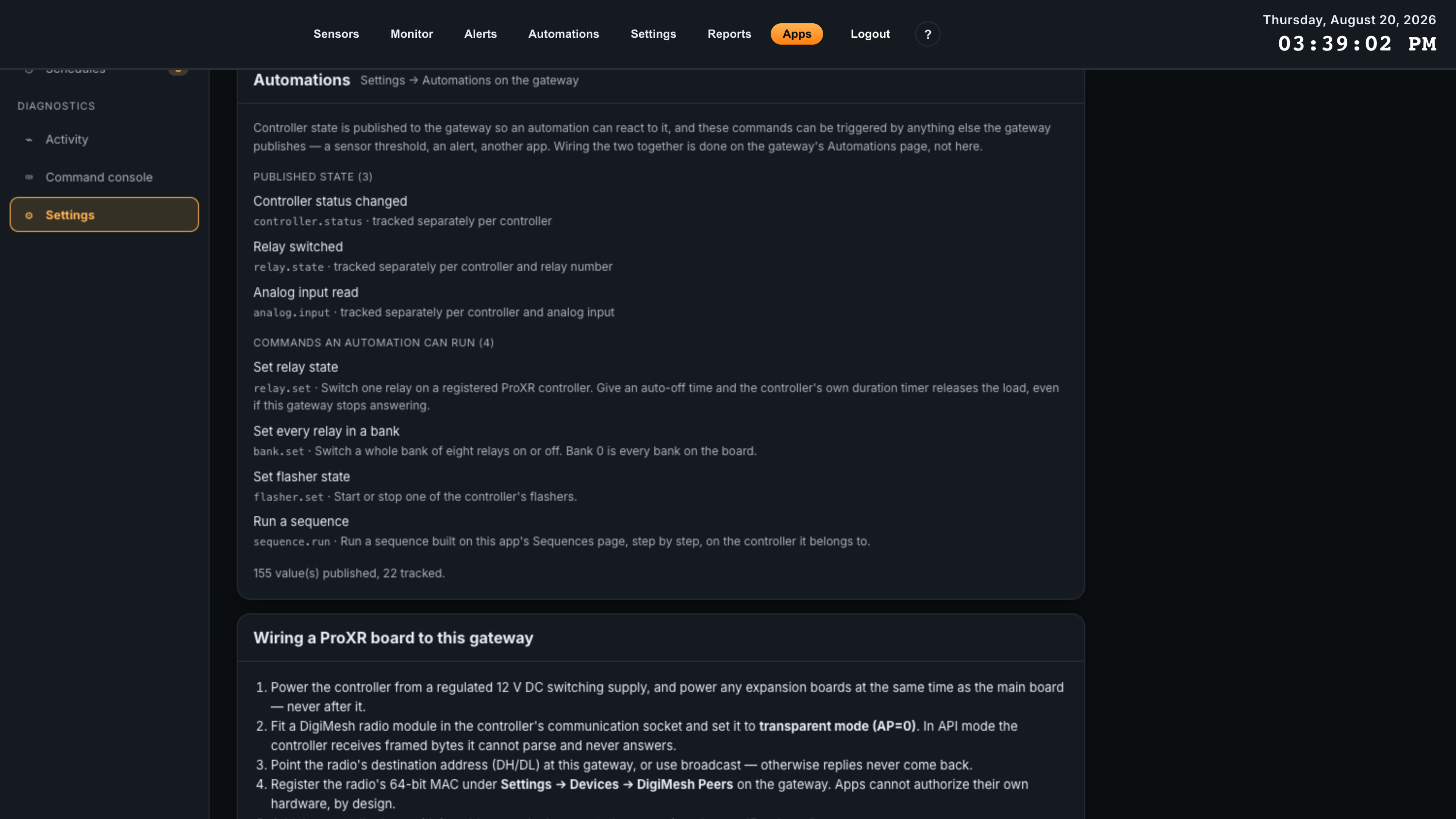
The app’s own Settings page lists what it offers, and how much it has published, but bindings are never created here. The panel is a reference so you know what to look for on the Automations page.
What the app publishes
All three are level-triggered current state, not one-shot notifications: the app republishes each value as it evaluates it, and the gateway dispatches only when the value actually changes. That is what lets an automation switch something on when a condition starts matching and back off when it stops, and what lets a binding heal itself after a dropped message or a restart instead of latching on.
| Event | Topic | Tracked separately per | Published when |
|---|---|---|---|
| Controller status changed | proxr-control/controller.status |
Controller | Every poll, and the moment a board turns out not to be authorized — which is the only state an un-subscribable board ever has. |
| Relay switched | proxr-control/relay.state |
Controller and relay number | Every poll. A relay that has never been read is deliberately not published, so an automation can never act on a value the app invented. |
| Analog input read | proxr-control/analog.input |
Controller and analog input | On the board’s Log analog inputs every interval, scaled and labelled the way you configured the input — so a threshold you set means what it means on screen. |
Fields you can build conditions on
| Event | Fields |
|---|---|
controller.status |
controller_id, controller_name, address, status (online or offline), online (true/false), connected (true/false), relay_count, relays_on, last_error |
relay.state |
controller_id, controller_name, relay, relay_label, state (on or off), on (true/false) |
analog.input |
controller_id, controller_name, channel, label, raw (counts), value (scaled), unit, resolution |
status and online carry the same fact in two forms on purpose:
status gives the condition builder a dropdown, while online reads
better dropped into an email body. Use connected to tell “the board is not
answering” apart from “the gateway is not allowed to talk to it”.
Commands an automation can run
All four are absolute: you set a state, never toggle one. A binding is re-asserted after a gateway restart, and a relative command would invert the load instead of restoring it.
| Action | Id | Parameters |
|---|---|---|
| Set relay state | proxr-control/relay.set |
Controller (a dropdown of your configured boards), Relay number, State (on / off), and Switch off again after (seconds) — optional; leave it empty to stay on. |
| Set every relay in a bank | proxr-control/bank.set |
Controller, Bank (0 means every bank on the board), State. |
| Set flasher state | proxr-control/flasher.set |
Controller, Flasher (1 – 16), State. |
| Run a sequence | proxr-control/sequence.run |
Sequence — a dropdown of the sequences you built on the Sequences page. The sequence carries its own controller. |
Building a binding
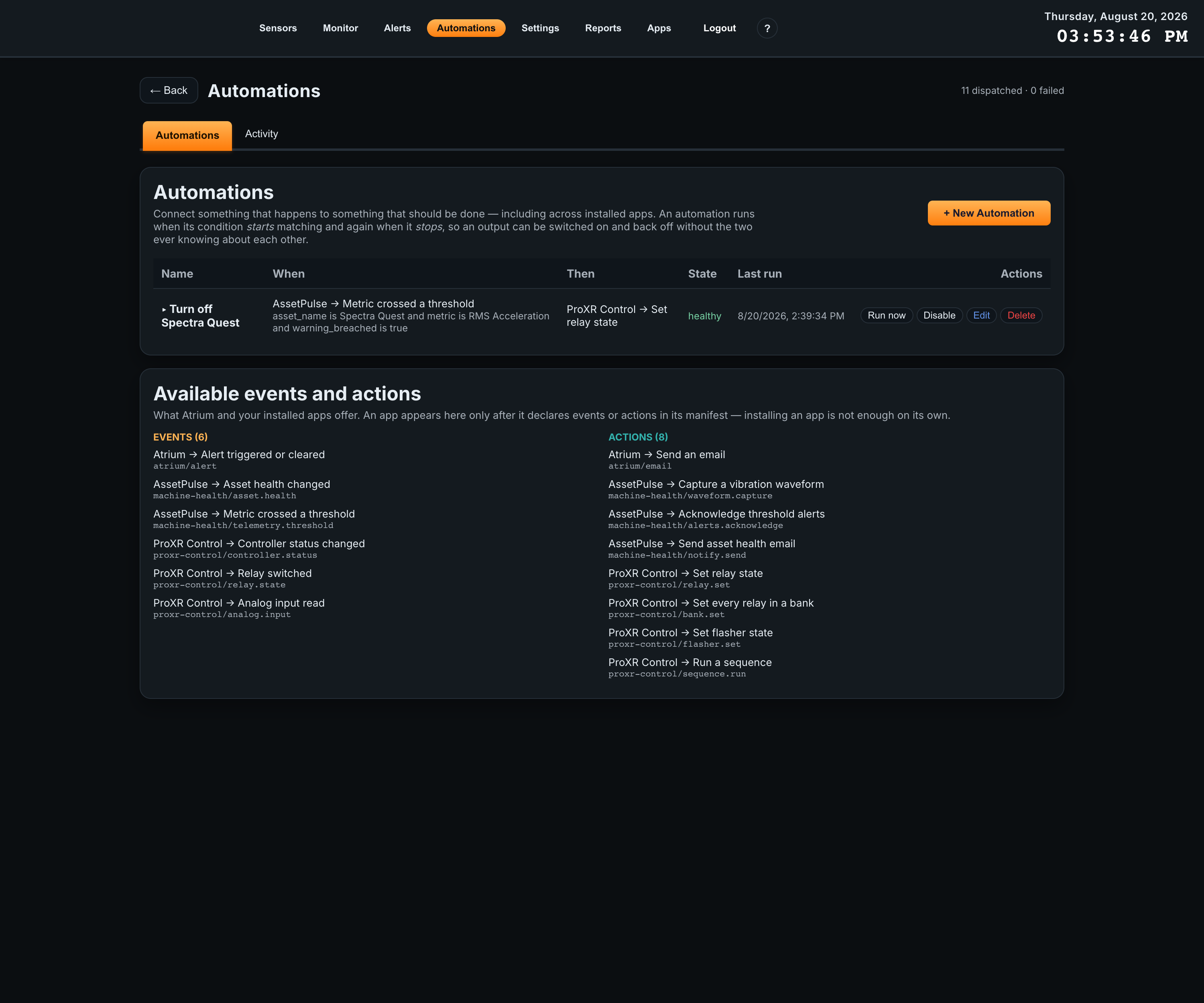
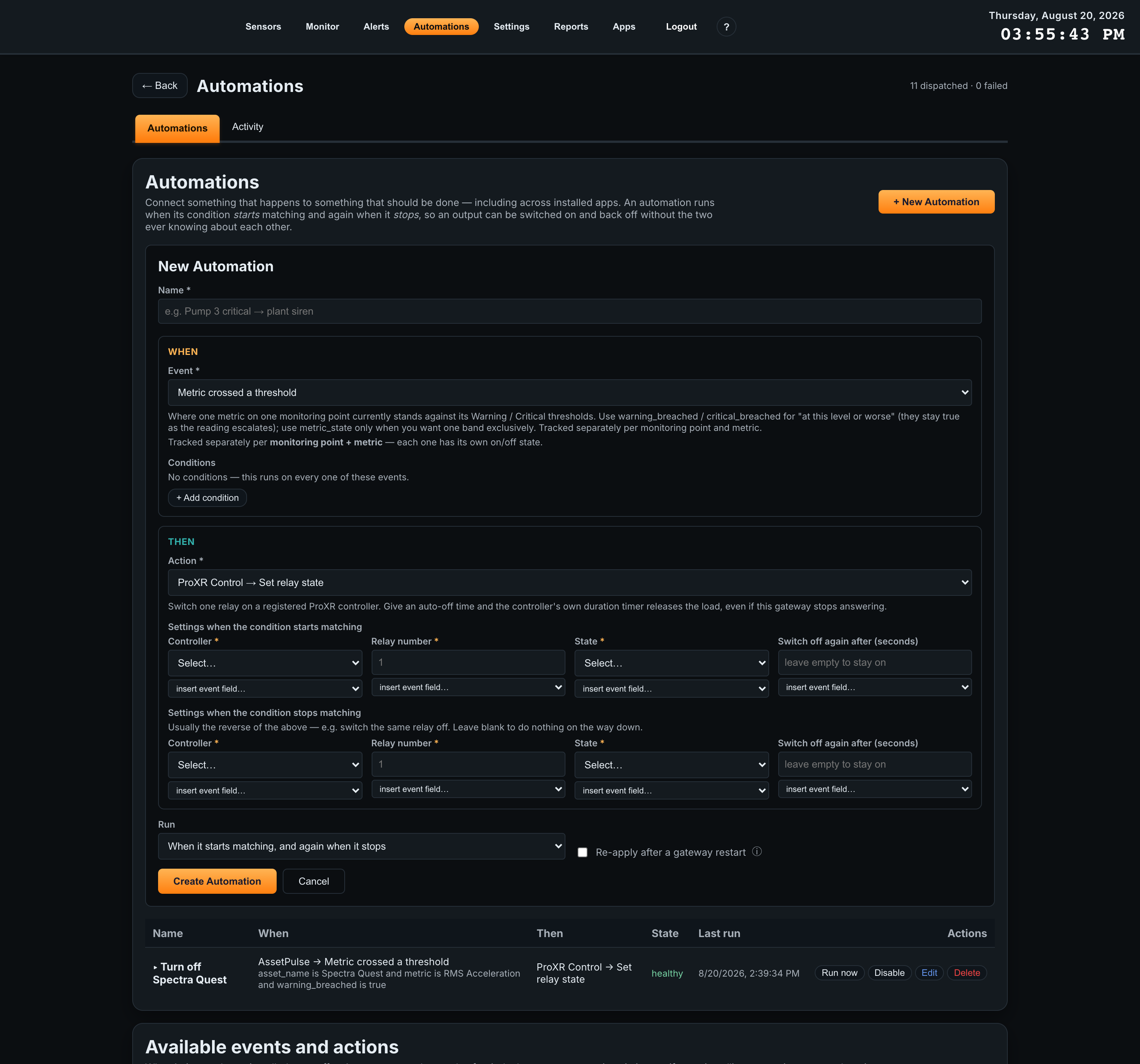
- 1Open Automations and click + New AutomationName it for what it achieves, not for its mechanism — the name is what appears in the audit trail and in the ProXR activity log.
- 2Pick the WHEN eventAny event the gateway or an installed app offers, including the three from ProXR Control. The form explains what the chosen event is tracked per, which decides how many independent on/off states the binding has.
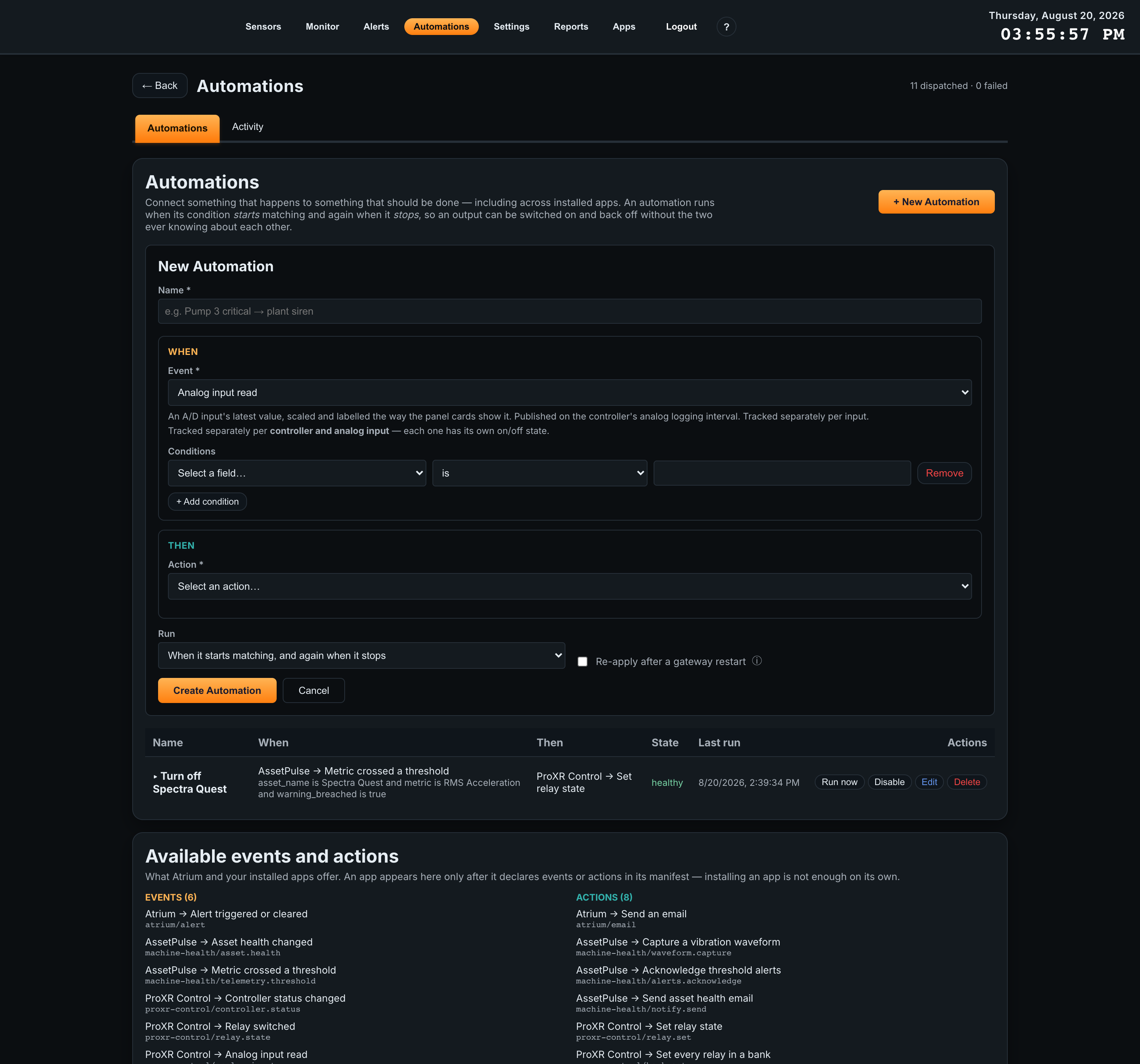
- 3Add conditionsWithout conditions the automation runs on every one of those events. With them it runs only while they all match. Fields come from the event’s declared payload.
- 4Pick the THEN action and fill in both edgesA ProXR action asks for its parameters twice: Settings when the condition starts matching and Settings when the condition stops matching. The second is usually the reverse of the first — the same relay, switched off. Leave it blank to do nothing on the way down. Any parameter can instead be filled from a field of the triggering event, using the insert event field dropdown underneath it.
- 5Choose when it runs, then create itWhen it starts matching, and again when it stops is the usual choice for relay control. Re-apply after a gateway restart re-asserts the current state after a reboot, which is what you want for a load whose state should survive a power cycle of the gateway.
Checking the app is offering everything
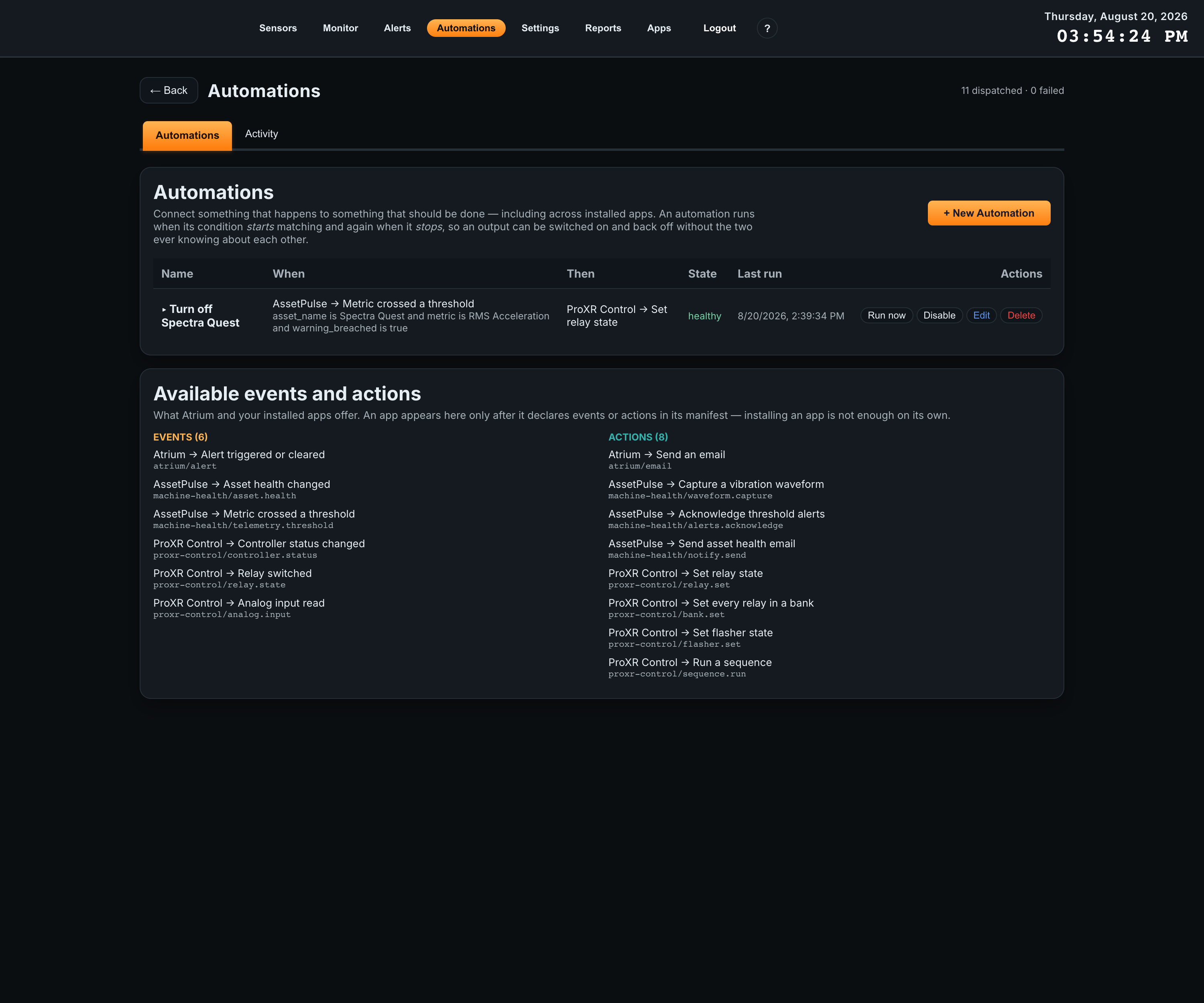
The catalog at the bottom of the Automations page lists everything Atrium and the installed apps offer. If ProXR Control’s three events and four actions are not there, no binding can reference them, and the cause is one of two things: the gateway is older than platform 2.4.0, or the ingest service has not loaded the app. The app’s Settings page reports both, and its Automations panel says so in a red banner.
Commands an automation triggers are written to the app’s Activity log with the source Automation, or Automation (test run) when an operator pressed Run now on the binding — so a test never looks like a real firing. Each one is also written to the gateway’s audit trail with the binding’s name.
11Command Console
The console is a ProXR terminal. Pick any command from the set, see the exact frame that will be transmitted, send it, and read the controller’s reply decoded. It exists for commissioning a board and for the things the cards do not cover.
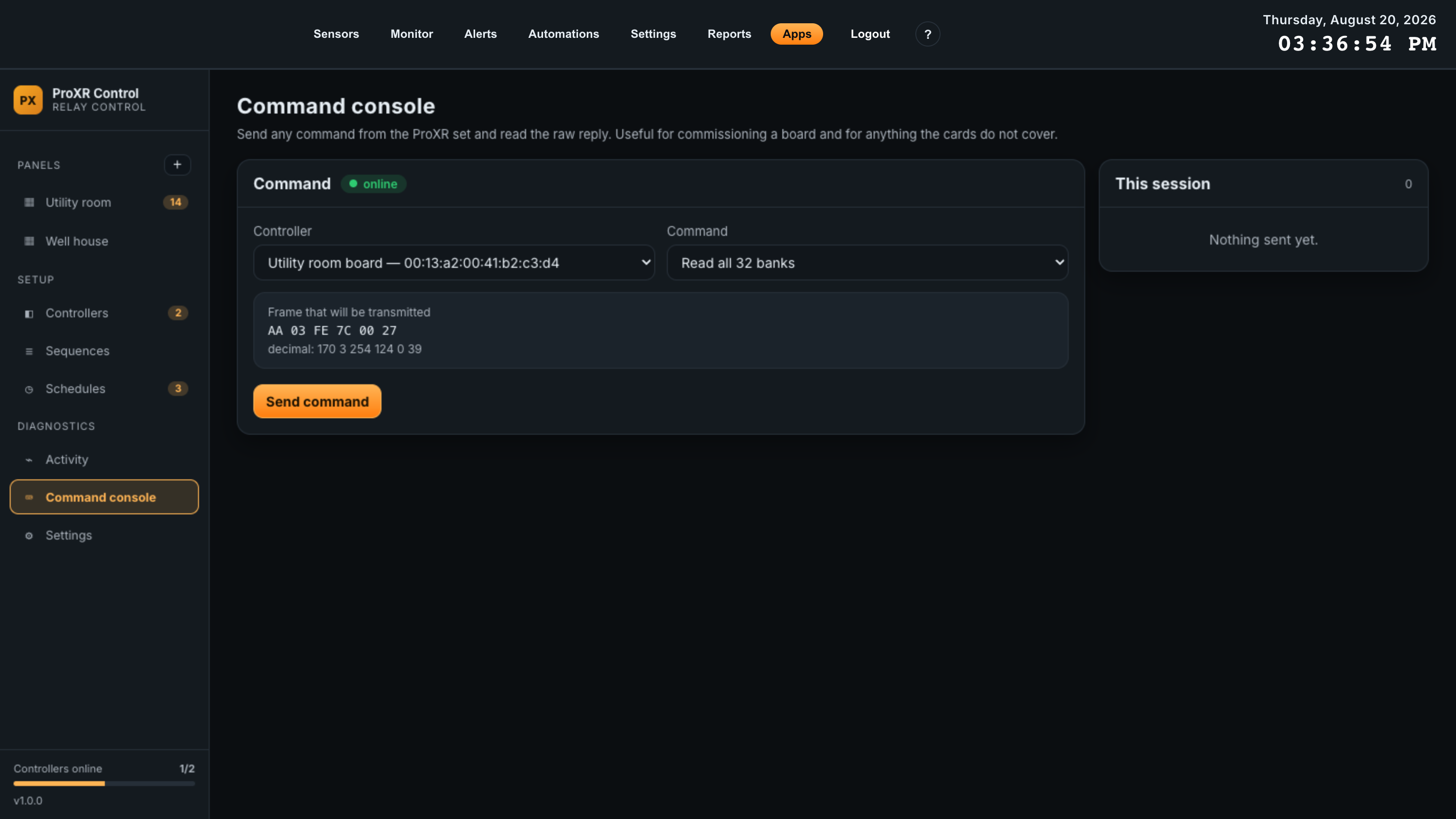
| Control | What it does |
|---|---|
| Controller | Which board to talk to, listed as name and address. The chip beside the panel title shows that board’s current link state. |
| Command | All 42 commands, grouped as Relays, Banks, Timers, Flashers, Read, Refresh, Configuration and Advanced. A command with a caveat shows it under the dropdown. |
| Parameters | Whatever the command needs, each with its permitted range printed underneath. |
| Frame preview | The bytes that will go out, in hex and in decimal. It is built by the gateway, not the browser, so what you see is exactly what will be transmitted — header, length byte and checksum included. An out-of-range parameter replaces the preview with the reason, and disables Send command. |
| Send command | Transmits. A note beside it reads This command can change relay state whenever the selected command writes to relays. |
Reading the response
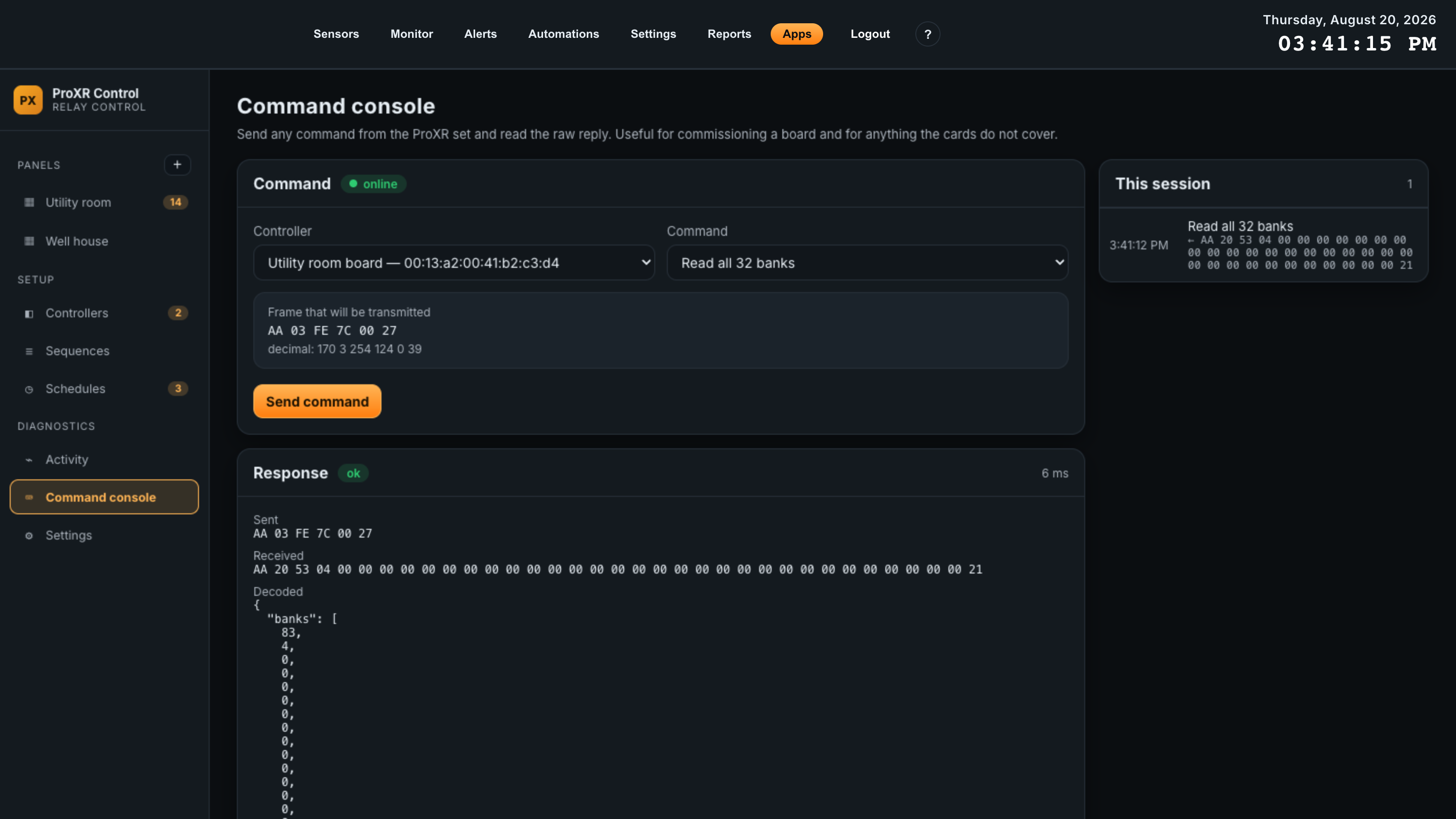
| Row | Contents |
|---|---|
| Chip and timing | ok or failed, and the round-trip in milliseconds. |
| Sent | The transmitted frame. |
| Received | The reply frame, or no reply when the board did not answer. |
| Decoded | The reply interpreted — an acknowledgement, a relay state, a bank bitmask, a list of analog channels with their resolution, a decoded device identification. This is the same decoder the polling loop uses. |
| This session | The last 25 commands sent from this browser tab, newest first, each with its reply. It is per-tab and not persisted; the Activity page is the durable record. |
Useful console commands during commissioning
| Command | Why |
|---|---|
| Read device identification | Proves you are talking to the board you think you are, and tells you which command sets it implements. |
| Read all 32 banks | One exchange that returns the whole relay map. If this answers, the link is healthy. |
| Read all analog inputs (10-bit) | Confirms the board really has A/D hardware and shows the raw counts to scale against. |
| Read power-up state of a bank | Shows what the board will do after a power cycle, which is not the same as what it is doing now. |
| Read automatic refresh mode | If relay commands are acknowledged but nothing physically switches, automatic refresh is the first thing to check. |
| Custom payload | Under Advanced. Send arbitrary payload bytes as hex; the app adds the header, length and checksum. For anything in the ProXR set that this app does not model. |
12Activity
Every command the app sent on somebody’s behalf, with the bytes exchanged, who sent it and what came back. Polling traffic is deliberately excluded — a board polled every five seconds would bury everything that matters.
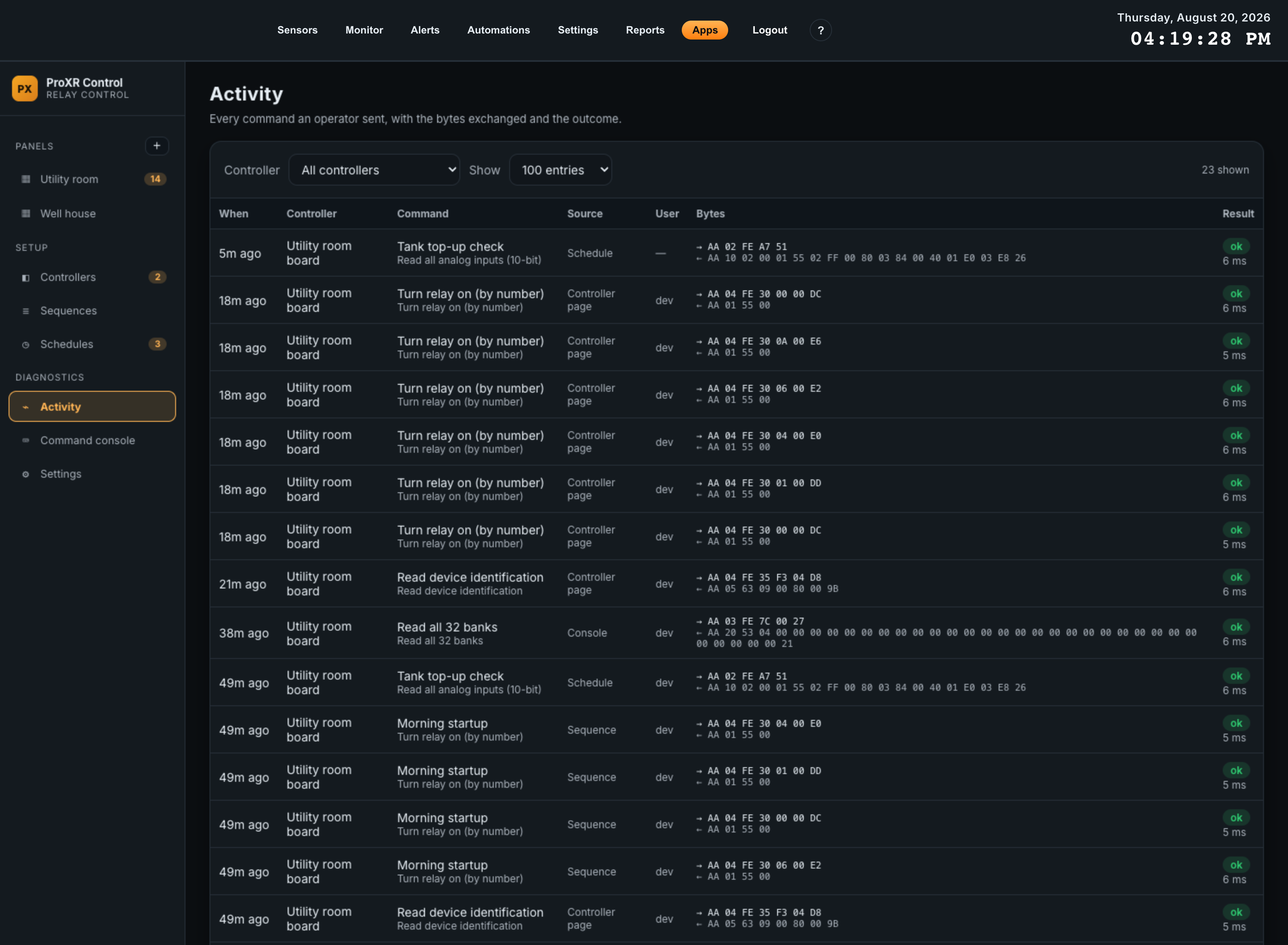
| Column | Contents |
|---|---|
| When | How long ago. Hover for the exact timestamp in the gateway’s display timezone. |
| Controller | Which board it went to. |
| Command | The label the command was sent under — a card’s title, a relay’s name, a bank action — with the underlying ProXR command name beneath it. |
| Source | Where it came from. See the table below. |
| User | The signed-in gateway user who caused it. Blank for anything the gateway itself initiated. |
| Bytes | The frame sent and the frame received. |
| Result | ok or failed, with the error text and the round-trip time underneath. |
Sources
| Source | Means |
|---|---|
| Panel card | Somebody pressed a button or clicked a relay on a control panel. |
| Controller page | An On, Off, Toggle, timed or bank button on a controller page. |
| Console | Sent from the Command console. |
| Sequence | One step of a sequence run. A four-step sequence writes four rows. |
| Schedule | A schedule firing at its time. |
| Automation | A binding on the gateway’s Automations page fired this command. |
| Automation (test run) | An operator pressed Run now on a binding. Recorded separately so a test is never mistaken for a real firing. |
| API | Sent by something calling the app’s HTTP API directly. |
Filters
Controller narrows to one board, or All controllers. Show sets how many entries to fetch — 50, 100, 250 or 500. The count of rows currently shown sits beside the filters. The page refreshes itself every five seconds while the tab is visible.
13Settings
Four panels: how long data is kept, what the app offers Automations, the wiring checklist, and what the app can see about the gateway it is running on. There are no credentials to enter and no external service to configure.
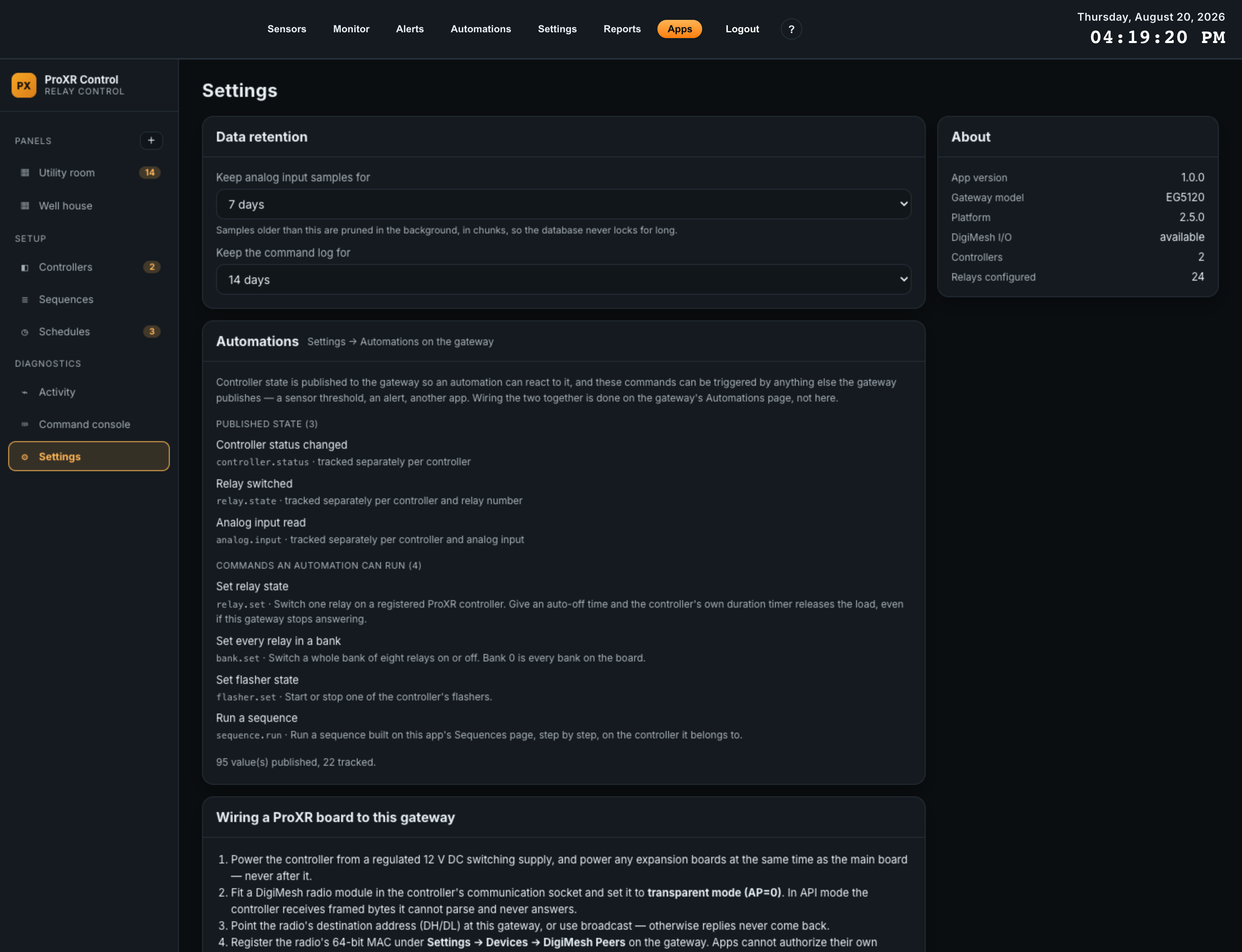
Data retention
Two of the app’s tables grow continuously. Both are pruned by a background worker every 30 minutes, in chunks, so the database is never locked for long. Changes take effect on the next pass — there is no separate save button; choosing a value saves it.
| Setting | What it prunes | Options | Default |
|---|---|---|---|
| Keep analog input samples for | The logged A/D samples the trend charts are drawn from. Shortening it shortens the longest chart you can draw. | 1 day, 3 days, 7 days, 30 days, 90 days | 7 days |
| Keep the command log for | The Activity log. This is your record of who switched what, so shorten it only deliberately. | 1 day, 3 days, 7 days, 14 days, 30 days, 90 days | 14 days |
Sizing at the defaults: one board with eight analog inputs at the fastest allowed 10-second logging interval is roughly 480,000 sample rows over seven days, a few tens of megabytes. At the default 1-minute interval the same board stores about 80,000 rows. Analog logging is throttled independently of polling, so a 2-second poll interval for responsive panels does not multiply stored rows.
Automations
A read-only summary of the three events the app publishes and the four commands it offers, with the topic or id of each. See Automations for what to do with them. Underneath, a line reports how many values have been published, how many things are being tracked, and how many publishes were held back by the platform’s rate limit or refused. If the inter-app bus is unavailable, a red banner replaces the counters and says so.
Wiring a ProXR board to this gateway
The five-step commissioning checklist from First-Time Setup, repeated inside the app so an operator at the panel has it to hand, and closing with the reminder that relay state is the controller’s memory state.
About
| Row | Meaning |
|---|---|
| App version | The installed version of ProXR Control. Quote it in any support request. |
| Gateway model | The gateway hardware the app is running on. |
| Platform | The Atrium platform version. Must be 2.4.0 or newer. |
| DigiMesh I/O | available or unavailable. Unavailable means no command can be sent by anything — not panels, not schedules, not automations. |
| Controllers | How many boards are configured. |
| Relays configured | The total across every board, which is a quick sanity check on relay counts. |
14Troubleshooting
Ordered roughly by how often each cause turns out to be the real one. Work down the table rather than starting with the exotic explanations.
The board does not answer
| Symptom | Likely cause | Fix |
|---|---|---|
| Controller shows not connected or not registered, and a yellow banner names an address | The radio is not registered as a DigiMesh peer on the gateway. | Register that exact address under Settings > Devices > DigiMesh Peers. The app retries every 15 seconds, so no restart is needed. |
| Controller shows peer disabled | The peer exists but has been switched off on the gateway. | Re-enable it on the same page. |
| Controller shows no reply. Recent traffic has outbound frames and nothing coming back | The radio is in API mode, so the board receives bytes it cannot parse. This is the single most common cause. | Set the radio to transparent mode, AP=0. |
Controller shows no reply, radio is confirmed at AP=0 |
The radio’s destination is not this gateway, so replies go elsewhere. | Point DH/DL at this gateway, or set the radio to broadcast. |
| Controller shows no reply, radio settings confirmed correct | The board has no power, or the radio module is not seated in its socket. | Check the 12 V supply and reseat the radio. |
| Controller shows disabled and is never polled | Enabled is cleared on the controller. | Edit the controller and tick Enabled. |
| It answered before and stopped, response time had been climbing | A marginal mesh link, or congestion from too many boards polled too fast. | Raise the poll interval on the boards that do not need to be fast, and check the intermediate radios. |
Commands go out but nothing switches
| Symptom | Likely cause | Fix |
|---|---|---|
| Every command is acknowledged, the app shows the relay on, no contact moves | Automatic relay refresh is disabled on the controller, so relay commands only change controller memory. | Send Read automatic refresh mode from the console to confirm, then Enable automatic relay refresh, or Refresh all relay banks now to apply the current memory state once. |
| Relays on the main board work; relays on an expansion board do not | The expansion board was powered after the controller, so their relay maps disagree. | Power the whole assembly down and back up together, with the expansion boards energized at the same instant as the main board. |
| Toggle relay fails while On and Off work | Toggle needs ProXR firmware 3.9 or later. | Use On and Off, which is what a clickable relay grid already does. |
| Relays above a certain number never appear or never read | The controller’s Number of relays is set lower than the board actually has. | Edit the controller and raise the relay count. |
| Every command button on every panel is inert, with a red banner across the top | DigiMesh two-way I/O is not available — an older platform, or the ingest service has not loaded the app. | Check Platform and DigiMesh I/O on the app’s Settings page. The platform must be 2.4.0 or newer. |
| A momentary button left a relay on | The release command never arrived — the browser, the network or the gateway dropped between press and release. | Switch it off, then replace the momentary button with a timed command, which the controller enforces itself. |
Panels, values and history
| Symptom | Likely cause | Fix |
|---|---|---|
| A card reads RELAY 1 or INPUT 1 instead of the name you gave it, and analog cards show raw counts with no unit | In version 1.0.0, relay names and analog scaling are applied on the controller page, on the trend chart and in the values published to Automations — but not on panel cards. | Give each card an explicit Title. For a value in engineering units, read it on the controller page or put a chart card on the panel, which is scaled. |
| Relay lamps are dim rather than on or off | Those relays have not been read since the ingest service started. Dim means unknown, not off. | Press Read now on the controller, or wait for the next poll. |
| A trend chart is empty or nearly empty | There are not enough logged samples yet for the span requested. | Wait, shorten the card’s time span, or shorten Log analog inputs every on the controller. |
| A trend chart stops short at the left edge | Samples older than the retention window have been pruned. | Raise Keep analog input samples for in Settings. It does not recover data already pruned. |
| An analog value is out by a factor of ten | The scale was worked out against the wrong full scale — 255 instead of 1023, or the reverse. | Check A/D resolution on the controller, then re-check the scaling dialog’s preview banner, which states what full scale reads. |
| A card will not move where you want it | Another card occupies the cells, and only a same-size card can be swapped by dropping onto it. | Move the card in the way first, make the card smaller, or add a column in Panel settings. |
| Narrowing a panel rearranged the cards | Cards that no longer fit within the new column count are repacked. This is the one case where the app moves cards for you. | Widen it back, or re-arrange at the narrower width. |
| A sequence button reads Sequence was deleted | The sequence it pointed at is gone. | Edit the card to point at an existing sequence, or remove the card. |
Schedules and automations
| Symptom | Likely cause | Fix |
|---|---|---|
| A schedule fires far more often than intended | A coarser time field was left on every. Minute alone runs hourly; second alone runs every minute. | Read the preview banner in the editor before saving — it states the rule and the next three firings. |
| A schedule never fires | It is paused, or its Next column is empty. | Resume it, and use Run now to prove it works. |
| A schedule shows an error under Last run | The board did not answer at its time. | Fix the link first; the schedule itself is fine. The error text is the controller’s. |
| A schedule skipped a day | Its time fell inside a service restart or reboot window. An evaluation more than a minute behind is not replayed. | Nothing to fix. Use Run now if the action still needs to happen. |
| Times look an hour out | You are reading the browser’s timezone rather than the gateway’s. | The Schedules page names the gateway’s timezone in its subtitle; all absolute times in the app use it. |
| ProXR events or actions are missing from the Automations page | The platform is older than 2.4.0, or the ingest service has not loaded the app. | Check the app’s Settings page, then update the gateway. Installing the app is not enough on its own — the manifest has to be loaded. |
| An automation says a controller is not configured | The binding names a controller that has since been deleted. | Edit the binding and choose an existing controller from the dropdown. |
15Reference
The ProXR concepts the app assumes you know, the complete command catalog, and every limit, default and stored field.
ProXR concepts
| Concept | What it means |
|---|---|
| Banks of eight | ProXR addresses relays in banks of eight. A 16-relay board is two banks; a 32-relay board is four. Many commands take a bank number, and bank 0 means every bank on the board — which is what makes an all-off button a single command. |
| Relay number vs relay-in-bank | Two ways to name the same relay. Relay number counts straight across the board, 1 to 512: relay 9 is the first relay of bank 2. Relay in bank plus bank is the protocol’s own form: relay 1, bank 2. The controller page shows both, as bank.relay. |
| Relay groups | A relay plus a number of neighbours, switched together in one command. Neighbours cannot cross into the next bank — a group is always inside one bank of eight. |
| Patterns | A bank’s eight relays as one 8-bit mask, 0 to 255, where bit 0 is relay 1. Set relay pattern writes a whole bank in one exchange, which is the fastest way to put a bank into an exact known state. |
| Timers | The controller has sixteen timers, numbered 0 to 15, that it runs itself. A duration timer holds a relay on for a set time then releases it; a pulse timer waits then pulses. Because the controller enforces them, they survive the gateway going away. Timers can be loaded without starting, and run or paused as a group with a 16-bit mask. |
| Flashers | Sixteen flashers, numbered 1 to 16, that blink a relay without any traffic once started. Flash speed is a single setting shared by all flashers, 0 (fastest) to 255 (slowest). |
| Automatic relay refresh | Normally the controller applies each relay command to the physical relays immediately. With automatic refresh disabled, relay commands change controller memory only, until a manual refresh applies them. If commands are acknowledged and nothing switches, this is the setting to check. |
| Power-up state | What the board sets its relays to after a power cycle, stored separately from the current state. Readable per bank or for all 32 banks. |
| Device identification | A handful of bytes in which each bit means “this board implements that command set”. Identify board reads them and the app decodes them into a plain list. |
| Configuration mode | A timed unlock of the controller’s EEPROM settings, in seconds. Scratchpad writes only work while it is unlocked; a duration of 0 returns the board to Run mode at once. |
NCD’s ProXR Quick Start Guide is the authority on the protocol itself, including the byte-level detail this app builds its frames from.
Command catalog
Every command the app can send, in the groups the dropdowns use. The same catalog drives the Command console, command buttons, sequence steps and schedules, so a command available in one is available in all of them. Each parameter shows its permitted range and its default.
| Command | Parameters | Effect | Id |
|---|---|---|---|
| Relays | |||
| Turn relay on | Relay in bank 1 – 8 · default 1 Bank 0 – 32 · default 1 | can change relay state | relay_on |
| Turn relay off | Relay in bank 1 – 8 · default 1 Bank 0 – 32 · default 1 | can change relay state | relay_off |
| Toggle relay Requires ProXR firmware 3.9 or later | Relay number 1 – 512 · default 1 | can change relay state | relay_toggle |
| Turn relay on (by number) | Relay number 1 – 512 · default 1 | can change relay state | relay_on_number |
| Turn relay off (by number) | Relay number 1 – 512 · default 1 | can change relay state | relay_off_number |
| Turn all off, then this relay on | Relay number 1 – 512 · default 1 | can change relay state | relay_only |
| Turn relay group on | Relay in bank 1 – 8 · default 1 Bank 0 – 32 · default 1 Neighbors 0 – 7 · default 1 | can change relay state | relay_group_on |
| Turn relay group off | Relay in bank 1 – 8 · default 1 Bank 0 – 32 · default 1 Neighbors 0 – 7 · default 1 | can change relay state | relay_group_off |
| Banks | |||
| All relays on | Bank 0 – 32 · default 1 | can change relay state | bank_all_on |
| All relays off | Bank 0 – 32 · default 1 | can change relay state | bank_all_off |
| Invert all relays | Bank 0 – 32 · default 1 | can change relay state | bank_invert |
| Reverse relay pattern | Bank 0 – 32 · default 1 | can change relay state | bank_reverse |
| Set relay pattern | Pattern 0 – 255 · default 0 Bank 0 – 32 · default 1 | can change relay state | bank_pattern |
| Timers | |||
| Relay on for a duration The relay switches off by itself when the timer expires, even if the gateway stops responding | Timer 0 – 15 · default 0 Relay number 1 – 512 · default 1 Hours 0 – 255 · default 0 Minutes 0 – 59 · default 0 Seconds 0 – 59 · default 5 | can change relay state | timer_duration |
| Pulse relay after a delay | Timer 0 – 15 · default 0 Relay number 1 – 512 · default 1 Hours 0 – 255 · default 0 Minutes 0 – 59 · default 0 Seconds 0 – 59 · default 5 | can change relay state | timer_pulse |
| Load duration timer (do not start) | Timer 0 – 15 · default 0 Relay number 1 – 512 · default 1 Hours 0 – 255 · default 0 Minutes 0 – 59 · default 0 Seconds 0 – 59 · default 5 | changes controller settings only | timer_set_duration |
| Load pulse timer (do not start) | Timer 0 – 15 · default 0 Relay number 1 – 512 · default 1 Hours 0 – 255 · default 0 Minutes 0 – 59 · default 0 Seconds 0 – 59 · default 5 | changes controller settings only | timer_set_pulse |
| Run / pause timers | Active timer mask 0 – 65535 · default 0 | can change relay state | timer_set_active |
| Read time remaining | Timer 0 – 15 · default 0 | returns data | timer_query |
| Flashers | |||
| Start flasher | Flasher 1 – 16 · default 1 | can change relay state | flasher_on |
| Stop flasher | Flasher 1 – 16 · default 1 | can change relay state | flasher_off |
| Set flash speed (all flashers) | Flash speed 0 – 255 · default 50 | changes controller settings only | flasher_speed |
| Read | |||
| Read one relay | Relay in bank 1 – 8 · default 1 Bank 1 – 32 · default 1 | returns data | read_relay |
| Read one relay (by number) | Relay number 1 – 512 · default 1 | returns data | read_relay_number |
| Read one bank | Bank 1 – 32 · default 1 | returns data | read_bank |
| Read all 32 banks | — | returns data | read_all_banks |
| Read power-up state of a bank | Bank 1 – 32 · default 1 | returns data | read_powerup_bank |
| Read power-up state of all 32 banks | — | returns data | read_powerup_banks |
| Read contact closure inputs Needs AD8 contact closure hardware — check the device identification card | Input bank 0 – 15 · default 0 | returns data | read_inputs |
| Read analog input (8-bit) | Analog input 1 – 8 · default 1 | returns data | read_adc8 |
| Read all analog inputs (8-bit) | — | returns data | read_adc8_all |
| Read analog input (10-bit) | Analog input 1 – 8 · default 1 | returns data | read_adc10 |
| Read all analog inputs (10-bit) | — | returns data | read_adc10_all |
| Read device identification | — | returns data | read_device_id |
| Read automatic refresh mode | — | returns data | read_refresh_mode |
| Refresh | |||
| Enable automatic relay refresh | — | changes controller settings only | refresh_auto_on |
| Disable automatic relay refresh Relay commands then only change controller memory until you refresh manually | — | changes controller settings only | refresh_auto_off |
| Refresh all relay banks now | — | can change relay state | refresh_now |
| Configuration | |||
| Read scratchpad byte | Memory location 1 – 8 · default 1 | returns data | scratchpad_read |
| Write scratchpad byte The controller must be in Configuration mode | Memory location 1 – 8 · default 1 Value 0 – 255 · default 0 | changes controller settings only | scratchpad_write |
| Enter configuration mode Unlocks EEPROM settings for the given number of seconds | Duration (seconds) 0 – 255 · default 60 | returns data | config_mode |
| Advanced | |||
| Custom payload | Payload bytes (hex) (hex) · default FE 7C 01 | can change relay state, returns data | raw |
Card reference
The nine card types with their identifiers and what they need to be valid. See Card types for the full description of each.
| Card type | Requires | Parameters | Default size |
|---|---|---|---|
| Command button | A command | The command’s own parameters | 1 × 1 |
| Sequence button | A saved sequence | Sequence | 1 × 1 |
| Relay state card | — | Relay number 1 – 512 | 1 × 1 |
| Relay grid | — | None — uses the board’s relay count | 2 × 2 |
| Bank indicator | — | Bank 1 – 32 | 2 × 1 |
| Analog input card | — | Analog input 1 – 8 | 1 × 1 |
| Analog input chart | — | Analog input 1 – 8; time span 1 – 720 hours | 2 × 2 |
| Controller status | — | None | 1 × 1 |
| Section heading | — | Text | 4 × 1 |
Limits and defaults
| Thing | Limit | Default |
|---|---|---|
| Relays per controller | 1 – 512 | 8 |
| Analog inputs per controller | 1 – 8 | 8 |
| A/D resolution | 8-bit (0 – 255) or 10-bit (0 – 1023) | 10-bit |
| Poll interval | 2 s, 5 s, 10 s, 30 s or 1 min in Settings (2 s – 5 min over the API) | 5 s |
| Analog logging interval | 10 s, 1 min, 5 min or 15 min in Settings (10 s – 1 hour over the API) | 1 min |
| Analog scaling decimals | 0 – 4 | 0 |
| Panel columns | 1 – 6 | 4 |
| Panel rows | Up to 40 | — |
| Card height | 1 – 6 rows | Per card type |
| Chart time span on a card | 1 – 720 hours | 24 hours |
| Steps per sequence | 1 – 32 | 1 |
| Wait before a sequence step | 0 – 10,000 ms, in steps of 100 | 0 on step 1 |
| Timed command on the controller page | 1 – 59 seconds | 30 seconds |
| Controller timers | 16, numbered 0 – 15 | — |
| Controller flashers | 16, numbered 1 – 16 | — |
| Analog sample retention | 1, 3, 7, 30 or 90 days in Settings (1 hour – 1 year over the API) | 7 days |
| Command log retention | 1, 3, 7, 14, 30 or 90 days in Settings (1 hour – 1 year over the API) | 14 days |
| Activity entries per page | 50, 100, 250 or 500 | 100 |
| Console session history | Last 25 commands, per browser tab | — |
| Recent traffic per controller | Last 40 exchanges since the service started | — |
| Controller name | Up to 120 characters | — |
| Controller notes | Up to 1000 characters | Empty |
| Live state refresh | Every 5 seconds while the tab is visible | — |
| Configuration refresh | Every 30 seconds while the tab is visible | — |
Data and retention
Everything the app stores lives in its own database on the gateway. It never writes to platform data, and it reads only two things from it: the gateway’s model and timezone, and which DigiMesh peers are registered.
| What is stored | Contents | Growth |
|---|---|---|
| Controllers | Name, address, relay count, analog settings, poll and logging intervals, enabled flag, notes, cached device identification. | One row per board. |
| Relay names | One name per relay you named. | At most one per relay. |
| Analog inputs | Name, unit, scale, offset, decimals and meter range per input. | At most eight per board. |
| Panels and cards | Panel name, default controller, column count; and per card its type, title, controller, command, parameters, options and grid position. | Tens per panel. |
| Sequences | Name, controller and the ordered steps. | A handful. |
| Schedules | Name, target, the day/hour/minute/second fields, enabled flag, and the outcome of the last run. | A handful. |
| Controller state | Last known relay banks, analog values, online flag and last error per board. Written only when something changes. | One row per board. |
| Analog samples | One row per channel per logging interval. | Pruned to the retention window. |
| Command log | Operator-initiated commands: frames, outcome, duration and username. Polling traffic is not logged. | Pruned to the retention window. |
Pruning runs in the background every 30 minutes in small chunks, so the database is never locked for long even on a busy install.
HTTP API
Everything the app’s own screens do is available over HTTP, for integration or scripting.
Configuration lives under the app’s API path; anything that touches the radio lives under
/ingest/, because on the gateway a separate service owns the radio. All calls
need a bearer token, and every command sent this way is logged with the source
API.
curl -H "Authorization: Bearer $TOKEN" \
http://<gateway>/api/apps/proxr-control/ingest/statecurl -X POST -H "Authorization: Bearer $TOKEN" \
-H "Content-Type: application/json" \
-d '{ "action": "relay_on_number", "params": { "relay_number": 1 } }' \
http://<gateway>/api/apps/proxr-control/ingest/controllers/1/command| Purpose | Endpoint |
|---|---|
| App status | GET /status |
| Command catalog | GET /actions |
| Card type catalog | GET /widget-kinds |
| Build a frame without sending it | POST /preview |
| Registered DigiMesh peers | GET /peers |
| Controllers | GET /controllers, GET /controllers/:id, POST /controllers, PUT /controllers/:id, DELETE /controllers/:id |
| Relay names and analog scaling | PUT /controllers/:id/relays/:number, PUT /controllers/:id/inputs/:channel |
| Analog history | GET /controllers/:id/adc-history |
| Panels and cards | GET /dashboards, GET /dashboards/:id, POST /dashboards, PUT /dashboards/:id, DELETE /dashboards/:id, POST /dashboards/:id/widgets, PUT /widgets/:id, DELETE /widgets/:id, POST /dashboards/:id/layout, POST /dashboards/:id/generate |
| Sequences | GET /scenes, POST /scenes, PUT /scenes/:id, DELETE /scenes/:id |
| Schedules | GET /schedules, POST /schedules/preview, POST /schedules, PUT /schedules/:id, DELETE /schedules/:id |
| Activity log | GET /log |
| Retention settings | GET /settings, PUT /settings |
| Automations catalog and retained state | GET /bus |
| Live state (radio side) | GET /ingest/state, GET /ingest/controllers/:id/state, GET /ingest/controllers/:id/traffic |
| Send a command (radio side) | POST /ingest/controllers/:id/command, POST /ingest/widgets/:id/fire |
| Poll, identify, run (radio side) | POST /ingest/controllers/:id/refresh, POST /ingest/controllers/:id/identify, POST /ingest/scenes/:id/run, POST /ingest/schedules/:id/run |
Paths above are relative to /api/apps/proxr-control.