In numerous industrial environments, the task of acquiring and preserving sensor data presents a considerable obstacle. Conventional data logging solutions frequently necessitate specialized hardware, intricate software configurations, or reliance on third-party cloud platforms. These dependencies can significantly escalate operational costs and introduce unwanted network vulnerabilities.
Overview
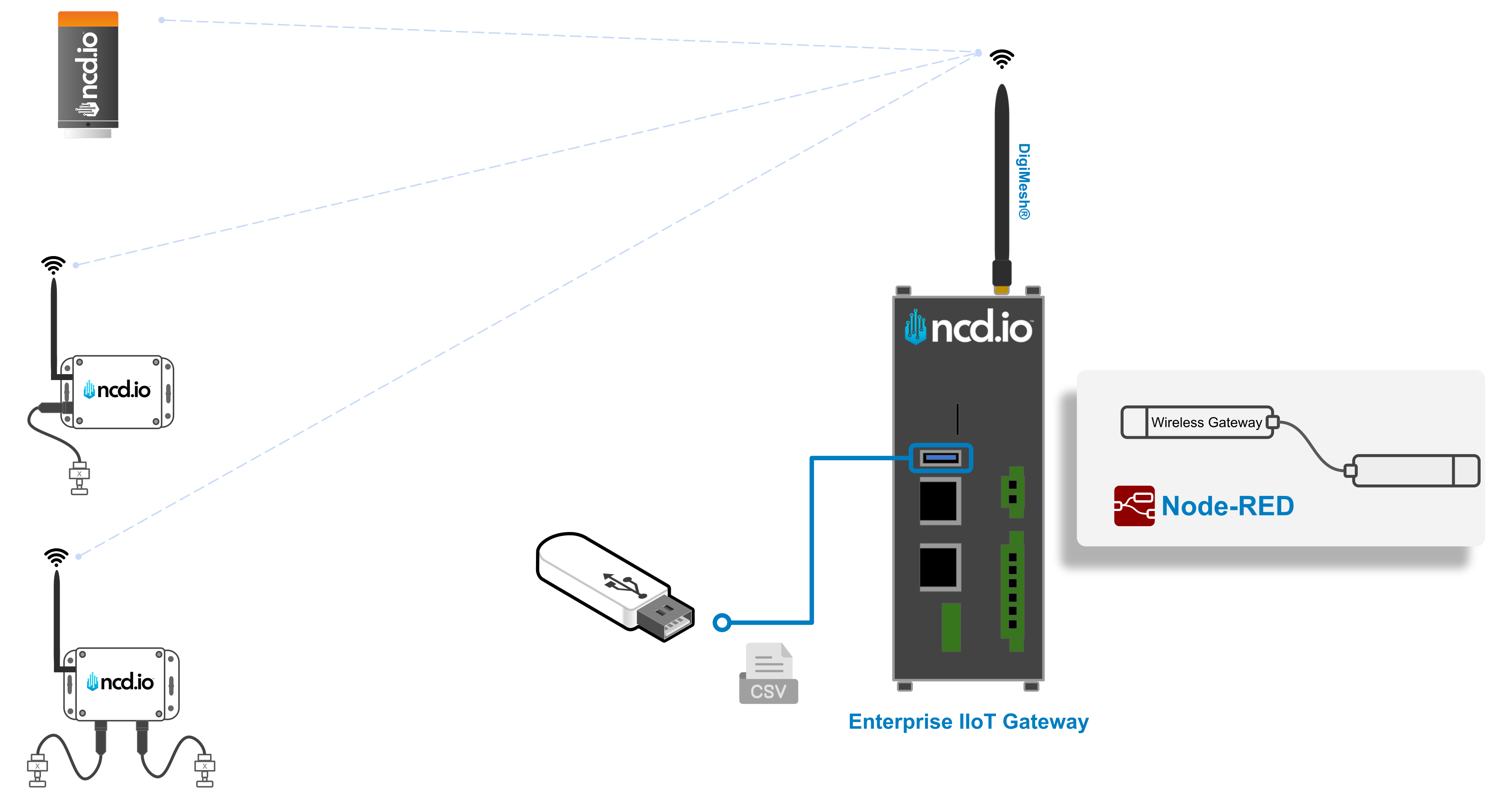
This article presents a robust Node-RED flow specifically engineered to mitigate these challenges by implementing local USB Data Logging directly via the Enterprise IIoT Gateway. This specialized workflow autonomously archives sensor measurements into structured CSV files stored on a connected USB drive. The result is a highly reliable and readily accessible local storage solution that grants full data governance without dependence on external network services.
Requirements
To successfully follow and implement the steps outlined in this guide, you will need the following:
The next step is to import the Node-RED flow, which has been specifically designed and optimized for seamless integration with NCD sensors. The import process is straightforward; however, it is essential to follow these steps carefully.
Step 1. Click on the following link to access the NCD JSON Flow source code:
Step 2. Once the repository is open, locate the button that allows you to copy the raw code of the flow. Refer to the following image for a visual reference:
Click to Expand
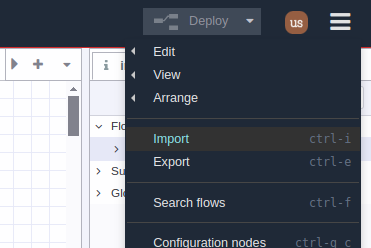
Step 3. Head back to the Node-RED editor, go to the Main Menu (the icon in the upper right corner), and click on the “Import” option, as shown in the picture:
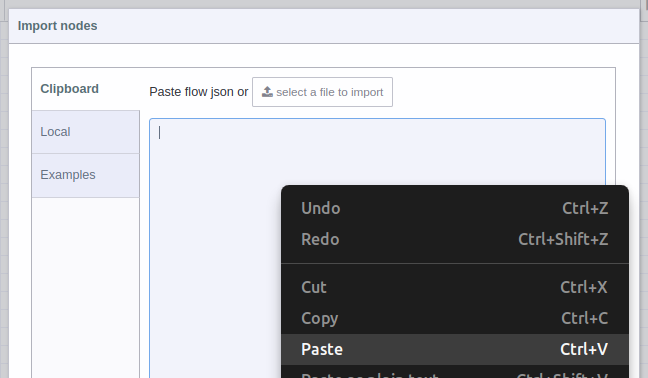
Step 4. A text box will open. Right-click and paste the code you just copied from GitHub, as shown in the picture:
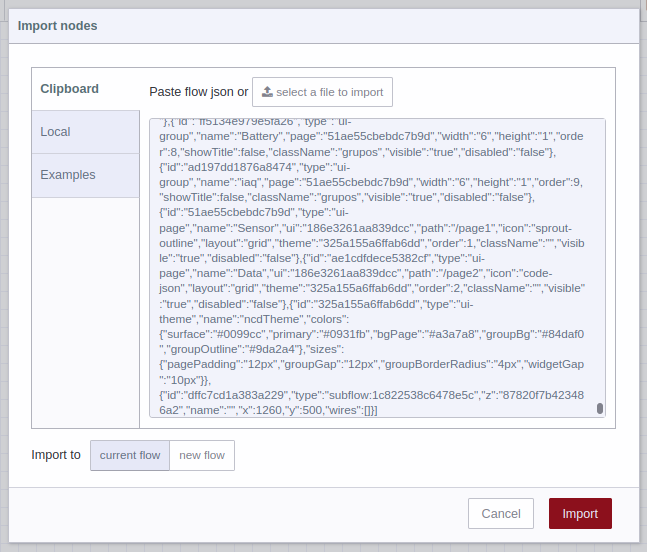
Step 5. Once you see the JSON code in the text box, press the red “Import” button at the bottom right (the “current flow” option is selected by default).
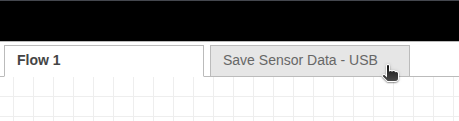
Step 6. A few nodes in the imported flow may already exist in your workspace. You should click ‘Import copy’ to avoid overwriting them. After the import is complete, a new tab will appear in your workspace. Clicking this tab will reveal the flow.
Setting up
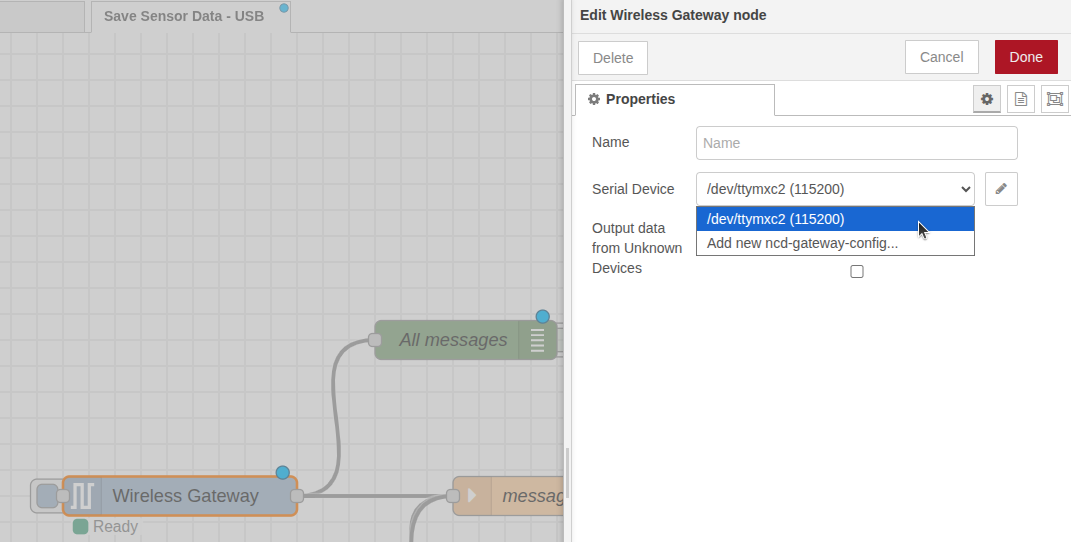
Step 1. Set your ‘Serial Device’ in the ncd-gateway-config node. Double-click on the Wireless Gateway node, select the ‘/dev/ttymxc2’ option from the dropdown, and then click the Done button.
Step 2. To save and apply the new changes to your workspace, click on the Deploy button, located at the top right of the Node-RED window.
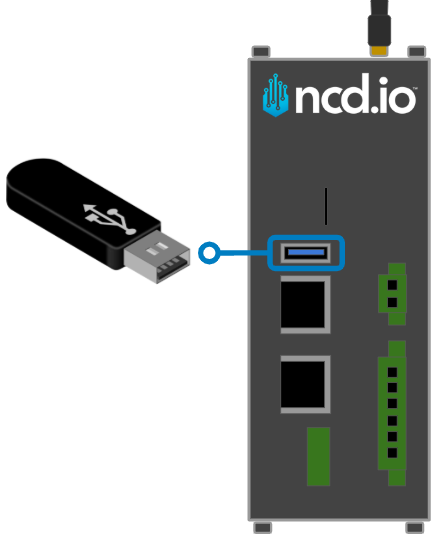
Step 3. Connect a FAT32-formatted USB drive to the Gateway’s USB Port.
Step 4. Once a valid FAT32 USB drive is connected to the Enterprise IIoT Gateway, enable the first flow to automatically check if the system recognizes the USB drive and to create the necessary USB path.
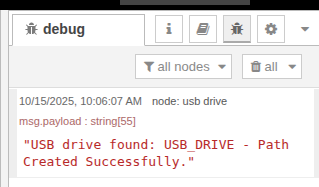
If the system recognizes a valid connected FAT32 USB drive, you should see the following success message in the debug window:
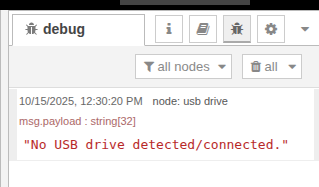
If the system does not recognize a valid FAT32 USB, you will see ‘No USB drive detected/connected’ in the debug window.
NoteIf you see the last message, ensure your USB drive is formatted as FAT32 and is connected correctly to the Gateway’s USB port.
Step 6. Once the flow recognizes your USB drive and has created the USB path, you will need to enable the main data flow to allow sensor data to pass through the ‘message-control’ node. This node is useful because it allows you to enable or disable the flow of sensor data, giving you control over when you start saving data to the USB drive. Additionally, it prevents the flow from attempting to save data and generating errors before you connect and configure the USB drive and its path.
You can now wait for the next automatic data transmission, or if you prefer, you can reset the sensor to force a new data transmission and verify that the CSV file is being created correctly on the USB device.
Flow Description
USB Manage Flow
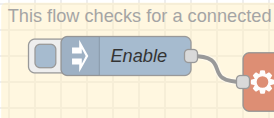
Enable (inject) node: This node allows you to manually trigger the flow to check for the USB drive and create the necessary USB path.
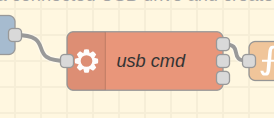
usb cmd node: This node executes the following command, which lists mount points, filters for those under /media/, and extracts the portion of the path that comes after:
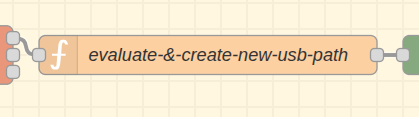
evaluate-&-create-new-usb-path node: This node checks for a connected USB drive and creates the file path on the drive.
If a valid USB drive is not connected, it sends “No USB drive detected/connected.” to the debug window.
If a valid USB drive is found, it sends “USB drive found: <usb_drive_id> – Path Created Successfully.”
Get, Format, and Send Sensor Data to USB Drive Flow
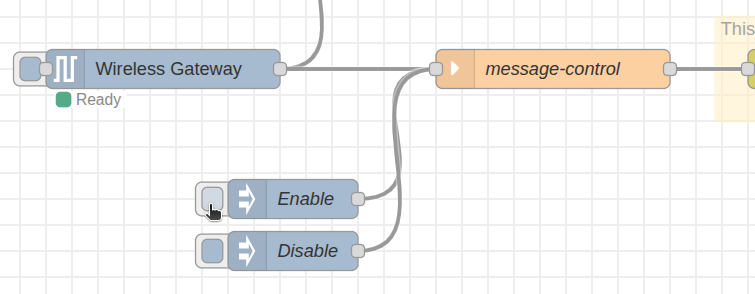
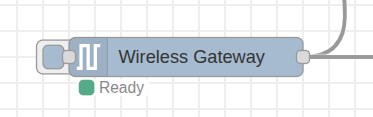
Wireless Gateway node: This is a virtual representation of the wireless protocol connected to your Gateway. It outputs all incoming data from the wireless network and all sensors on that network into the connected flows from a single entry point.
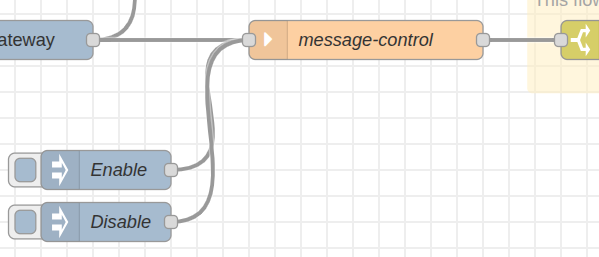
Message-control node: This node controls whether incoming sensor data flows to the next node, using the Enable and Disable inject nodes to control the flow. It displays ‘Enabled’ when data is allowed to pass and ‘Disabled’ when it is not.
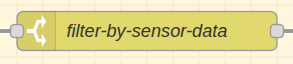
filter-by-sensor-data node: This node evaluates the msg.topic property to filter sensor data messages and only passes data when the message type is sensor_data (excluding messages like RUN, FLY, PGM, etc.).
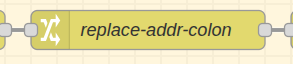
replace-addr-colon node: This node replaces the colon with a dash in the sensor MAC address.
Input: 00:13:a2:00:42:53:64:53
Output: 00-13-a2-00-42-53-64-53
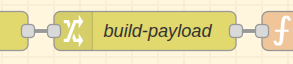
build-payload node:This node creates and sets the addr property, removing the first 8 digits of the MAC address. It also gets and sets the date/time when the sensor data is received in Node-RED. Additionally, it deletes some sensor metadata properties.
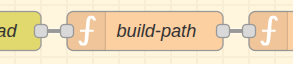
build-path node: This node creates a dynamic file path using the base path (USB drive) as well as the current date and sensor address. The complete output path is:
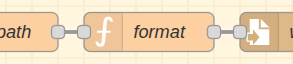
format node: This node takes the sensor_data message, formats the data by adding the necessary metadata first, and then evaluates whether it is necessary to add the variable headers to the CSV file.
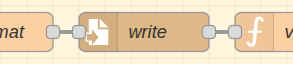
write node: This node accesses the defined path and writes the content of msg.payload into the file.
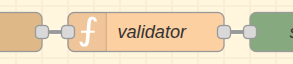
validator node: This is a basic function node that validates the write operation to ensure data is correctly saved to the USB device.
CSV Example
The following is an example of the CSV file created by the flow:
time
Firmware
count
battery
rssi
sensor_data
17:08:06
6
1
98.93
45
...
17:09:06
6
2
98.92
46
...
17:10:06
6
3
98.92
45
...
Notesensor_data: it will contain the corresponding field variables: temperature, humidity, vibration, pressure, distance, electric current, cycles, etc.
Summary
This Node-RED flow enables reliable local USB data logging directly on the Enterprise IIoT Gateway. By automatically saving NCD sensor data to FAT32-formatted CSV files on a connected USB drive, this solution provides a highly accessible, local storage method. This approach is ideal for testing, familiarizing yourself with NCD and Node-RED, and can serve as an intermediate step before migrating to cloud services or robust local databases.
Connect
Seeking next-generation IIoT solutions and support? Here are some next steps: